The gaming community has reported serious issues with Windows 11 crashing in games. The defect began affecting players after the installation of the recent update package.
In this article, you will understand what is causing the crashes during matches and how to revert the failure. Check out the step-by-step guide to restore system stability.
What is causing Windows 11 crashing in games?
Windows 11 crashing in games occurs due to instability in the optional update KB5064081. The package released in August 2026 generates FPS drops, intense freezing, and unexpected computer shutdowns during matches.
The impact of the optional update on frame rate
The update package was originally released to fix minor system flaws. However, the file brought severe instability to the system’s gamers.
Users report that the machine loses significant performance after opening a heavy title. As a result, frames per second drop drastically.
In more severe cases, the computer suffers a forced shutdown to protect components. The operating system restarts on its own after the screen freezes completely.
Recommendations from specialized outlets like Adrenaline
Tech outlets such as Adrenaline and Pichau Arena have published alerts about the problem. They advise the public to avoid the package or remove the file immediately.
This recommendation aims to protect the integrity of the operating system and hardware. Reversing the process is currently the safest way to bypass the failure.
The instability affects several popular titles and requires user attention. Ignoring the problem can lead to more serious software conflicts.
The difference between the Windows 11 update bug and the code error
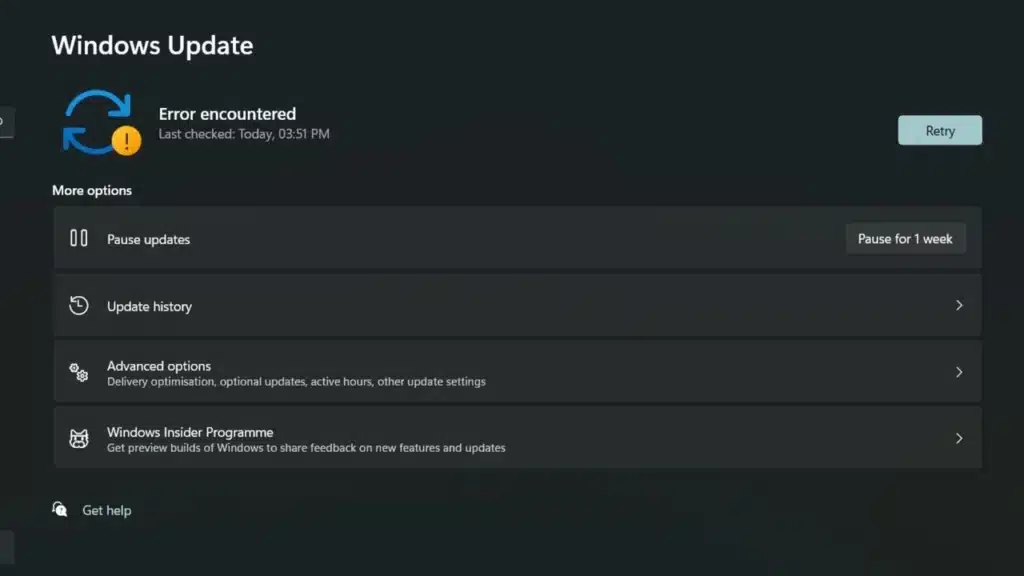
The patch download error 0x80010002
There is a great deal of confusion regarding the Windows 11 problems affecting the ecosystem. It is important to separate performance crashes from the 0x80010002 code error.
The 0x80010002 error prevents the download of new updates from Windows Update. This Windows 11 update bug has persisted on machines since February 2026.
Thus, those trying to install fixes run into this old system failure. The problem leaves the computer outdated and vulnerable to digital threats.
The performance issue caused by the KB5064081 update
On the other hand, the performance bug hits those who manage to install the package. These are two very distinct defects that coexist within the operating system environment.
The KB5064081 update is the direct cause of crashes and restarts in games. Meanwhile, the code failure in Windows Update prevents the installation of the patch itself.
Understanding this distinction helps diagnose the problem with greater precision. The solution for each case requires entirely different procedures.
How to check if your computer was affected by the problem
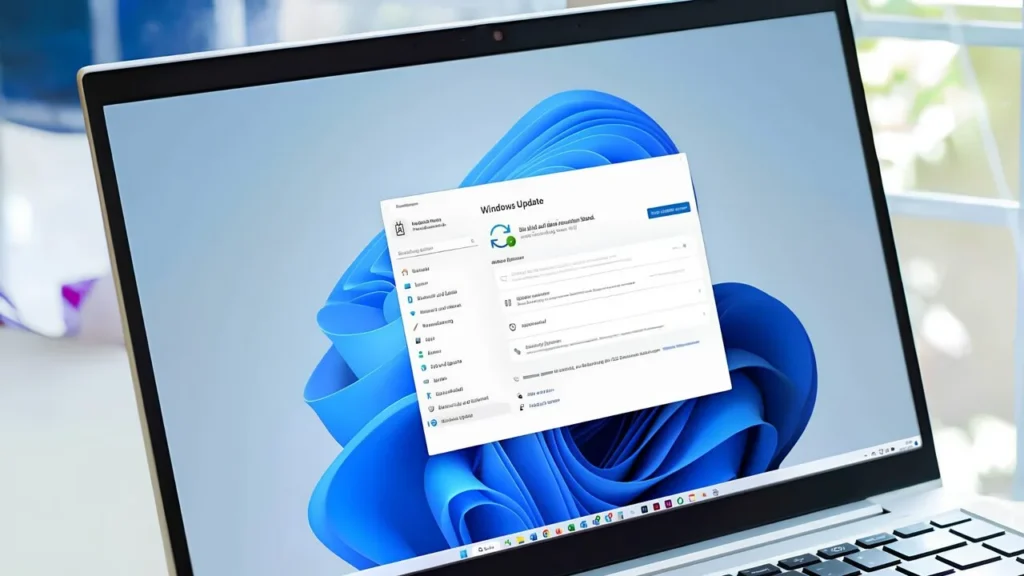
Step-by-step to access update history
To find out if your machine has the KB5064081 update installed, follow this roadmap:
- Open the system’s Start menu and click on the Settings icon.
- Select the Windows Update option in the left side menu of the window.
- Access the Update history tab to see the list of packages.
Navigating the quality updates list
On the history screen, navigate through the full list of quality updates. Check if the KB5064081 package appears as installed on your computer.
If the file is present, your PC may exhibit the performance problem. Otherwise, the cause of the crashes may be another software failure.
The verification process is quick and helps confirm the origin of the defect. The Windows Update interface provides all the necessary information.
Step-by-step to uninstall the update and fix Windows 11 crashing in games
Removing the package and restarting the computer
The recommended temporary solution is to perform a rollback of the problematic package. Removing the update restores the system’s original stability.
To safely uninstall the file, follow the instructions below:
- Open Settings and access Windows Update again.
- Click on Update history and go to the bottom of the page.
- Select the Uninstall updates option to open the list.
- Locate the KB5064081 update in the list displayed on the screen.
- Click Uninstall and confirm the action in the system prompt.
- Restart your computer to finalize the cleanup process.
Pausing automatic system updates
After restarting, pause automatic updates for one or two weeks. This preventive measure prevents Windows from reinstalling the faulty package.
The pause option is available on the main Windows Update screen. This caution ensures the system remains stable until a fix arrives.
Keeping updates temporarily suspended is the safest procedure at the moment. Microsoft is still working on a definitive solution for the case.
Microsoft’s official position and final recommendations
Comparative table of bugs and solutions
To facilitate the understanding of Windows 11 problems, we have prepared a summary. See the comparison between system defects in the table below:
| Problem Description | Package Code or Name | Effect Caused on the System | Recommended Solution |
|---|---|---|---|
| Windows 11 crashing in games | KB5064081 update | FPS drops, crashes, and restarts | Immediate uninstallation of the package |
| Download Error | Error code 0x80010002 | Blocked download of new updates | Wait for Microsoft’s fix |
In addition to removing the package, consider these additional recommendations to maintain stability:
- Avoid risky modifications to the operating system registry without guidance.
- Keep your Nvidia or AMD graphics card drivers always updated.
- Follow Microsoft’s announcements on the Microsoft Community forums.
Waiting for the definitive fix and technical support
If you need to know how to handle Windows 11 problems, follow these steps:
- Check if the KB5064081 update is installed in the system history.
- Follow the uninstallation step-by-step to remove the faulty package.
- Pause automatic updates to avoid unwanted reinstallation.
- Keep video drivers updated to mitigate other conflicts.
Microsoft has stated that it is monitoring reports of instability on its official channels. However, the developer has not yet released a definitive patch to fix the defect.
Until the fix is released, players should keep the package uninstalled. Windows 11 crashing in games will be resolved by removing the update.
Got questions or want to connect with other players? Join the conversation at the ExitLag Forum!