BF6 rubberbanding is one of the most frustrating networking issues players can encounter in Battlefield 6. During intense firefights, your soldier may suddenly snap backward, enemies may teleport across the map, or vehicles may appear to jump unpredictably. These interruptions make it difficult to react accurately and can quickly turn a competitive match into a frustrating experience.
If you’ve searched for bf6 rubberbanding, you’ve probably also encountered battlefield 6 slow motion lag, delayed hit registration, or sudden movement corrections. While these symptoms often look similar, they don’t always share the same cause. Rubberbanding usually indicates unstable communication between your device and the game server, whereas slow motion lag may also involve server synchronization or network jitter.
So, what exactly is bf6 rubberbanding? It occurs when your game client predicts your movement locally, but the Battlefield 6 server receives different information. To keep every player synchronized, the server corrects your position, causing your character or vehicle to snap back to where the server believes you should be.
Because Battlefield 6 features massive multiplayer battles, large maps, destructible environments, and numerous simultaneous players, maintaining stable communication with the server is essential. Every bullet fired, vehicle movement, explosion, and player action depends on constant real-time synchronization.
Fortunately, rubberbanding is often preventable. Whether the issue originates from your home network, internet provider, Wi-Fi interference, or temporary server conditions, understanding the underlying cause helps you apply the most effective solution.
This guide explains what causes rubberbanding, why battlefield 6 slow motion lag occurs, how to distinguish different networking problems, and what you can do to enjoy smoother multiplayer matches.
What Is BF6 Rubberbanding?
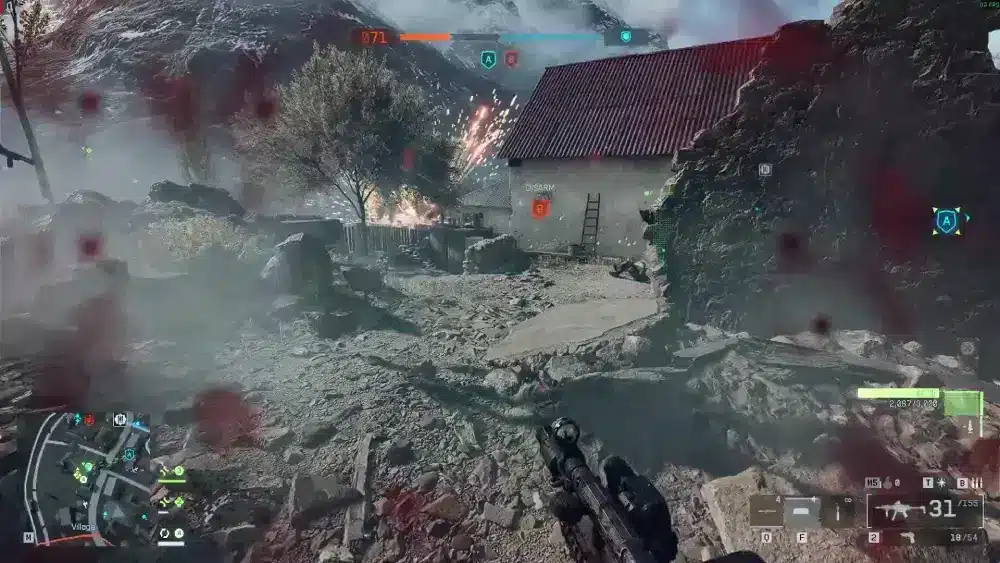
Rubberbanding is a network synchronization issue where your game client temporarily disagrees with the server about your actual position.
When the server updates your location, your character instantly moves to the correct position.
How Rubberbanding Works
Modern multiplayer games use prediction to make movement feel responsive.
Your computer immediately displays your actions while simultaneously sending that information to the Battlefield server.
If the server receives delayed or inconsistent data, it corrects your position.
This often appears as:
- Sudden backward movement
- Teleporting characters
- Vehicles jumping across the map
- Unexpected movement corrections
The more unstable your connection becomes, the more noticeable these corrections are.
Why It Happens in Multiplayer Shooters
Battlefield relies on continuous communication between dozens of players.
Every second, the server processes:
- Player movement
- Weapon firing
- Vehicle physics
- Environmental destruction
- Explosions
- Objective interactions
When communication becomes inconsistent, synchronization errors become more frequent.
Rubberbanding vs. Server Lag
Although they often occur together, rubberbanding and server lag are different issues.
Rubberbanding generally affects individual players experiencing unstable connections.
Server lag usually impacts everyone in the match simultaneously.
Recognizing this distinction helps determine whether troubleshooting should focus on your own network or whether the issue is affecting the game server itself.
Signs of Network Desynchronization
Common indicators include:
- Walking forward before snapping backward
- Vehicles appearing to teleport
- Enemies changing position unexpectedly
- Delayed interactions with objectives
- Missed shots despite accurate aim
These symptoms usually point toward unstable communication rather than graphics performance.
What Causes BF6 Rubberbanding?
Several networking conditions may trigger rubberbanding.
Some occur inside your home network, while others originate farther along the internet route.
High Ping
High latency increases the delay between your actions and the server’s response.
This may result in:
- Delayed movement
- Slower hit registration
- Noticeable reaction delays
- Reduced responsiveness
Although stable high ping remains playable in some situations, very high latency increases the likelihood of synchronization problems.
Packet Loss
Packet loss occurs when information never reaches the Battlefield server.
Missing packets often produce:
- Rubberbanding
- Teleporting players
- Delayed animations
- Unpredictable vehicle movement
Even small amounts of packet loss can negatively affect Battlefield’s large-scale multiplayer battles.
ISP Routing Issues
Your internet provider determines the path your traffic follows before reaching Battlefield servers.
Poor routing may introduce:
- Higher latency
- Network jitter
- Packet delay
- Regional instability
These issues often affect only specific ISPs or geographic regions.
Wi-Fi Instability
Wireless connections are more susceptible to interference than Ethernet.
Common sources include:
- Thick walls
- Nearby Wi-Fi networks
- Bluetooth devices
- Smart home equipment
- Microwave ovens
Competitive Battlefield players generally benefit from using a wired connection whenever possible.
Understanding Battlefield 6 Slow Motion Lag
Many players describe severe synchronization problems as battlefield 6 slow motion lag.
Although it resembles reduced game speed, the underlying cause is usually related to networking rather than graphics performance.
What Slow Motion Lag Means
Slow motion lag occurs when updates between your game client and the server become delayed.
Gameplay may feel slower because actions take longer to synchronize.
Server Synchronization Problems
Large multiplayer matches generate significant network traffic.
If communication becomes inconsistent, players may notice:
- Delayed movement
- Slow animations
- Late hit registration
- Temporary freezing
These symptoms often resemble slow motion despite normal frame rates.
Network Jitter
Jitter measures how much latency changes over time.
Unlike consistently high ping, jitter creates unpredictable delays that make gameplay feel inconsistent.
High jitter frequently contributes to:
- Rubberbanding
- Delayed reactions
- Vehicle teleportation
- Irregular movement
Performance vs. Connection Issues
It’s important to distinguish networking problems from hardware limitations.
Low FPS typically causes:
- Choppy visuals
- Screen stuttering
- Reduced graphical smoothness
Network problems generally produce:
- Teleporting players
- Rubberbanding
- Delayed interactions
- Inconsistent movement
Understanding the difference helps identify the appropriate solution.
Basic Ways to Fix BF6 Rubberbanding
Many cases of rubberbanding can be improved using simple troubleshooting steps.
Restart Your Router
Restarting your networking equipment refreshes your connection and clears temporary routing problems.
This simple step often resolves short-term instability.
Use Ethernet
Compared to Wi-Fi, Ethernet provides:
- Lower latency
- Greater stability
- Reduced interference
- More reliable packet delivery
A wired connection remains the preferred option for competitive multiplayer games.
Close Background Applications
Bandwidth-intensive programs may interfere with online gameplay.
Before launching Battlefield 6:
- Pause downloads.
- Close streaming services.
- Stop cloud backups.
- Exit unnecessary browser tabs.
Reducing background traffic allows the game to use your network more efficiently.
Update Drivers
Keeping your system updated improves both compatibility and stability.
Check regularly for updates to:
- Graphics drivers
- Network drivers
- Windows
- Battlefield 6
These updates often include networking and performance improvements.
Quick Checklist Before Playing
Before joining multiplayer matches:
- Restart your modem and router if necessary.
- Connect using Ethernet whenever possible.
- Close unnecessary background applications.
- Verify Battlefield server status.
- Select the closest available server region.
These simple preparations eliminate many common causes of connection instability.
Why Stable Networking Matters in Battlefield 6
Battlefield 6 delivers massive multiplayer battles where dozens of players, vehicles, and environmental events occur simultaneously. Every action depends on consistent communication between your system and the server. Even brief interruptions can affect movement, aiming, vehicle handling, and overall responsiveness.
Advanced Ways to Reduce BF6 Rubberbanding
If the basic troubleshooting steps haven’t resolved bf6 rubberbanding, it’s time to optimize both your system and your network. While internet speed is important, connection stability, routing efficiency, and packet consistency have an even greater impact on large-scale multiplayer games like Battlefield 6.
Monitor Packet Loss
Packet loss is one of the leading causes of rubberbanding.
Even a small percentage of lost packets can cause:
- Character teleportation
- Delayed hit registration
- Vehicle movement corrections
- Inconsistent animations
- Stuttering gameplay
You can monitor packet loss using Battlefield’s network statistics or third-party networking tools. If packet loss appears consistently, the issue is likely related to your local network, ISP, or internet routing.
Optimize Windows Network Settings
Windows regularly performs background tasks that compete for network resources.
Before launching Battlefield 6:
- Install the latest Windows updates.
- Disable unnecessary startup applications.
- Pause automatic downloads.
- Update network adapter drivers.
- Enable Windows Game Mode.
These adjustments help ensure more bandwidth is available for online gameplay.
Improve Router Placement
If you’re using Wi-Fi, signal quality directly affects connection stability.
For the best wireless performance:
- Place your router in an open location.
- Keep it away from thick walls.
- Avoid interference from microwaves or cordless phones.
- Position it away from other wireless electronics.
- Elevate the router whenever possible.
Although these changes improve signal quality, Ethernet remains the best option for competitive gaming.
Reduce Background Network Traffic
Large multiplayer games require consistent bandwidth.
Before starting Battlefield 6, close applications such as:
- Streaming platforms
- Cloud synchronization software
- Torrent clients
- Large downloads
- Automatic game updates
Reducing unnecessary traffic helps stabilize your connection throughout longer gaming sessions.
BF6 Rubberbanding vs. Other Network Problems
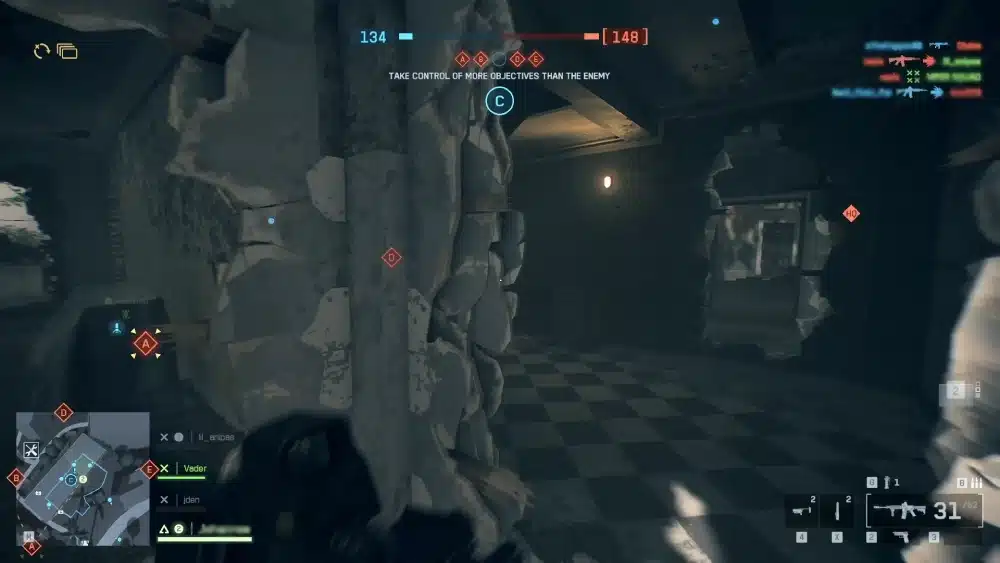
Not every gameplay issue is caused by rubberbanding.
Understanding the differences helps you identify the correct solution more quickly.
High Ping
High ping means data takes longer than usual to travel between your PC and the Battlefield server.
Symptoms include:
- Delayed shooting
- Slower movement response
- Noticeable input delay
Unlike rubberbanding, high ping generally remains consistent throughout the match.
Packet Loss
Packet loss occurs when information never reaches the server.
Common effects include:
- Missing shots
- Character teleportation
- Delayed explosions
- Vehicle desynchronization
Packet loss often appears alongside rubberbanding but represents a different networking problem.
Server-Side Issues
Occasionally, Battlefield servers experience temporary instability.
When this happens, many players may notice:
- Delayed gameplay
- Match-wide lag
- Connection interruptions
- Server warnings
Checking EA’s official server status can help determine whether the issue is widespread.
FPS Drops
Graphics performance problems are frequently mistaken for networking issues.
Low FPS usually causes:
- Choppy visuals
- Stuttering animations
- Reduced graphical smoothness
Network issues, on the other hand, produce:
- Rubberbanding
- Teleporting players
- Delayed movement
- Server synchronization problems
Identifying whether the issue is graphics-related or network-related saves valuable troubleshooting time.
Reduce Battlefield 6 Slow Motion Lag with ExitLag
Sometimes your home internet isn’t the problem. Once your data leaves your network, it travels across multiple providers before reaching Battlefield 6’s servers. Congested or inefficient routing along this path can increase latency, packet loss, and connection instability.
ExitLag is designed to optimize that route automatically by selecting more efficient network paths between your device and supported game servers.
Its core technologies include:
- Multipath Connection, transmitting gaming traffic across multiple optimized routes simultaneously.
- Real-Time Optimization, continuously monitoring network quality and adjusting routes dynamically.
- Traffic Shaper, prioritizing Battlefield traffic over less important network activity.
- A worldwide server infrastructure designed to improve route stability across different regions.
For Battlefield 6 players, ExitLag may help reduce:
- Rubberbanding
- Network jitter
- Packet loss
- High ping
- Battlefield 6 slow motion lag caused by inefficient routing
Getting started is simple:
- Create an ExitLag account.
- Download and install the application.
- Select Battlefield 6 from the supported games list.
- Apply the recommended optimization routes.
- Launch the game and join your next multiplayer match.
With support for more than 3,000 online games, ExitLag also helps optimize connections across a wide range of competitive multiplayer titles.
BF6 Networking Troubleshooting Guide
| Problem | Possible Cause | Recommended Fix |
| Rubberbanding | Packet loss or unstable routing | Use Ethernet and optimize your network route |
| High Ping | Distant server or ISP routing | Select the closest server region and reduce background traffic |
| Slow Motion Lag | Network jitter or synchronization delays | Improve connection stability and optimize routing |
| Packet Loss | Network congestion or unstable Wi-Fi | Restart your router and switch to a wired connection |
| FPS Drops | Hardware limitations | Lower graphics settings and update GPU drivers |
| Connection Interruptions | Temporary server issues | Check EA server status and wait for service restoration if necessary |
Best Practices for Stable Battlefield 6 Matches
Maintaining a reliable connection requires more than fast internet.
For the smoothest multiplayer experience:
- Use Ethernet whenever possible.
- Restart your networking equipment regularly.
- Keep Windows and drivers updated.
- Close unnecessary background applications.
- Monitor packet loss during gameplay.
- Verify Battlefield server status before troubleshooting major issues.
Following these habits helps minimize recurring networking problems and improves overall gameplay consistency.
Frequently Asked Questions
BF6 rubberbanding is typically caused by packet loss, unstable internet routing, Wi-Fi interference, high network jitter, or temporary server synchronization issues.
Battlefield 6 slow motion lag usually occurs when communication between your device and the game server becomes inconsistent. High jitter, packet loss, or routing instability can make gameplay feel delayed even if your frame rate remains high.
Yes. Missing data packets prevent the server from accurately tracking player movement, often resulting in sudden position corrections and teleporting characters.
Use a wired Ethernet connection, close bandwidth-heavy applications, keep your drivers updated, monitor packet loss, and connect through the closest available server region whenever possible.
Yes. ExitLag helps optimize the route between your device and Battlefield 6’s servers, reducing routing instability, packet loss, and latency fluctuations caused by inefficient internet paths. While it cannot resolve server outages, it can improve connection stability for many players.
Dominate Every Match with a Stable Connection
Understanding bf6 rubberbanding is the first step toward solving one of the most disruptive networking issues in Battlefield 6. By identifying whether your problems are caused by packet loss, unstable routing, network jitter, or battlefield 6 slow motion lag, you can apply targeted solutions that improve consistency instead of relying on trial and error.
For players looking to maximize connection stability, ExitLag complements a well-optimized network with Multipath Connection, Real-Time Optimization, and Traffic Shaper technologies. By intelligently optimizing the route between your device and Battlefield 6’s servers, ExitLag helps reduce latency fluctuations, minimize packet loss, and deliver a smoother, more reliable multiplayer experience across Battlefield 6 and more than 3,000 supported online games.
All game images used in this blog belong to Electronic Arts (EA). They are used for informational/educational purposes only and do not imply endorsement or affiliation with the rights holders.
Got questions or want to connect with other players? Join the conversation at the ExitLag Forum!