

The question of Fortnite on Mac remains one of the most common among Apple users who want to access Epic Games’ battle royale experience without switching platforms. The short answer is yes, but not through traditional installation methods anymore.
Since Epic Games and Apple discontinued full integration in 2020, MacOS no longer receives a native, fully updated version of Fortnite on Mac This means the classic installation route through the standard launcher is no longer viable for modern gameplay. However, the game is still accessible through alternative technologies such as cloud gaming and remote streaming.
Today, players can still enjoy Fortnite on Mac using browser-based platforms or virtualization tools. The experience depends heavily on internet speed, system configuration, and the chosen method of access. While it is not identical to playing on a gaming PC or console, it remains fully functional for casual and even semi-competitive play. For users wondering if Fortnite is truly gone from MacOS, the reality is more nuanced: it is no longer natively supported, but it is far from inaccessible.
Epic Games ecosystem and Fortnite access on MacOS
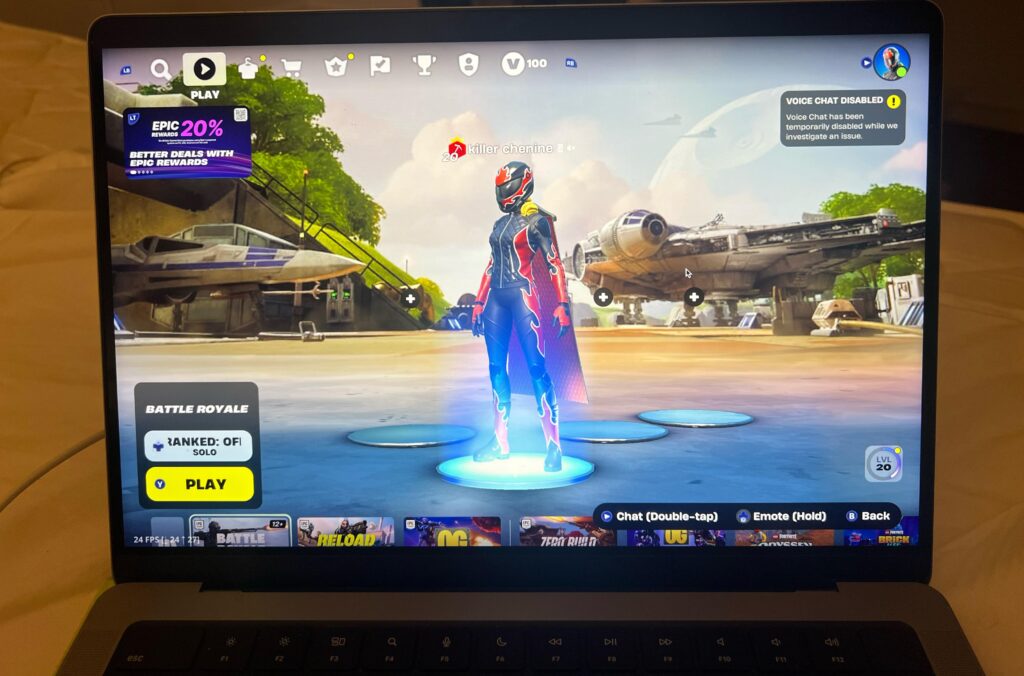
Understanding how Fortnite on Mac works today requires looking at the broader Epic Games ecosystem. Several tools and services still play a role in enabling access to the game.
Epic Games Launcher limitations
The Epic Games launcher on MacOS is no longer a reliable way to run modern Fortnite builds. While it still exists, its MacOS functionality is outdated, and it does not support current seasons or updates.
This is why many users searching for Epic Games Fortnite on Mac quickly realize that the traditional launcher route no longer delivers playable results.
Epic Games download restrictions
Attempts to perform an Epic Games download on MacOS for Fortnite will typically lead to older versions or unsupported builds. These versions lack access to new skins, maps, and competitive updates, making them unsuitable for current gameplay.
Fortnite and the Epic ecosystem shift
The broader Epic Games Fortnite ecosystem has shifted toward cloud-based and cross-platform solutions. Instead of relying on native installation, Epic now encourages access via supported streaming partners, ensuring that Mac users are not fully excluded.
Fortnite download options on Mac and cloud gaming methods
When discussing Fortnite download options for Mac, it is important to clarify that direct installation is no longer the primary method for modern gameplay.
Cloud gaming as the main solution
The most reliable method to experience Fortnite on Mac today is through cloud gaming platforms. These services run the game on remote servers and stream it directly to your browser.
Popular options include:
- Xbox Cloud Gaming
- Nvidia GeForce NOW
Both platforms allow instant access without requiring a traditional Fortnite download.
How cloud gaming replaces downloads
Instead of performing a full Epic Games download, users simply log into their accounts and launch Fortnite through a streaming interface. This eliminates storage limitations and hardware constraints.
Performance considerations
Cloud gaming performance depends on:
- Internet speed
- Server proximity
- Device stability
A strong connection ensures smooth gameplay even without a native installation.
Fortnite Mobile and cross-platform compatibility on Mac
Although Fortnite mobile is designed primarily for smartphones, it plays an indirect role in Mac accessibility through cross-platform ecosystems.
Fortnite Mobile integration
The Fortnite mobile version shares progression systems with console and PC versions. This means Mac users playing via cloud services can sync progress seamlessly with mobile accounts.
Cross-platform benefits
Using Fortnite mobile alongside Mac-based cloud gaming allows players to:
- Maintain shared progression
- Switch devices easily
- Access the same seasonal content
Mac vs mobile limitations
While Fortnite mobile is optimized for touch controls, Mac cloud gaming offers superior visuals and control precision using keyboard and mouse or controllers.
Alternative installation methods for Fortnite on Mac
Beyond cloud gaming, there are still several technical methods to run Fortnite on MacOS, though each comes with limitations.
Boot Camp (Intel Macs only)
Intel-based Macs can use Boot Camp to install Windows. This allows users to perform a full Fortnite download via Windows and the Epic Games system.
However:
- It is not compatible with Apple Silicon (M1/M2/M3)
- Requires large storage allocation
- Demands strong hardware performance
Virtual Machines (Parallels Desktop)
Apple Silicon users often turn to Parallels Desktop to simulate Windows environments. In this setup, users attempt an Epic Games download within a virtual system.
Limitations include:
- Anti-cheat compatibility issues
- Reduced performance
- Inconsistent frame rates
Remote play solutions
Remote streaming from a gaming PC or console allows users to experience Fortnite on Mac indirectly. Tools like Steam Link or Moonlight transmit gameplay over a local network.
System requirements comparison for Fortnite on Mac
Below is a breakdown of what different methods require to run Fortnite effectively:
| Method | Minimum Requirements | Recommended Setup |
| Cloud Gaming | Safari/Chrome browser | 20 Mbps+ stable internet |
| Boot Camp | Intel i5, 8GB RAM | Intel i7, dedicated GPU |
| Parallels | Apple Silicon Mac, 8GB RAM | 16GB RAM, MacOS 13+ |
| Remote Play | Local network + host PC | Wired Ethernet connection |
Each method impacts how Fortnite on Mac performs in real-world gameplay scenarios.
Performance optimization strategies for Fortnite on Mac
Even when using modern solutions, optimizing Fortnite on Mac performance is essential for competitive gameplay.
Reducing latency and improving responsiveness
One of the biggest challenges is input delay. Using optimized routing tools like ExitLag can significantly improve responsiveness in cloud sessions.
Key benefits include:
- Reduced ping spikes
- Stable server routing
- Lower packet loss
Browser optimization for cloud gaming
When using cloud platforms:
- Close background tabs
- Use Chrome or Safari
- Disable unnecessary extensions
This improves streaming quality for Fortnite download alternatives based on cloud execution.
Network stability improvements
A stable connection ensures smooth gameplay even when using Epic Games launcher alternatives through streaming services.
Why Epic Games shifted away from native Mac support
The removal of full MacOS support for Epic Games Fortnite was largely due to licensing disputes and platform restrictions between Epic Games and Apple.
As a result:
- Native updates stopped
- Mac builds became outdated
- Cloud gaming became the primary solution
This shift changed how Fortnite on Mac is accessed globally.
Advantages of playing Fortnite on Mac in 2025
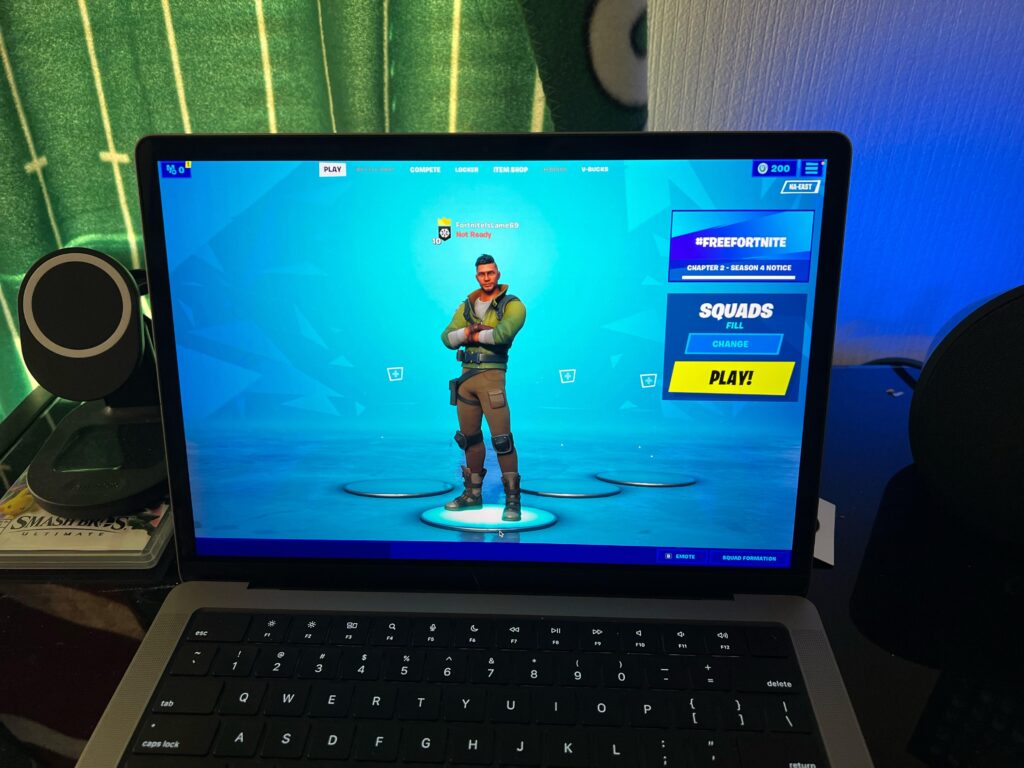
Despite limitations, there are still benefits:
- No need for high-end gaming hardware
- Instant access via browser
- Cross-platform progression with Fortnite mobile
- No long installation via Fortnite download
- Flexible access through multiple services
External access platform
You can explore official Fortnite access options here: Epic Games Fortnite Official Site.
Fortnite on Mac troubleshooting and common issues
Users often encounter issues when trying to run Fortnite on Mac through alternative methods.
Common problems
- Login failures on cloud platforms
- Input lag during peak hours
- Launcher incompatibility with Epic Games download attempts
Solutions
- Switch servers in cloud settings
- Reconnect Epic Games account
- Optimize internet routing
Future of Fortnite on Mac
The future of Fortnite on Mac is heavily tied to cloud gaming expansion. As streaming technology improves, native installation may become less relevant.
Potential developments include:
- Lower latency cloud servers
- Better Mac optimization layers
- Improved integration with Epic Games launcher ecosystems
Also, while waiting for Fortnite on Mac, you can use ExitLag to improve gaming experience and reduce lag during.
FAQ
Yes, Fortnite on Mac is playable through cloud gaming services like GeForce NOW and Xbox Cloud Gaming.
The Epic Games launcher on MacOS is outdated and no longer supports modern Fortnite updates.
A direct Fortnite download is not supported for the latest version, but cloud platforms replace the need for installation.
Yes, Fortnite mobile shares progression with Mac cloud gaming accounts, allowing cross-platform continuity.
The best method is cloud gaming combined with optimized network tools for stable Fortnite on Mac performance.
Got questions or want to connect with other players? Join the conversation at the ExitLag Forum!


