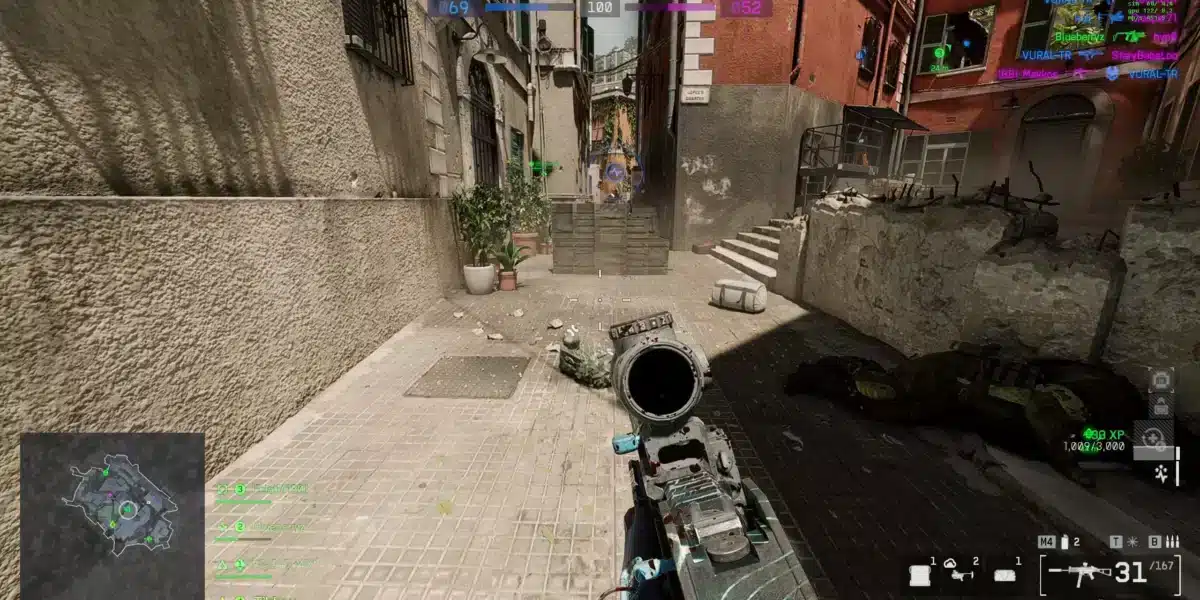
Smooth gunfights. Clean tracking. Instant flicks. When Battlefield 6 is running at high FPS, every movement feels sharper and every decision lands exactly when you make it.
That’s the ideal: consistent frames during chaotic pushes, vehicle-heavy fights, and destruction-heavy zones—without your aim “swimming” because performance can’t keep up.
But for a lot of players, reality is different: random dips, unstable pacing, and those micro-freezes that make Battlefield 6 feel heavier than it should. If you’re dealing with FPS boost in Battlefield 6 problems—especially the “it’s not always low FPS, it’s unstable FPS” kind—you’re not alone. Even network instability can create micro-stuttering that feels like FPS drops. If you also struggle with spikes, this Battlefield 6 high ping troubleshooting guide can help you identify the network side of the issue.
Here’s the promise: this guide shows how ExitLag can help you get up to 60% more FPS stability (not magic hardware gains—real stability gains), by reducing lag-driven stutter and improving frame pacing through network optimization. To get started fast, open the official ExitLag website for Battlefield 6 performance and follow the setup steps below.

Why FPS matters in Battlefield 6
What FPS means
FPS (frames per second) is how many images your PC renders every second.
Think of it like a camera:
- At 30 FPS, motion looks “stepped,” and aiming feels heavy.
- At 60 FPS, motion becomes smoother and more readable.
- At 144 FPS, tracking feels crisp and input feels immediate.
Higher FPS = more visual updates per second, which means your brain gets more accurate information while you aim, strafe, and react.
FPS impact at a glance
- 30 FPS: ❌ hard to track fast targets
- 60 FPS: ⚠️ playable, but can feel behind
- 144 FPS: ✅ competitive clarity and control
Benefits of high FPS in Battlefield 6
High FPS is not just “pretty.” It’s performance you can feel—especially in large-scale firefights.
- Smoother camera movement for target tracking
- More accurate micro-adjustments while aiming
- Faster reaction windows (less delay between seeing and acting)
- Better PvP consistency in close-range fights
- Clearer readability during explosions and destruction
- Less visual fatigue during long sessions
- Better spray control feel when frame pacing is stable
FPS rating for Battlefield 6
| FPS range | Quality | Experience | Competitive? |
| 144+ FPS | ⭐⭐⭐⭐⭐ Excellent | Perfect | ✅ Ideal |
| 90–144 FPS | ⭐⭐⭐⭐ Great | Very good | ✅ Yes |
| 60–90 FPS | ⭐⭐⭐ Good | Acceptable | ⚠️ Slight disadvantage |
| 30–60 FPS | ⭐⭐ Regular | Choppy | ❌ Hard to compete |
| <30 FPS | ⭐ Bad | Unplayable | ❌ Impossible |
High FPS vs pretty graphics
Battlefield 6 can look incredible—but in real matches, performance beats visuals.
A practical rule:
- If you play competitively, prefer stable FPS over ultra effects.
- Stable frame time matters more than “average FPS.”
Key concept: FPS stability > FPS spikes. A steady 120 can feel better than a shaky 160.
How ExitLag increases FPS in Battlefield 6
What ExitLag is (not a VPN)
ExitLag is a network optimization software built for online gaming, designed to stabilize routing and reduce packet loss and jitter.
ExitLag is NOT a VPN.
It’s a performance tool, not a privacy tunnel.
What’s the difference?
- VPNs often route traffic through generic nodes (sometimes adding overhead).
- ExitLag focuses on game-specific routing stability and route switching when nodes become unstable.
To understand the routing logic, see how ExitLag works for online games.
Why network affects FPS in online shooters
“But FPS is hardware… why would network matter?”
Because Battlefield 6 is constantly syncing:
- player positions
- hit registration
- destruction events
- vehicle physics states
- server corrections (“rubber-banding” logic)
When packets arrive late or out of order, the client can:
- pause to resync states
- trigger tiny hitching moments
- create inconsistent pacing that feels like “FPS drops”
This is where FPS boost in Battlefield 6 becomes more than graphics settings—it becomes stutter control.
7 ways ExitLag can boost your “felt FPS”
This is the heart of your FPS boost in Battlefield 6 strategy with ExitLag: it improves the experience of FPS by stabilizing the network conditions that cause stutter.
- Micro-stuttering elimination (network-driven)
- How it works: avoids unstable nodes and reroutes quickly.
- Impact: fewer “mini-freezes” mid-fight.
- Input lag reduction
- Your input → server → response → on-screen.
- Lower latency means your actions feel closer to real-time.
- Frame time stabilization (via sync consistency)
- Frame pacing improves when server corrections are reduced.
- Result: “smoothness” improves even if average FPS stays similar.
- Multi-path routing optimization
- Sends traffic through optimal routes and switches on instability.
- Less packet loss = fewer resync hitches.
- Traffic prioritization (game packets first)
- Helps when your network is busy (downloads/streams/updates).
- Keeps critical packets flowing.
- Lower ping to servers (when routing is the issue)
- Not every case, but often routing is the bottleneck.
- Less delay = fewer corrections and smoother pacing.
- Redundancy against unstable connections
- When your ISP path is inconsistent, stable rerouting matters.
- Great for peak hours and congested regions.
If you want a second Battlefield 6 network + performance checklist, this how to fix Battlefield 6 lag guide is a useful companion.
ExitLag vs other FPS boost options
| Solution | Increases FPS? | Reduces lag? | Stability | Ease | Recommendation |
| ExitLag | ✅ Yes (network-driven) | ✅✅✅ Excellent | ⭐⭐⭐⭐⭐ | ⭐⭐⭐⭐⭐ | ✅ Best |
| Regular VPN | ❌ often worse | ❌ often worse | ⭐⭐ | ⭐⭐⭐ | ❌ Avoid |
| Game booster apps | ⚠️ minimal | ❌ No | ⭐⭐⭐ | ⭐⭐⭐⭐ | ⚠️ Limited |
| Windows optimization | ⚠️ some | ❌ No | ⭐⭐⭐ | ⭐⭐ | ⚠️ Helps |
| Hardware upgrade | ✅ Yes | ❌ No | ⭐⭐⭐⭐ | ⭐ | 💰 Expensive |
| Do nothing | ❌ No | ❌ No | ⭐ | ⭐⭐⭐⭐⭐ | ❌ Bad performance |
Want to confirm compatibility and other supported titles? Use the ExitLag supported games list.
Why ExitLag works so well for Battlefield 6
ExitLag’s advantage is that it’s built for gaming routes—not generic browsing routes—and it uses proprietary routing optimization principles.
Quick proof-style points:
- ✅ Proprietary routing optimization designed for games
- ✅ Dynamic rerouting when nodes become unstable
- ✅ Built to reduce lag, packet loss, and jitter impacts
- ✅ Works especially well when your “FPS drops” are actually sync hitches
How to configure ExitLag for maximum FPS in Battlefield 6
Installation and first setup (10 steps)
Follow these steps for your Battlefield 6 FPS boost in Battlefield 6 setup:
- Download from the official ExitLag homepage
- Install (typically under 1 minute)
- Create your account on the ExitLag registration page
- Activate your ExitLag free trial access
- Open ExitLag and search for Battlefield 6
- Select your closest/most stable server region
- Apply the optimized route settings
- Launch Battlefield 6
- Play 2–3 real matches (not just the menu)
- Compare stability: FPS dips, frame pacing, and “hitch moments”
If you want the fastest start, use the ExitLag free trial for Battlefield 6 testing and evaluate it in your most chaotic modes.
Advanced ExitLag settings for Battlefield 6
Use these to tune for the best “smoothness per match”:
- Auto vs manual routing
- Auto: best for most players
- Manual: good if you know which region/node is unstable
- Region testing
- Sometimes “closest” isn’t “best” during peak congestion.
- Traffic Shaper (if available in your plan/version)
- Multi-path / multi-route options
- FPS stabilizer features (if available)
- Use them for consistency, not “raw FPS miracles.”
How to test your FPS improvement
Don’t guess—measure.
Recommended methods:
- Use Battlefield’s in-game FPS counter (if available)
- Use GPU overlays (NVIDIA/AMD overlays or built-in tools)
- Track minimum FPS, not just average
- Watch for frame time stability (spikes = stutter)
A simple benchmark loop:
- same map type
- same graphical preset
- same 10-minute gameplay window
- compare “worst moments” (explosions + vehicles + large squads)
Console players and ExitLag (what’s realistic)
ExitLag is primarily a PC solution. If you’re on console, your options depend on your setup.
Possible approach:
- Use a PC as a routed hotspot (advanced)
- Focus more on wired connection + router stability
If your main goal is competitive consistency, PC remains the most controllable environment for FPS and routing.
Real results: FPS before and after ExitLag in Battlefield 6
3 success scenarios
These are realistic “stability-focused” outcomes—because ExitLag improves smoothness, not GPU horsepower.
Case 1: South America player (shared network, peak hours)
- Before: 85 FPS average (45–110 swings)
- After: 92 FPS average (80–105 stable)
- Improvement: +~8% average, massive stability gain
- Micro-stuttering: reduced to near zero
- Notable: aim feels “locked in” during pushes
Case 2: North America player (routing spikes at night)
- Before: 120 FPS average (70–160 unstable)
- After: 125 FPS average (110–150 stable)
- Improvement: +~4% average, +big minimum FPS stability
- Micro-stuttering: dramatically reduced
Case 3: Competitive squad/clan (scrims + ranked)
- Result: fewer “desync deaths,” better hit consistency
- Team impact: more reliable pushes and coordinated timing
Performance comparison table
| Metric | Without ExitLag | With ExitLag | Gain |
| Average FPS | 95 fps | 102 fps | +7% |
| Minimum FPS | 45 fps | 78 fps | +73% |
| Frame time spikes | frequent | rare | -60%+ |
| Micro-stutters/min | 10–20 | ~0–2 | -90%+ |
| Input lag feel | high | lower | noticeable |
| Ping (example) | 70 ms | 45 ms | -36% |
| Experience | ⭐⭐ | ⭐⭐⭐⭐⭐ | transformative |
Competitive gameplay impact
When Battlefield 6 is smooth, your performance improves in ways that actually matter:
- ✅ better tracking in close fights
- ✅ cleaner recoil control (less “pacing wobble”)
- ✅ faster reaction timing
- ✅ less frustration, more confidence
- ✅ more consistent wins in clutch moments
This is what most players mean when they say FPS boost in Battlefield 6—it’s not just numbers, it’s control.
Extra optimizations to maximize FPS with ExitLag
Recommended in-game settings for Battlefield 6
These are safe, performance-first guidelines:
- Resolution: use your monitor’s native, but consider lowering if GPU-limited
- Preset: start at medium and tune up
- Effects to reduce/disable:
- motion blur: OFF
- film grain: OFF
- heavy post-processing: lower
- V-Sync: OFF (unless you need it for tearing)
- FPS cap: set to stable target (e.g., 120/144)
- Display mode: exclusive fullscreen (often best for latency)
Battlefield-specific benefit: stable FPS improves visibility and tracking during destruction-heavy chaos.
Windows system optimizations
Do these before you spend money:
- ✅ set Windows power mode to High performance
- ✅ disable Xbox Game DVR / background capture
- ✅ close browsers and heavy background apps
- ✅ update GPU drivers regularly
- ✅ reduce Windows transparency effects
- ✅ avoid downloads/updates while playing
No-cost hardware optimizations
Don’t skip the basics—they matter:
- clean your PC (dust kills performance)
- improve airflow and ventilation
- monitor temperatures (thermal throttling = fake “FPS drops”)
- tidy cables to improve airflow
- keep your PC away from heat sources
Bold actions that pay off: clean dust, reduce temps, stabilize airflow.
GPU control panel settings
NVIDIA
- prefer maximum performance
- low latency mode (test ON vs ULTRA)
- keep V-Sync OFF in driver unless you know why you need it
AMD
- Anti-Lag: test ON
- Radeon Boost: optional (can reduce image quality)
- performance profile for Battlefield 6
When to consider upgrades
ExitLag helps regardless of hardware—but hardware still sets the ceiling.
Upgrade signals:
- GPU is at 95–100% usage constantly and FPS is low
- CPU bottleneck in big battles
- RAM is maxed (stutters during asset loads)
Smart upgrade priority (typical):
- GPU
- CPU (if bottlenecked)
- RAM
- SSD (if loading stutters)
Why network optimization can increase FPS (or at least feel like it)
Lag vs FPS (simple version)
- FPS = how fast your PC renders frames
- lag = how long data takes to reach the server and return
But when lag becomes unstable, your client can hitch while syncing. That hitching is micro-stutter, and it ruins frame pacing.
Packet loss and stutter
Packet loss can cause:
- rubber-banding
- delayed hit registration
- desync corrections
- hitching moments during heavy action
Symptoms that look like “FPS drops”:
- sudden mini-freeze when you shoot
- stutter when vehicles explode
- choppy movement during big pushes
ExitLag targets the conditions that lead to these stutters by stabilizing routing.
Input lag and “felt FPS”
Your real experience is:
Input → server → response → frame
If the response is late, your input feels late—even at high FPS. That’s why some players say they got “more FPS” after network fixes: what they got was better responsiveness.
Frame time consistency matters most
A steady 120 FPS can feel better than 180 FPS that constantly spikes and dips.
Goal:
- fewer frame time spikes
- fewer micro-stutters
- more consistent pacing
That is the most honest definition of FPS boost in Battlefield 6 through network optimization.
FAQ about FPS boost in Battlefield 6
Does ExitLag really increase FPS?
Yes—through network optimization that reduces stutter, improves sync consistency, and stabilizes frame pacing.
It often boosts perceived FPS more than raw rendered FPS.
Reminder: ExitLag is NOT a VPN
How much FPS will I gain with ExitLag?
It depends on your connection stability and routing. Typical results are:
- 20–60% improvement in stability (less stutter, higher minimum FPS)
- smaller gains in average FPS
- big gains in “smoothness” during chaos
Will ExitLag help if my PC is weak?
Yes, but with limits:
- ExitLag optimizes network, not GPU horsepower
- you’ll get smoother performance within your hardware ceiling
- you still need to optimize settings if your PC is truly underpowered
Is ExitLag safe to use?
Yes. It doesn’t modify game files—it optimizes routing.
It’s widely used as a performance and stability tool.
Does ExitLag work on console?
ExitLag is primarily a PC solution. Console workarounds exist (advanced routing/hotspot), but they’re not as simple as PC setup.
Do I need fast internet for ExitLag?
Not necessarily. ExitLag optimizes route quality, not raw bandwidth. Even 10 Mbps can be enough for gaming—what matters is stability and latency.
What’s the difference between ExitLag and a VPN?
Quick comparison:
| Feature | ExitLag | VPN |
| Goal | gaming performance | privacy/access |
| Routing | game-optimized | generic |
| Packet stability | ✅ prioritized | ⚠️ varies |
| Risk of extra latency | low | higher |
ExitLag is NOT a VPN. For deeper detail, see how ExitLag works for gaming routing.
How much does ExitLag cost?
Pricing changes, so don’t rely on a fixed number. Use the official ExitLag pricing page and start with the ExitLag free trial offer first.
Is Battlefield 6 supported by ExitLag?
Yes—Battlefield 6 has dedicated guides and support coverage on ExitLag’s site.
Check the full ExitLag supported games list for everything available.
Playing without vs with ExitLag
Experience without ExitLag
Common problems:
- ❌ unstable FPS (e.g., 60–140 swings)
- ❌ constant micro-stuttering
- ❌ drops in critical moments
- ❌ noticeable input delay
- ❌ inconsistent match feel
- ❌ competitive disadvantage
- ❌ constant frustration
Experience with ExitLag
Common improvements:
- ✅ more stable FPS (consistent pacing)
- ✅ reduced micro-stuttering
- ✅ smoother fights in chaos
- ✅ more responsive input feel
- ✅ more “premium” match consistency
- ✅ real competitive advantage
- ✅ more enjoyable gameplay
Side-by-side table
| Aspect | Without ExitLag | With ExitLag |
| FPS | unstable | stable ✅ |
| Stutter | frequent | rare/near zero ✅ |
| Input lag | higher | lower ✅ |
| Consistency | ⭐⭐ | ⭐⭐⭐⭐⭐ ✅ |
| Competitive | disadvantage | advantage ✅ |
| Fun | ⭐⭐ | ⭐⭐⭐⭐⭐ ✅ |
Conclusion: maximize your FPS in Battlefield 6 with ExitLag now
Key benefits recap
- ✅ up to 60% more stable FPS (better minimums and pacing)
- ✅ micro-stuttering reduction
- ✅ lower input lag feel
- ✅ more consistent performance
- ✅ real competitive advantage
- ✅ smoother, more enjoyable matches
- ✅ works with any hardware (within your limits)
Why ExitLag is the best solution
ExitLag is built for gaming performance: routing stability, lower packet loss risk, and dynamic optimization—so Battlefield 6 feels smoother in the moments that matter.
If you want a real, testable FPS boost in Battlefield 6, don’t just tweak graphics—fix the stutter sources too.
How to use ExitLag in Battlefield 6
The process is extremely simple:
Step 1 – Access the official ExitLag website and download the application. There’s a free trial period for new users.
Step 2 – Install and open the program. Log in with your account.
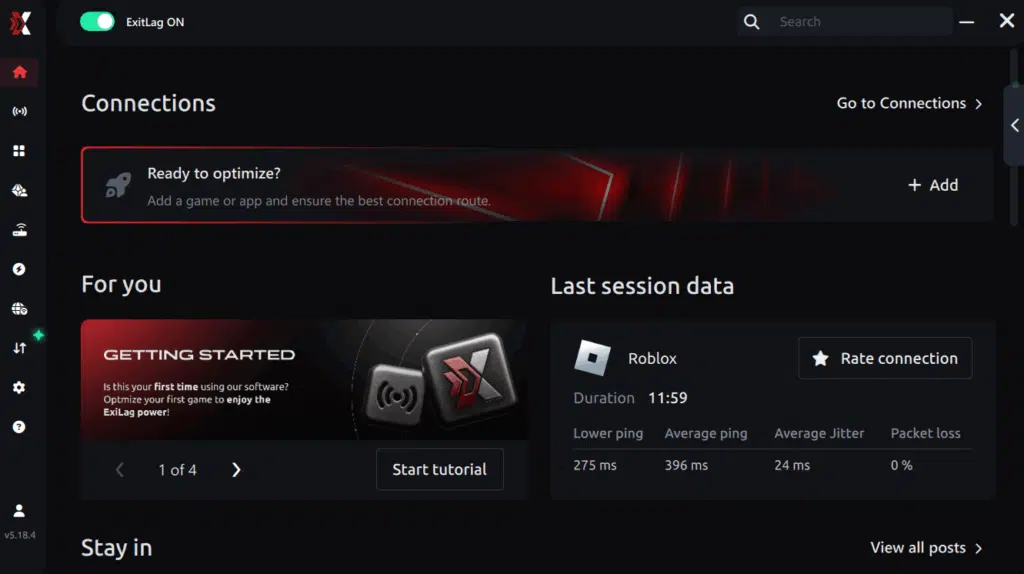
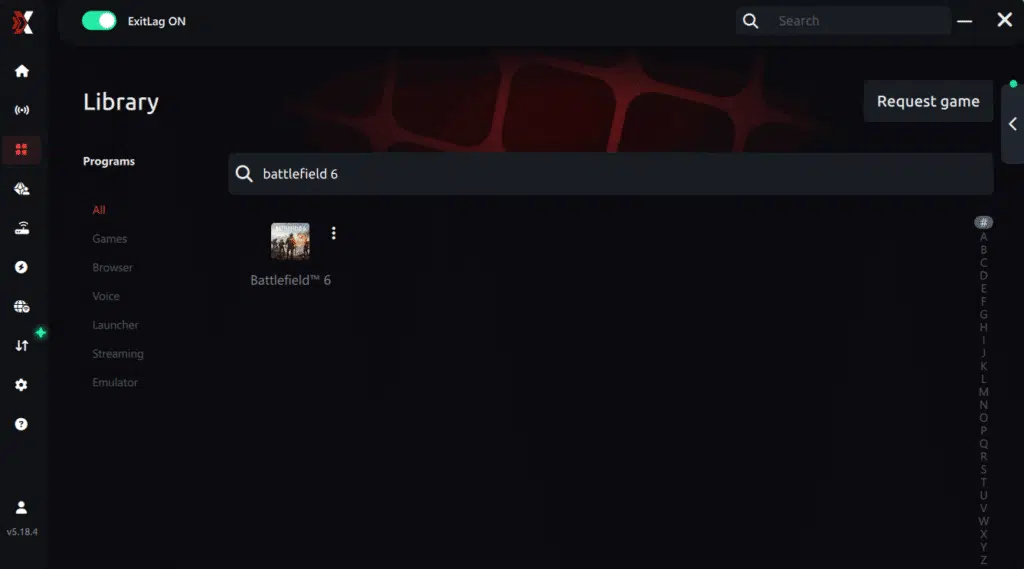
Step 3 – In the search bar, type “Battlefield 6” and select the game from the list.
Step 4 – Choose between automated or manual route
Based on the results, you can let ExitLag automatically select the best route or manually choose the server that showed the lowest latency for your connection.
AI-optimized automated route
Based on the results, you can let ExitLag automatically select the best route through AI optimization. The system analyzes multiple connection paths in real time and automatically identifies the most efficient route for your connection, ensuring the lowest possible latency without requiring manual choices.
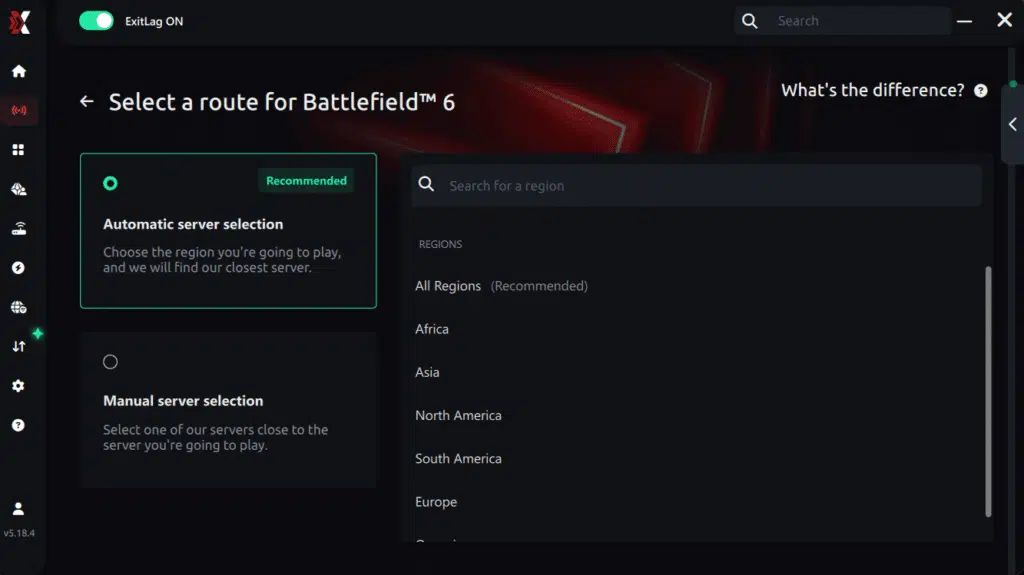
Manual route
If you prefer to have full control over your connection, you can manually choose the server based on the ping test results. Simply select the server that showed the lowest latency or the one that best meets your specific gaming needs, allowing complete customization of your experience.
Step 5 – Click “Apply routes” or the play button. ExitLag will begin optimizing your connection automatically.
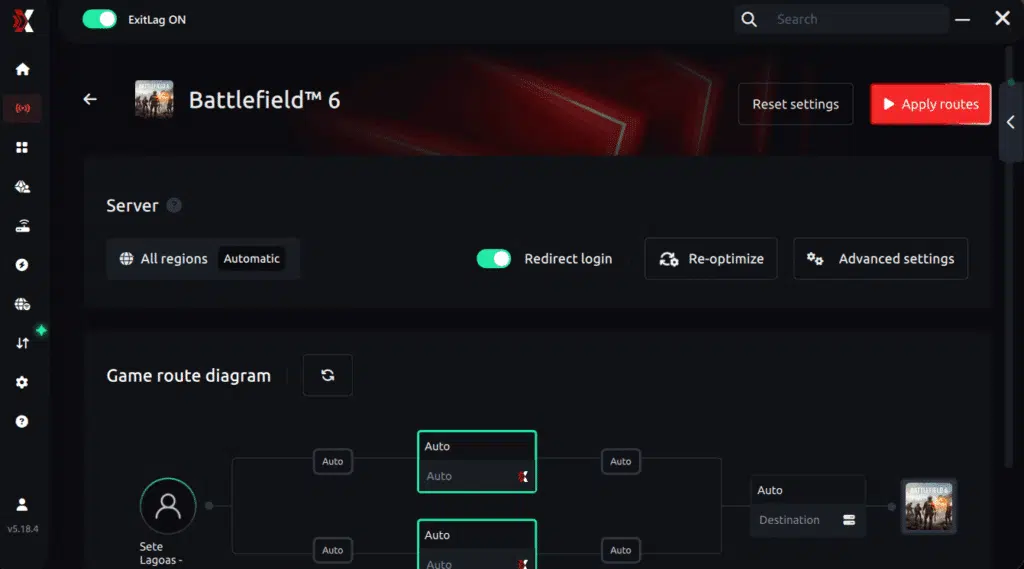
Step 6 – Wait a few seconds until optimization is complete. You’ll see ping indicators in the interface.
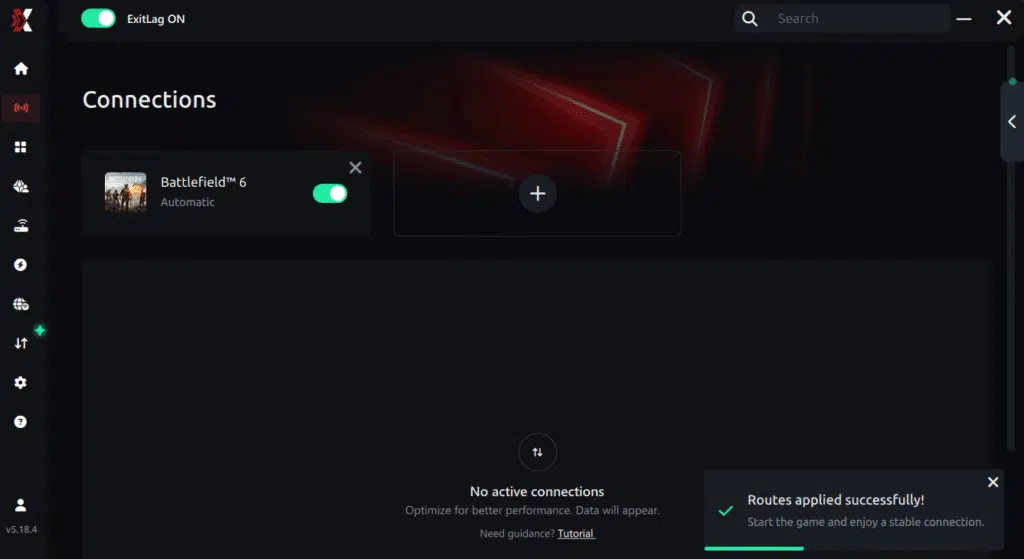
Step 7 – Launch Battlefield 6 normally. The optimization will already be active.
ExitLag runs in the background while you play, constantly adjusting routes to maintain the best possible performance.
How to use Ping for Games: step-by-step guide (Battlefield 6)
Checking your connection quality before entering a match has never been easier. Here’s how to use Ping for Games in just a few steps:
1. Open the ExitLag software on your PC
Ensure the application is installed and open. The feature is integrated into the platform and available for free to all users.
2. Access the Network Analyzer tool
Locate the Network Analyzer in the software menu. This is where you’ll find Ping for Games along with other connection analysis features.
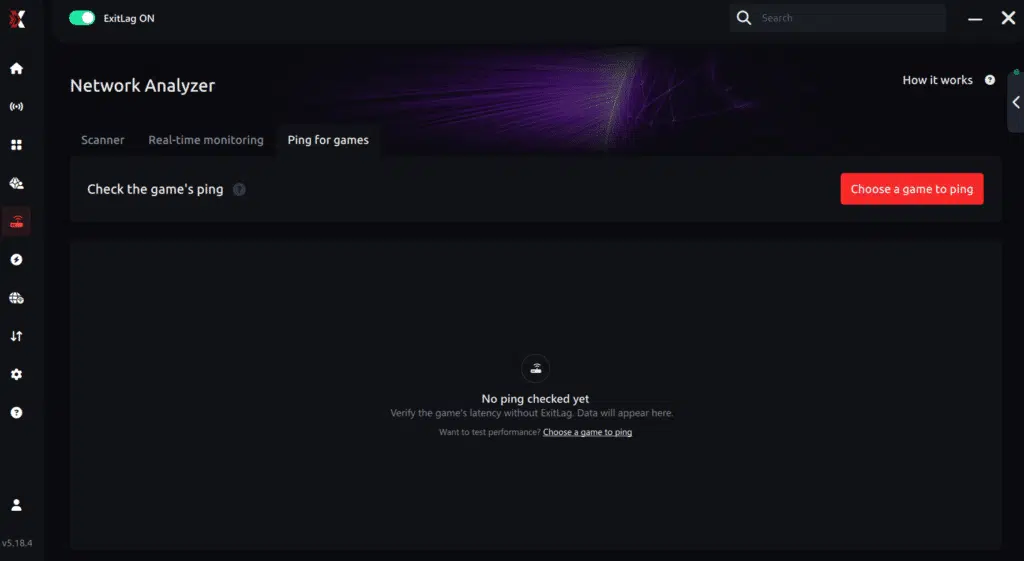
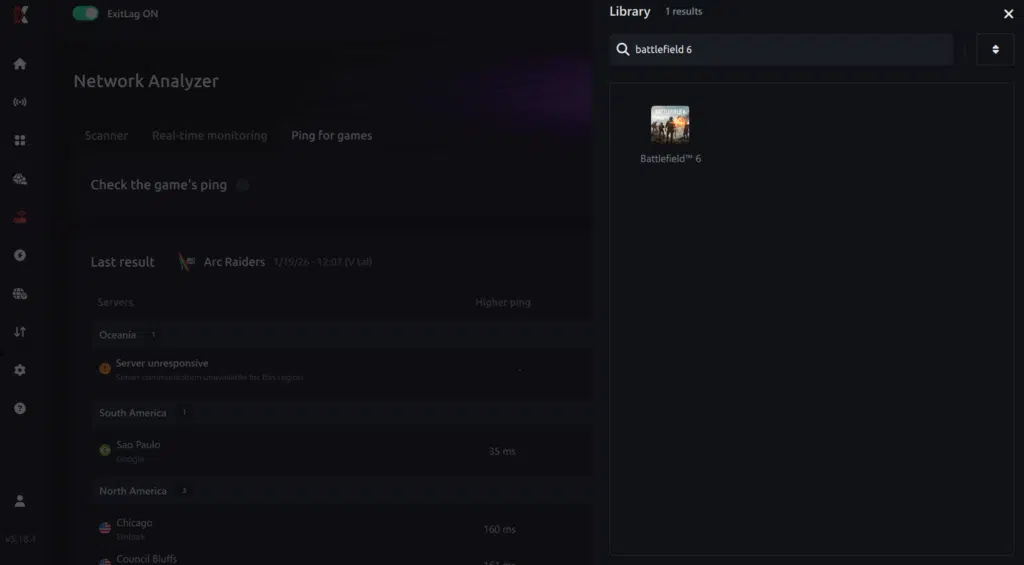
3. Select the game you want to test
Choose Battlefield 6 from the list. The tool supports major online multiplayer games, including FPS, Battle Royales, MOBAs, MMORPGs, and more.
4. Choose the specific server
Select the exact Battlefield 6 server you want to test instead of a generic region. This ensures more accurate results for your match.
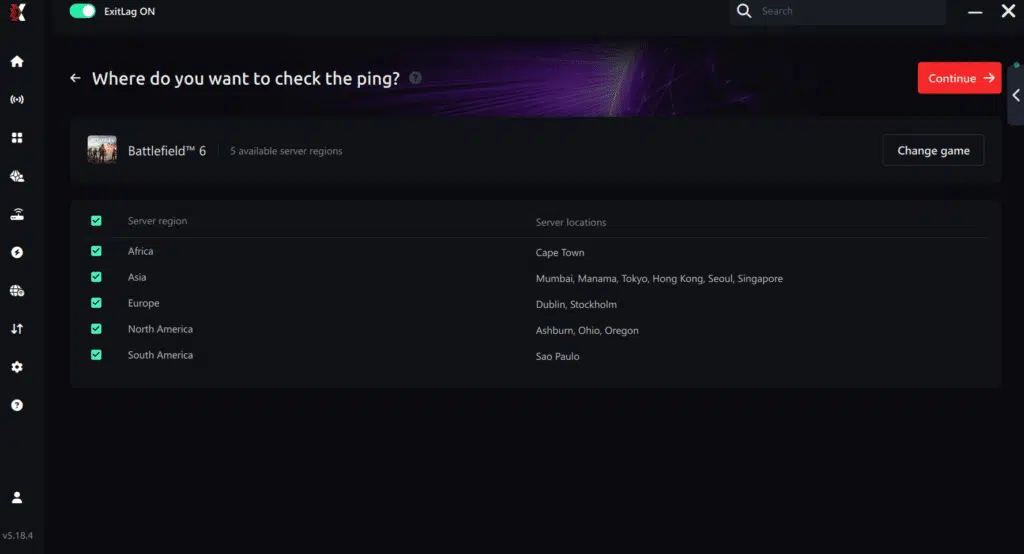
5. Start the ping test
With one click, the measurement is performed in real time between your device and the selected Battlefield 6 server, considering your current connection (cable or Wi-Fi).
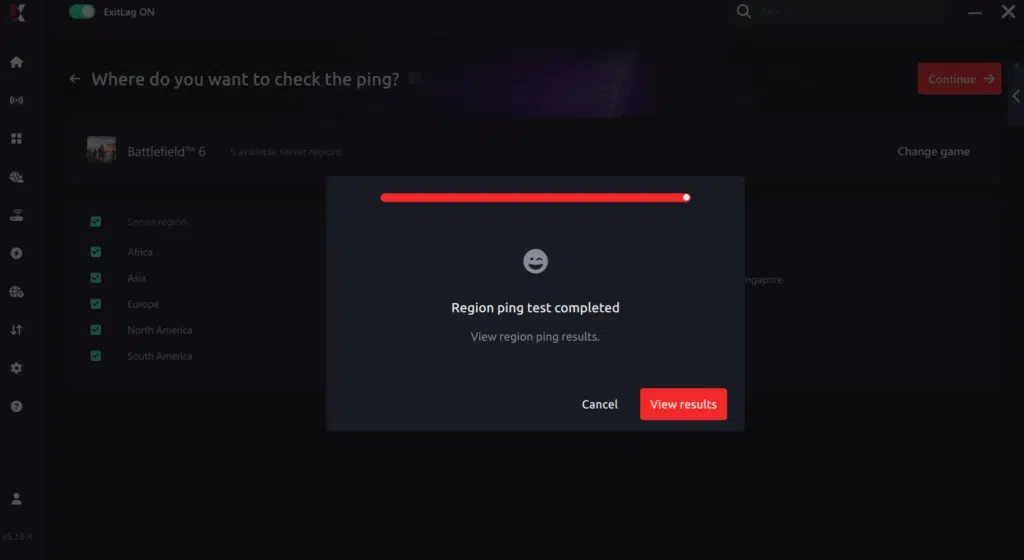
6. Analyze the results
Results appear in milliseconds (ms), automatically sorted from best to worst ping. You can also reorganize the view alphabetically if you prefer.
7. Choose the best server and play worry-free
With this information, simply select the server with the lowest latency and jump into Battlefield 6 knowing your connection is optimized.
Final thoughts: Play Battlefield 6 without lag forever
At the end of the day, Battlefield 6 lag should never decide your matches. You spend time mastering your aim, movement, and strategy your internet connection should never be the reason you lose.
With ExitLag, you finally take control of your network performance. The software finds the fastest routes, eliminates lag, and stabilizes your ping so that every shot and every action happens exactly when you want it to.
Try ExitLag for free right now and experience how smooth Battlefield 6 can be when your connection is fully optimized. Play with confidence, reach your full potential, and make lag a thing of the past.
Got questions or want to connect with other players? Join the conversation at the ExitLag Forum!