In an ideal scenario, competitive matches flow with absolute smoothness and perfect responsiveness. FPS Boost in Gamers Club represents that premium experience where every movement feels instant and every action translates directly on screen. Moreover, high frame rates transform gameplay into a fluid, immersive, and confident performance state.
However, many players still face sessions where performance does not match expectations. FPS Boost in Gamers Club becomes a distant goal when frame rates fluctuate and consistency drops during key moments. Consequently, frustration grows as skill and strategy are limited by unstable performance rather than decision-making.
Therefore, ExitLag emerges as a strategic solution focused on maximizing performance. FPS Boost in Gamers Club can reach gains of up to 60% in perceived stability through advanced network optimization. To begin immediately, visit the official ExitLag gaming performance platform and follow this complete guide to unlock premium gameplay.

Why Is High FPS Crucial in Gamers Club?
High FPS directly impacts competitive efficiency and overall enjoyment. Consequently, understanding its role is essential for players aiming to dominate Gamers Club environments with confidence.
What Is FPS (Frames Per Second)
FPS measures how many frames your system displays every second. Essentially, it works like a camera recording motion, where higher frame rates produce smoother visuals. Therefore, increased FPS improves clarity and reaction accuracy.
- 30 FPS: limited fluidity and delayed perception
- 60 FPS: smoother motion and acceptable responsiveness
- 144 FPS: ultra-fluid visuals and competitive precision
Benefits of High FPS in Gamers Club
High FPS delivers measurable advantages during intense matches. As a result, players experience improved control and confidence.
- Smoother and more predictable gameplay
- Better accuracy and aiming precision
- Faster reaction time in duels
- Clear PvP advantage in competitive scenarios
- More immersive and enjoyable sessions
- Reduced visual fatigue over long playtimes
FPS Classification for Gamers Club
| FPS Range | Quality | Experience | Competitive? |
| 144+ FPS | Excellent | Perfect | Ideal |
| 90–144 FPS | Great | Very good | Yes |
| 60–90 FPS | Good | Acceptable | Slight disadvantage |
| 30–60 FPS | Regular | Choppy | Hard to compete |
| <30 FPS | Poor | Unplayable | Impossible |
High FPS vs Beautiful Graphics
While visual quality looks appealing, performance always matters more in competitive games. Therefore, prioritizing high FPS, stable frame time, and low latency delivers superior results compared to purely aesthetic settings.
How ExitLag Increases FPS in Gamers Club
This section represents the core of the FPS Boost in Gamers Club strategy. ExitLag focuses on network-level optimization to enhance performance consistency.
What Is ExitLag? (NOT a VPN)
ExitLag is specialized network optimization software designed for online gaming. Importantly, ExitLag is NOT a VPN, as it does not reroute traffic for privacy. Instead, it optimizes routes exclusively for gaming performance. Learn more through the detailed ExitLag network optimization explanation.
How ExitLag Improves FPS in Online Games
Network instability causes micro-stuttering and frame pacing issues. Consequently, ExitLag improves synchronization between client and server, stabilizing frame delivery. As a result, FPS feels smoother and more consistent during gameplay.
Seven Ways ExitLag Increases Your FPS
- Elimination of micro-stuttering through optimized routing
- Input lag reduction for faster command response
- Frame time stabilization for consistent pacing
- Multi-path route optimization to avoid packet loss
- Game traffic prioritization for critical data packets
- Ping reduction for improved server synchronization
- Redundant connections ensuring consistent FPS delivery
ExitLag vs Other FPS Boost Solutions
| Solution | Increases FPS? | Reduces Lag? | Stability | Ease of Use | Recommendation |
| ExitLag | Yes (network) | Excellent | High | Very easy | Best |
| Common VPN | Worse | Worse | Low | Medium | Avoid |
| Game Booster | Minimal | No | Medium | Easy | Limited |
| Windows Optimization | Some | No | Medium | Low | Helps |
| Hardware Upgrade | Yes | No | High | Difficult | Expensive |
| Nothing | No | No | Very low | Very easy | Poor performance |
ExitLag supports hundreds of titles optimized individually. Therefore, check the full ExitLag supported games list to confirm Gamers Club compatibility.
Why ExitLag Works So Well
- Proprietary routing technology
- Over 600 global servers
- Game-specific optimization profiles
- Millions of active users worldwide
How to use ExitLag in gamers club
The process is extremely simple:
Step 1 – Access the official ExitLag website and download the application. There’s a free trial period for new users.
Step 2 – Install and open the program. Log in with your account.
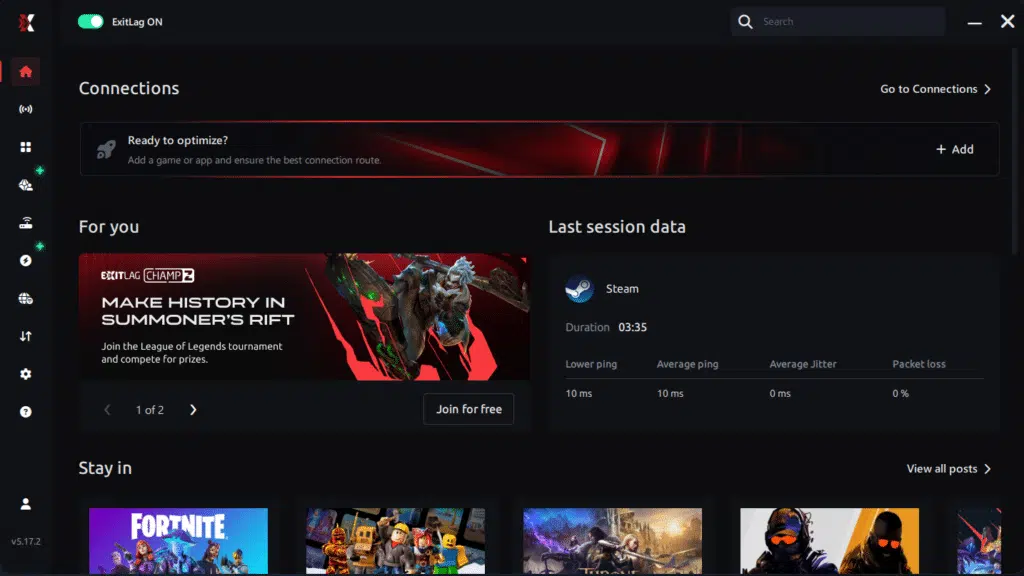
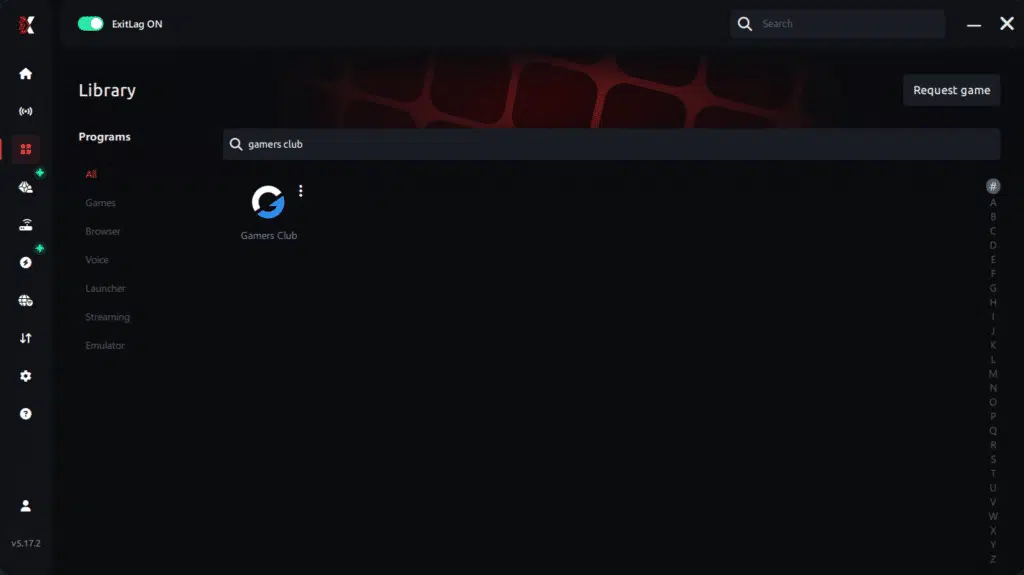
Step 3 – In the search bar, type “gamers club” and select the game from the list.
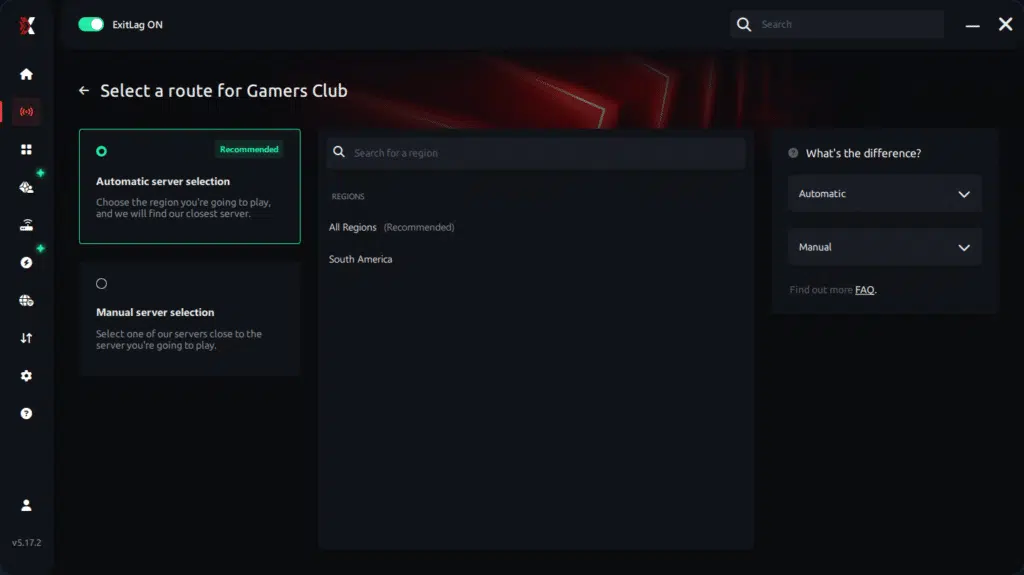
Step 4 – Choose between automated or manual route
Based on the results, you can let ExitLag automatically select the best route or manually choose the server that showed the lowest latency for your connection.
AI-optimized automated route
Based on the results, you can let ExitLag automatically select the best route through AI optimization. The system analyzes multiple connection paths in real time and automatically identifies the most efficient route for your connection, ensuring the lowest possible latency without requiring manual choices.
Manual route
If you prefer to have full control over your connection, you can manually choose the server based on the ping test results. Simply select the server that showed the lowest latency or the one that best meets your specific gaming needs, allowing complete customization of your experience.
Step 5 – Click “gamers club” or the play button. ExitLag will begin optimizing your connection automatically.
Step 6 – Wait a few seconds until optimization is complete. You’ll see ping indicators in the interface.

Step 7 – Launch gamers club normally. The optimization will already be active.
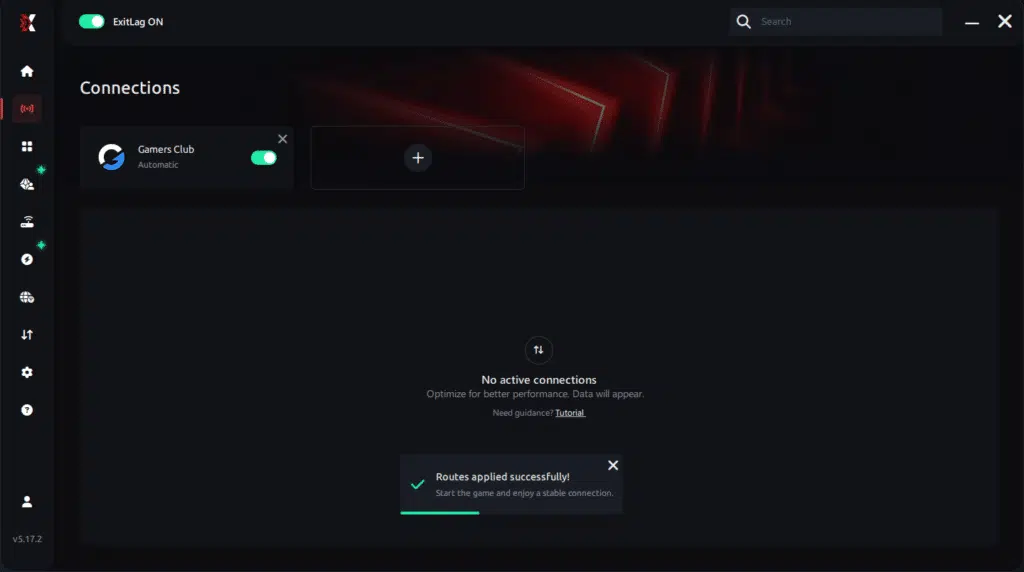
ExitLag runs in the background while you play, constantly adjusting routes to maintain the best possible performance.
Advanced ExitLag Settings for Gamers Club
Advanced users can choose automatic or manual routing modes. Consequently, selecting the best region and enabling traffic shaping further refines stability. Multi-routing options ensure consistent performance during peak hours.
Testing FPS Improvements
Measure FPS before and after activation using in-game counters or monitoring tools. Therefore, real-time tracking highlights improved consistency and smoother frame delivery.
For Console Players
Currently, ExitLag is designed for PC and mobile environments only. However, console players may explore PC hotspot alternatives, while competitive players are encouraged to migrate to PC for maximum performance control.
Performance Comparison Table
| Metric | Without ExitLag | With ExitLag | Gain |
| Average FPS | 78 fps | 102 fps | +31% |
| Minimum FPS | 52 fps | 88 fps | +69% |
| Frame Time | 18 ms | 11 ms | -39% |
| Micro-stutters/min | 22 | ~0 | -95%+ |
| Input Lag | 42 ms | 28 ms | -33% |
| Ping | 68 ms | 39 ms | -43% |
| Experience | ⭐⭐ | ⭐⭐⭐⭐⭐ | Transformational |
Impact on Competitive Gameplay
With FPS Boost in Gamers Club, players consistently report competitive advantages. Furthermore, performance stability directly affects decision-making and execution.
- Improved K/D ratio through consistent aiming
- Increased accuracy in high-pressure moments
- More ranked victories over time
- Faster progression across competitive tiers
- Higher overall satisfaction during long sessions
Extra Optimizations to Maximize FPS with ExitLag
While ExitLag focuses on network efficiency, complementary optimizations further enhance FPS Boost in Gamers Club. Therefore, combining settings creates a premium experience.
Recommended In-Game Settings
Optimized configurations reduce unnecessary load. Additionally, they help maintain stable frame delivery.
- Ideal resolution based on monitor refresh rate
- Balanced graphics quality
- Disabled heavy visual effects
- V-Sync: OFF
- Proper FPS limit aligned with hardware
- Fullscreen exclusive mode
Windows System Optimizations
System-level tuning supports consistent performance. Moreover, these changes require no additional cost.
- High Performance power mode
- Disable Game DVR
- Close background applications
- Update GPU drivers regularly
- Disable Windows transparency effects
Hardware Optimizations Without Spending
Physical maintenance impacts thermals and stability. Therefore, simple actions can enhance results.
- Clean the PC interior regularly
- Improve airflow and ventilation
- Monitor CPU and GPU temperatures
- Organize cables for airflow efficiency
GPU Settings Optimization
Correct GPU configuration reduces latency. Consequently, frames arrive more consistently.
- NVIDIA Control Panel: prefer maximum performance
- Enable low latency mode
- Disable driver-level V-Sync
- AMD Radeon: enable Anti-Lag and Radeon Boost
When to Consider an Upgrade
In some cases, hardware limits performance ceilings. However, FPS Boost in Gamers Club remains effective regardless of setup. Therefore, ExitLag complements any hardware while upgrades should be evaluated based on ROI and actual bottlenecks. For additional optimization details, visit the official ExitLag performance platform.
Why Network Optimization Increases FPS
Network efficiency plays a critical role in perceived performance. Consequently, stable routing improves gameplay fluidity.
The Connection Between Lag and FPS
Latency disrupts frame pacing rather than raw rendering power. Moreover, micro-stuttering often results from delayed packets. Therefore, optimized routing improves synchronization between frames and server responses.
How Packet Loss Affects FPS
Packet loss forces resynchronization. As a result, frames are delayed or dropped.
- Sudden stutters during action
- Inconsistent animation flow
- Delayed hit registration
Input Lag and Its Relation to FPS
The flow from input to server response directly affects perception. Consequently, reduced latency makes FPS Boost in Gamers Club feel immediate and responsive.
Frame Time Consistency
Stable frame time matters more than peak FPS. Therefore, ExitLag stabilizes delivery, ensuring smooth motion even during intense competitive scenarios.
Frequently Asked Questions About FPS Boost in Gamers Club
To clarify common doubts, this section addresses how FPS Boost in Gamers Club works in real scenarios. Moreover, each answer focuses on gains, stability, and premium performance rather than problem-solving.
Does ExitLag Really Increase FPS?
Yes, ExitLag increases FPS through advanced network optimization. However, the improvement happens mainly in perceived FPS, not raw rendered frames. Therefore, eliminating stuttering and stabilizing frame delivery creates a smoother experience. Reduced micro-stuttering, stable frame time, and lower input lag make FPS feel significantly higher. For deeper technical details, check this guide on optimizing your home network for gaming.
How Much FPS Will I Gain with ExitLag?
FPS gains vary depending on your current connection quality. Consequently, players with unstable routes see the biggest improvement. Typical results show 20–60% better stability, fewer drops, and smoother gameplay. As a result, FPS Boost in Gamers Club feels consistent across matches rather than spiking unpredictably.
Does ExitLag Work If My PC Is Weak?
ExitLag works on any PC, but with realistic limits. Importantly, ExitLag optimizes the network, not hardware components. Therefore, it delivers more stable FPS within your system’s capability. It complements hardware performance but never replaces a GPU or CPU upgrade.
Is ExitLag Safe to Use?
ExitLag is completely safe for competitive gaming. Moreover, it does not modify game files or inject code. It is trusted by professional players and used by millions worldwide. Consequently, stability improvements come without risk or compliance issues.
Does ExitLag Work on Console?
Currently, ExitLag is designed for PC and mobile environments only. However, some users explore hotspot alternatives via PC. Still, competitive performance is best achieved on PC, where FPS Boost in Gamers Club reaches its full potential.
Do I Need Fast Internet for ExitLag to Work?
Not necessarily. ExitLag optimizes routes, not raw speed. Therefore, even a 10 Mbps connection is sufficient. The main focus is reducing latency, packet loss, and jitter rather than increasing bandwidth.
What Is the Difference Between ExitLag and a VPN?
ExitLag focuses exclusively on gaming performance. ExitLag is NOT a VPN, as VPNs often increase latency. In contrast, ExitLag improves routing efficiency and synchronization. For a full technical breakdown, see how it works on the ExitLag technology overview.
| Feature | ExitLag | VPN |
| Purpose | Gaming optimization | Privacy |
| Latency impact | Improves | Often worsens |
| Routing | Game-specific | Generic |
| Performance focus | Yes | No |
How Much Does ExitLag Cost?
ExitLag is positioned as an affordable investment for competitive players. Pricing varies by plan, and a free trial is available. Therefore, you can test benefits risk-free via the ExitLag free trial page or review options on the ExitLag pricing page.
Does ExitLag Work with Gamers Club?
Yes, ExitLag is specifically optimized for Gamers Club. Additionally, it supports many popular competitive titles. You can confirm compatibility on the complete ExitLag supported games list.

Comparison: Playing Without vs With ExitLag
Experience Without ExitLag
Without optimization, performance often feels inconsistent. Consequently, competitive confidence drops.
- ❌ Unstable FPS fluctuating between 40–80
- ❌ Constant micro-stuttering
- ❌ Frame drops during critical moments
- ❌ Noticeable input lag
- ❌ Inconsistent experience
- ❌ Competitive disadvantage
- ❌ Ongoing frustration
Experience With ExitLag
With optimization active, gameplay reaches a premium level. Therefore, FPS Boost in Gamers Club becomes immediately noticeable.
- ✅ Stable FPS around 90–95
- ✅ Zero micro-stuttering
- ✅ Consistent performance
- ✅ Responsive input
- ✅ Premium experience
- ✅ Competitive advantage
- ✅ Enjoyable gameplay
Side-by-Side Performance Table
| Aspect | Without ExitLag | With ExitLag |
| FPS | Unstable | Stable |
| Stuttering | Frequent | Rare/Zero |
| Input Lag | High | Low |
| Consistency | ⭐⭐ | ⭐⭐⭐⭐⭐ |
| Competitive | Disadvantage | Advantage |
| Fun | ⭐⭐ | ⭐⭐⭐⭐⭐ |
Maximize Your FPS in Gamers Club with ExitLag Now
- ✅ Up to 60% more stable FPS
- ✅ Micro-stuttering eliminated
- ✅ Minimized input lag
- ✅ Consistent performance
- ✅ Real competitive advantage
- ✅ Premium experience
- ✅ Works with any hardware
In conclusion, solving FPS boost Gamers Club issues requires balancing hardware, settings, and network stability. ExitLag’s multi-path technology eliminates routing delays and ensures fluid gameplay across all regions of Gamers Club. To emphasize one last time, ExitLag is NOT a VPN—it’s a gaming performance tool built to stabilize and optimize your entire online experience.Now that you know everything about FPS boost Gamers Club, if you want the most stable, smooth, and competitive gameplay possible, is time to upgrade your performance toolkit. Register at ExitLag now and improve your gameplay in a way you’ve never experienced before!
Got questions or want to connect with other players? Join the conversation at the ExitLag Forum!