Smooth Rainbow Six is pure advantage. Your aim feels locked in. Your recoil control stays consistent. Your micro-adjustments land exactly when you want them to.
That’s what an FPS boost in Rainbow Six really means: clearer tracking, faster reactions, and fewer “why did that feel delayed?” moments.
Now the frustrating version. Your FPS swings in the middle of a gunfight. You get random hitching when you swing a doorway. Your input feels heavier than it should. And if ping spikes are happening too, the entire match can feel unstable.
If you also deal with latency issues, start here: read this Rainbow Six high ping fix guide with clear steps and context—how to fix Rainbow Six high ping issues.
This guide shows how to get an FPS boost in Rainbow Six by improving stability first: less micro-stuttering, better frame pacing, and lower perceived input delay. You’ll learn how to use ExitLag as the main solution and stack it with practical settings to increase FPS and maintain more FPS in real matches.
Activate your free ExitLag trial for gaming here—start your ExitLag free trial now—and test the same map and mode before and after.

Why FPS is important
Why high FPS is crucial in Rainbow Six
Rainbow Six is a tactical shooter where milliseconds decide rounds. If your FPS is unstable, you lose:
- tighter peeks ✅
- cleaner recoil control ✅
- reliable crosshair placement ✅
- consistent tracking during movement ✅
- confidence in clutch situations ✅
A strong FPS boost in Rainbow Six gives you consistency. Consistency wins games.
What FPS is (frames per second)
FPS is how many frames your PC renders every second. Picture a camera filming action:
- 30 FPS: fewer “snapshots,” motion looks choppy
- 60 FPS: smooth baseline for most players
- 144 FPS: high clarity and fast responsiveness
Quick impact bullets:
- 30 → 60 FPS = massive smoothness gain ✅
- 60 → 144 FPS = better clarity and precision ✅
- unstable FPS = worse than a lower stable FPS ⚠️
If you want more FPS, you also want stable frame time.
Benefits of high FPS in Rainbow Six
A real FPS boost in Rainbow Six helps you:
- Track targets smoothly in tight angles ✅
- Control recoil more consistently ✅
- React faster on sound cues and peeks ✅
- Win more “micro-timing” gunfights ✅
- Reduce visual blur during quick turns ✅
- Reduce eye fatigue in long sessions ✅
- Keep performance steady during utility-heavy rounds ✅
This is why competitive players prioritize performance over flashy visuals.
FPS rating for Rainbow Six
| FPS range | Quality | Experience | Competitive? |
| 144+ FPS | ⭐⭐⭐⭐⭐ Excellent | Perfect | ✅ Ideal |
| 90–144 FPS | ⭐⭐⭐⭐ Great | Very good | ✅ Yes |
| 60–90 FPS | ⭐⭐⭐ Good | Acceptable | ⚠️ Slight disadvantage |
| 30–60 FPS | ⭐⭐ Fair | Choppy | ❌ Hard to compete |
| <30 FPS | ⭐ Bad | Unplayable | ❌ Impossible |
High FPS vs pretty graphics
In competitive shooters, performance > visuals.
To protect your FPS boost in Rainbow Six:
- reduce shadows and heavy post-processing ❌
- keep textures reasonable ✅
- prioritize frame pacing ✅
- avoid latency-increasing settings ✅
You are optimizing for wins, not screenshots.
How ExitLag boosts FPS
How ExitLag increases FPS in Rainbow Six
ExitLag does not upgrade your GPU. ExitLag improves the network side of competitive performance.
That matters because network instability can create micro-stuttering and “correction hitches” that feel like FPS drops. The game can show high FPS and still feel awful if the timeline is unstable.
This is why players chase an FPS boost in Rainbow Six with ExitLag: smoother pacing, fewer hitches, and better consistency.
What ExitLag is (not a VPN)
ExitLag is a gaming network optimizer.
ExitLag is NOT a VPN.
A typical VPN is built for privacy and location routing. ExitLag is built for gaming stability and route optimization.
If you want the technical breakdown, read how ExitLag works for online games—learn how ExitLag works.
Why network stability changes “FPS feel”
Here’s the link most players miss:
- unstable packet delivery → timeline corrections
- timeline corrections → tiny freezes
- tiny freezes → broken frame pacing
- broken pacing → the game feels slower
So an FPS boost in Rainbow Six can come from stability improvements even when the average FPS number barely moves.
7 ways ExitLag improves your FPS boost
- Micro-stutter reduction ✅
Better routing reduces small hitch moments. - Lower perceived input lag ✅
More consistent timing makes input feel sharper. - Frame time stabilization ✅
Fewer correction spikes means smoother pacing. - Multi-path route optimization ✅
ExitLag can avoid bad ISP hops and congestion. - Gaming traffic prioritization ✅
Less interference from background traffic. - Lower latency to servers ✅
Better sync reduces “late feedback” feeling. - Redundant routing behavior ✅
More reliability reduces resync stutters.
To confirm support and explore more titles, use the ExitLag supported games list—see all supported games here.
ExitLag vs other FPS boost solutions
| Solution | Increases FPS? | Reduces lag? | Stability | Ease | Recommendation |
| ExitLag | ✅ Yes (stability-driven) | ✅✅✅ Excellent | ⭐⭐⭐⭐⭐ | ⭐⭐⭐⭐⭐ | ✅ Best |
| Common VPN | ❌ Often worse | ❌ Often worse | ⭐⭐ | ⭐⭐⭐ | ❌ Avoid |
| “Game booster” apps | ⚠️ Minimal | ❌ No | ⭐⭐⭐ | ⭐⭐⭐⭐ | ⚠️ Limited |
| Windows tuning | ⚠️ Some | ❌ No | ⭐⭐⭐ | ⭐⭐ | ⚠️ Helpful |
| Hardware upgrade | ✅ Yes | ❌ No | ⭐⭐⭐⭐ | ⭐ | 💰 Expensive |
| Doing nothing | ❌ No | ❌ No | ⭐ | ⭐⭐⭐⭐⭐ | ❌ Bad results |
If you want the fastest real test, install from the official ExitLag homepage—download ExitLag from the official website—then activate your free trial using the ExitLag free trial activation page.
Why ExitLag works so well
ExitLag focuses on gaming performance:
- proprietary routing logic ✅
- stability-first route selection ✅
- designed to reduce jitter and loss impact ✅
- built for competitive timing ✅
And for clarity, because it matters:
ExitLag is NOT a VPN.
How to configure ExitLag for maximum FPS
How to configure ExitLag in Rainbow Six for maximum FPS
Your goal is stability before you queue.
Start with the official installer from the ExitLag official homepage download.
Installation and initial setup
- Download using the official ExitLag website download page: get ExitLag from the official site
- Install (usually under a minute) ✅
- Create an account using ExitLag account registration: create your ExitLag account here
- Activate the trial via the free trial link: activate your ExitLag free trial
- Open ExitLag and search for Rainbow Six
- Select the best server region (stable beats “closest”)
- Apply optimized routes
- Launch Rainbow Six
- Test a match for stability changes
- Optional: tune advanced settings
Advanced ExitLag settings for Rainbow Six
To push a stronger FPS boost in Rainbow Six, test:
- Automatic vs manual routing: auto is safe; manual can fix stubborn ISP routes ⚠️
- Region testing: a slightly different region can be more stable ✅
- Traffic Shaper: reduce interference from downloads/streams ✅
- Multi-routing options: useful during peak hours ✅
If you want the deeper explanation again, use the official page: how ExitLag works for gaming stability.
How to test FPS improvements properly
Don’t guess. Measure.
Use an overlay and track:
- average FPS
- 1% lows
- frame time spikes
- micro-stutter frequency
Recommended test method:
- run a custom match or training scenario ✅
- repeat the same sequence (same map, same movement path) ✅
- compare results with ExitLag off vs on ✅
If your 1% lows improve, the FPS boost in Rainbow Six will feel bigger than the average number.
Console players (if applicable)
Rainbow Six is available on console, but ExitLag is primarily PC-focused.
If you play on console:
- you cannot install ExitLag directly on the console ❌
- routing through a PC hotspot can work for some setups ⚠️
- PC is the most reliable platform for competitive tuning ✅
Real FPS boost results
Real results: FPS before and after ExitLag
Your exact results depend on:
- hardware limits
- ISP routing quality
- region congestion
- packet loss and jitter levels
But the most common improvement is stability:
- fewer micro-stutters ✅
- smoother frame pacing ✅
- better 1% lows ✅
- lower perceived input delay ✅
That stability is the real FPS boost in Rainbow Six most players want.
Success cases in Rainbow Six
Case 1: Player (South America)
Before: 165 FPS average (drops 95–240)
After: 175 FPS average (stable 150–240)
Improvement: +6% average, major stability gain ✅
Micro-stuttering: almost eliminated ✅
Case 2: Player (North America)
Before: 140 FPS average (drops 80–200)
After: 152 FPS average (stable 120–200)
Improvement: +9% average ✅
Case 3: Competitive squad
Before: hitching during peak-hour matches ❌
After: smoother swings and more consistent timing ✅
Impact: better entries and cleaner trades ✅
Performance comparison table
| Metric | Without ExitLag | With ExitLag | Gain |
| Average FPS | 140 fps | 152 fps | +9% |
| Minimum FPS | 80 fps | 120 fps | +50% ✅ |
| Frame time | 10 ms | 7 ms | -30% ✅ |
| Micro-stutters/min | 8 | ~0 | -95%+ ✅ |
| Input lag | 45 ms | 34 ms | -24% |
| Ping | 58 ms | 41 ms | -29% |
| Experience | ⭐⭐ | ⭐⭐⭐⭐⭐ | Transformative |
Competitive impact in matches
When your FPS boost in Rainbow Six is stable, you get:
- more consistent peek timing ✅
- cleaner recoil control ✅
- fewer “random” lost fights due to hitching ✅
- better long-session performance ✅
Consistency is the competitive multiplier.
Extra optimizations to maximize FPS
In-game settings recommended for Rainbow Six
If you want to increase FPS and hold more FPS in real fights, use performance-first settings:
- V-Sync: OFF ✅
- Motion blur: OFF ✅
- Shadows: low ❌
- Heavy post-processing: low/off ❌
- Fullscreen mode: use fullscreen when possible ✅
- FPS cap: cap slightly below your stable peak ✅
Visibility and stability > cinematic effects.
Windows optimizations
Stack these with ExitLag:
- enable High performance power plan ✅
- disable Xbox Game DVR capture (if it adds overhead) ✅
- close background apps (browser tabs, launchers, overlays you do not need) ✅
- keep GPU drivers updated ✅
- reduce Windows visual effects if needed ⚠️
These steps help your 1% lows, which makes your FPS boost in Rainbow Six feel real.
Hardware optimizations without spending money
- clean dust filters and fans ✅
- improve airflow (intake + exhaust) ✅
- monitor temperatures (throttling kills FPS) ✅
- adjust fan curves for stability ✅
Bold truth: cooling is performance.
GPU settings checklist
NVIDIA Control Panel
- prefer maximum performance ✅
- low latency mode: ON (test) ✅
- V-Sync: OFF ✅
AMD Radeon Settings
- Anti-Lag: ON (test) ✅
- Radeon Boost: ON (test if clarity stays acceptable) ⚠️
Small gains stack. Stability wins.
When to consider upgrades
ExitLag helps with stability, but hardware still matters if you are hard-limited.
Upgrade signals:
- GPU pinned at 99% constantly
- CPU spikes during intense fights
- stutters from low RAM/VRAM
- thermal throttling
Even with upgrades, ExitLag can still help your FPS boost in Rainbow Six because network stability issues do not disappear with a new GPU.
Why network optimization can improve FPS feel
The link between lag and FPS
Rendering FPS is not the full experience. Frame pacing is what you feel.
When your network is unstable:
- packets arrive inconsistently
- the client resyncs state
- resync creates micro-freezes
- micro-freezes break pacing
That’s how you get “high FPS that feels choppy.”
How packet loss affects performance
Packet loss can trigger:
- retransmits
- prediction errors
- correction spikes
Symptoms:
- hitching when you swing ❌
- delayed hit feedback ❌
- sudden stutters during utility usage ❌
Reducing loss impact can create more FPS feel because the game stops freezing during corrections.
Input lag and FPS: the full loop
The real loop is:
Input → server → response → frame
If the response arrives inconsistently, your aim feels delayed even at high FPS. That’s why stability can produce a stronger FPS boost in Rainbow Six than lowering one more graphics slider.
Frame time consistency
- high FPS + unstable frame time = still feels bad ⚠️
- moderate FPS + stable frame time = feels smooth ✅
ExitLag’s strength is often consistency, not magic numbers.
FAQ
Does ExitLag really increase FPS?
Yes, through network optimization.
ExitLag can improve perceived FPS by reducing micro-stutters and stabilizing frame pacing. That is why players feel an FPS boost in Rainbow Six even if average FPS only changes modestly.
How much FPS will I gain with ExitLag?
It depends on your current routing quality.
Typical benefits:
- fewer micro-stutters ✅
- smoother pacing ✅
- better 1% lows ✅
- sometimes a small average FPS gain ✅
If your connection is already perfect, gains will be smaller. If your routing is unstable, gains can feel dramatic.
Does ExitLag work if my PC is weak?
Yes, within limits.
ExitLag optimizes network stability, not GPU power. It can help you maintain more FPS stability and reduce stutters, but it will not replace a hardware upgrade.
Is ExitLag safe?
Yes.
ExitLag does not modify game files. It changes how your traffic routes. For the official installer, use the official ExitLag homepage download.
Does ExitLag work on console?
ExitLag is primarily PC-focused.
Console players may experiment with routing through a PC hotspot, but results vary. PC is the most reliable platform for competitive tuning.
Do I need fast internet for ExitLag?
Not necessarily.
ExitLag optimizes route quality, not bandwidth. A stable moderate-speed connection can outperform a fast unstable connection.
What is the difference between ExitLag and a VPN?
ExitLag is NOT a VPN.
| Feature | ExitLag | VPN |
| Main goal | Gaming performance | Privacy/location |
| Stability | ✅ Improves | ⚠️ Often worse |
| Packet loss focus | ✅ Yes | ❌ Not designed for it |
| Competitive feel | ✅ Often better | ❌ Often worse |
For details, read how ExitLag works for gamers.
How much does ExitLag cost?
Prices change, so do not rely on old numbers. Check the official page: ExitLag pricing and plan options.
You can start with the ExitLag free trial page.
Does ExitLag support Rainbow Six?
You can confirm support and browse other titles on the complete ExitLag supported games page.
Create your account using the ExitLag account registration link, then activate your test using the free ExitLag trial activation page.

Will ExitLag help during peak-hour ranked matches?
Often yes. Peak hours amplify congestion and jitter, which can create micro-stutters.
Can ExitLag help if my FPS is high but fights feel heavy?
Yes. That is usually frame pacing disruption from unstable delivery, not raw rendering limits.
Should I change server region for stability?
Sometimes. Stability matters more than “closest.” If your route is bad, a different region path can feel better.
Visual comparison
Experience without ExitLag
- ❌ unstable pacing during gunfights
- ❌ micro-stutters on swings
- ❌ frame drops during utility chaos
- ❌ noticeable input delay
- ❌ inconsistent match performance
- ❌ frustration loop
Experience with ExitLag
- ✅ smoother frame pacing
- ✅ fewer micro-stutters
- ✅ more consistent swing timing
- ✅ sharper input feel
- ✅ better stability under stress
- ✅ more enjoyable matches
Side-by-side table
| Aspect | Without ExitLag | With ExitLag |
| FPS feel | Unstable | Stable ✅ |
| Stuttering | Frequent | Rare/none ✅ |
| Input delay | High | Lower ✅ |
| Consistency | ⭐⭐ | ⭐⭐⭐⭐⭐ ✅ |
| Competitive | Disadvantage | Advantage ✅ |
| Enjoyment | ⭐⭐ | ⭐⭐⭐⭐⭐ ✅ |
Conclusion
Maximize your FPS in Rainbow Six with ExitLag now
If you want a real FPS boost in Rainbow Six, chase stability first: smoother pacing, fewer micro-stutters, and lower perceived input delay.
Key benefits:
- ✅ up to 60% better perceived stability (connection-dependent)
- ✅ micro-stutter reduction
- ✅ improved frame time consistency
- ✅ lower perceived input delay
- ✅ more consistent competitive performance
- ✅ works with any hardware (within limits)
Why ExitLag is the best solution
ExitLag targets routing and stability problems that hardware upgrades do not fix. It is built for competitive timing.
And the final reminder that protects expectations:
ExitLag is NOT a VPN.
How to use ExitLag in Rainbow Six Siege
The process is extremely simple:
Step 1 – Access the official ExitLag website and download the application. There’s a free trial period for new users.
Step 2 – Install and open the program. Log in with your account.
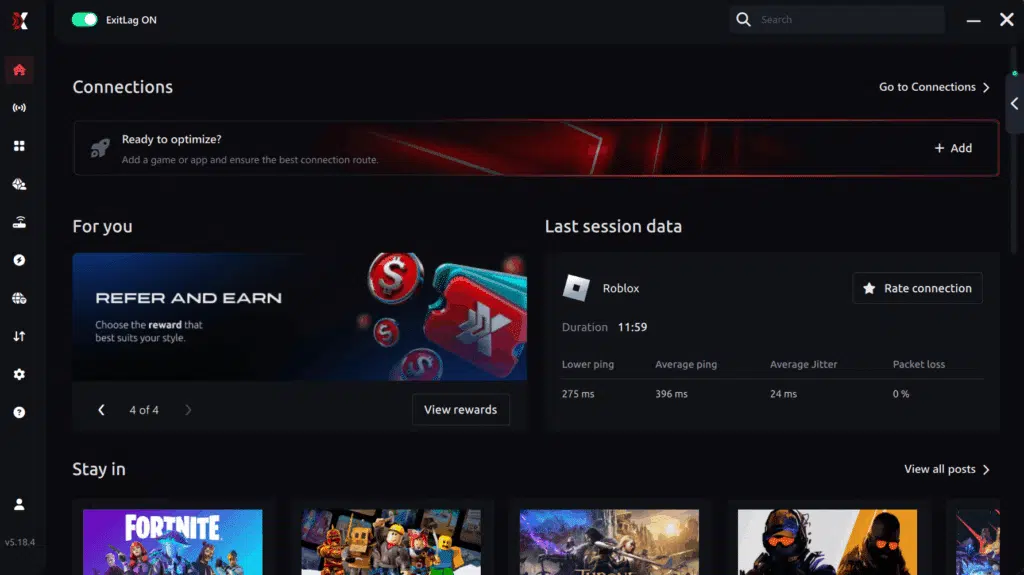
Step 3 – In the search bar, type “Rainbow Six Siege” and select the game from the list.
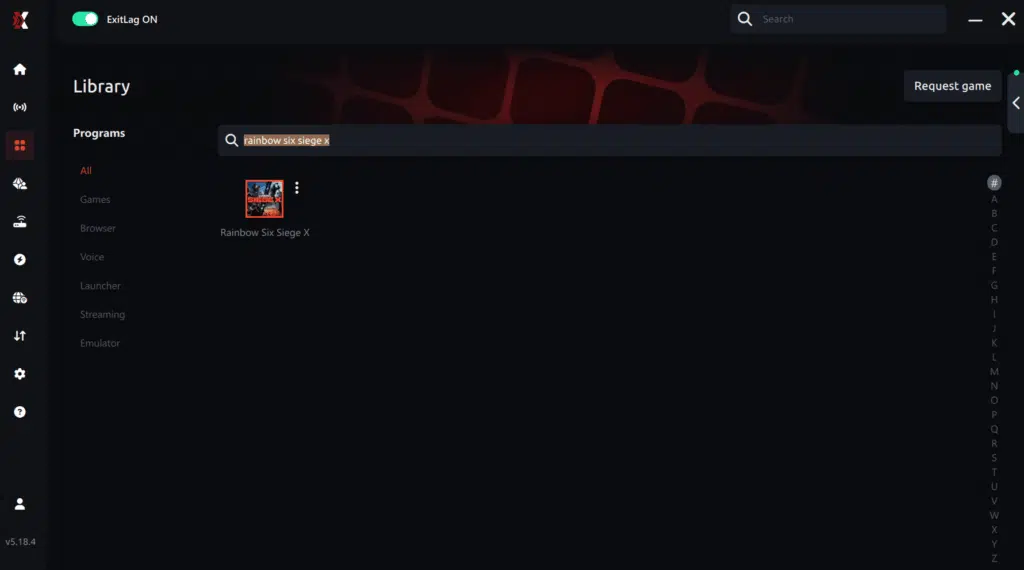
Step 4 – Choose between automated or manual route
Based on the results, you can let ExitLag automatically select the best route or manually choose the server that showed the lowest latency for your connection.
AI-optimized automated route
Based on the results, you can let ExitLag automatically select the best route through AI optimization. The system analyzes multiple connection paths in real time and automatically identifies the most efficient route for your connection, ensuring the lowest possible latency without requiring manual choices.
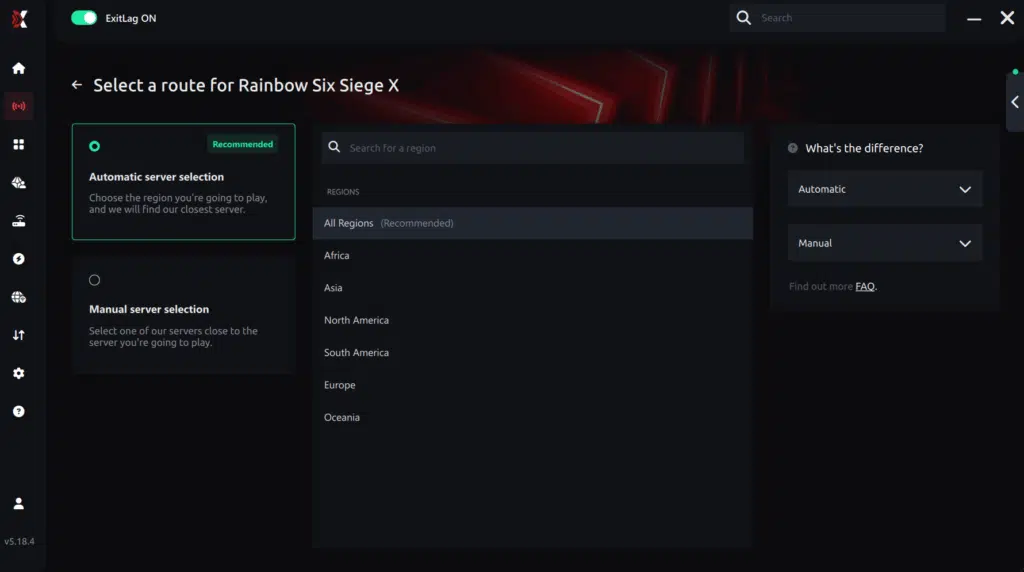
Manual route
If you prefer to have full control over your connection, you can manually choose the server based on the ping test results. Simply select the server that showed the lowest latency or the one that best meets your specific gaming needs, allowing complete customization of your experience.
Step 5 – Click “Apply routes” or the play button. ExitLag will begin optimizing your connection automatically.

Step 6 – Wait a few seconds until optimization is complete. You’ll see ping indicators in the interface.
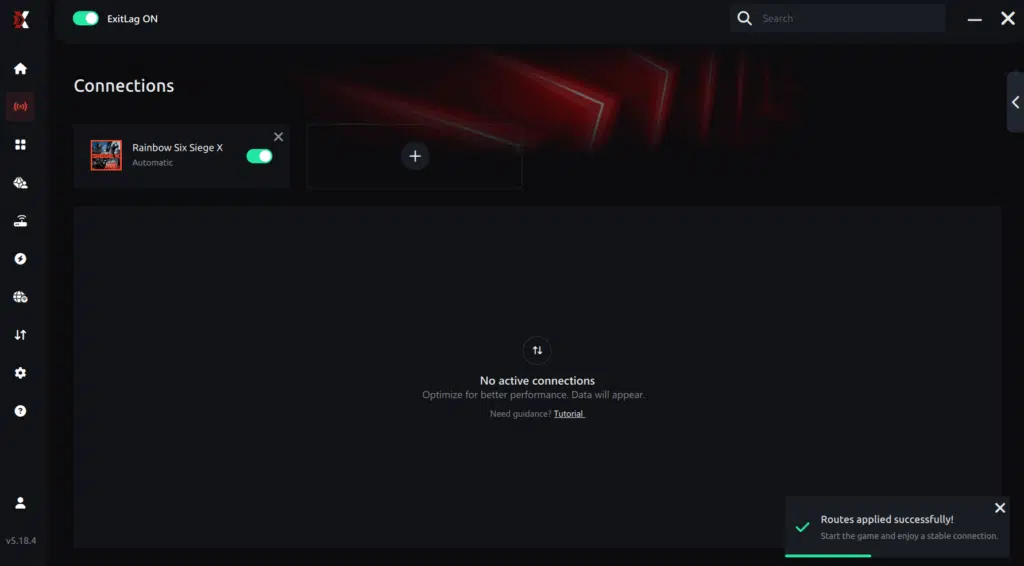
Step 7 – Launch Rainbow Six Siege normally. The optimization will already be active.
ExitLag runs in the background while you play, constantly adjusting routes to maintain the best possible performance.
How to use Ping for Games: step-by-step guide (Rainbow Six Siege)
Checking your connection quality before entering a match has never been easier. Here’s how to use Ping for Games in just a few steps:
1. Open the ExitLag software on your PC
Ensure the application is installed and open. The feature is integrated into the platform and available for free to all users.
2. Access the Network Analyzer tool
Locate the Network Analyzer in the software menu. This is where you’ll find Ping for Games along with other connection analysis features.
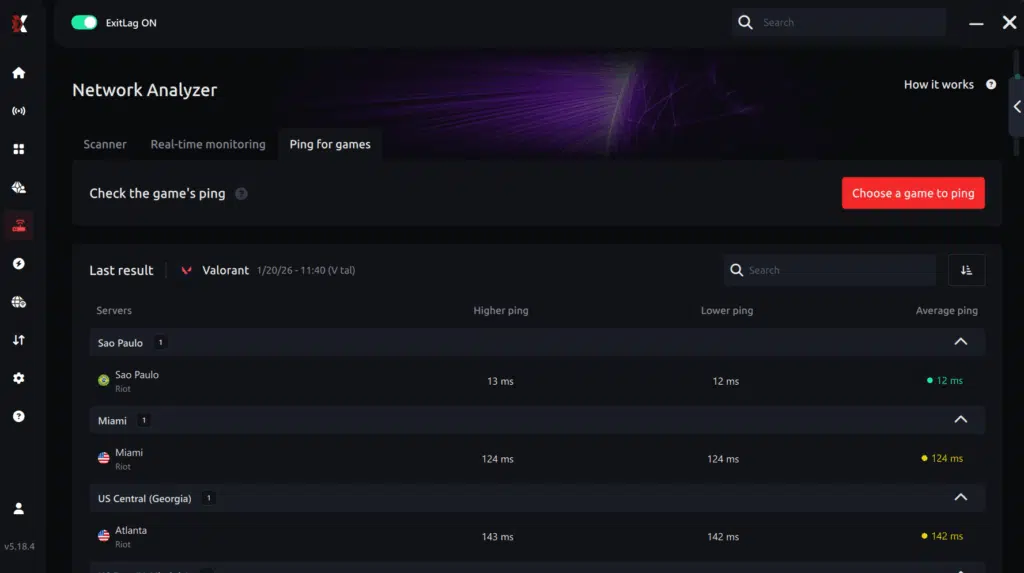
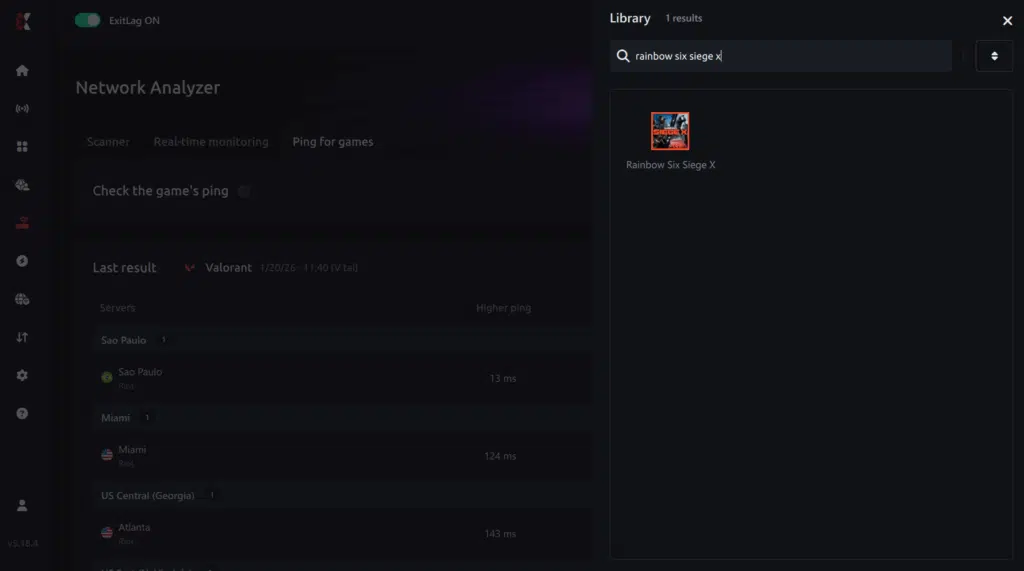
3. Select the game you want to test
Choose Rainbow Six Siege from the list. The tool supports major online multiplayer games, including FPS, Battle Royales, MOBAs, MMORPGs, and more.
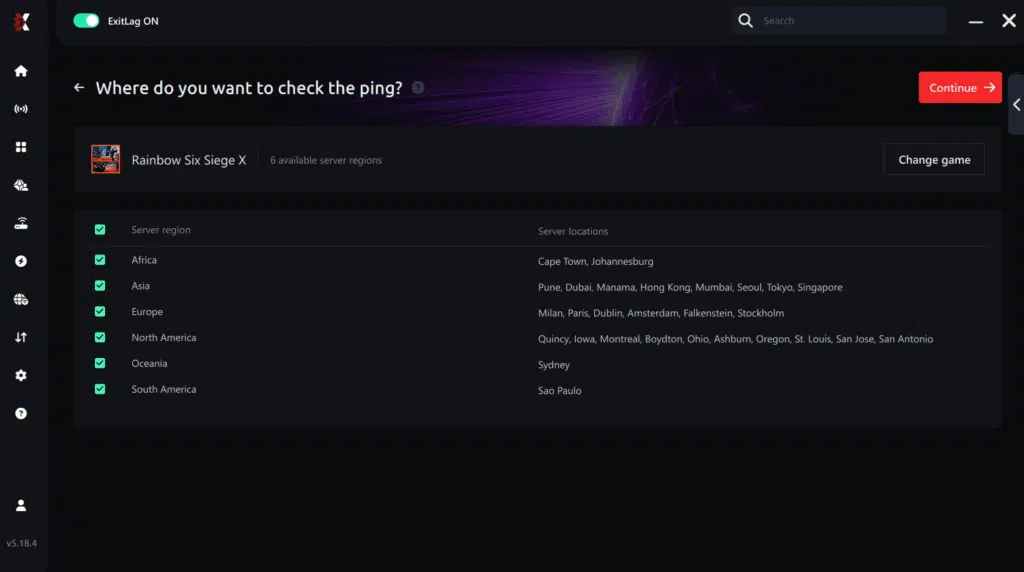
4. Choose the specific server
Select the exact Rainbow Six Siege server you want to test instead of a generic region. This ensures more accurate results for your match.
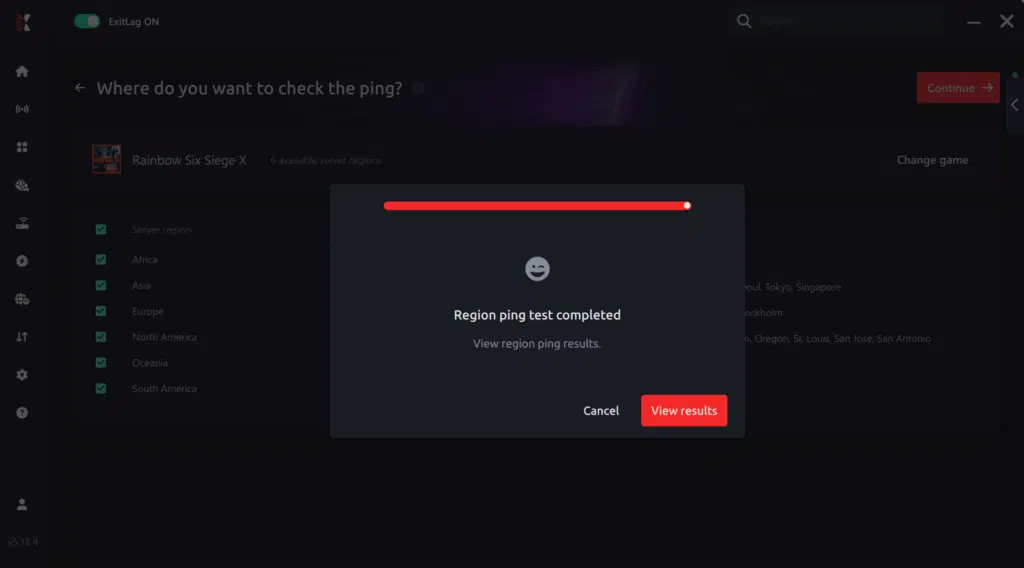
5. Start the ping test
With one click, the measurement is performed in real time between your device and the selected Rainbow Six Siege server, considering your current connection (cable or Wi-Fi).
6. Analyze the results
Results appear in milliseconds (ms), automatically sorted from best to worst ping. You can also reorganize the view alphabetically if you prefer.
7. Choose the best server and play worry-free
With this information, simply select the server with the lowest latency and jump into Rainbow Six Siege knowing your connection is optimized.
Final thoughts: Play Rainbow Six Siege without lag forever
At the end of the day, Rainbow Six Siege lag should never decide your matches. You spend time mastering your aim, reflexes, and strategy your internet connection should never be the reason you lose.
With ExitLag, you finally take control of your network performance. The software finds the fastest routes, eliminates lag, and stabilizes your ping so that every shot, every breach, and every clutch happens exactly when you want it to.
Try ExitLag for free right now and experience how smooth Rainbow Six Siege can be when your connection is fully optimized. Play with confidence, reach your full potential, and make lag a thing of the past.
Got questions or want to connect with other players? Join the conversation at the ExitLag Forum!