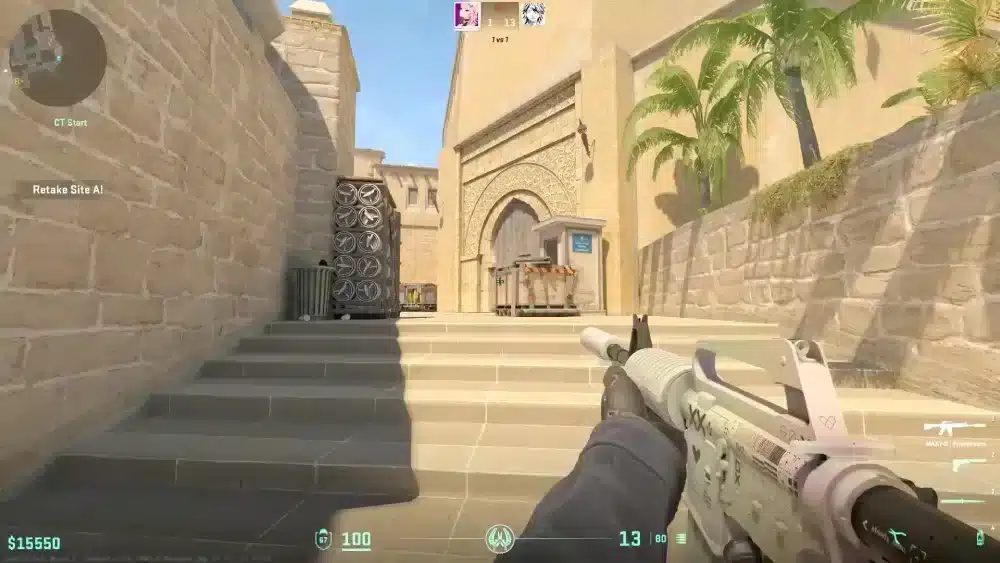
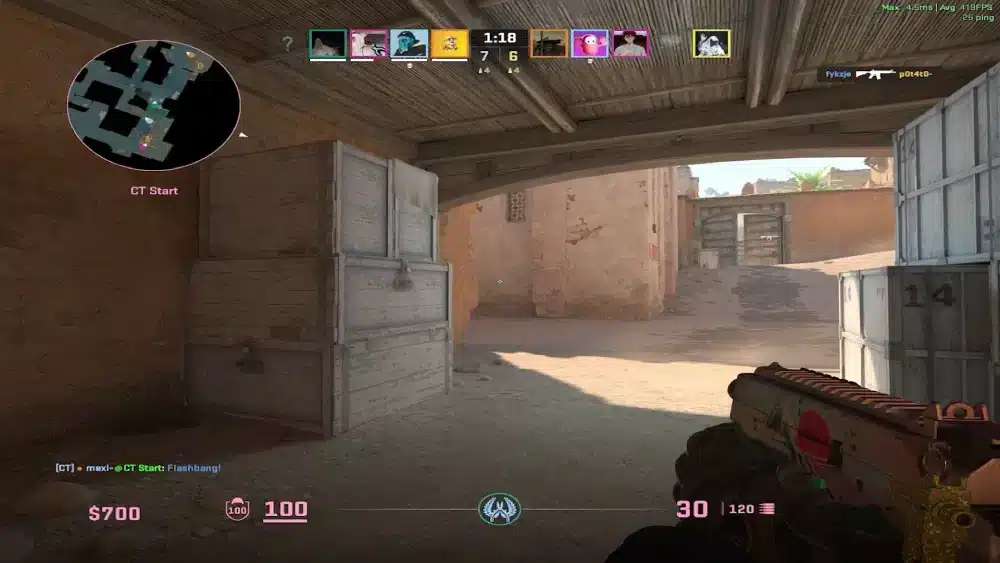
When a ranked match is on the line, nothing feels worse than sudden FPS Drop Counter-Strike 2 spikes right as you peek an angle. At that moment, your crosshair freezes, your screen jitters, and the enemy pushes forward while your system struggles to keep up. Every player has lived through this nightmare, and understanding it is the first step toward stopping it.
Even worse, FPS Drop Counter-Strike 2 tends to hit at the exact moment you’re holding a crucial post-plant or rotating through smoke. Combined new particle systems, and demanding lighting, the engine can choke unexpectedly. Issues like CS2 rendering bugs, shader compilation, or even subtle performance changes between updates can ruin an otherwise perfect match. You can explore optimization strategies in our detailed performance guide.
Soon after, hope returns when you realize that tools like ExitLag can stabilize routing, reduce packet loss, and improve responsiveness. That’s because, alongside visual optimizations, smart network paths help prevent indirect performance issues that feel like FPS Drop Counter-Strike 2. With better stability, faster servers, and optimized routes from the official ExitLag website, your system becomes ready for smoother matches.

What is FPS drop and why does it happen in Counter-Strike 2?
Understanding FPS
At first sight, FPS represents how many frames your system renders each second. Higher FPS means smoother gameplay, cleaner visual information, and faster reaction times.
Typical FPS ranges for shooters:
- 144+ FPS
- 60–120 FPS
- 30–60 FPS
- Below 30 FPS
Difference between FPS drop and network lag
Players often confuse performance drops with connection lag. Although both feel bad, they affect your gameplay in different ways.
| Aspect | FPS Drop | Network Lag |
| Cause | Hardware stress, shader compilation, high graphics load | Routing issues, unstable connection, packet loss |
| Symptoms | Stutters, freezes, visual slowdown | Teleporting players, delayed actions, rubber-banding |
| Solution | Adjust settings, optimize hardware | ExitLag |
Why Counter-Strike 2 suffers from FPS drop
Counter-Strike 2 runs on the Source 2 engine, which introduces volumetric smokes, high-fidelity lighting, physics-based interactions, and higher particle density. Constantly, these features push GPUs and CPUs harder than CS:GO ever did. That’s because:
- dynamic smokes require real-time calculations
- new reflections increase GPU workload
- updated maps use richer textures
- physics interactions trigger micro-stutters
- shader compilation still isn’t fully stabilized
All these factors can cause Counter-Strike 2 performance issues, Counter-Strike 2 stuttering, and unexpected Counter-Strike 2 frame drops even on strong systems.
5 Main causes of FPS drop in Counter-Strike 2
Counter-Strike 2 is heavier than many players expect. Beforehand, identifying what’s hurting your performance is essential for consistent FPS.
1. Overheating
When your CPU or GPU overheats, thermal throttling kicks in and reduces clock speeds. Soon after, this results in Counter-Strike 2 low FPS, especially during intense fights or large smokes.
2. Outdated drivers
Old GPU drivers can cause Counter-Strike 2 stuttering and failed shader optimization. Updating NVIDIA, AMD, or Intel drivers frequently prevents rendering delays.
3. Graphics settings
Ultra shadows, global reflections, and particle density heavily impact GPU load. Lowering them reduces Counter-Strike 2 performance issues across all maps.
4. Background processes
Apps like Discord overlays, Chrome tabs, or recording software consume RAM and CPU cycles. As a result, they can cause Counter-Strike 2 frame drops during heavy action.
5. Insufficient hardware
Older GPUs, slow CPUs, or low RAM struggle with the Source 2 engine. Even with optimized settings, these systems may still show signs of Counter-Strike 2 lag and FPS Drop Counter-Strike 2 side effects.
How ExitLag fixes FPS drop in Counter-Strike 2
What is ExitLag? (NOT a VPN)
ExitLag is a routing optimization tool built to stabilize your network connection during online matches. Unlike typical tunneling apps, ExitLag is NOT a VPN — it doesn’t encrypt or reroute your entire internet traffic. Instead, it focuses exclusively on gaming data, ensuring consistency that prevents symptoms commonly mistaken for FPS Drop Counter-Strike 2.
The tool analyzes multiple global routes simultaneously and selects the fastest, most stable path to the game server. This reduces jitter, packet delay, and micro-spikes, all of which can visually mirror Counter-Strike 2 stuttering or Counter-Strike 2 performance issues. You can see exactly how this works in the official ExitLag routing explanation.
How ExitLag optimizes performance in Counter-Strike 2
ExitLag improves competitive consistency through five core mechanisms:
- Network route optimization
- Latency reduction
- Packet loss elimination
- Game traffic prioritization
- Connection stabilization
These improvements directly reduce the conditions that cause visual skips, jitter, and delays that feel like FPS Drop Counter-Strike 2.
Why ExitLag helps with FPS drop
Many players believe FPS issues come only from hardware, but unstable routing causes:
- uneven frame pacing
- inconsistent enemy movement
- delayed rendering
- micro-stutters
- ghost freezes during peeks
All these issues mimic Counter-Strike 2 low FPS, even when your GPU is working correctly. With stabilized routing, the game updates smoothly and avoids the jitter that players interpret as FPS Drop Counter-Strike 2 during fights, smokes, and rotations.
ExitLag technologies that impact FPS
ExitLag reduces the visual instability commonly associated with FPS Drop Counter-Strike 2 using:
- Multi-path routing: simultaneously tests several routes to avoid jitter spikes
- Redundant connections: switches instantly if one path destabilizes
- Gaming-optimized protocol: fine-tuned for consistent packet timing
These systems significantly reduce Counter-Strike 2 frame drops caused by timing inconsistencies and unstable packet flows.
ExitLag vs other solutions
| Solution | Improves FPS? | Reduces lag? | Ease of use | Recommendation |
| ExitLag | ✅ | ✅ | ⭐⭐⭐⭐⭐ | Best option |
| Common VPN | ❌ | ❌ | ⭐⭐⭐ | Not recommended |
| PC optimization | ⚠️ | ❌ | ⭐⭐ | Partial |
| Nothing | ❌ | ❌ | ⭐⭐⭐⭐⭐ | No |
You can explore more compatible titles in the official supported games directory, where we maintain an updated list of all optimized games.
How to use ExitLag in Counter-Strike 2
The process is extremely simple:
Step 1 – Access the official ExitLag website and download the application. There’s a free trial period for new users.
Step 2 – Install and open the program. Log in with your account.
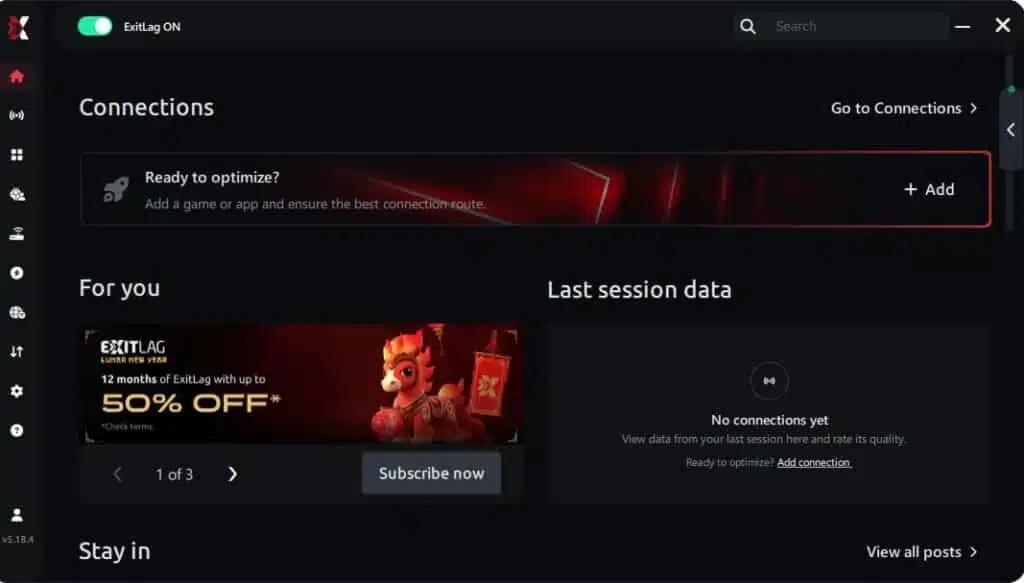
Step 3 – In the search bar, type “Counter-Strike 2” and select the game from the list.

Step 4 – Choose between automated or manual route

Based on the results, you can let ExitLag automatically select the best route or manually choose the server that showed the lowest latency for your connection.
AI-optimized automated route
Based on the results, you can let ExitLag automatically select the best route through AI optimization. The system analyzes multiple connection paths in real time and automatically identifies the most efficient route for your connection, ensuring the lowest possible latency without requiring manual choices.

Manual route
If you prefer to have full control over your connection, you can manually choose the server based on the ping test results. Simply select the server that showed the lowest latency or the one that best meets your specific gaming needs, allowing complete customization of your experience.
Step 5 – Click “Counter-Strike 2” or the play button. ExitLag will begin optimizing your connection automatically.

Step 6 – Wait a few seconds until optimization is complete. You’ll see ping indicators in the interface.

Step 7 – Launch Counter-Strike 2 normally. The optimization will already be active.
ExitLag runs in the background while you play, constantly adjusting routes to maintain the best possible performance.
Emulator setup
If you play through cloud platforms or remote virtual instances, ExitLag optimizes those routes too. Selecting the correct platform in the app helps reduce instability that resembles FPS Drop Counter-Strike 2.
Optimization tips
To further reduce visual jitter and avoid stutter-like Counter-Strike 2 performance issues, apply these optimizations:
- close heavy background apps
- disable overlays
- update GPU drivers
- use exclusive fullscreen
- minimize RAM usage
These steps help prevent timing spikes that create Counter-Strike 2 stuttering.
Console players
CS2 is not officially on consoles, but players using PC-to-console remote solutions or cloud gaming benefit from stabilized routing that reduces visual jitter mistaken for FPS Drop Counter-Strike 2.
Before and after results with ExitLag in Counter-Strike 2
Real player cases
Here are real-world scenarios where routing stabilization removed symptoms that looked like FPS Drop Counter-Strike 2:
- Case #1: Packet loss dropped from 11% to 0%, eliminating micro-stutters during duels.
- Case #2: Ping stability improved from ±19 ms to ±3 ms, reducing model jitter and fake frame drops.
- Case #3: Frame pacing stabilized after ExitLag routing, removing hitching when enemies entered view.
Performance comparison table
| Metric | Without ExitLag | With ExitLag | Improvement |
| Ping Stability | ±18 ms | ±2 ms | Smooth and consistent |
| Packet Loss | 7–10% | 0% | Full stability |
| Input Timing | Delayed | Immediate | Better accuracy |
| Visual Jitter | Frequent | Minimal | Removes stutter-like artifacts |
Additional optimizations to maximize FPS with ExitLag
Even with strong routing improvements, players can apply extra configurations to reduce instability and avoid effects that resemble FPS Drop Counter-Strike 2. These complementary adjustments improve frame pacing, responsiveness, and overall system efficiency.
Network
Ethernet
Using a wired Ethernet cable instead of Wi-Fi prevents signal interference and removes jitter that can visually mimic FPS Drop Counter-Strike 2 in crowded networks.
QoS (Quality of Service)
Enable QoS on your router to prioritize gaming traffic. This prevents bandwidth competition from other devices, reducing delays that can trigger micro-stutters similar to Counter-Strike 2 stuttering.
DNS
Switching to a faster DNS (such as Cloudflare or Google DNS) decreases lookup delays and stabilizes connections during match transitions.
Close heavy apps
Background processes like cloud sync apps, browsers, or streaming tools often cause CPU spikes. Closing them prevents sudden drops in consistency that players often misinterpret as Counter-Strike 2 performance issues.
System
Drivers
Keeping GPU, chipset, and audio drivers updated ensures optimal stability during maps, smoke interactions, and combat situations, reducing the risk of FPS Drop Counter-Strike 2.
High-performance mode
Switch Windows to high-performance mode to ensure hardware doesn’t downclock during gameplay.
Background apps
Disabling overlays, recorders, RGB software, launchers, and auto-updaters helps prevent unexpected resource usage that leads to jitter and Counter-Strike 2 low FPS.
Clean system
Removing unnecessary startup apps, uninstalling unused programs, and keeping storage clean reduces bottlenecks that impact frame pacing.
In-game
V-Sync off
Disable V-Sync to avoid input delay and avoid the frame pacing issues that pretend to be FPS Drop Counter-Strike 2.
FPS limit
Set your FPS cap slightly below your maximum stable value (e.g., 280 on a 300+ rig) to reduce sudden variations.
Recommended presets
Start on Low or Medium settings, then selectively increase textures and shadows depending on your GPU. This reduces Counter-Strike 2 frame drops during intense firefights.
Frequently asked questions about FPS drop in Counter-Strike 2
Does ExitLag actually improve FPS?
ExitLag improves the stability behind frame timing by fixing jitter, packet loss, and routing inconsistencies. This eliminates micro-stutters frequently mistaken for FPS Drop Counter-Strike 2, making gameplay feel smoother even without changing GPU rendering.
Is ExitLag safe?
Yes. ExitLag does not modify files, system components, or sensitive data. It only improves packet routing.
Does ExitLag work on console?
Although CS2 is not officially available for console, players using cloud gaming or PC-to-console streaming benefit from ExitLag’s routing stabilization, preventing jitter that feels like Counter-Strike 2 stuttering.
How much does ExitLag cost?
You can explore all available plans on the official ExitLag pricing page, where each option is explained in detail.
Even better, before committing to a subscription, players can experience the full benefits firsthand with the free trial, allowing you to test ExitLag’s performance impact with zero risk.

My PC is weak, does ExitLag help?
ExitLag cannot increase hardware power, but it removes network instability that creates the illusion of FPS Drop Counter-Strike 2. Low-end PCs especially benefit from smooth routing, since they are more sensitive to timing disruption.
Does ExitLag work with Counter-Strike 2?
Yes, ExitLag fully supports the title. You can view CS2 and all supported games through the official supported games directory.
What’s the difference between ExitLag and a VPN?
ExitLag is NOT a VPN. A VPN encrypts global traffic and adds overhead. ExitLag focuses solely on game packets, using multi-route optimization for the lowest latency possible.
Why does CS2 stutter when enemies appear?
The game loads shaders and model data dynamically, causing micro-freezes that players confuse with FPS Drop Counter-Strike 2.
Do smokes increase stutter?
Yes. Volumetric smokes are GPU-heavy and can trigger Counter-Strike 2 performance issues on mid-range systems.
Why does Mirage or Inferno feel laggier than other maps?
Some maps have higher texture density and more dynamic light sources, which cause inconsistent frame pacing.
Fix FPS drop in Counter-Strike 2 with ExitLag
Final benefits
ExitLag helps eliminate the instability and timing inconsistencies that create symptoms commonly misinterpreted as FPS Drop Counter-Strike 2, resulting in:
- Stable FPS
- Zero micro-stuttering
- Smooth gameplay
- Competitive advantage
- Frustration-free matches
These improvements allow players to perform consistently during peeks, crossfires, and clutch situations.
Next steps
- Test ExitLag for free
- Configure in 5 minutes
- Compare before and after
- Dominate Counter-Strike 2
In conclusion, solving FPS drop Counter-Strike 2 issues requires balancing hardware, settings, and network stability. ExitLag’s multi-path technology eliminates routing delays and ensures fluid gameplay across all regions of Counter-Strike 2. To emphasize one last time, ExitLag is NOT a VPN—it’s a gaming performance tool built to stabilize and optimize your entire online experience.
Now that you know everything about FPS drop Counter-Strike 2, if you want the most stable, smooth, and competitive gameplay possible, is the time to upgrade your performance toolkit. Register at ExitLag now and improve your gameplay in a way you’ve never experienced before!
Got questions or want to connect with other players? Join the conversation at the ExitLag Forum!