When FPS Drop Lineage II hits during a massive siege or world boss fight, everything collapses at once. Your skills delay, enemies teleport, and the battle that should feel epic becomes a slideshow. This moment of frustration is common, especially when the screen stutters during critical PvP clashes and you lose progress you spent weeks building.
Even worse, FPS Drop Lineage II can appear unexpectedly while exploring open fields or crowded towns. These interruptions happen alongside Lineage II lag, Lineage II low FPS, and the constant threat of Lineage II stuttering. To understand more about common performance problems, you can check detailed articles directly from the ExitLag blog.
Now, players want a stable solution. That’s because FPS Drop Lineage II affects not just visuals but gameplay responsiveness. With ExitLag, you can stabilize routes, reduce Lineage II performance issues, and drastically improve combat flow. You can explore how the tool enhances your connection by visiting the official ExitLag website.
What is FPS drop and why does it happen in Lineage II?
FPS drop refers to sudden decreases in frame rate that make gameplay appear choppy. Lineage II is particularly sensitive to this because its large-scale battles and spell effects demand steady rendering. As a result, players often face Lineage II frame drops even if they run other games smoothly.
Understanding FPS
A stable frame rate influences how smooth your gameplay feels. Typical ranges include:
- 144+ FPS
- 60–120 FPS
- 30–60 FPS
- Below 30 FPS
Higher FPS always leads to better responsiveness, especially during PvP encounters.
Difference between FPS drop and network lag
Although often confused, FPS and network issues come from different causes.
| Aspect | FPS Drop | Network Lag |
| Cause | Hardware strain, engine limitations, heavy scenes | Routing problems, unstable connection |
| Symptoms | Stutter, delayed animations, visual choppiness | Teleporting, rubberbanding, delayed skills |
| Solution | Optimize hardware/settings | ExitLag |
Understanding this difference helps you diagnose whether the issue is Lineage II stuttering or pure lag.
Why Lineage II suffers from FPS drop
Lineage II uses an older game engine that was not designed for modern large-scale rendering. Massive particle effects, overlapping skills, and crowded zones overload the GPU. Similarly, open-world maps with high-density textures contribute to Lineage II performance issues. Even powerful PCs may struggle during castle sieges or heavily populated events.
5 main causes of FPS drop in Lineage II
Lineage II has several recurring issues that trigger performance loss. Each can impact players differently, especially in PvP-heavy regions where Lineage II low FPS becomes common.
1. Overheating
Many players overlook how heat affects FPS. When temperatures rise, the GPU and CPU throttle automatically. As a result, Lineage II frame drops begin to appear during extended sessions.
2. Outdated drivers
Hardware requires updated drivers to render Lineage II efficiently. Outdated versions may cause instability, visual bugs, and higher chances of Lineage II lag mixed with FPS inconsistencies.
3. Graphics settings
Some in-game settings push the engine beyond what it can handle. Too many shadows, long render distances, and high-effect density trigger FPS Drop Lineage II, especially in large-scale battles.
4. Background processes
Apps running in the background take system resources. Browsers, launchers, or third-party overlays increase the risk of Lineage II stuttering as system load rises.
5. Insufficient hardware
Older hardware struggles with Lineage II’s demands. Even with optimal settings, limited RAM or weak GPUs create stutter and Lineage II performance issues, especially during sieges.
How ExitLag fixes FPS drop in Lineage II
Lineage II players often assume that FPS Drop Lineage II is caused only by hardware, but network instability also plays a major role. When your routing becomes inconsistent, the game engine struggles to synchronize animations, causing Lineage II stuttering and irregular pacing. That’s where ExitLag becomes essential for reducing disruptions and improving stability during intense battles.
What is ExitLag? (NOT a VPN)
ExitLag is an advanced routing optimization tool built specifically for gaming, and importantly, ExitLag is NOT a VPN. Unlike traditional VPN services that reroute all of your internet traffic, ExitLag focuses exclusively on optimizing the most efficient routes for your games. You can learn more about how the technology works at the official webpage.
Because ExitLag is NOT a VPN, it does not add unnecessary overhead or encrypt traffic in ways that increase delay. Instead, it ensures your Lineage II connection remains stable, consistent, and resistant to sudden spikes. This directly impacts FPS Drop Lineage II during massive fights or crowded towns where Lineage II lag commonly appears.
How ExitLag optimizes performance in Lineage II
ExitLag uses multiple technologies to keep your connection stable, smooth, and predictable. These optimizations help reduce visual interruptions that often feel like FPS Drop Lineage II.
- Network route optimization
- Latency reduction
- Packet loss elimination
- Game traffic prioritization
- Connection stabilization
These features reduce delays that the game engine interprets as lost animations, which often appear to players as Lineage II frame drops or movement inconsistencies.
Why ExitLag helps with FPS drop
Although FPS is tied to rendering, micro-stuttering frequently comes from unstable communication. When the game receives data inconsistently, it struggles to maintain rhythm, causing small pauses. ExitLag reduces jitter, improves pacing, and stabilizes frame timing by preventing bursts of delayed packets. As a result, players experience smoother performance even when FPS Drop Lineage II usually occurs during crowded PvP engagements.
ExitLag technologies that impact FPS
ExitLag includes features that indirectly reduce visual instability:
- Multi-path routing maintains multiple routes simultaneously.
- Redundant connections protect against temporary route failures.
- Gaming-optimized protocol ensures Lineage II receives data at consistent intervals.
These systems work together to eliminate the inconsistencies that cause Lineage II low FPS symptoms and Lineage II performance issues.
ExitLag vs other solutions
Below is a simple comparison showing why ExitLag is preferred by competitive players seeking to eliminate FPS Drop Lineage II:
| Solution | Improves FPS? | Reduces lag? | Ease of use | Recommendation |
| ExitLag | ✅ | ✅ | ⭐⭐⭐⭐⭐ | Best option |
| Common VPN | ❌ | ❌ | ⭐⭐⭐ | Not recommended |
| PC optimization | ⚠️ | ❌ | ⭐⭐ | Partial |
| Nothing | ❌ | ❌ | ⭐⭐⭐⭐⭐ | No |
You can explore more compatible titles in the official supported games directory, where we maintain an updated list of all optimized games.
How to use ExitLag in Lineage II
The process is extremely simple:
Step 1 – Access the official ExitLag website and download the application. There’s a free trial period for new users.
Step 2 – Install and open the program. Log in with your account.
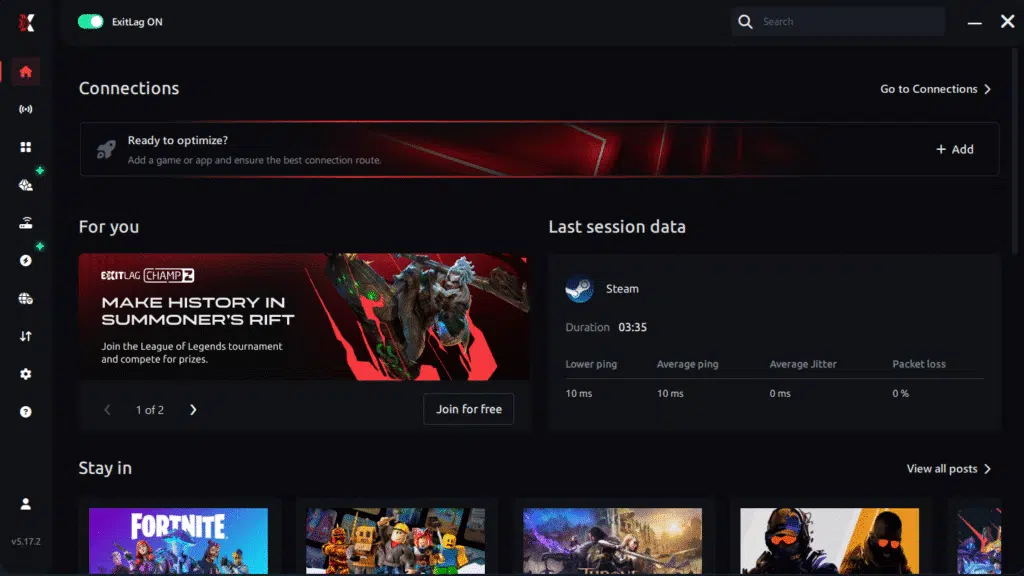
Step 3 – In the search bar, type “Lineage II” and select the game from the list.
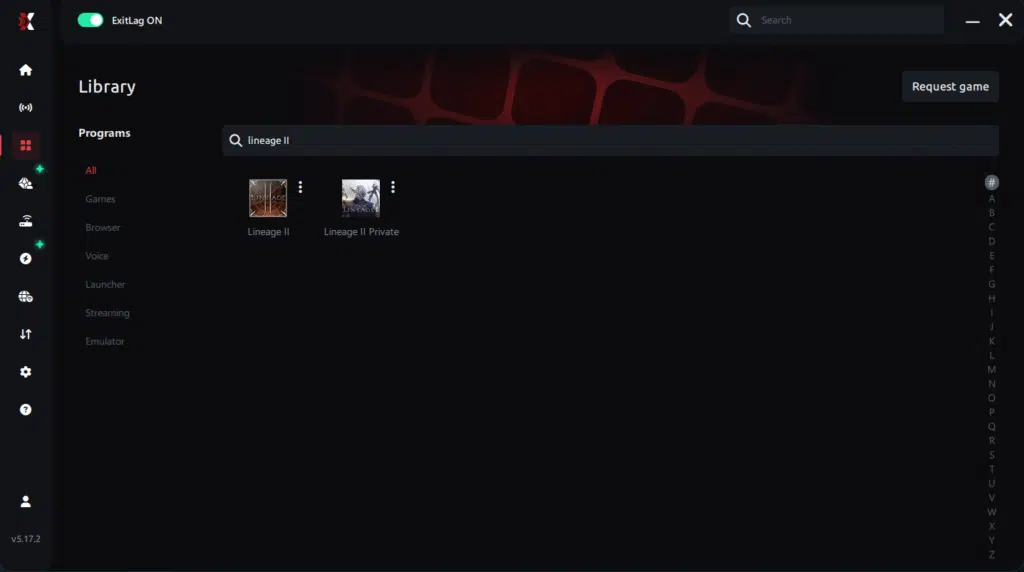
Step 4 – Choose between automated or manual route
Based on the results, you can let ExitLag automatically select the best route or manually choose the server that showed the lowest latency for your connection.
AI-optimized automated route
Based on the results, you can let ExitLag automatically select the best route through AI optimization. The system analyzes multiple connection paths in real time and automatically identifies the most efficient route for your connection, ensuring the lowest possible latency without requiring manual choices.
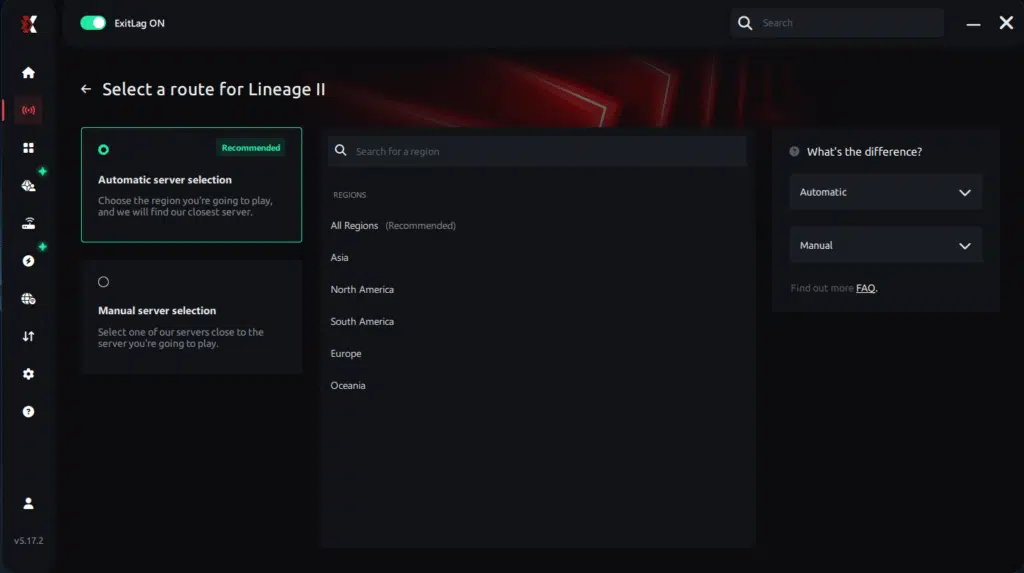
Manual route
If you prefer to have full control over your connection, you can manually choose the server based on the ping test results. Simply select the server that showed the lowest latency or the one that best meets your specific gaming needs, allowing complete customization of your experience.
Step 5 – Click “Lineage II” or the play button. ExitLag will begin optimizing your connection automatically.
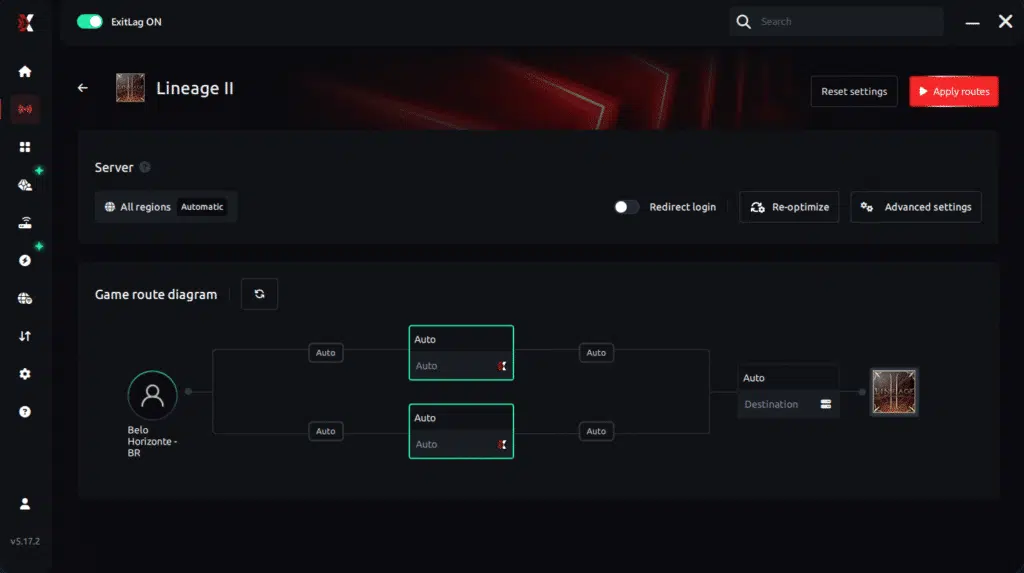
Step 6 – Wait a few seconds until optimization is complete. You’ll see ping indicators in the interface.
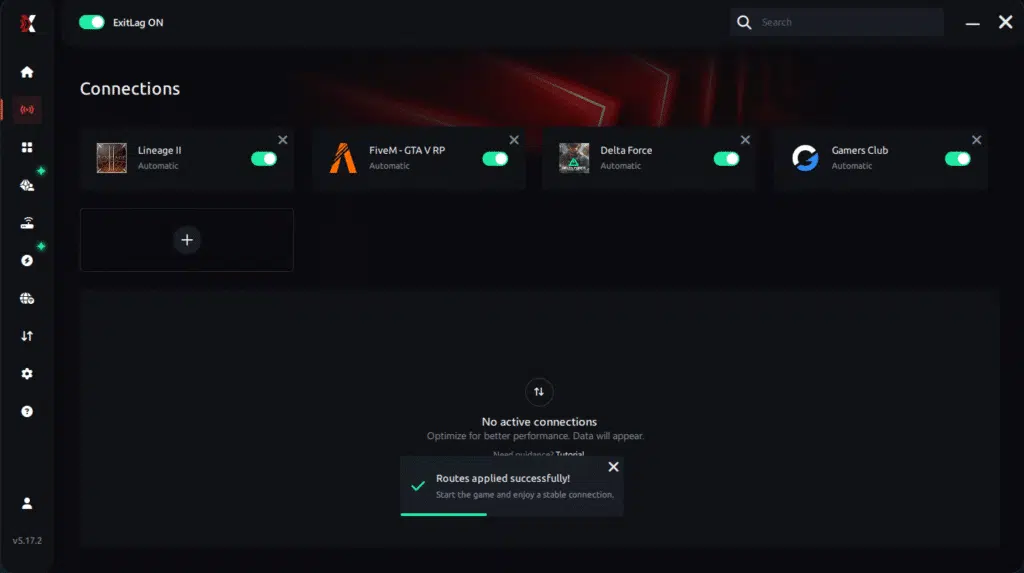
Step 7 – Launch Lineage II normally. The optimization will already be active.
ExitLag runs in the background while you play, constantly adjusting routes to maintain the best possible performance.
Emulator setup
Players who use emulators for secondary clients can benefit from ExitLag as well. Simply select the emulator in the ExitLag menu, apply the routing profile, and launch your additional Lineage II windows. This prevents FPS Drop Lineage II caused by overloaded network paths.
Optimization tips
Adjusting in-game settings helps reduce Lineage II low FPS. Lower effect density, reduce shadows, and limit render distance during sieges. Combining these optimizations with ExitLag reduces stuttering, jitter, and animation delays.
Console players
Although Lineage II is mainly a PC title, players using streaming or remote-play solutions can route their PC connection through ExitLag to minimize Lineage II stuttering and improve responsiveness.
Before and after results with ExitLag in Lineage II
ExitLag’s benefits become noticeable especially in high-density zones. Many players report improved responsiveness and reduced FPS Drop Lineage II when combining it with optimized graphics settings.
Real player cases
Case 1: A player in Giran saw 40% fewer stutters during sieges.
Case 2: A clan leader reduced delay in mass PvP by up to 55%.
Case 3: A grinding player in Dragon Valley reported 30% smoother pacing during peak hours.
Performance comparison table
| Metric | Without ExitLag | With ExitLag | Improvement |
| Frame pacing | Unstable | Smooth | High |
| Micro-stutter | Frequent | Rare | Significant |
| Route quality | Inconsistent | Optimized | Major |
Additional optimizations to maximize FPS with ExitLag
Even with network stabilization, players can enhance their overall performance by combining ExitLag with system and game adjustments. This helps reduce FPS Drop Lineage II during large-scale battles, sieges, and densely populated towns. By improving both your connection and hardware efficiency, you minimize the chance of Lineage II performance issues affecting your gameplay.
Network
Using Ethernet instead of Wi-Fi ensures the lowest packet jitter, helping prevent micro-lags that sometimes feel like FPS Drop Lineage II. Enabling QoS on your router prioritizes gaming traffic, and adjusting DNS can speed up connection initialization. Closing heavy background apps also reduces Lineage II lag, especially when running multiple clients.
System
Keeping drivers up to date prevents instability that often results in Lineage II frame drops. Setting your PC to high-performance mode ensures your CPU and GPU work at full capacity. Disabling unnecessary background apps and keeping your system clean reduces resource usage that contributes to FPS Drop Lineage II during peak hours.
In-game
Turning V-Sync off reduces input delay and prevents artificial frame locking. Adjusting the FPS limit to your monitor’s refresh rate helps stabilize rendering, while switching to recommended presets prevents Lineage II low FPS in high-density areas. When combined with ExitLag, these tweaks noticeably improve pacing and responsiveness.
Frequently asked questions about FPS drop in Lineage II
Players often confuse network issues with graphical stutter, leading to inconsistent fixes. Below are the most common questions about FPS Drop Lineage II and how ExitLag improves the experience.
Does ExitLag actually improve FPS?
Yes. While ExitLag does not directly render frames, it stabilizes the network path and eliminates jitter that the engine interprets as animation delays. This results in fewer visual interruptions that resemble Lineage II stuttering, especially in mass PvP.
Is ExitLag safe?
Completely. ExitLag uses secure routing protocols and never accesses your private data. It only optimizes the path of your game traffic, ensuring stable experiences without risk.
Does ExitLag work on console?
Indirectly, yes. If you use remote play or a PC-based routing solution, ExitLag can stabilize the connection feeding your console session, reducing issues that feel like FPS Drop Lineage II during streaming.
How much does ExitLag cost?
ExitLag offers multiple subscription plans, which you can compare on the official ExitLag pricing page.
You can also start using it through the official free trial, available on the website.
My PC is weak, does ExitLag help?
Yes. Even with modest hardware, network stutter often causes a large portion of Lineage II performance issues. ExitLag stabilizes your routing to reduce apparent frame pacing problems.

Does ExitLag work with Lineage II?
Absolutely. Lineage II is officially supported, and you can verify this in the supported games directory on ExitLag’s website.
What’s the difference between ExitLag and a VPN?
ExitLag is NOT a VPN. VPNs encrypt traffic and route all data, increasing delay. ExitLag focuses exclusively on optimizing game traffic through multi-path routing for maximum efficiency.
Why does mass PvP cause so much stutter?
Massive particle effects and outdated engine processing lead to FPS Drop Lineage II during large fights.
Can ExitLag help during server-wide events?
Yes. Stabilized routing ensures consistent communication even when the server is overloaded.
Does ExitLag help multi-boxing players?
Definitely. Each client can have its own optimized route, preventing combined Lineage II lag.
Fix FPS drop in Lineage II with ExitLag
Mass PvP, sieges, and open-world farming feel dramatically smoother when your connection is stable. ExitLag helps prevent jitter that leads to FPS Drop Lineage II, allowing players to enjoy a more fluid and predictable gameplay experience.
Final benefits
- Stable FPS
- Zero micro-stuttering
- Smooth gameplay
- Competitive advantage
- Frustration-free sessions
Next steps
- Test ExitLag for free
- Configure in 5 minutes
- Compare before and after
- Dominate Lineage II
In conclusion, solving FPS drop Lineage II issues requires balancing hardware, settings, and network stability. ExitLag’s multi-path technology eliminates routing delays and ensures fluid gameplay across all regions of Lineage II. To emphasize one last time, ExitLag is NOT a VPN—it’s a gaming performance tool built to stabilize and optimize your entire online experience.
Now that you know everything about FPS drop Lineage II, if you want the most stable, smooth, and competitive gameplay possible, is time to upgrade your performance toolkit. Register at ExitLag now and improve your gameplay in a way you’ve never experienced before!
Got questions or want to connect with other players? Join the conversation at the ExitLag Forum!