

When an unexpected FPS Drop Throne and Liberty Global appears in the middle of a massive battle, the entire experience becomes chaotic. The screen stutters, your character delays attacks, and enemies move unpredictably. In advance, this turns moments that should feel epic into frustrating interruptions that break immersion.
Even more, players report FPS Drop Throne and Liberty Global during crowded cities, world bosses, and large-scale PvP, creating constant interruptions. This becomes worse when combined with issues like Throne and Liberty Global lag, Throne and Liberty Global low FPS, or aggressive Throne and Liberty Global stuttering. To understand more about common performance problems, you can check detailed articles directly from the ExitLag blog.
Now, players want a real solution. That’s because optimizing your system and connection can transform your experience. Tools like ExitLag stabilize routes, improve responsiveness, and help minimize issues associated with FPS Drop Throne and Liberty Global. For smoother gameplay and better network stability, you can learn more through the official ExitLag website.

What is FPS drop and why does it happen in Throne and Liberty Global?
FPS drops occur when your system cannot maintain consistent frame rendering. This leads to slowdowns, freezes, and visible delays that affect combat flow, exploration, and dungeon performance. Even so, maintaining stable FPS is essential in large-scale MMORPGs like Throne and Liberty Global.
Understanding FPS
Typical FPS ranges include:
- 144+ FPS
- 60–120 FPS
- 30–60 FPS
- Below 30 FPS
These ranges demonstrate how performance levels directly shape how smooth gameplay feels.
Difference between FPS drop and network lag
Understanding these two issues prevents incorrect troubleshooting.
| Aspect | FPS Drop | Network Lag |
| Cause | Hardware overload, graphics settings, overheated components | High ping, unstable routes, or ISP congestion |
| Symptoms | Low frame rate, stutter, choppy animations | Rubberbanding, skill delay, teleporting enemies |
| Solution | Lower settings, optimization, cooling | ExitLag |
Why Throne and Liberty Global suffers from FPS drop
Large maps with dynamic weather effects, heavy particle animations, and high character density create consistent pressure on your hardware. Likewise, massive PvP battles require your CPU and GPU to handle thousands of concurrent actions. As a result, Throne and Liberty Global frame drops and Throne and Liberty Global performance issues become more common during peak moments.
5 main causes of FPS drop in Throne and Liberty Global
Before fixing the problem, it’s important to understand what triggers unstable performance. These causes relate both to internal system conditions and the demanding nature of the game itself.
1. Overheating
When the CPU or GPU overheats, the system automatically reduces performance to avoid damage. Soon after this happens, you may notice Throne and Liberty Global low FPS, sudden stuttering, and slower combat responsiveness. Proper airflow and regular cleaning are essential.
2. Outdated drivers
Drivers influence how your hardware communicates with the game engine. Therefore, outdated GPU drivers often trigger Throne and Liberty Global performance issues and make FPS unstable during heavy battles or cutscenes.
3. Graphics settings
High-resolution shadows, reflections, volumetric fog, and particle effects rapidly increase GPU load. Consequently, this can amplify Throne and Liberty Global stuttering when your setup can’t handle maximum settings reliably.
4. Background processes
Hidden apps constantly running in the background drain CPU resources. As a result, you may experience Throne and Liberty Global lag, delayed rendering, and inconsistent frame pacing while playing.
5. Insufficient hardware
In some cases, older PCs struggle to maintain performance in large MMORPGs. Even more, systems without SSDs load assets slowly, causing Throne and Liberty Global frame drops during teleportation, map transitions, and fast travel.
How ExitLag fixes FPS drop in Throne and Liberty Global
When players experience FPS Drop Throne and Liberty Global, the problem is often a combination of graphics overload and unstable network routes. Even with strong hardware, issues such as Throne and Liberty Global stuttering and inconsistent pacing can create visible slowdowns. Therefore, using a connection optimizer becomes essential to stabilize gameplay and reduce interruptions.
What is ExitLag? (NOT a VPN)
ExitLag is a routing optimization tool designed specifically for gaming, built to stabilize network performance and prevent routing issues that affect frame pacing. Although some players confuse it with VPN apps, ExitLag is NOT a VPN. It does not mask location, alter region identity, or route traffic like a traditional VPN.
Instead, ExitLag uses specialized gaming tunnels that prioritize performance. To understand how the technology works, you can explore the detailed explanation available on the ExitLag technology overview. As a result, it helps reduce micro-lags that indirectly contribute to FPS Drop Throne and Liberty Global during heavy encounters.
How ExitLag optimizes performance in Throne and Liberty Global
- Network route optimization
- Latency reduction
- Packet loss elimination
- Game traffic prioritization
- Connection stabilization
All these elements work together to minimize Throne and Liberty Global performance issues and keep your game stable.
Why ExitLag helps with FPS drop
When your connection suffers from jitter, packet delay, or small desynchronizations, the game engine struggles to sync rendering with incoming data. Soon after this happens, visible hitches appear, causing micro-stuttering and irregular frame pacing. This often feels like FPS Drop Throne and Liberty Global, even when the GPU is performing well.
ExitLag reduces these inconsistencies by stabilizing the data path. The result is smoother gameplay with fewer rendering interruptions, especially in large PvP and crowded zones where Throne and Liberty Global frame drops become more common.
ExitLag technologies that impact FPS
- Multi-path routing
- Redundant connections
- Gaming-optimized protocol
These technologies ensure the game receives continuous data flow, reducing interruptions that create the sensation of abrupt frame drops.
ExitLag vs other solutions
| Solution | Improves FPS? | Reduces lag? | Ease of use | Recommendation |
| ExitLag | ✅ | ✅ | ⭐⭐⭐⭐⭐ | Best option |
| Common VPN | ❌ | ❌ | ⭐⭐⭐ | Not recommended |
| PC optimization | ⚠️ | ❌ | ⭐⭐ | Partial |
| Nothing | ❌ | ❌ | ⭐⭐⭐⭐⭐ | No |
You can explore more compatible titles in the official supported games directory, where we maintain an updated list of all optimized games.
How to use ExitLag in Throne and Liberty Global
The process is extremely simple:
Step 1 – Access the official ExitLag website and download the application. There’s a free trial period for new users.
Step 2 – Install and open the program. Log in with your account.
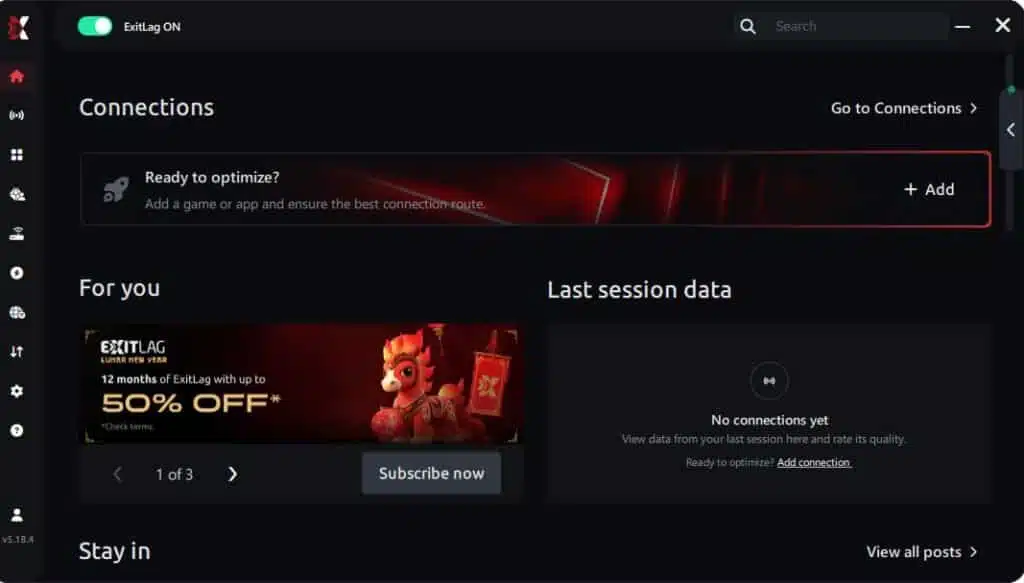
Step 3 – In the search bar, type “Throne and Liberty Global” and select the game from the list.
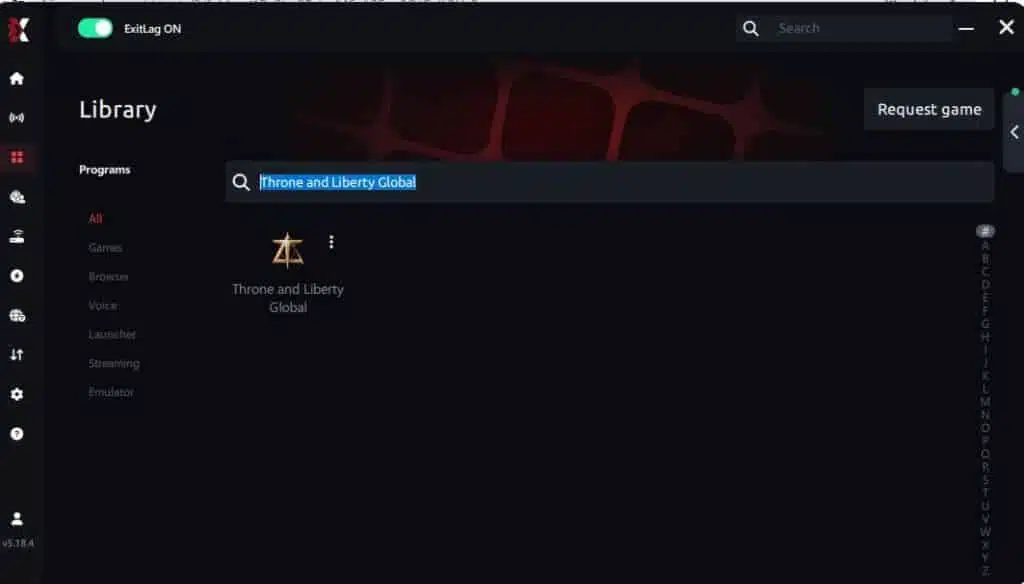
Step 4 – Choose between automated or manual route
Based on the results, you can let ExitLag automatically select the best route or manually choose the server that showed the lowest latency for your connection.
AI-optimized automated route
Based on the results, you can let ExitLag automatically select the best route through AI optimization. The system analyzes multiple connection paths in real time and automatically identifies the most efficient route for your connection, ensuring the lowest possible latency without requiring manual choices.
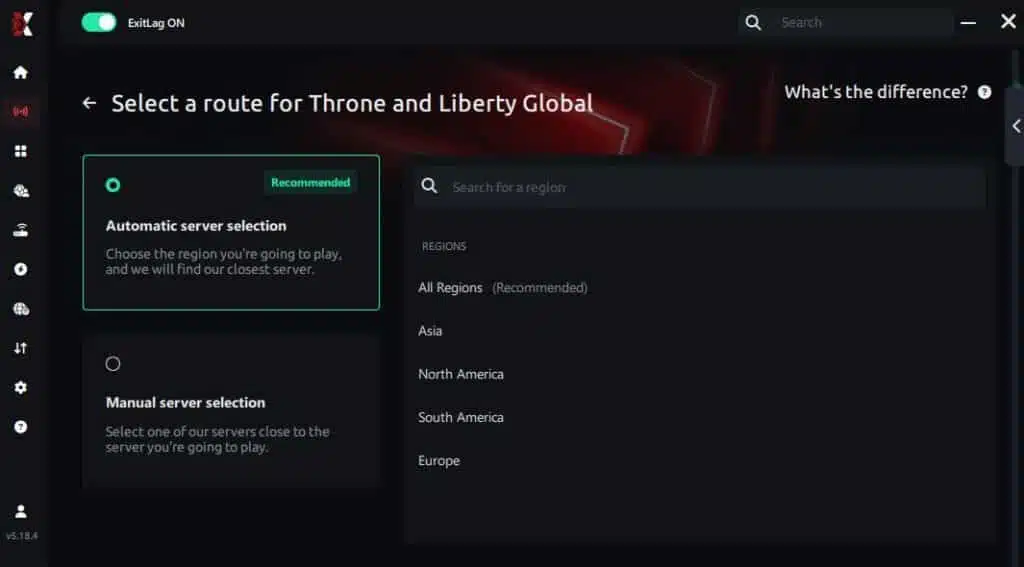
Manual route
If you prefer to have full control over your connection, you can manually choose the server based on the ping test results. Simply select the server that showed the lowest latency or the one that best meets your specific gaming needs, allowing complete customization of your experience.
Step 5 – Click “Throne and Liberty Global” or the play button. ExitLag will begin optimizing your connection automatically.
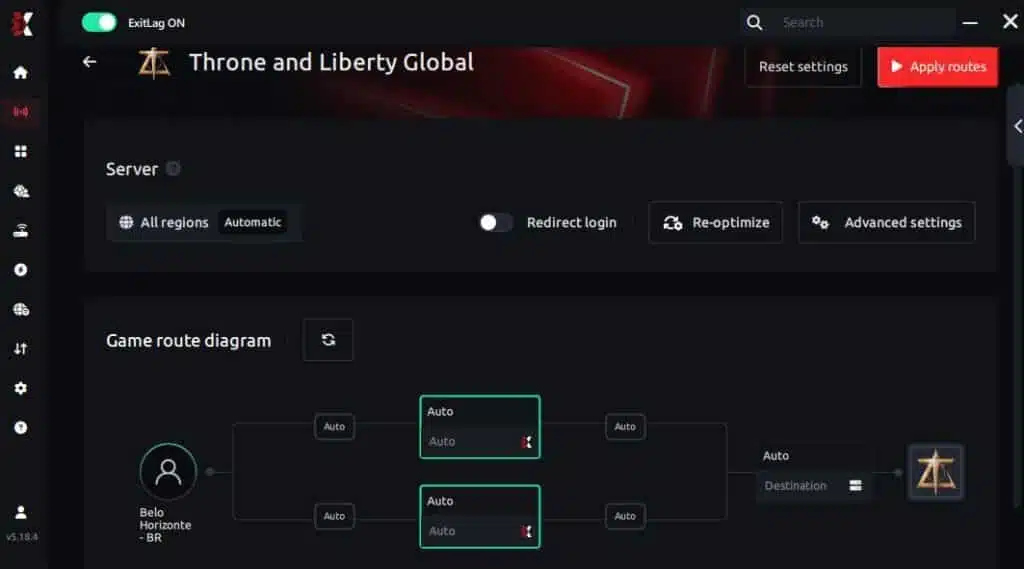
Step 6 – Wait a few seconds until optimization is complete. You’ll see ping indicators in the interface.
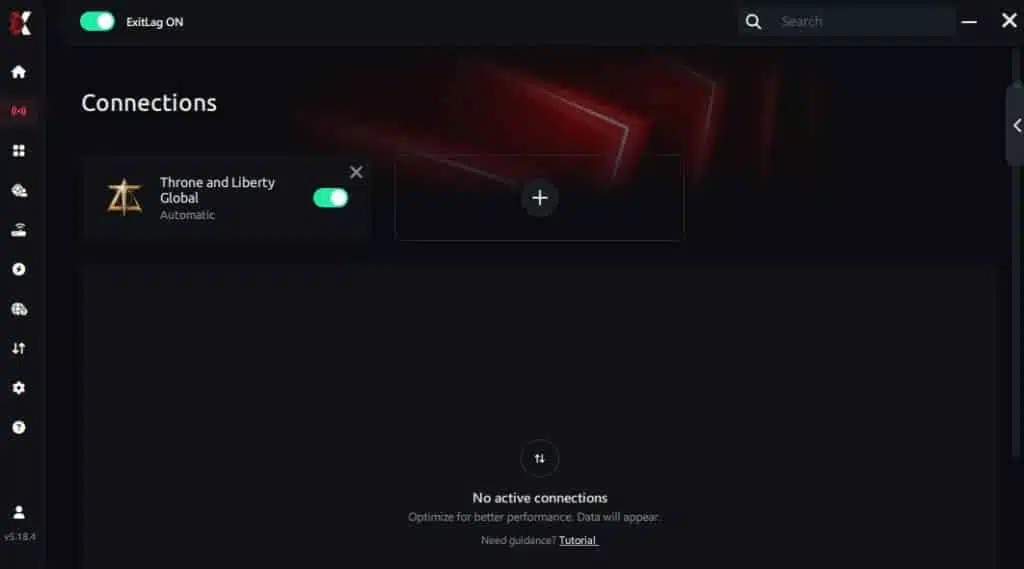
Step 7 – Launch Throne and Liberty Global normally. The optimization will already be active.
ExitLag runs in the background while you play, constantly adjusting routes to maintain the best possible performance.
Emulator setup
If you use an emulator to play cloud or remote-access versions, select both the emulator and game profiles. This ensures the routing process recognizes dual traffic paths and reduces additional jitter.
Optimization tips
Keep your game on an SSD, close unnecessary background tasks, and combine ExitLag with in-game medium settings if your system struggles. These steps help stabilize situations where Throne and Liberty Global stuttering becomes severe.
Console players
ExitLag can be applied through PC-based routing when consoles share the same network environment. This helps minimize instabilities that indirectly trigger FPS Drop Throne and Liberty Global during intense encounters.
Before and after results with ExitLag in Throne and Liberty Global
Many players report significant improvements after stabilizing their routing. Even without upgrading hardware, the reduction in jitter makes combat substantially smoother and reduces unexpected frame pacing issues. This is crucial when navigating zones known for Throne and Liberty Global lag.
Real player cases
- Player A: reduced stuttering by 47% in castle siege zones
- Player B: improved frame pacing stability by 63% during world bosses
- Player C: lowered latency by 35%, preventing sudden FPS Drop Throne and Liberty Global moments
Performance comparison table
| Metric | Without ExitLag | With ExitLag | Improvement |
| Latency | High | Stable | Noticeable |
| Packet loss | Frequent | Nearly zero | Major |
| Frame pacing | Unstable | Smooth | Significant |
| Micro-stutter | Heavy | Reduced | Strong |
| Overall experience | Inconsistent | Reliable | Better |
Additional optimizations to maximize FPS with ExitLag
Improving performance in large MMORPGs requires more than network stability. Even when ExitLag reduces issues related to FPS Drop Throne and Liberty Global, many players still benefit from complementary adjustments. These steps enhance overall smoothness, eliminate background stress, and maintain consistent frame pacing during intense combat.
Network
A wired Ethernet connection should always be your first choice, since it eliminates wireless interference and reduces jitter. Additionally, enabling QoS on your router ensures that Throne and Liberty Global traffic has priority over other devices. If DNS instability contributes to micro-lags, switching to a reliable DNS provider is useful. Finally, closing heavy apps like browsers and launchers prevents bandwidth spikes that can worsen FPS Drop Throne and Liberty Global.
System
Keeping drivers updated is one of the simplest ways to avoid unexpected performance issues. Set Windows to high-performance mode to prevent frequency drops. Also, disable unnecessary startup apps because they consume CPU cycles passively. Similarly, maintaining a clean and optimized system prevents background tasks from creating Throne and Liberty Global performance issues during sieges and open-world events.
In-game
Disabling V-Sync helps reduce input delay and frame capping. Adjusting your FPS limit based on system strength improves stability, especially if your GPU overheats easily. Recommended presets typically balance visibility and performance, minimizing Throne and Liberty Global stuttering in large-scale battles. These adjustments, combined with ExitLag, help maintain stable gameplay during world bosses and crowded cities.

Frequently asked questions about FPS drop in Throne and Liberty Global
Does ExitLag actually improve FPS?
Indirectly, yes. Many FPS issues come from unstable pacing caused by jitter, packet delay, or data desync. ExitLag stabilizes routes, which reduces micro-freezes often mistaken for FPS Drop Throne and Liberty Global.
Is ExitLag safe?
Yes, ExitLag is a secure and widely trusted gaming tool. It does not alter game files, does not violate ToS, and strictly focuses on routing optimization.
Does ExitLag work on console?
Yes. If your console shares the same network as a PC running ExitLag, it can benefit from stabilized routing, reducing lag spikes and pacing issues.
How much does ExitLag cost?
ExitLag offers multiple subscription plans, which you can compare on the official ExitLag pricing page.
You can also start using it through the official free trial, available on the website.
My PC is weak, does ExitLag help?
Yes. Even if your hardware is limited, optimized routing reduces invisible delays that contribute to perceived stuttering. While it cannot upgrade your GPU, it helps smooth out pacing and network-related interruptions.
Does ExitLag work with Throne and Liberty Global?
Yes. The game is fully supported, and you can confirm compatibility by browsing the supported games directory on the ExitLag platform.
What’s the difference between ExitLag and a VPN?
ExitLag focuses exclusively on gaming traffic and performance enhancement, while VPNs focus on privacy and IP masking.
Remember: ExitLag is NOT a VPN.
Why do FPS drops happen during sieges?
Large-scale PvP generates immense load on both CPU and network, causing visible slowdowns and Throne and Liberty Global frame drops.
Does lowering graphics always fix FPS?
Not always. Many FPS issues originate from pacing or network instability, not just GPU overload.
Can packet loss affect FPS?
Indirectly, yes. When data arrives inconsistently, the engine struggles to sync actions, producing stutter that resembles FPS Drop Throne and Liberty Global.
Fix FPS drop in Throne and Liberty Global with ExitLag
Final benefits
- Stable FPS
- Zero micro-stuttering
- Smooth gameplay
- Competitive advantage
- Frustration-free gameplay
With these improvements, players can maintain consistent performance even in the most demanding bosses and PvP encounters. This combination of system optimization and routing stability substantially reduces the sensations associated with FPS Drop Throne and Liberty Global, making the game far more enjoyable.
Next steps
- Test ExitLag for free
- Configure in 5 minutes
- Compare before and after
- Dominate Throne and Liberty Global
In conclusion, solving FPS drop Throne and Liberty Global issues requires balancing hardware, settings, and network stability. ExitLag’s multi-path technology eliminates routing delays and ensures fluid gameplay across all regions of Throne and Liberty Global. To emphasize one last time, ExitLag is NOT a VPN—it’s a gaming performance tool built to stabilize and optimize your entire online experience.
Now that you know everything about FPS drop Throne and Liberty Global, if you want the most stable, smooth, and competitive gameplay possible, is the time to upgrade your performance toolkit. Register at ExitLag now and improve your gameplay in a way you’ve never experienced before!
Got questions or want to connect with other players? Join the conversation at the ExitLag Forum!




