Is Roblox for free? Roblox is free to play, allowing millions of players worldwide to explore, create, and enjoy countless games without spending a dime. Whether you’re on a PC, mobile device, or console, you can access Roblox legally and safely. There are four main ways to play: the official app on PC, mobile, or console, browser/cloud streaming platforms, consoles like Xbox, PlayStation, and Nintendo Switch, and school or personal devices such as Chromebooks.
Each method has its own setup and considerations, but all provide full access to Roblox for free experiences without mandatory payments. In this complete guide, we’ll walk you step by step through installation, joining free experiences, staying safe from scams, and optimizing your connection—including tips with ExitLag to reduce lag and improve ping for smoother gameplay.
Is Roblox Really Free?
Is Roblox for free? Roblox is indeed free to start, making it accessible for players of all ages. Creating an account doesn’t cost a thing, and you can immediately access thousands of experiences and games without paying. Most games on the platform are free to play, allowing you to explore, build, and socialize with others at no cost.
However, while Roblox itself is free, there are optional costs. Players can purchase Robux, the platform’s virtual currency, to buy cosmetic items, avatar upgrades, or special game passes. There’s also Roblox Premium, a subscription that gives a monthly Robux allowance and additional perks. These purchases are optional—you can fully enjoy Roblox without ever spending money.
PC (Windows/Mac) Official
Create an Account and Install Roblox Player/Launcher
- Go to the official website Roblox.com.
- Click Sign Up and fill in your details: name, birthdate, username, and password.
- Verify your account via email if prompted.
- Log in and choose any free game.
- When you click Play, the site will prompt you to download the Roblox Player/Launcher.
- Install the launcher by following the on-screen instructions.
Join Free Experiences
- Open Roblox Player and log in if needed.
- Browse the Games section or use the search bar to find free experiences.
- Click Play to start the experience.
- Enjoy the game without spending money; most core experiences are completely free.
Common Issues
- Installation errors: Make sure you have enough disk space and try running the installer as administrator.
- Firewall/antivirus blocks: Ensure Roblox is allowed to access the internet.
- WebGL on Mac: Some Macs may need a browser update or WebGL enabled to run Roblox properly.
High latency on crowded servers? Try ExitLag for optimized routes and more stable ping.
Mobile (Android & iOS)
Install via Play Store / App Store (Free)
- Open the Google Play Store (Android) or App Store (iOS).
- Search for Roblox.
- Tap Install (Android) or Get (iOS) to download the app for free.
- Once installed, open the app and log in with your existing Roblox account or create a new free account.
- Browse the Games section and tap Play on any free experience to start.
Common Limits
- Storage: Make sure your device has enough free space for the app and game assets.
- Mobile data: Some games can use significant data, so Wi-Fi is recommended.
- Throttling: Mobile carriers may reduce speed during heavy usage, affecting gameplay.
Network Tips
- Use Wi-Fi 5/6 and connect to the 5 GHz band if possible.
- Toggle Airplane Mode on/off to reset your connection if needed.
- Close unnecessary background apps to improve performance.
Console (Xbox, PlayStation, Switch)
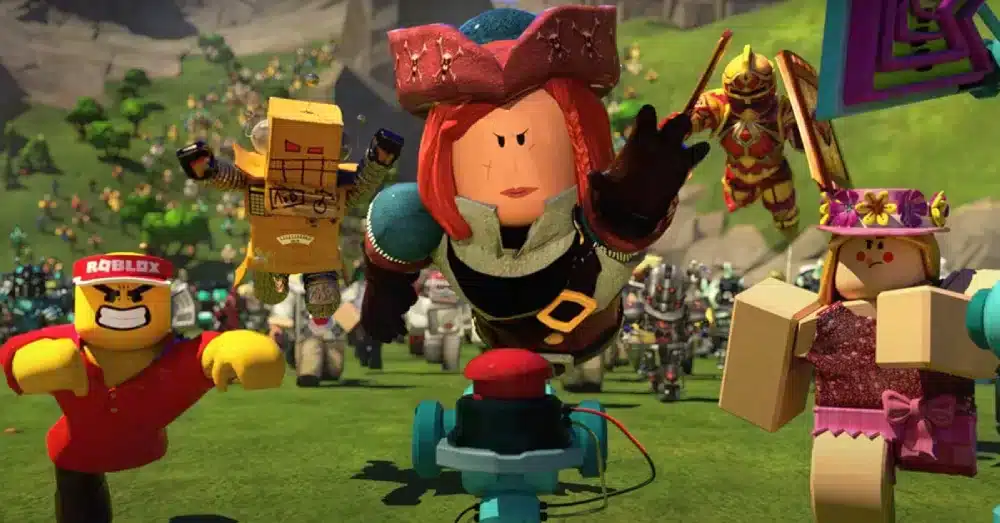
Playing Without Paying for an Online Subscription
Roblox is available on major consoles, but keep in mind that some platforms may require an online subscription (like Xbox Live Gold or PlayStation Plus) to access multiplayer features. This isn’t a Roblox fee—it’s a platform requirement. Always check your console’s policies before expecting full online access.
Quick Installation and Login Steps
- Open your console’s game store (Xbox Store, PlayStation Store, Nintendo eShop).
- Search for Roblox and download the free game.
- Once installed, launch Roblox and log in with your existing account or create a new one.
- Navigate to the Games section to access free experiences and start playing.
Play in Browser / “No Download” (Cloud)
Cloud Gaming / Browser Wrappers
Some services, like now.gg, allow you to play Roblox directly in a browser without installing the game. These cloud platforms stream Roblox to your device, making it possible to play even on devices that can’t run the app natively, like Chromebooks.
| Pros | Cons |
| No installation required. | Performance heavily depends on network quality. |
| Works on devices with limited storage, such as Chromebooks or school laptops. | You may experience queues, lag, or limited resolution depending on server load. |
| Some advanced features may be restricted compared to the full app. |
Compliance Note
These services should not be used to bypass school filters, firewalls, or other network restrictions. Always play within the rules of your network.
School Chromebook / “Play on Google” / “Unblocked”
Personal vs. School-Issued Chromebooks
It’s important to distinguish between personal and institutional Chromebooks. School devices often have strict policies and filters in place. Always respect your school’s rules—attempting to bypass them can lead to disciplinary actions or network restrictions.
Legitimate Alternatives
- Android app (if supported): Some school Chromebooks allow Google Play access; install Roblox officially if possible.
- Approved cloud/browser services: Use cloud gaming platforms or browser wrappers that are permitted by your school network.
- Guest mode / home network: When allowed, play on a personal device or switch to your home Wi-Fi for full access.
Why Proxies/VPNs Can Be Risky
Using proxies or VPNs may violate school rules and can increase lag instead of reducing it. These tools can interfere with network routing, leading to worse performance and potential account or device issues.
Safety First — Avoid “Free Robux” Scams
Roblox is free to play, but many players are tempted by “free Robux” offers. Be careful—most of these are scams designed to steal accounts or install malware.
Common Scams
- Websites asking for your Roblox password.
- Suspicious browser extensions claiming to give free Robux.
- Fake Robux generators or apps promising unlimited currency.
What Is Legitimate
- Official events run by Roblox.
- Gift cards purchased through authorized retailers.
- Roblox Premium, the paid subscription that gives Robux monthly.
- Partner codes officially distributed by Roblox.
Safety Check-List
- Never share your password with anyone.
- Enable Two-Factor Authentication (2FA) on your account.
- Limit third-party apps or extensions and only use trusted platforms.
Staying safe ensures you can enjoy Roblox for free without risking your account or personal information.
Fix Lag & Improve Ping (Any Platform)

Quick Steps to Reduce Lag
- Use a wired connection whenever possible for more stable ping.
- Restart your router to refresh network settings.
- Close downloads and background apps that use bandwidth.
- Enable QoS (Quality of Service) on your router to prioritize gaming traffic.
ExitLag for Optimized Routing
ExitLag can improve your connection by:
- Offering multi-route options to find the fastest path to game servers.
- Optimizing specific games, including Roblox, for lower latency.
- Reducing jitter and packet loss, especially for distant or congested servers.
While not always necessary, ExitLag can help players who experience consistent lag due to poor routing or crowded servers.
Conclusion
If you ever experience high ping or unstable connections, especially on crowded or distant servers while playing Roblox for free, consider testing ExitLag. It can help optimize your routes, reduce jitter, and make your gameplay smoother across any platform.
Frequently Asked Questions (FAQs)
Yes, Roblox is free to play. You can create an account and access thousands of games without paying. Optional purchases like Robux or Premium subscriptions are not required.
You can use cloud gaming or browser wrappers such as now.gg to play Roblox without installing the game. This is useful for devices with limited storage, though performance depends heavily on your network.
Yes, but it depends on your device and school policies. You can try the Android app if supported, use approved cloud gaming services, or play on a home network. Avoid bypassing school filters, as that can violate rules.
Now.gg is a cloud gaming platform that streams Roblox to your browser. It is generally safe if used as intended. Keep in mind that performance may be limited by network quality, server queues, and reduced resolution.
You can get free items through official Roblox events, free UGC (User-Generated Content) items, and occasional partner codes. Avoid third-party websites claiming to give free items, as they are usually scams.
Normally, changing your Roblox username costs Robux. Free username changes are extremely rare and usually only occur during special Roblox promotions or account recovery situations.
There is no legitimate Robux generator. Valid ways to get Robux include purchasing through Roblox, earning them via Roblox Premium, redeeming official gift cards, or participating in Roblox partner programs and events.
Got questions or want to connect with other players? Join the conversation at the ExitLag Forum!