You sit down for “one quick Premier match,” and suddenly your FPS is stuttering, a weird login email hits your phone, and someone’s offering you a “can’t-miss” trade mid-warmup.
Welcome to CS2 in 2026 — where a good session starts before you ever click Play. This CS2 pre-game checklist walks you through three layers of prep: performance, security, and skin safety. Five minutes of routine now saves you from laggy aim, hijacked accounts, and empty inventories later.
Why a Pre-Session Routine Matters More Than a One-Time Setup
Most players treat setup as a one-and-done chore: install the game, tweak some settings, forget about it forever. That worked fine in 2019, but CS2 in 2026 is a moving target. Patches regenerate video configs, scammers rotate their scripts monthly, and your account value grows every time you unbox something decent.
The stakes are real on every front. The game still peaks above a million concurrent players daily — and that economy makes every account with a decent inventory a target. When you prepare for CS2 as a routine instead of a one-time chore, you catch problems while they’re still small.
So think of what follows as three short checklists that merge into one CS2 session checklist you’ll run in under five minutes. Let’s start with frames.
Part 1 – Performance Checklist (Before You Launch the Game)
Performance issues love to appear right after an update, when something quietly resets or a background app starts eating resources. Run through this CS2 performance checklist before queueing:
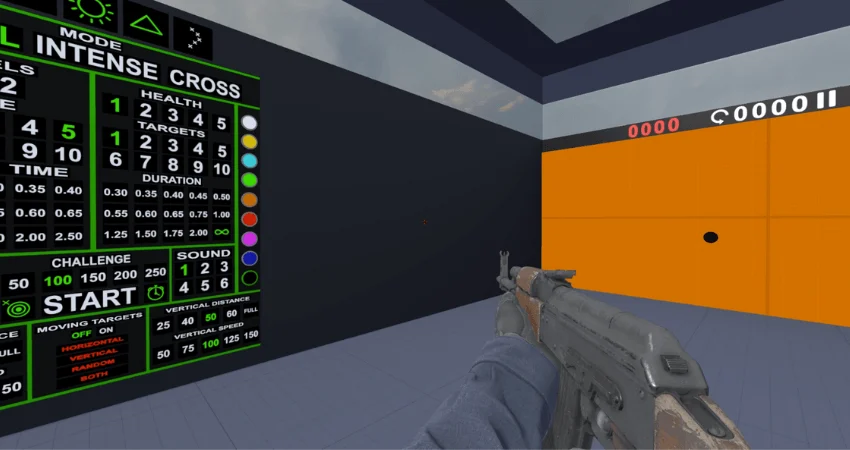
- Launch the game through Steam and glance at your FPS with cl_showfps 1 in a workshop aim map — your baseline should feel familiar, not 50 frames lower than last week.
- Kill background hogs before matches: browsers with 40 tabs, Discord streaming, recording software you forgot was on.
- Confirm your display mode is Fullscreen, not borderless — borderless costs you latency and sometimes frames.
- Make sure V-Sync stays off and NVIDIA Reflex sits at Enabled + Boost — both drift back after some patches.
- Check that Global Shadow Quality is at least Medium — you need enemy shadows around corners, and updates love flipping it to Low.
- Verify your crosshair and viewmodel survived the last patch, because config regeneration can reset them silently.
Your CS2 FPS settings deserve one honest piece of advice: skip the “ultra low everything” religion. Boost Player Contrast stays on (enemies pop against backgrounds), shadows stay Medium or High (free wallhack intel), and MSAA at 2x–4x or CMAA2 keeps edges readable. Everything else — textures, shaders, particles — can live at Low to Medium without hurting your game.
One layer below the game sits your system itself. Windows updates love resetting your power plan to Balanced — High Performance keeps CPU clocks ready for action. GPU driver updates occasionally reset control panel tweaks, so confirm your low-latency and texture filtering preferences survived. And if you play on Wi-Fi, a quick ping test before queueing beats discovering packet loss in a pistol round.
Audio counts as performance too, so give it ten seconds. Confirm your output device didn’t switch to a monitor speaker after a driver update — Windows loves doing that silently. Crisp footstep audio is free intel, and EQ “enhancements” from random guides usually muddy it. Stick with a clean stereo profile and the game’s own audio presets.
As for the best CS2 launch options in 2026, the honest list is short. The ones worth keeping: +fps_max 0 to remove the default cap, -fullscreen and -refresh set to your monitor’s Hz to lock your display mode, plus -console and -nojoy as harmless conveniences. -high is optional at best — it raises process priority, but on some systems it competes with audio drivers and causes micro-stutters, so test before keeping. And one popular “tip” to actively skip: -threads. Source 2 manages threading on its own, and forcing thread counts is documented to cause instability. Delete the CS:GO fossils too — -tickrate 128 does nothing in a sub-tick world, and +cl_forcepreload 1 was removed from the game entirely.
Frames feel right? Good — now let’s make sure your account is still yours.
Part 2 – Security Checklist (Before You Log In)
Security checks feel paranoid until the day they save you. Valve’s own account security recommendations cover the fundamentals, and this routine takes about a minute:
- Glance at your email for unexpected Steam Guard codes or login alerts — a code you didn’t request means someone has your password.
- Open your Steam API key page monthly and confirm it’s empty — a key you never created is a red flag, so revoke it and change your password immediately.
- Scan your authorized devices list and kick out anything you don’t recognize.
- Keep your Steam Guard Mobile Authenticator active — it’s the single biggest wall between your account and a hijacker.
- Never log into Steam through links from DMs, ads, or QR codes, even mid-session when a “teammate” sends one.
The login-alert habit alone catches most hijack attempts early, because password thieves almost always test credentials immediately. If you get a code you didn’t request, change your password before you queue — it takes 60 seconds and locks them out mid-attack.
One subtle trap: session theft skips passwords entirely. A fake “skin changer” or “aim config” downloaded last week can lift your active session token and walk straight past your login screen. That’s why the rule “never install CS2 tools from strangers” belongs on every CS2 session checklist, right next to the technical steps.
Your social feeds deserve a ten-second scan too. Fresh Discord DMs from “teammates,” tournament invites from servers you don’t remember joining, and giveaway pings from streamers you never followed are all session-start bait. When you lock down your social feeds as well as your technical setup, most phishing dies at the doorstep — scammers count on you being too rushed to notice.
Account locked down? Time to protect what’s inside it.
Part 3 – Skin Safety Checklist (Before You Trade or Open Cases)
If your session includes trading, buying, or opening cases, add this CS2 trade safety checklist on top. The scam ecosystem reinvents itself constantly, but the defenses stay the same:
- Inspect every trade offer item by item in the Steam mobile app before confirming — wear values and swapped items hide in plain sight.
- Treat urgency as a scam signal, always — “expires in 5 minutes” and “admin needs to verify” exist to bypass your brain.
- Decline every middleman offer from DMs, no matter how reputable the vouches look.
- Check the trade partner’s profile age, hours, and inventory history — fresh private profiles with expensive inventories are a classic shell.
- Know your escape hatch: Steam’s Trade Protection lets you reverse trades from the last 7 days if something slips through.
One more habit separates careful traders from victims: the decoy trick. On any P2P trade that matters, add a cheap throwaway item to your side of the offer. If the trade you confirm on mobile doesn’t exactly match what you built on screen — decoy missing, items changed — an API bot hijacked it, and you should cancel instantly, revoke your API key, and change your password.
That last point deserves emphasis because it changed the game. Since July 2025, Valve allows full trade reversals within a 7-day window — reversed items return to their owners, and the requesting account eats a 30-day trading restriction to stop abuse. The Trade protection update guide breaks down exactly how the reversal works. For the full catalog of active scam scripts, the guide on how to Avoid scams stays updated with what the community’s seeing in the wild.
The Full Pre-Session Checklist (All Three Parts in One List)
Here’s everything compressed into one CS2 pre-game checklist you can screenshot and run in about four minutes:
- FPS baseline confirmed with cl_showfps 1, no surprise stutters.
- Fullscreen mode, V-Sync off, Reflex Enabled + Boost, shadows at Medium or higher.
- Crosshair, viewmodel, and resolution intact after the latest patch.
- Launch options cleaned: +fps_max 0 and -refresh in, -threads and CS:GO fossils out.
- No unexpected Steam Guard codes or login emails.
- API key page empty, device list familiar, mobile authenticator active.
- Zero new installs of “tools” or “configs” from strangers.
- Trade offers inspected item by item, urgency ignored, middlemen declined.
- Trade Protection’s 7-day reversal window in the back of your mind.
Run it enough times and it becomes muscle memory — the same way your spray control did.
What to Do Mid-Session If Something Feels Off
Sometimes the checklist can’t catch everything, and weirdness strikes mid-match. Trust your instincts and act fast:
- Sudden FPS drops after a patch: restart the game, then verify file integrity through Steam — corrupted or regenerated configs cause most post-update stutters.
- Settings that keep resetting: rebuild your video options manually and keep an autoexec.cfg with your key commands so one +exec autoexec.cfg restores everything.
- A login alert or Steam Guard code you didn’t request: leave the match, change your password, deauthorize all devices, and revoke your API key in that order.
- A trade that went through wrong: cancel anything still pending, then use Trade Protection from your Trade History within 7 days — speed beats everything here.
- Suspicious “friend” behavior mid-session: if a teammate’s account starts sending links, their account is compromised — block, report, and warn your lobby.
The pattern behind all five: pause first, click nothing, fix from inside Steam’s own pages. Never troubleshoot an account problem through a link someone sent you in the moment — panic is the scammer’s best weapon. If you genuinely can’t resolve something yourself, Steam Support through the official help page is the only destination, typed by you.
One last mid-session note: if your whole lobby starts receiving the same suspicious link, say it out loud in voice chat. Warning three teammates costs you nothing, and it breaks the chain reaction that turns one compromised account into four.
To Sum Up
Learning to prepare for CS2 properly turns three boring minutes into your best competitive advantage. Performance checks keep your aim honest, security checks keep your account yours, and trade checks keep your inventory intact. Screenshot this CS2 pre-game checklist, run it until it’s automatic, and treat anything that rushes you as a red flag.
FAQ
How long should a CS2 pre-game checklist actually take?
About four to five minutes the first few times, and under two once it becomes habit. The performance glance and security scan run in parallel, and the trade safety steps only matter on days you actually trade. It’s the cheapest insurance in gaming.
What are the most important CS2 launch options for FPS?
In 2026, the honest list is short: +fps_max 0, -fullscreen, and -refresh set to your monitor’s Hz . Skip -threads — Source 2 handles threading itself, and forcing it can cause instability . Dead CS:GO flags like -tickrate 128 and +cl_forcepreload 1 are pure dead weight, and real FPS gains come from in-game settings and your system, not launch flags .
Do I need to check my Steam account security every single session?
Not the deep version, no. The quick scan — unexpected login codes, login emails, nothing weird in your DMs — takes 30 seconds and is worth doing daily. Save the full API key and device review for a monthly habit, or immediately after anything feels off.
What’s the fastest way to check if my FPS setup is still working after a patch?
Load into an aim workshop map and watch cl_showfps 1 for a minute. If your numbers look normal but the game feels wrong, check shadows, Reflex, and display mode first — patches love resetting exactly those three. A quick file-integrity verify through Steam fixes most stubborn cases.
Should I verify trade links even with people I’ve traded with before?
Yes, every single time. Hijacked accounts are routinely used to scam their own friends list, so a familiar name proves nothing. If a long-time trading partner suddenly rushes you or changes terms mid-trade, treat them like a stranger until you confirm it’s really them.
Why do my settings sometimes reset after a CS2 update?
Updates can regenerate your video configuration files, which wipes custom values back to defaults. Keeping an autoexec.cfg with your important commands is the standard defense — one console line restores your whole setup after any patch. Screenshotting your video settings page works as a low-tech backup too.
What’s the single highest-impact setting for both performance and safety?
For performance, Global Shadow Quality at Medium or higher — it gives you free intel on enemies around corners. For safety, the Steam Guard Mobile Authenticator, and it’s not close. If you only fix two things today, make it those.
Got questions or want to connect with other players? Join the conversation at the ExitLag Forum!