You launch your favorite Steam games, queue up for ranked or a tense PvP match, and suddenly your ping is fluctuating all over the place. Skills feel delayed, movement isn’t responsive, and every fight turns into a gamble because of pure connection instability. That’s jitter in action – those unpredictable spikes that make it impossible to know when your commands will actually register. Unlike simple high ping, jitter destroys your ability to time anything reliably. If you want to see which titles you can optimize, check the full list of supported games on the list of supported games.

What is jitter in Steam games?
In online gaming, jitter is the irregular variation in your network latency. While ping tells you how long it takes for data to travel from your PC to the game server and back, jitter tells you how inconsistent that timing is from one packet to the next. You can have a “good” ping number, but if that value jumps constantly, you will still feel severe instability during matches.
A practical example: one second your ping is 50 ms, then it jumps to 120 ms, drops to 80 ms, and suddenly spikes to 150 ms. That jumping response time makes it impossible to trust what you see on screen. Ideally, your ping should vary no more than 5–10 ms. Anything beyond that range starts to create visible issues in movement, skills, hit registration, and synchronization with the game servers.
In short: high ping is a slow but predictable delay, while jitter is an unpredictable, constantly changing delay that ruins your timing.
How jitter affects your gameplay in Steam games
When jitter hits your Steam games, it doesn’t just “feel a bit laggy” – it fundamentally breaks your gameplay experience. Some of the most common problems include:
- Inconsistent input response: Sometimes your skill or action triggers instantly, and other times it takes a full second to appear.
- Unreliable dodges and movement: Timing rolls, dashes, or dodges becomes almost impossible when delay is never the same twice.
- Broken combos: Carefully timed combo sequences fail because one command is delayed more than the others.
- Sudden deaths: Enemies “teleport,” damage appears late, or you die behind cover due to delayed synchronization.
- Frustration in PvP and competitive modes: When your opponent has stable connection and you don’t, every engagement feels unfair.
- Wasted cooldowns and resources: Buffs, ultimates, and consumables are activated too late or at the wrong moment.
- Inconsistent hit registration: Sometimes your shots or hits register perfectly, other times they simply don’t connect.
- Impossible precise aiming: The varying timing between your input and what happens on screen makes accurate aim extremely difficult.]
Main causes of jitter in Steam games
Network congestion
Network congestion happens when many devices and applications share the same connection at once. Downloads, 4K streaming, cloud backups, or other people gaming on the same network can force your router to constantly reprioritize packets. This frequent reshuffling creates irregular delivery times and, as a result, jitter.
Unstable routing
Your data doesn’t always travel through the same path to the server. Sometimes, your ISP routes packets through more congested or longer paths. When the route keeps changing or uses overloaded nodes, your ping becomes unstable and you see large variation in latency from one moment to another.
Unstable Wi-Fi
Wi-Fi is convenient, but it’s also naturally exposed to interference from walls, other networks, electronic devices, and even people moving around. Each small disturbance impacts signal quality and can introduce small but constant fluctuations in latency, which add up to noticeable jitter in your matches.
ISP-related issues
Some ISPs have overloaded infrastructure, misconfigured equipment, or temporary problems in specific areas. When your line quality is unstable, you’ll see ping spikes, routing issues, and varying delay – all classic contributors to jitter, especially during peak hours when many users are online at once.
Distance from the servers
The farther you are from the game servers, the more intermediate routers (hops) your packets have to pass through. Each hop introduces more opportunities for delay variation. If you regularly connect to distant regions or cross-continent servers, jitter is more likely unless your route is carefully optimized.
Game-specific behavior
Many Steam games rely on different server providers, regions, and netcode implementations. During big updates, events, or content drops, certain regions can become overloaded, creating additional latency spikes and random variation in response time for players connected there.
How to identify and measure jitter in Steam games
Extended ping test
One of the simplest ways to confirm jitter is to run an extended ping test from your operating system.
- On Windows, you can open Command Prompt and run a continuous ping to a stable host (for example, your game server IP or a known endpoint).
- Watch the results over time: if values stay close together (e.g., 40–45 ms), your jitter is low. If they jump between 40 ms, 110 ms, 70 ms, 150 ms, and so on, your connection is unstable.
The goal isn’t just to see your average ping—it’s to check if your latency is inconsistent over time.
In-game signs
You can also recognize jitter just by paying attention to how your Steam games feel during a match. Typical signs include:
- The in-game ping indicator constantly changing instead of staying near a fixed value.
- A constant sensation that the game is “off” or inconsistent, even when the ping number looks acceptable.
- Some moments that are perfectly playable followed by sudden periods of horrible lag.
- Short bursts of rubberbanding, where your character snaps back to a previous position.
- Skills, shots, or commands behaving with different delay each time you activate them.
- An overall instability where the experience feels bad even though speed tests claim your connection is “fine”.
If you recognize several of these symptoms, you’re not just dealing with high latency—you’re dealing with jitter.
Jitter levels table
Below is a simple reference table to help you understand how different jitter values affect your experience in Steam games:
| Jitter level | Variation range | Gameplay quality |
| 0–5 ms | Very low | Excellent – smooth, predictable gameplay |
| 6–15 ms | Low | Good – minor issues in very fast titles |
| 16–30 ms | Moderate | Noticeable issues in intense encounters |
| 31–60 ms | High | Frequent problems, hard to be consistent |
| 60 ms+ | Critical | Unplayable in PvP or competitive modes |
If your jitter sits in the high or critical ranges, basic tweaks may not be enough—you’ll likely need route optimization.
Basic solutions to reduce jitter in Steam games
Prioritize your connection
- Use an ethernet cable:
A wired connection removes Wi-Fi interference and is the easiest way to reduce instability. - Close background applications:
Stop downloads, cloud sync, and streaming services that constantly consume bandwidth and cause latency variation. - Limit devices on the network:
Ask others to pause heavy usage while you play; fewer active devices mean more consistent response time. - Disable automatic updates:
Disable auto-updates on Steam, Windows, launchers, and other software during your gaming sessions to avoid unexpected spikes. - Update network drivers:
Outdated drivers can cause weird network behavior. Install the latest drivers for your network adapter and motherboard. - Use game-specific network settings:
Many Steam games have network options like “reduce buffering” or “low latency mode.” Experiment with these to see if they improve consistency.
Configure QoS on your router
Quality of Service (QoS) is a feature on many routers that lets you prioritize specific devices or types of traffic. By marking your gaming PC as high priority or assigning higher priority to game ports, the router ensures that your game packets are processed before other lower-priority traffic (like downloads or streaming). This reduces queue delays and helps keep your latency more predictable, which directly decreases jitter.
Check with your ISP
If you still experience serious jitter after optimizing your home network, it may be time to contact your ISP. Ask them to:
- Check your line quality for errors and intermittent issues.
- Inspect routing to the regions where your favorite Steam games servers are hosted.
- Verify if there is congestion in your area, especially during peak hours.
Sometimes, a simple equipment swap or configuration change on their side can significantly reduce instability.
ExitLag: the definitive solution to eliminate jitter in Steam games
What is ExitLag?
ExitLag is a specialized software designed exclusively for connection optimization in online games on PC and mobile (it does not support consoles). Instead of being just another generic tool, ExitLag works like a smart network stabilizer, created by gamers who understand how destructive jitter, high ping, and packet loss are in competitive environments. You can dive deeper into the underlying tech on the connection technology overview.
Unlike generic fixes, ExitLag’s entire purpose is to stabilize your route to game servers and keep latency as consistent and predictable as possible.
How ExitLag eliminates jitter in Steam games
ExitLag uses its own Multi-Internet technology and advanced routing logic to neutralize Steam games jitter. It does this by:
- Using multiple routes simultaneously
Your data is sent through several different, optimized paths at the same time. If one path experiences congestion or variation, the others help maintain stability. - Intelligent packet selection
ExitLag automatically selects the fastest-arriving packet and discards the slower ones, eliminating jitter at the delivery stage and ensuring the game receives data with consistent timing. - Real-time route optimization
The software constantly analyzes available routes and switches when it detects better options, keeping your latency as stable as possible throughout your gaming session. - Reducing unnecessary hops
By shortening the path between you and the game servers, ExitLag reduces the number of routers your packets must pass through, minimizing possible points of delay and instability. - Smart buffering and traffic handling
ExitLag manages how packets are forwarded so the game receives a smooth, regular flow of data—even when your raw connection is unstable.
If you want to better understand these mechanisms, you can check out detailed multi-route optimization details at the multi-route optimization details.
Advantages of ExitLag for Steam games players
Using ExitLag with your Steam games brings several concrete benefits:
Complete ping stabilization
Instead of watching your ping jump randomly, ExitLag keeps it within a narrow band, which is crucial for consistent reaction times in competitive titles.
Jitter elimination
Because the software uses multiple paths and picks the best packets, it drastically reduces ping variation and eliminates the “sometimes instant, sometimes delayed” feeling.
Better timing and responsiveness
With stable response time, your shots, dodges, combos, and abilities activate when you expect them to, improving both performance and confidence.
Real competitive advantage
In ranked modes or high-level PvP, having consistent latency can be the difference between hitting the perfect headshot or missing due to desync.
Works across many servers and games
Whether you play shooters, MOBAs, MMOs, or co-op titles on Steam—on nearby regions or distant ones—ExitLag optimizes your route to those specific servers.
Simple and user-friendly interface
You don’t need advanced technical knowledge. Just select the game, apply the routes, and play with optimization enabled in the background.

Is ExitLag worth using for Steam games?
ExitLag is especially worthwhile if you:
- Often face jitter and random ping spikes in multiple Steam games.
- Play on international or distant servers.
- Focus on ranked, tournaments, or any competitive mode.
- Want stable performance instead of occasional “good days.”
- Play during peak hours when your ISP is more congested.
- Depend on Wi-Fi or have a provider known for poor routing.
- Have already lost matches or co-op runs because of unpredictable lag.
- Want reliable timing for combos, parries, skill rotations, or aim.
To see all options and plans, check the current subscription pricing on the subscription pricing.
How to use ExitLag with Steam games
The process is extremely simple:
Step 1 – Access the official ExitLag website and download the application. There’s a free trial period for new users.
Step 2 – Install and open the program. Log in with your account.
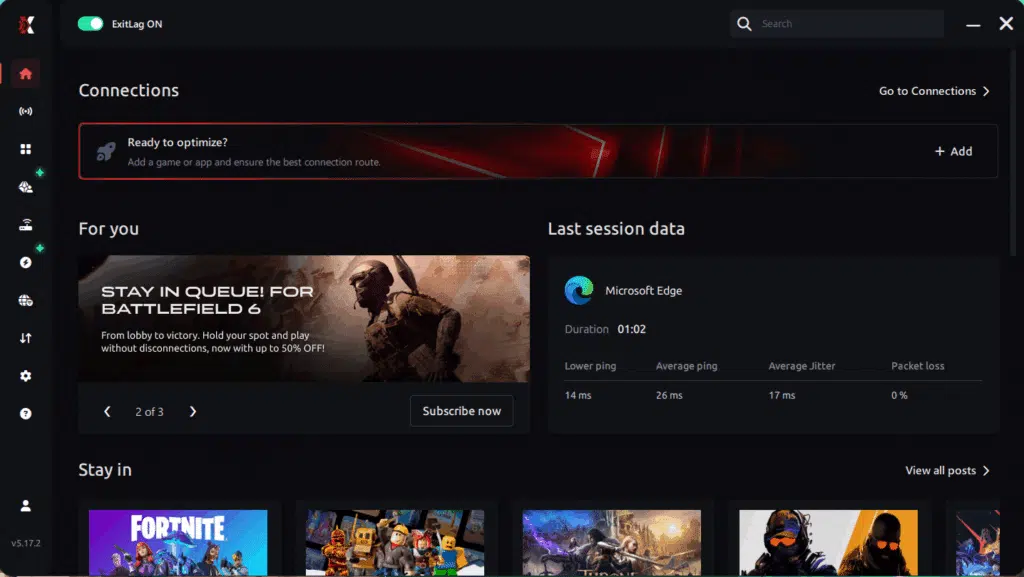
Step 3 – In the search bar, type the name of the Steam game you want to optimize (for example: CS2, Dota 2, PUBG, Rust, etc.) and select the game from the list.
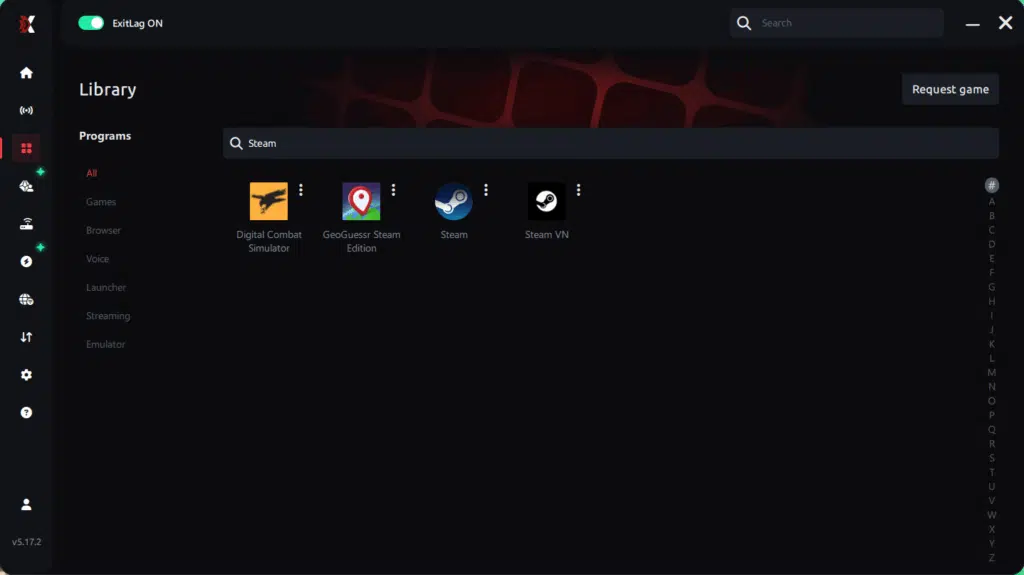
Step 4 – Choose the best server manually
Based on the ping test results, you can manually choose the server that showed the lowest latency for your connection.
Manual route
If you prefer to have full control over your connection, you can manually choose the server based on the ping test results. Simply select the server that showed the lowest latency or the one that best meets your specific gaming needs, allowing complete customization of your experience.
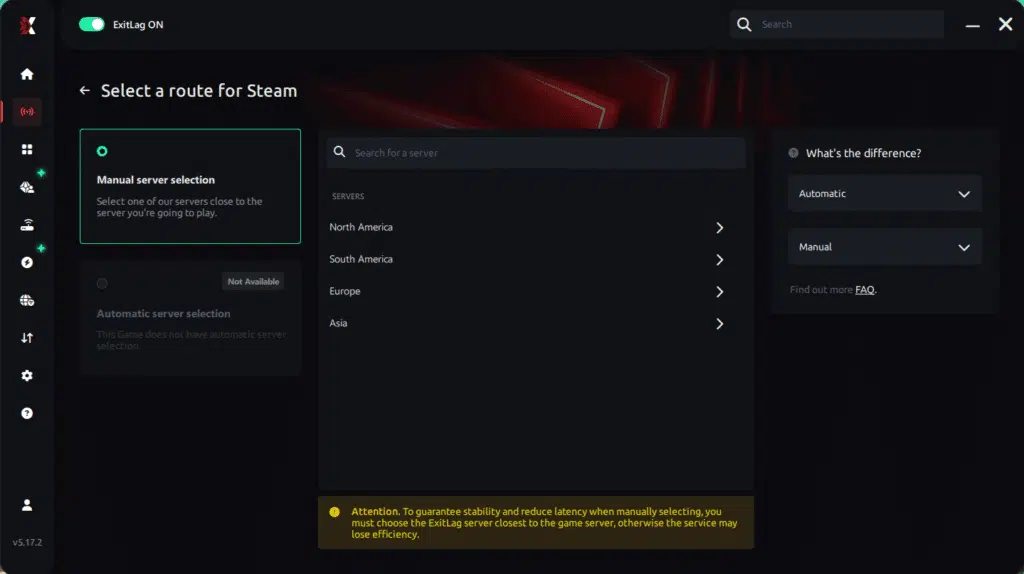
Step 5 – Click “Apply routes” or the play button. ExitLag will begin optimizing your connection automatically.
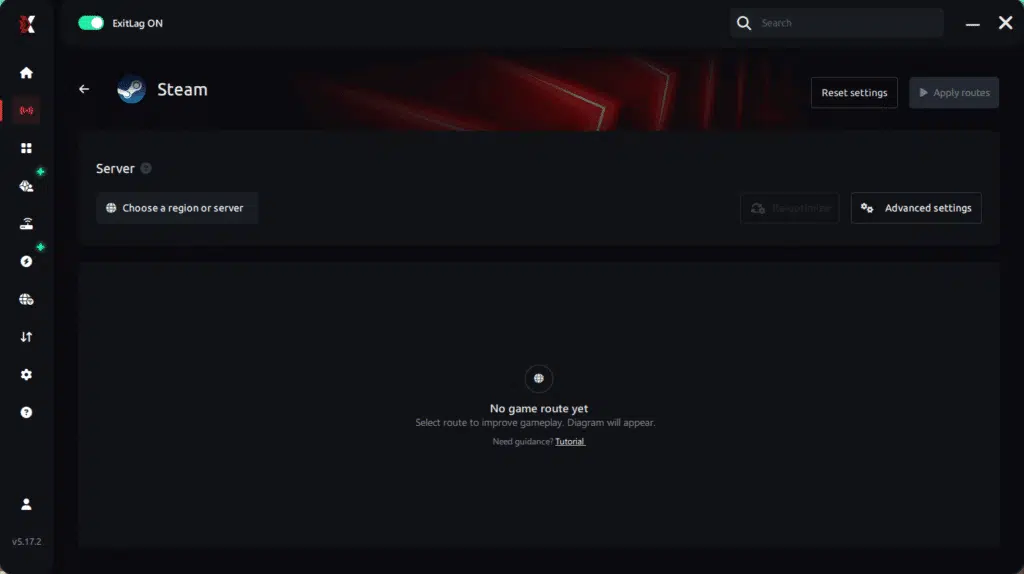
Step 6 – Wait a few seconds until optimization is complete. You’ll see ping indicators in the interface.
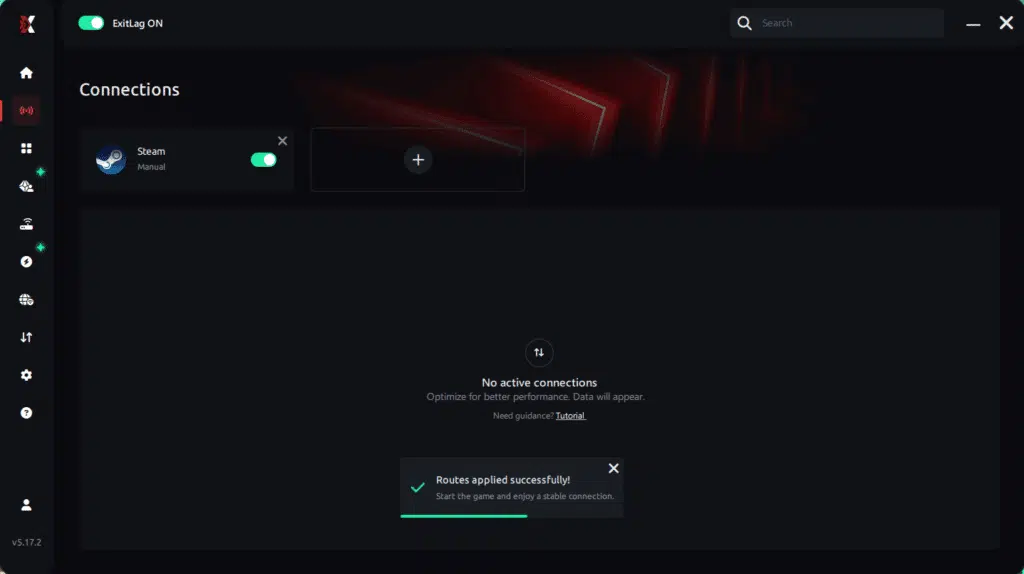
Step 7 – Launch your Steam game normally. The optimization will already be active.
With this information, simply select the server with the lowest latency and launch your Steam game knowing your connection is optimized.
FAQ: Frequently asked questions about jitter in Steam games
What is the difference between jitter, lag, and packet loss?
Jitter is the variation in ping over time—essentially how unstable your delay is. Lag is the feeling of delay itself, often caused by high or inconsistent latency. Packet loss happens when data packets never arrive at the server or are dropped along the way. You can have a low numeric ping but high jitter or packet loss, and your experience will still be terrible.
Why does my ping keep fluctuating in Steam games?
Ping can fluctuate due to network congestion, unstable routing, overloaded servers, Wi-Fi interference, or issues with your ISP. When your ping isn’t stable, your response time to in-game events becomes unpredictable, which is why your Steam games may feel inconsistent from one match to the next.
Is jitter worse than high ping?
In many situations, yes. A consistently high ping (for example, always around 100 ms) is easier to adapt to than a ping that jumps between 30 ms and 150 ms. Jitter makes your actions and the game’s reactions inconsistent, so you cannot learn or predict the timing, which hurts your performance more than a stable delay.
How can I know if I really have jitter?
You can run a prolonged ping test in your system’s terminal or Command Prompt and observe how stable the values are. If the numbers are jumping, you have jitter. In-game, if you notice that sometimes your commands are instant, sometimes delayed, and your character occasionally rubberbands or desyncs, that’s another strong indicator.
Does Wi-Fi cause jitter?
Yes. Wi-Fi is more vulnerable to interference and signal problems than an Ethernet cable. Other Wi-Fi networks, walls, and devices can create micro-interruptions that turn into latency spikes and jitter. For stable Steam games sessions, a wired connection is always the best option.
Does ExitLag help with other problems besides jitter?
Yes. ExitLag not only reduces Steam games jitter, but also helps lower ping, eliminate packet loss, fix bad routing, and improve general stability. It can even protect your connection path from some types of network-level disruptions, contributing to a smoother and more consistent experience in many online titles.
Do I need to keep ExitLag open while I play?
Yes. ExitLag must remain running for its optimizations to work. You can minimize it to the system tray, but if you close it completely, the traffic will no longer be routed through the optimized paths and your connection will revert to the default ISP route.
Can Steam downloads or updates cause jitter while I’m playing?
Absolutely. If Steam is downloading game updates or new titles in the background while you play, it will consume a large part of your bandwidth and can cause congested queues in your router. This frequently leads to ping spikes and jitter. Always pause Steam downloads before entering PvP, competitive, or ranked matches.
Conclusion
Jitter can turn a relaxed evening of Steam games into a frustrating experience where every fight, dodge, and shot feels like a gamble. The problem isn’t just high ping—it’s the unpredictability of your latency, which destroys your ability to react and plan correctly. The good news is that you don’t have to accept unstable gameplay as “normal.”
By prioritizing your connection, using wired Ethernet, optimizing your router, and—most importantly—leveraging tools built specifically for gamers like ExitLag, you can stabilize your route, reduce ping variation, and restore the fluid, competitive experience you expect from your favorite titles. To explore more guides on reducing lag, ping, jitter, and packet loss, check out the gaming optimization articles.
Don’t let Steam games jitter decide your matches or ruin your sessions. Take control of your connection, stabilize your ping, and experience the gameplay your PC is truly capable of delivering.
If you’re ready to feel the difference in your next match, activate your free trial and start playing with optimized routes and a stable connection today.
Got questions or want to connect with other players? Join the conversation at the ExitLag Forum!