Marvel Rivals has quickly become one of the most popular team-based hero shooters, bringing iconic Marvel characters into fast-paced multiplayer battles. However, many players have encountered a frustrating problem: Marvel Rivals crashing during gameplay, loading screens, matchmaking, or even before the game launches.
This comprehensive guide explains the most common causes of Marvel Rivals crashing, how to identify the source of the problem, and the most effective solutions for restoring smooth gameplay.
Why Is Marvel Rivals Crashing?
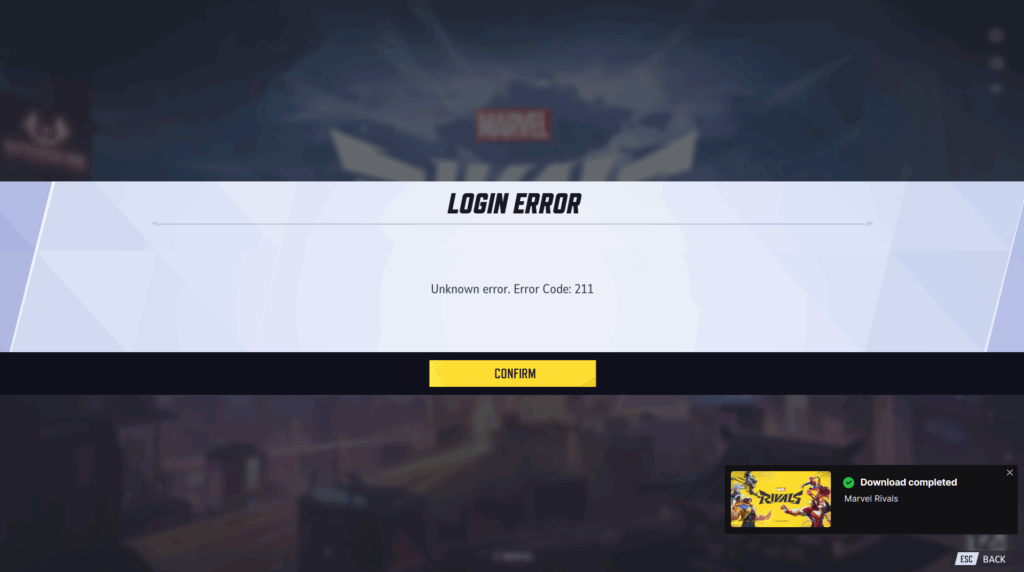
Before applying fixes, it’s important to understand why is Marvel Rivals crashing. Many players assume every crash has the same cause, but Marvel Rivals can crash for several different reasons. Identifying the specific symptom helps narrow down the correct solution much faster.
Common Signs of Marvel Rivals Crashing
Crashes can appear in several ways:
- The game closes without warning.
- A black screen appears before the game shuts down.
- The game freezes during matches.
- Loading screens become stuck indefinitely.
- The application crashes during startup.
- The launcher opens but the game never loads.
- Performance drops before a sudden crash.
- The game returns to the desktop without an error message.
Although these symptoms may look similar, the underlying causes often differ.
Main Causes of Marvel Rivals Crashing
Several technical factors can contribute to game instability.
Hardware Limitations
If your computer struggles to meet the game’s requirements, crashes become much more likely.
This is especially common during:
- Large team fights
- High particle effect situations
- Extended gaming sessions
- High graphics settings
Corrupted Game Files
Damaged or missing game files frequently cause startup failures and unexpected crashes.
Corruption can occur due to:
- Interrupted updates
- Storage drive errors
- Antivirus interference
- Improper shutdowns
Driver Issues
Graphics drivers play a critical role in modern games.
Outdated GPU drivers can lead to:
- DirectX errors
- Rendering problems
- Performance drops
- System instability
Background Software Conflicts
Some third-party applications interfere with game processes.
Examples include:
- RGB control software
- Hardware monitoring tools
- Recording applications
- Overlays
- Performance boosters
Network-Related Problems
Although crashes are usually hardware or software related, unstable connections can trigger synchronization failures and disconnect-related freezes.
Server Instability
Sometimes the issue is not on your side.
Server overload, maintenance windows, or backend problems can create symptoms that resemble local crashes.
Minimum and Recommended System Requirements
One of the first things players should verify is whether their system can handle the game.
System Requirement
| Component | Minimum Requirement | Recommended Requirement |
| Operating System | Windows 10 64-bit | Windows 11 64-bit |
| Processor | Modern Quad-Core CPU | High-Performance 6-Core CPU |
| RAM | 16 GB | 32 GB |
| Graphics Card | Mid-Range GPU | High-End Gaming GPU |
| DirectX | DirectX 12 | Latest DirectX Version |
| Storage | SSD Recommended | NVMe SSD Recommended |
| Internet | Broadband Connection | Stable High-Speed Connection |
Players operating near the minimum requirements may experience more frequent crashes and performance issues.
Marvel Rivals Crash on Startup
One of the most reported issues is the Marvel Rivals crash on startup problem.
In this scenario, the game never reaches the main menu.
Common Startup Crash Symptoms
You may notice:
- Black screen immediately after launch
- Launcher closes unexpectedly
- Loading logo appears briefly
- Application disappears without error
- Anti-cheat initialization failure
Why Startup Crashes Happen
Several factors contribute to startup-related crashes.
Missing Dependencies
Games require various system components to launch properly.
Missing installations may include:
- Visual C++ Redistributables
- DirectX Runtime
- Windows Components
Corrupted Installation Files
If game files become damaged, startup processes can fail before loading begins.
Security Software Blocking the Game
Some antivirus applications incorrectly identify game files as suspicious.
This can prevent critical files from launching.
How to Fix Marvel Rivals Crash on Startup
Follow these steps:
- Restart your PC.
- Run the game as Administrator.
- Verify game files through your launcher.
- Update Windows completely.
- Update graphics drivers.
- Disable antivirus temporarily.
- Close unnecessary background applications.
For many players, these actions resolve startup crashes immediately.
Marvel Rivals Not Launching
Another common complaint is Marvel Rivals not launching despite clicking Play.
The launcher may appear normal, but the game never opens.
Potential Causes
Broken Game Installation
A failed update may leave the installation incomplete.
Permission Problems
Windows security settings occasionally block execution.
Conflicting Software
Programs running in the background can prevent launch sequences from completing.
Solutions
Verify Game Files
Most launchers provide a repair or verification option.
This process scans files and replaces missing or corrupted content.
Run in Compatibility Mode
Some users report success by enabling compatibility settings.
Disable Overlays
Temporarily disable:
- Discord Overlay
- NVIDIA Overlay
- Steam Overlay
- Recording software
Reinstall the Game
If all else fails, a clean installation often resolves persistent launch issues.
Device Performance and Resource Management
Performance issues frequently contribute to crashes.
In many cases, Marvel Rivals crashing is simply the result of resource exhaustion.
Signs of Performance-Related Crashes
Watch for:
- FPS drops before crashing
- System stuttering
- Audio desynchronization
- Input lag
- Long loading times
These symptoms often indicate insufficient available resources.
Close Unnecessary Applications
Background programs consume valuable memory and processing power.
Close applications such as:
- Web browsers
- Streaming software
- RGB managers
- Recording tools
- Unused launchers
Monitor Hardware Usage
Use Task Manager or monitoring tools to track:
- CPU usage
- GPU utilization
- RAM consumption
- Temperature levels
Excessive usage may indicate a bottleneck.
Marvel Rivals Performance Fix
Many players searching for a Marvel Rivals performance fix are actually dealing with instability caused by poor optimization settings.
Improving performance often eliminates crashes as well.
Lower Graphics Settings
Reduce demanding options such as:
- Shadows
- Ray tracing
- Effects quality
- Texture resolution
- Anti-aliasing
Enable Performance Mode
If available, prioritize frame rate over visual quality.
Install the Game on an SSD
Solid-state drives significantly improve:
- Loading times
- Asset streaming
- Stability
Update Graphics Drivers
GPU manufacturers regularly release game-specific optimizations.
Installing the latest drivers can improve both performance and reliability.
Optimize Power Settings
Windows power plans affect hardware behavior.
Switch to:
- High Performance
- Ultimate Performance
when gaming.
Network Issues That Can Cause Crashes
Although crashes are often linked to hardware, network instability can also contribute.
Symptoms of Connection Problems
You may experience:
- Sudden disconnections
- Matchmaking failures
- Frozen loading screens
- Authentication errors
Common Network Causes
Unstable Wi-Fi
Wireless interference can interrupt communication.
High Packet Loss
Lost packets affect server synchronization.
Routing Problems
Some players connect through inefficient routes to game servers.
Network Fixes
Try the following:
- Use a wired Ethernet connection.
- Restart your router.
- Flush DNS cache.
- Disable VPNs temporarily.
- Test an alternative network.
Stable connectivity improves overall game reliability.
Corrupted Game Files and Installation Problems
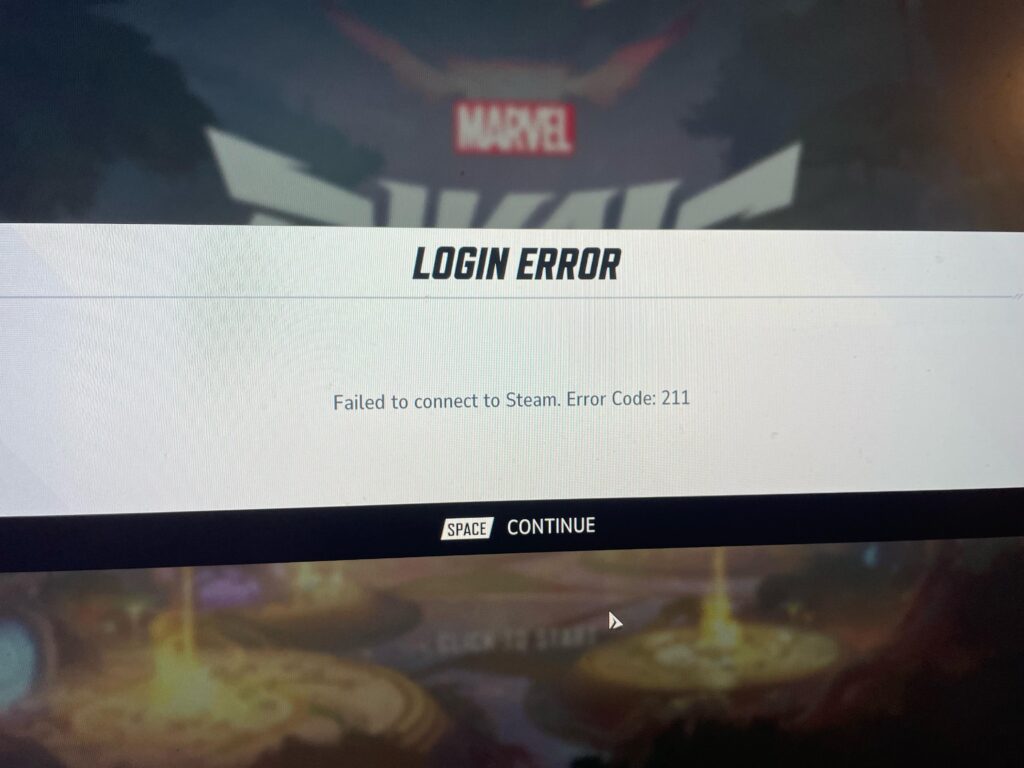
Game file corruption remains one of the most common causes of crashes.
What Causes File Corruption?
Common triggers include:
- Interrupted downloads
- Storage drive issues
- Unexpected shutdowns
- Antivirus quarantines
How to Repair Game Files
Most launchers include a built-in verification tool.
The repair process:
- Scans all installed files.
- Compares them against official versions.
- Replaces damaged content.
This solution frequently resolves both crashes and launch failures.
Software Conflicts and Background Applications
Many players overlook software conflicts when troubleshooting.
Applications Known to Cause Problems
Potentially problematic software includes:
- Screen recorders
- RGB control tools
- Hardware monitoring applications
- Overclocking utilities
- Third-party overlays
Clean Boot Testing
Performing a clean boot helps identify software conflicts.
Disable non-essential startup programs and test the game again.
If crashes stop occurring, a background application is likely responsible.
Marvel Rivals Crash Windows Issues
Many reports specifically involve Marvel Rivals crash Windows errors.
These problems are often tied to the operating system itself.
Common Windows-Related Causes
Outdated Operating System
Older Windows builds may contain compatibility issues.
Damaged System Files
Corrupted Windows files can affect game stability.
Driver Conflicts
Windows updates occasionally create compatibility problems with older drivers.
Windows Troubleshooting Steps
Run System File Checker
Open Command Prompt as Administrator and run:
sfc /scannow
This scans and repairs damaged system files.
Install All Windows Updates
Keeping Windows updated ensures maximum compatibility.
Update Chipset Drivers
Motherboard drivers play an important role in system stability.
Server Problems and Maintenance Periods
Sometimes players spend hours troubleshooting a problem that originates on the server side.
Signs of Server Issues
You may notice:
- Widespread player reports
- Login failures
- Matchmaking outages
- Frequent disconnects
What to Do
Check official channels for:
- Maintenance schedules
- Emergency downtime announcements
- Known bug reports
If the issue is server-related, waiting for an official fix may be the only solution.
PC Marvel Rivals keeps crashing: Advanced Marvel Rivals Crash Fix PC Solutions
If basic troubleshooting fails, advanced solutions may be required.
Reinstall Graphics Drivers
Perform a clean installation of the latest driver version.
This removes corrupted profiles and outdated settings.
Check Storage Health
Failing drives can cause:
- Loading issues
- Missing assets
- Frequent crashes
Use disk health monitoring tools to evaluate drive condition.
Test Memory Stability
Faulty RAM can produce random crashes.
Run memory diagnostics to identify hardware issues.
Disable Hardware Acceleration
Certain software combinations create conflicts with GPU acceleration.
Temporarily disabling hardware acceleration can improve stability.
Reinstall Marvel Rivals Completely
For persistent problems, a full reinstall is often the most reliable solution.
Steps:
- Uninstall the game.
- Restart the computer.
- Remove leftover files.
- Download a fresh installation.
- Install the latest version.
Preventing Future Crashes
Once you’ve resolved the issue, maintaining system health can reduce future problems.
Best Practices
- Keep drivers updated.
- Install game patches promptly.
- Maintain free storage space.
- Clear temporary files regularly.
- Avoid unnecessary background software.
- Monitor hardware temperatures.
- Use stable internet connections.
Following these practices helps minimize future disruptions.
Final Thoughts On Marvel Rivals Crashing
Experiencing Marvel Rivals crashing can be incredibly frustrating, especially during competitive matches or important progression sessions. Fortunately, most issues can be resolved through a combination of software updates, file repairs, system optimization, and network troubleshooting. For those wanting to improve their experience in the game even more, you can count on tools like ExitLag, which allow you to have optimized performance and reduced lag.
Frequently Asked Questions
Marvel Rivals keeps crashing due to hardware limitations, corrupted files, outdated drivers, software conflicts, unstable connections, or server-side issues.
Start by verifying game files, updating graphics drivers, installing Windows updates, disabling overlays, and running the game as Administrator.
Startup crashes are often caused by missing dependencies, corrupted files, antivirus interference, or outdated system software.
Verify game files, disable overlays, update drivers, and reinstall the game if necessary.
Common causes include outdated Windows builds, damaged system files, incompatible drivers, and software conflicts.
Yes. Lowering graphics settings, updating drivers, installing the game on an SSD, and closing background applications can improve performance and reduce crashes.
While not always the direct cause, unstable connections can trigger disconnects, synchronization failures, and loading issues that resemble crashes.
Yes. If all troubleshooting steps fail, performing a clean reinstall often resolves persistent crash-related issues.
Got questions or want to connect with other players? Join the conversation at the ExitLag Forum!