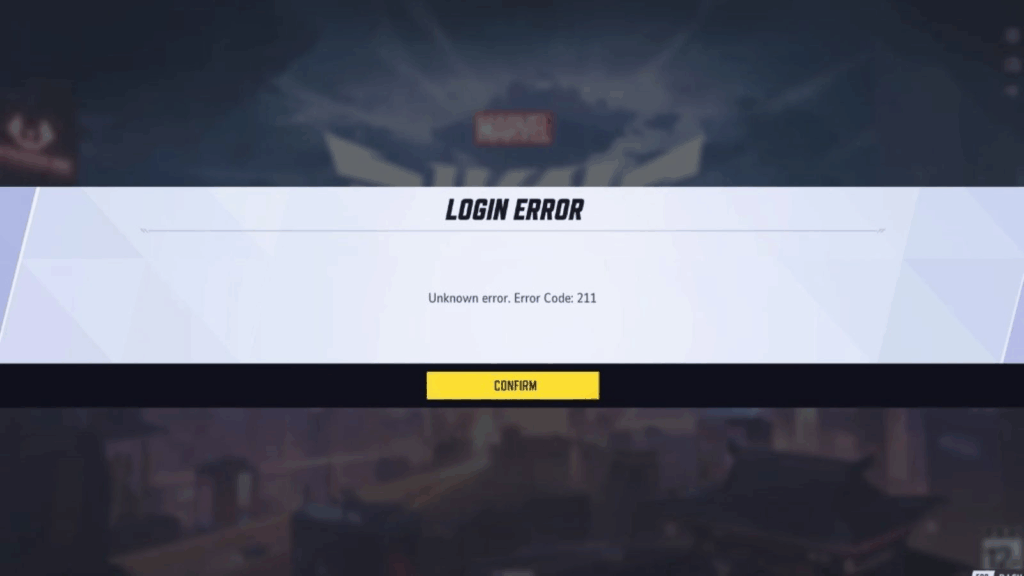
If you’re getting the Marvel Rivals Error Code 220, you’re not alone. Players-especially on PC-have reported encountering this issue during login, matchmaking, or even while loading the game. The error typically appears as:
“Unknown Error. Error Code: 220.”
This guide breaks down everything you need to know about the error, including potential causes, community-recommended fixes, and tips to prevent it in the future.
What Is Error Code 220 in Marvel Rivals?
Error Code 220 is widely believed to be a connectivity-related error. While the exact details haven’t been officially disclosed by the developers, community experiences suggest it’s triggered when the client fails to communicate properly with the servers. Contributing factors include:
- DNS resolution issues
- Server congestion or downtime
- VPN or proxy interference
- Firewall or port blocking
- Possibly, server region mismatches
When Does It Occur?
- During login
- Just before matchmaking starts
- When reconnecting after disconnection
- During launch (e.g., stuck at 0% load screen)
Is Error Code 220 Platform-Specific?
The majority of reports are from PC users, but some players speculate that it may affect consoles like PlayStation 5 and Xbox Series X/S. While this is plausible, it’s not definitively confirmed. So far, the error seems most prominent in PC environments.
Cross-Platform Consideration
Marvel Rivals supports cross-platform gameplay, and regional server routing may influence connection behavior. Server mismatches, especially if your launcher or account assigns you to a different region than your actual network geolocation, could trigger connectivity errors like 220.
Before You Troubleshoot: Run This Quick Pre-Check
To save time, go through this checklist before deeper fixes:
- ✅ Restart both the game and your device
- ✅ Reboot your modem/router
- ✅ Check Marvel Rivals’ server status on official Twitter or Discord
- ✅ Test on a different network (like a mobile hotspot) to identify routing problems
If the issue persists, move on to these community-tested fixes.
Step-by-Step Fixes for Marvel Rivals Error Code 220
1. Restart the Game and Launcher
Fully close the game and launcher (e.g., Steam), then relaunch. This clears session glitches and temporary login token issues.
2. Check Server Status
Visit the game’s official Twitter or Discord for updates. During launch windows or maintenance, servers may temporarily reject connections.
3. Power Cycle Your Router
Turn off your router/modem for 30 seconds to clear DNS cache and assign a fresh IP route.
4. Configure Firewall and Antivirus Settings
Allow Marvel Rivals through your firewall:
- On Windows, go to Firewall settings → “Allow an app”
- Add both inbound and outbound rules for the game executable
- Temporarily disable your antivirus to test, then whitelist the game if successful
5. Flush DNS and Reset TCP/IP Stack (PC Only)
Use Command Prompt (Admin) and run:
ipconfig /flushdns
netsh winsock reset
netsh int ip reset
Restart your PC afterward.
6. Switch to Public DNS Servers
Use Google DNS (8.8.8.8 / 8.8.4.4) or Cloudflare (1.1.1.1 / 1.0.0.1) to bypass ISP-level DNS routing issues.
7. Try a Different Network
Test the game using a different network-such as a mobile hotspot-to determine whether your home ISP or router settings are the issue.
8. Reinstall the Game (Last Resort)
Uninstall Marvel Rivals and reinstall it from scratch.
While this isn’t a guaranteed fix, some users have reported success when all else failed.
Other Contributing Factors (Community Speculation)
While no official causes are confirmed by the developers, players speculate:
- The issue may be tied to server region mismatches, especially if your account is routed incorrectly based on geolocation
- Session conflicts or login token corruption may be involved, though this is unverified
- Recent updates may have introduced stricter server-side authentication or routing filters, but this remains community speculation
ExitLag: Optimized Connectivity for Marvel Rivals
For players experiencing Error Code 220 or general instability in Marvel Rivals, using ExitLag can drastically improve routing efficiency by optimizing your connection path to the game’s servers.
ExitLag dynamically identifies the fastest routes across its global network infrastructure, reducing latency, preventing packet loss, and stabilizing gameplay – especially in cross-region matchmaking.
Whenever you’re on PC, ExitLag ensures your connection bypasses common ISP bottlenecks for a smoother, uninterrupted experience.
Preventing Future Errors
- Stick to stable, wired internet connections
- Avoid switching networks while logged into your account
- Keep firewall exceptions updated
- Avoid playing during patch rollout windows or known peak times
When to Contact Support
If the issue continues after all troubleshooting:
- Take a screenshot of the error
- Document the steps you’ve tried
- Submit a ticket to Marvel Rivals’ support team with details including platform, account, and network region
Is Marvel Rivals Error 220 Common on Console?
Although Error 220 is reported primarily on PC, it may also occur on consoles – however, consolidated reports for PS5 or Xbox Series X/S are scarce. Since Marvel Rivals is a cross-platform title, some connection behaviors may be similar across systems, but platform-specific evidence is limited.
However, consoles operate under different network rules, relying on NAT types, platform-level restrictions, and account-level permissions. This means console players need to verify a few unique variables.
Console-Specific Fixes for Marvel Rivals
1. Test and Improve Your NAT Type
- Go to Network Settings → Test NAT Type
- If you’re on Strict or Moderate, some game features might not work
- Aim for Open NAT to ensure full connectivity
How to Improve NAT Type:
- Enable UPnP in your router settings
- Or manually forward ports used by Marvel Rivals and your console
- If issues persist, your ISP or a double NAT setup (modem/router combo) could be the cause
2. Check PSN/Xbox Live Account Privacy Settings
- On PlayStation or Xbox, go to account privacy and safety settings
- Make sure your profile allows multiplayer and party-based matchmaking
3. Disable Parental Controls
- If active, they may block server communication
- Temporarily disable and retry logging in
4. Clear Console Cache
- Power down fully (don’t use Rest Mode)
- Unplug console for 2+ minutes
- Reboot and try again
5. Change DNS on Console
- Use the same DNS settings recommended for PC:
- Google DNS: 8.8.8.8 / 8.8.4.4
- Cloudflare DNS: 1.1.1.1 / 1.0.0.1
Router-Level Fixes and Port Forwarding
If your network is restrictive, your router may be part of the issue. Here’s how to configure it for maximum compatibility with Marvel Rivals.
Community-Reported Ports for Marvel Rivals
While not officially confirmed by the developer, players have reported success after opening the following ports:
- TCP: 80, 443, 5222, 8080
- UDP: 5060, 5062, 3478–3479, 27015–27030
How to Port Forward:
- Log into your router via web browser (usually 192.168.1.1)
- Find “Port Forwarding” or “NAT” section
- Add entries for the required TCP and UDP ranges
- Save and reboot router
Enable UPnP
If manual port forwarding is too complex:
- Turn on UPnP in router settings
- It allows your console or PC to automatically request open ports when needed
Monitor ISP-Level Issues
Some ISPs throttle game traffic or experience regional routing instability. If your connection drops only in Marvel Rivals but works elsewhere:
- Call your ISP to check for throttling or packet loss
- Ask about static IP services or gaming mode configurations
ExitLag for PC Players
If you’re playing on PC and still struggling with Error Code 220, ExitLag can provide a reliable fix by optimizing how your traffic reaches Marvel Rivals servers. Unlike typical VPNs, ExitLag uses real-time route mapping to ensure minimal latency, zero packet loss, and stable routing, especially useful if your ISP is unreliable.
Important: ExitLag is only available for PC platforms and is not compatible with console systems.
Final Checks Before Support
If none of these solutions work:
- Reinstall Marvel Rivals (console or PC)
- Log in from a different internet network (friend’s house, mobile hotspot)
- Check Marvel Rivals’ Twitter/Discord for regional server issues
- Then contact official support with:
- Platform details
- Error message screenshot
- Account and region info
- Fixes already attempted
All game images used in this blog belong to NetEase Games and Marvel. They are used for informational/educational purposes only and do not imply endorsement or affiliation with the rights holders.
Got questions or want to connect with other players? Join the conversation at the ExitLag Forum!