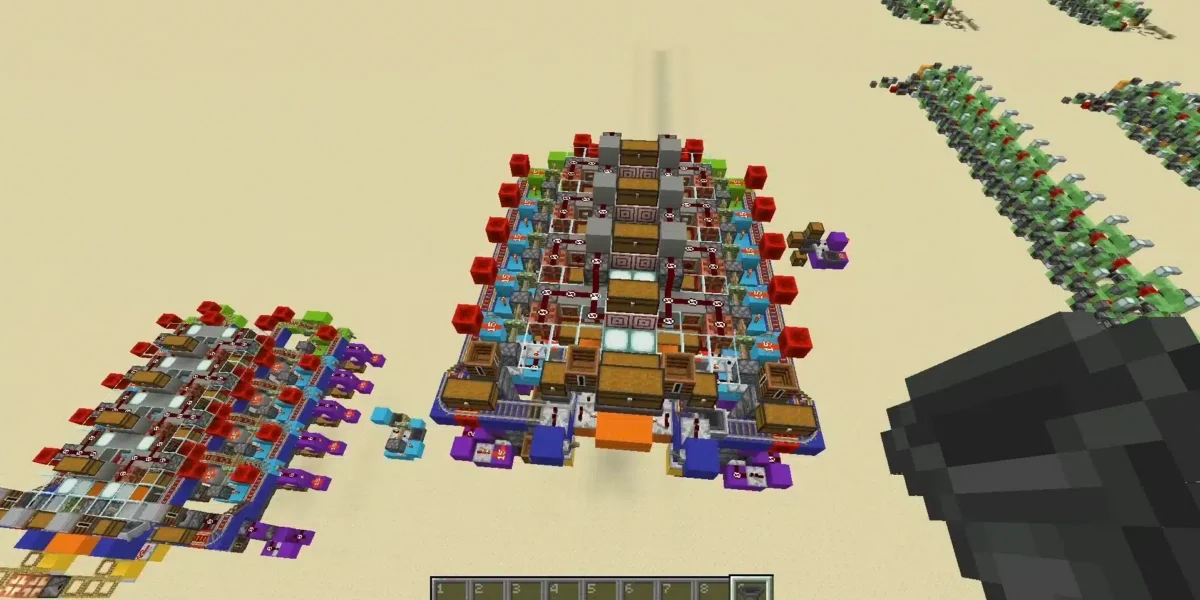
Minecraft Java Edition is the original PC version of Minecraft and the one most players associate with deep customization, community servers, and an endless modding ecosystem.
Before you install anything, make sure you’re starting from the clean, official path. The safest baseline is grabbing the launcher from Minecraft’s official download page so you avoid shady installers and mismatched versions that break Java setups.
If you’re deciding whether Minecraft Java Edition is right for you, it helps to understand what it does better than other versions, what it doesn’t do at all, and how to get started without wasting time on confusing installs or sketchy downloads.
Minecraft Java Edition remains the go-to choice for players who want Minecraft Java mods, advanced server variety, and early access to in-development features through snapshots.
Finally, if you’re also thinking about price, trials, and whether Minecraft Java free is a real thing (or just clickbait), this guide covers it clearly using official sources.
What makes Minecraft Java Edition different?
Minecraft Java Edition stands out because it’s built around a PC-first ecosystem: strong community servers, broad customization, and a long history of player-made content. It’s the version where the “do whatever you want” culture of Minecraft feels the most unlimited.
This is also why “Minecraft Java download” and “Minecraft Java mods” are so commonly searched together: most people looking for Java are looking for control, not just vanilla gameplay.
Why Java Edition became the “community” version
Java is where many large Minecraft communities grew up: public servers, custom minigames, and modded experiences that go way beyond vanilla. Unlike a closed marketplace model, Java’s culture is driven by community tooling and open distribution.
That freedom leads to three big strengths:
- huge variety of servers and game modes
- modding depth that can fully transform gameplay
- creator-driven content pipelines (mods, maps, resource packs)
In practice, if you want Minecraft to feel like “five different games,” Java is usually the route.
What you can do in Java that players love
Here’s what players typically mean when they say Java is “better,” in a practical sense:
- Mods and modpacks: from performance mods to total conversions (Minecraft Java mods)
- Community servers: countless public servers with unique rulesets
- Snapshots: access to in-development versions if you own the full version
- Creator ecosystems: strong community tools and documentation
And to keep this aligned with the exact comparison most players search: Java Edition vs Bedrock is less about “which is good” and more about “which fits how you want to play.”
Java Edition vs Bedrock: which one should you choose?
The “Java Edition vs Bedrock” debate is popular because both versions are great—just optimized for different priorities.
Minecraft’s official guidance frames them as different editions with different strengths, including differences in how Realms services work across versions.
So instead of treating this like a fight, treat it like a checklist: what do you want most?
Best reasons to choose Java Edition
Choose Minecraft Java Edition if you care about:
- deeper and broader Minecraft Java mods ecosystem
- a PC-focused community server landscape
- snapshots and testing builds for upcoming features
- classic PC experience across Windows, Mac, and Linux
Java tends to shine for players who want to customize everything and don’t mind learning a bit of setup.
Best reasons to choose Bedrock Edition
Choose Bedrock if you care about:
- cross-platform play with console/mobile/Windows
- easier “play with friends” across devices
- Marketplace-based add-ons and curated content
- smoother onboarding for casual groups
Officially, the editions differ not just in features but also in the ecosystem around them—Bedrock supports broader device play, while Java remains PC-centric.
Quick decision rule (simple and honest):
- If you want Minecraft Java mods and community servers → Java.
- If you want “everyone joins from any device” → Bedrock.
How do you download Minecraft Java Edition?
If you’re searching Minecraft Java download, stick to the official launcher path. It’s safer, it stays updated, and it reduces the chance you install something fake.
Minecraft’s official download page points players to the Minecraft Launcher as the hub for downloading versions and managing profiles.
If your end goal is playing in a shared world, it helps to choose the simplest route before you touch mods or server configs. This walkthrough on how to play Minecraft with friends lays out the real options and what each one requires, without turning it into a networking lecture.
Where to get the official launcher
Use the official Minecraft download flow:
- download the Minecraft Launcher from the official Minecraft site
- sign in with the account you purchased Minecraft on
- select Java Edition in the launcher
This matters because Java also supports multiple installations and profiles, which becomes useful later if you use mods or play snapshots.
How to install and launch Java on PC, Mac, or Linux
Here’s the simplest setup path:
- Install the Minecraft Launcher
- Log in to your Microsoft account
- Choose Minecraft Java Edition
- Select your version (latest release, or other profile)
- Click Play
If you’re new, do two extra steps right away:
- open Settings and check memory allocation (helps stability)
- set a reasonable render distance (helps performance)
This is the “clean baseline” before you add Minecraft Java mods or jump into snapshots.
Can you get Minecraft Java Edition free?
This is the part where misinformation spreads fast, so here’s the clear answer:
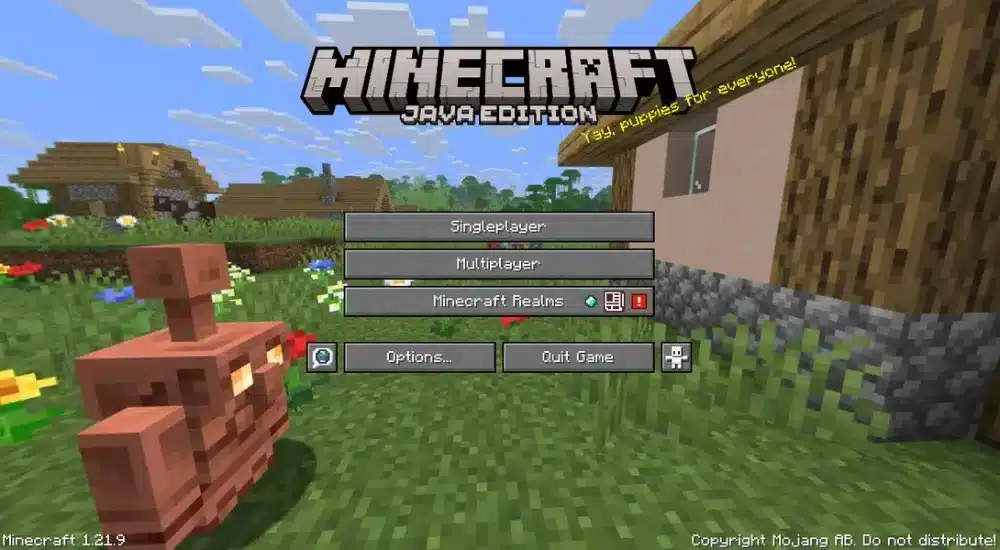
You can try Minecraft Java Edition via an official free demo / free trial, but the full game is paid. The official free trial information is published by Minecraft, including limits and restrictions.
So yes, there is a legitimate Minecraft Java free option—but it’s a trial/demo, not “free ownership.”
What the Java free demo includes
Minecraft’s official help article explains that you can play the Java Edition demo for free if you haven’t played before.
The official Minecraft free trial page also states:
- the Java Edition free trial is available on Windows, Mac, and Linux
- multiplayer servers are inaccessible during the free trial (LAN has limited allowances)
- the average trial length is about five in-game days or around 100 minutes
That’s perfect for:
- checking performance on your PC
- seeing if you like the feel of Java gameplay
- testing basic settings before purchasing
What “Minecraft Java free” does not mean
It does not mean:
- unlimited play time with full features
- access to public multiplayer servers during the trial
- permanent ownership without purchase
If you see sites claiming “full Minecraft Java free download,” treat it as a red flag. The safe path is always official launcher + official account.
If you still want to scratch the “free” itch in a safe way, there’s a legit nostalgic option that doesn’t involve downloads at all. You can load Minecraft Classic in your browser and mess around with the basics—just keep in mind it’s a throwback experience, not Java Edition ownership.
Also, if you buy and then change your mind, Mojang’s refund policy depends on platform and timing, and Minecraft has an official refund policy page explaining eligibility windows.
How do you install Minecraft Java mods safely?
This is the biggest reason many players pick Minecraft Java Edition in the first place, but it’s also where beginners accidentally break their game.
Modding is powerful because it can change performance, visuals, mechanics, UI, content, and even the entire progression loop. That’s why “Minecraft Java mods” is an endless rabbit hole.
Safe modding basics for beginners
Start with these rules:
- Match game version to mod version (most crashes are mismatches)
- Use trusted mod loaders and well-known mod hosting sources
- Add mods slowly, not 50 at once
- Keep a clean “vanilla” profile in the launcher
If you’re trying mods for the first time, prioritize:
- performance and optimization mods
- UI and quality-of-life mods
- small content additions
This keeps troubleshooting simple and helps you learn what each mod actually changes.
Modding without killing performance
Mods can improve performance, but they can also destroy it—especially huge shader packs, high-resolution textures, and heavy content mods running together.
Use a “stability-first” approach:
- increase changes gradually
- test FPS and load times after each mod batch
- keep render distance realistic
- watch memory usage (too little or too much can cause stutters)
And if you play multiplayer, remember: servers often require specific mod setups, and some mods are client-only while others must match on both sides.
If your main goal is “smooth gameplay,” treat modding like tuning: small, intentional changes.
How does ExitLag help Minecraft Java Edition?
This section is only about ExitLag, and how it connects to your Java experience.
Minecraft Java Edition can run beautifully offline and still feel terrible online if your connection is unstable. The issue isn’t always “slow internet.” It’s often:
- route instability (your ISP taking inefficient paths)
- jitter (ping variance)
- packet loss (small drops that cause rubberbanding)
When the connection starts failing, Java can throw errors that look like your game is broken even though the real issue is the network path. If you’re seeing that specific socket message, this guide on fixing the getsockopt Minecraft error helps you diagnose it quickly and get back online without random trial-and-error.
ExitLag is designed to optimize routing to game servers, aiming to reduce instability by selecting better network paths. That matters in Java multiplayer where timing affects:
- block interactions (opening chests, breaking blocks)
- combat hits registering consistently
- movement during sprinting, Elytra flight, or parkour
- chunk loading and “rubberband” corrections
Common signs your connection is the real problem
If you see these issues on servers (especially at peak hours), routing may be the culprit:
- you teleport back after moving
- mobs freeze and then “snap” forward
- hits feel delayed even with good FPS
- you get kicked randomly or time out
- your ping looks “fine,” but feels inconsistent
That’s exactly the kind of situation where ExitLag-style routing optimization can help.
A simple way to test ExitLag in Java servers
Do this clean A/B test:
- Play 20 minutes on the same server, same time window, without ExitLag
- Note rubberbanding, spikes, disconnects, delayed interactions
- Play the same 20 minutes with ExitLag enabled
- Compare stability (variance), not only average ping
If the session feels more consistent, you’ll notice it fast—especially in combat and movement-heavy gameplay.
Stability also depends on your client staying responsive when servers get busy, especially with mods, shaders, or higher render distance. If you’re stuttering even with a decent connection, start with this guide on how to fix Minecraft lag to tighten performance before you tweak anything else.
FAQ about Minecraft Java Edition
For most players, yes. Java’s modding ecosystem is one of its biggest strengths, and it’s why Minecraft Java mods remains one of the most searched phrases around the PC version. The official launcher and version profiles also make it easier to manage separate setups.
Quick tip: keep separate profiles for “vanilla,” “performance,” and “modded” to avoid conflicts.
You can try an official Java demo/free trial, but the full version is paid. Minecraft’s official free trial page explains trial availability, limitations (like public multiplayer restrictions), and an average playtime limit of around 100 minutes.
Minecraft Java Edition is still the best pick if you want deep customization, community servers, and serious modding freedom. Use the official Minecraft Java download path through the Minecraft Launcher, compare Java Edition vs Bedrock based on how you play, and treat Minecraft Java free claims as “demo/trial,” not full ownership.
If you want the smoothest multiplayer experience in Minecraft Java Edition, try ExitLag to stabilize your route to servers, reduce spikes, and keep your gameplay consistent—then jump back in and build without interruptions.
Got questions or want to connect with other players? Join the conversation at the ExitLag Forum!