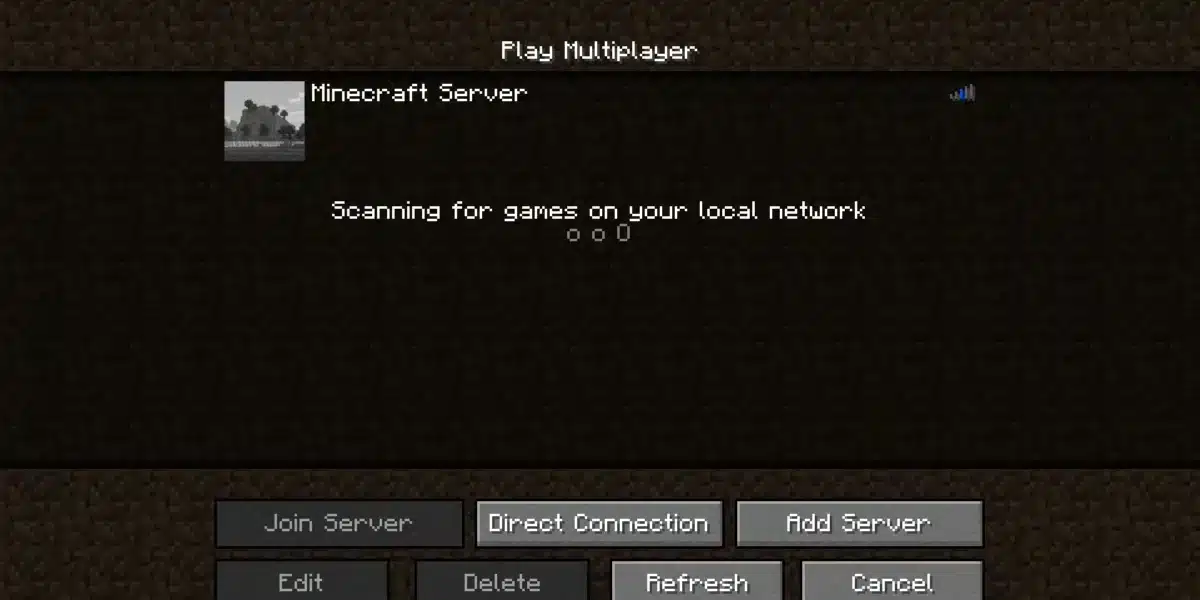
Minecraft Pocket Game, the mobile edition of the beloved sandbox phenomenon, brings all the creativity, adventures, and block-building fun right to your smartphone or tablet. Whether you’re just starting your journey or honing your skills from the PC version, this guide is crafted to help you play Minecraft Pocket Game anywhere.
If you want to expand your experience into Survival Multiplayer worlds, check out this detailed Minecraft SMP survival multiplayer guide for tips on building, raiding, and surviving with friends.
Looking for ways to download, install, and enjoy this mobile sensation? We’ve got you covered with step‑by‑step instructions, handy tables, and visuals to make the process smooth—even for beginners. Let’s dive in and start crafting your world!
What Is the Minecraft Pocket Game?
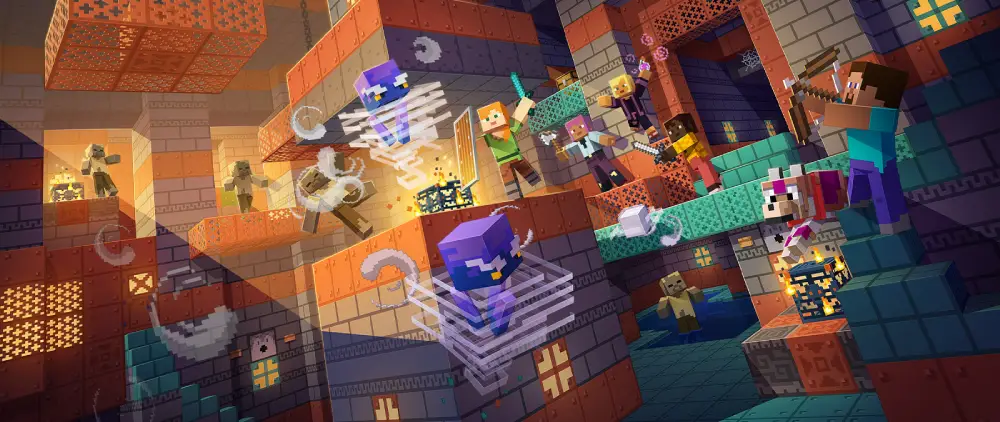
If you’ve played computer games or the PC version of Minecraft, you’ll find the minecraft pocket game experience very similar—and yet uniquely suited for touchscreens. Initially launched in 2011 as Minecraft Pocket Edition, it has since been rebranded to “Bedrock Edition” on mobile, but players still refer to it simply as Pocket or mincraft.
Key Differences from PC/Console
- Controls: Reimagined for touchscreen—movement via a virtual joystick, building with taps.
- Performance: Optimized for mobile hardware; fewer particle effects and smoother frame rates.
- Content Parity: Most biomes, mobs, and mechanics match PC, but some advanced mods and packs remain PC‑only.
Core Features and Limitations
| Feature | Pocket Game |
| Survival & Creative | Both modes available |
| Cross‑platform play | Yes—connect with PC, consoles |
| Marketplace addons | Skins, texture packs, mini‑game maps |
| Mods and plugins | Limited vs. PC version |
| Redstone & command blocks | Basic support, not full complexity |
You can enjoy exploring, crafting, building, and battling mobs—essentially the same experience as on PC. Even if you’re looking for minecraft free options, remember the official app is paid—though you might find mincraft demos in kids’ magazines or trial versions in select markets.
How To Download and Install
Ready to start your mobile Minecraft journey? Here’s a clear walkthrough to install Minecraft Pocket Game on Android and iOS.
For players starting from scratch and needing step-by-step PC instructions first, here’s how to play Minecraft, which covers everything from installation to your first night in-game.
Requirements and Compatibility
- Android: Version 5.0 Lollipop or higher, at least 1 GB RAM, 2 GB free storage
- iOS: iOS 9 or newer, iPhone 6s or better, iPad mini 4+
- Network: Wi‑Fi or mobile data for Marketplace, updates, and multiplayer
Purchasing and Installing
- Open Google Play Store (Android) or App Store (iOS).
- Search for Minecraft.
- Tap Buy (~USD 6.99) and enter your payment details.
- Tap Install—the download begins immediately.
- After installation, open the app from your home screen or app drawer.
Is it free?
No—the app is a one‑time purchase. While you might find free alternatives, none offer full features or safety guarantees.
How to Play and Save Your Game
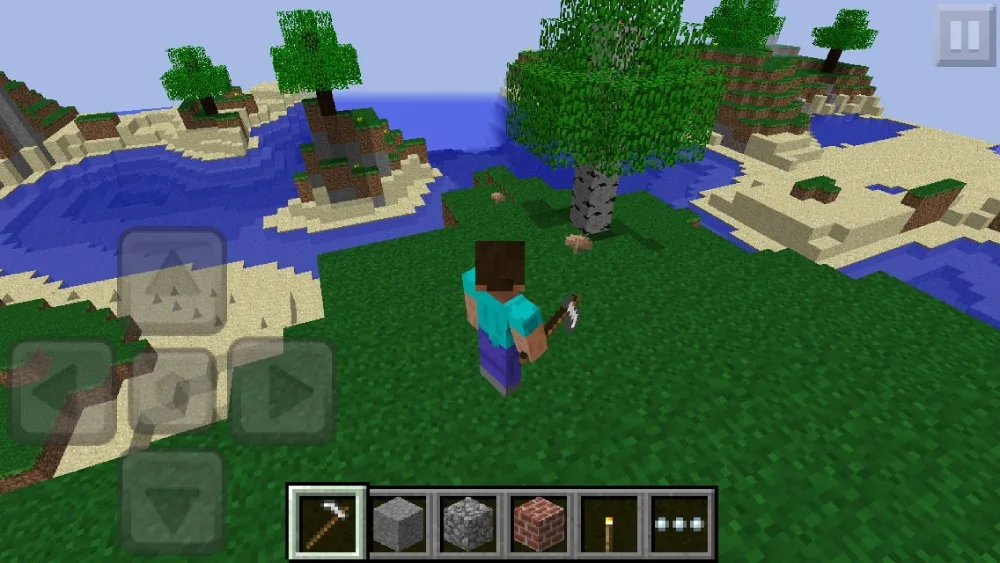
Once installed, it’s time to explore! Here’s how to get going and keep your progress safe on Minecraft Pocket Game.
- Create a world: Open the app, tap Play → Create New, choose Survival or Creative, name your world and start playing.
- Basic gameplay: Use the joystick on the left to move, tap blocks to mine, drag items to craft, and build as you like.
- Saving your world: The app automatically saves most actions. You can exit at any time—your world will be stored under My Worlds.
How to Save Game on Minecraft Pocket Game
- Progress is auto-saved after every few seconds of play.
- To ensure your world’s backed up: go to Settings → Profile → Sync Saved Games (requires Mojang/Microsoft account).
- For local backup: use device file manager to copy files from Android: /games/com.mojang/minecraftWorlds/; on iOS, use iTunes file sharing.
Multiplayer and Xbox Login
Want to build and play with friends? Here’s how to connect seamlessly.
Local Wi‑Fi
- Both players connect to the same Wi‑Fi network.
- Host creates a world with Multiplayer enabled.
- Others tap Friends and select the world.
Online and Realms
- Link your Mojang/Microsoft account by tapping Sign In on the main menu.
- Use https://www.microsoft.com/link to verify account through in‑app code.
- Join Realms, external servers, or invite friends from Xbox, Windows, Switch, and more.
Minigames And Special Game Modes In Minecraft Pocket Game
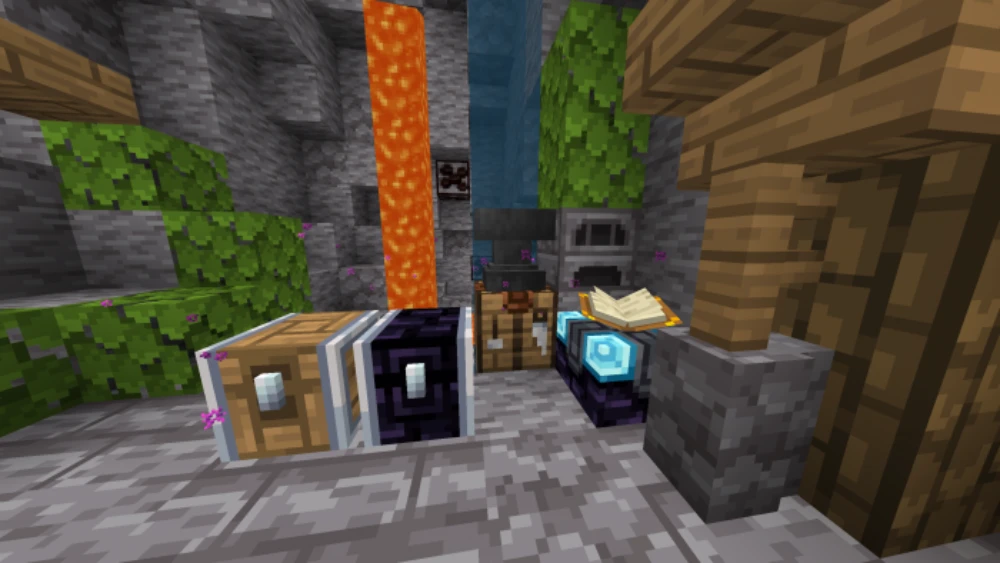
Once you’ve mastered the basics, it’s time to explore the fun side of Minecraft Pocket Game: minigames and special modes. These are popular gameplay variants that let you experience Minecraft beyond survival and building.
Whether you’re battling it out in Hunger Games, designing creative worlds, or testing your skills in parkour challenges, the Pocket Edition makes it all accessible—right on your mobile device.
Is It The Same As On PC?
Many players wonder if minigames on Minecraft Pocket Game are similar to those on PC. The answer: mostly yes, but with some mobile-specific adaptations.
- Cross-platform support: Thanks to the Bedrock Edition, you can play with friends across Xbox, PC, Switch, and more.
- Server access: Join popular servers offering Hunger Games, Skywars, and BedWars.
- Controls: Gameplay is optimized for touch, but external controllers can also enhance your experience.
If you’re looking to personalize your game with custom maps, skins, or adventure packs, explore this complete guide to Minecraft Marketplace coins and items for tips on getting the most out of your Marketplace purchases.
Most Popular Minigames On Minecraft Pocket Game
Here’s a quick look at some fan favorites you’ll find on servers:
- Hunger Games: Compete in a last-player-standing survival match.
- SkyWars: Battle other players on floating islands.
- Build Battle: Showcase your creativity under time pressure.
- Parkour Maps: Test your jumping and timing skills.
- BedWars: Protect your bed while attacking opponents’ bases.
Server Access Tip: Many servers list their IPs publicly. Add them in-game under the Servers tab for instant access.
How Do You Join A Game In Minecraft Pocket Edition?
Joining a multiplayer session in Minecraft Pocket Game is simple, but there are a few different ways depending on your setup.
Joining Locally
- Make sure both devices are on the same Wi‑Fi network.
- Have one player open their world with Multiplayer enabled.
- On the second device, tap Play, go to the Friends tab, and select the available world.
Joining Online Servers
- Tap Play, then select Servers.
- Choose a featured server or add one manually using the server IP.
- Sign in with your Xbox login for online play.
For Microsoft-account-based servers, you may need to visit https://www.microsoft.com/link and enter your code to verify your account.
How To Join Games On Minecraft Pocket Edition?
If you want to expand your gaming horizons beyond local worlds:
- Xbox Login Required: For most online servers, signing in with your Microsoft account is mandatory.
- External Servers: Tap Add Server under the Servers tab and input server details.
- Realms: A subscription-based private server service that ensures smoother gameplay with friends across different platforms.
Bonus Tip: Use ExitLag to reduce latency when connecting to distant servers for a smoother experience.
If you’re on PC or want to experience Minecraft on desktop too, grab the official installer directly from Minecraft.net.
How To Save A Game On Minecraft Pocket Edition?
Saving your progress is crucial, especially when building large structures or exploring far from your spawn point.
Automatic Saves
Minecraft Pocket Game features auto-save, meaning your world progress updates in real time.
However, to make sure everything stays secure:
- Go to Settings → Profile.
- Ensure that “Sync with Cloud” is enabled (requires Microsoft account).
Manual Backups
For extra peace of mind:
- Android: Use a file explorer app to navigate to /games/com.mojang/minecraftWorlds/ and copy your world folder.
- iOS: Connect your device to iTunes, go to File Sharing, and save Minecraft data folders.
This ensures your builds and resources won’t be lost, even after reinstalling the app.
How To Play Hunger Games On Minecraft Pocket Edition?
Hunger Games is one of the most played minigames within Minecraft Pocket Game. This survival-themed PvP mode drops players into an arena where the goal is simple: be the last one standing.
Steps To Play Hunger Games
- Open Minecraft Pocket Game.
- Tap Play → Servers.
- Join a server that hosts Hunger Games (popular choices include Lifeboat and Mineplex).
- Enter the Hunger Games lobby and wait for the next match.
Tips For Winning Hunger Games
- Loot quickly: Grab gear from chests immediately.
- Stay mobile: Don’t camp—move often.
- Watch the borders: Stay inside the playable area as it shrinks.
- Choose battles wisely: Only engage when you have the advantage.
ExitLag Tip: Optimize your connection when playing on international servers to reduce lag-related deaths.
FAQ – Frequently Asked Questions
You can join games locally over Wi‑Fi or online through servers using your Xbox login. Check the Friends tab for available worlds.
After signing in with your Microsoft account, navigate to the Servers tab or join local LAN worlds via Wi‑Fi.
Use the Friends tab for LAN games or input server IPs for online multiplayer. Remember to verify your account at https://www.microsoft.com/link.
The game auto-saves your world. To double-protect, manually back up your minecraftWorlds folder on Android or use iTunes File Sharing on iOS.
Join a server hosting Hunger Games, enter the lobby, and compete to be the last survivor. Use ExitLag for improved connection stability.
For players who want to try the game before committing to purchase, the official Minecraft free trial offers a great way to explore the basics before buying the full version.
Conclusion: Take Your Minecraft Pocket Game Experience To The Next Level
The Minecraft Pocket Game offers the full block-building, adventure-packed Minecraft experience right in your hands. Whether you’re mining for diamonds, building sky-high towers, or battling friends in Hunger Games, mobile Minecraft has something for everyone.
For the best multiplayer experience with less lag, fewer disconnects, and smoother gameplay, don’t forget to try ExitLag.
By optimizing your connection routes, ExitLag helps mobile players minimize latency—even when joining far-away servers.Start your ExitLag free trial today and craft without interruptions!
Got questions or want to connect with other players? Join the conversation at the ExitLag Forum!