Every gamer knows the feeling. You are mid-fight, your aim lines up perfectly, and then the game freezes for half a second before you die to someone who was never really there. That delay usually has a name: network congestion.
It is one of the most common causes of high ping, rubber-banding, and random disconnects, and most players never learn how to actually deal with it. Network congestion happens when more data tries to travel through your connection than it can carry at once, creating a digital traffic jam.
The direct answer is simple: network congestion is fixed by reducing the amount of competing traffic on your connection, prioritizing game data over everything else, and routing your packets through a path that avoids the jam entirely. Consequently, understanding where the bottleneck lives (your home network, your ISP, or the route to the game server) is the first step toward a real fix.
This guide breaks down what actually causes congestion, how it wrecks your gaming sessions, and the practical network congestion solutions that experienced players rely on. We will also cover how to fix network congestion at home, on your router, and on the wider path your traffic takes to reach game servers.

What Is Network Congestion and Why It Happens
Network congestion occurs when the volume of data packets moving through a network exceeds what the connection can handle smoothly. As a result, packets queue up, get delayed, or get dropped entirely.
This is not a rare event. In fact, it happens on nearly every home network at some point, especially during peak hours when everyone in the house or neighborhood is online at once.
The Main Causes of Network Congestion
Several factors combine to create congestion, and it is rarely just one issue. Here are the most common triggers:
- Multiple devices sharing one connection: Phones, smart TVs, consoles, laptops, and even security cameras all compete for the same bandwidth.
- Bandwidth-heavy applications: Video streaming, cloud backups, and large downloads eat up capacity that your game needs for real-time data.
- Peak-hour traffic: Evenings tend to be the worst, since most people in your area are streaming, gaming, or browsing at the same time.
- ISP-level bottlenecks: Your provider’s infrastructure can also get overloaded upstream, far beyond your router.
- Packet retransmission: When packets are lost, they must be resent, which adds even more traffic to an already busy network.
How ISPs and Routers Contribute to the Problem
Your router plays a bigger role than most players realize. Without proper configuration, it treats a massive file download exactly the same as your competitive match, giving both equal priority.
Meanwhile, ISPs sometimes throttle traffic during high-demand periods to spread bandwidth across their user base. Therefore, even a fast connection can feel sluggish if the provider’s network is congested somewhere upstream.
How Network Congestion Affects Online Gaming
Congestion does not just slow down downloads. It directly damages the responsiveness of every online match you play.
When your connection is congested, data packets get stuck in queues before they reach the game server. This delay shows up as higher ping, and it rarely stays constant.
Why Your Ping Spikes During Matches
Ping spikes happen when a burst of competing traffic suddenly fills up your connection’s buffer. Your character might freeze for a moment, then “teleport” once the backlog clears.
This is often called bufferbloat, and it explains why your ping can look fine on average yet still feel terrible in practice. The average number hides the spikes that actually ruin your reaction time.
Packet Loss and Its Impact on Gameplay
Packet loss is a direct consequence of congestion, since overloaded routers and links start dropping packets instead of queuing them. Consider what that means in practice:
- A packet carrying your movement input gets dropped.
- Your game client waits, then requests it again.
- The server does not receive your action in time.
- Your character rubber-bands back to an old position.
- The opponent, whose connection was not congested, gets the advantage.
Notably, this cycle repeats constantly during peak hours, which is why so many players report “random” lag that seems to appear only at night.
Network Congestion Solutions You Can Apply Today
Now that the causes are clear, let’s get into practical fixes. These are the same steps experienced players and network technicians use to stabilize a connection.
Quality of Service (QoS) Settings
QoS is arguably the single most useful setting on any router for gaming. It tells the router to treat time-sensitive traffic, like your game or voice chat, as higher priority than downloads or streaming.
- Enable QoS in your router’s admin panel and assign your gaming device the highest priority.
- Set the bandwidth shaping value 5 to 10 percent below your actual measured speed, not your advertised plan speed.
- Look for routers that support modern buffer management like Cake or FQ-CoDel, since these directly target bufferbloat.
- Reserve a fixed amount of upload bandwidth for gaming traffic if your router allows manual allocation.
Bandwidth Management at the Router Level
Beyond QoS, general bandwidth management helps prevent one device from hogging the whole connection. This matters most in busy households with several people online simultaneously.
| Method | What It Does | Best For |
|---|---|---|
| QoS Prioritization | Gives gaming/voice traffic priority over downloads | Households with mixed usage |
| Time-Based Limits | Restricts heavy tasks during peak hours | Evening congestion |
| Device Bandwidth Caps | Limits how much one device can consume | Streaming or torrenting roommates |
| Wired Ethernet Connection | Removes Wi-Fi interference entirely | Competitive gaming sessions |
Additionally, scheduling large downloads or updates for late night hours avoids competing with your own gaming sessions. This is a simple habit that removes a huge chunk of self-inflicted congestion.
Is Your ISP Throttling You, or Is It Just Congestion?
This is a question worth answering before you blame your own setup. Throttling and congestion look similar but have different causes and different fixes.
- Run a speed test at different times of day to spot patterns tied to peak hours.
- Compare your measured speed against what your plan advertises.
- Check whether slowdowns affect specific services (a throttling sign) or your whole connection equally (more likely general congestion).
- Contact your provider directly and ask about their congestion management and data cap policies.
If the problem is isolated to certain hours across your whole connection, it is very likely regional congestion rather than targeted throttling. Either way, the practical fixes below still apply.
How to Fix Network Congestion for Competitive Gaming
Casual browsing can tolerate a laggy connection. Competitive gaming cannot, since even small delays affect your reaction window and your aim.
Step-by-Step Fix for a Congested Gaming Connection
- Switch from Wi-Fi to a wired Ethernet connection whenever possible.
- Enable QoS and assign your gaming PC or console the top priority tier.
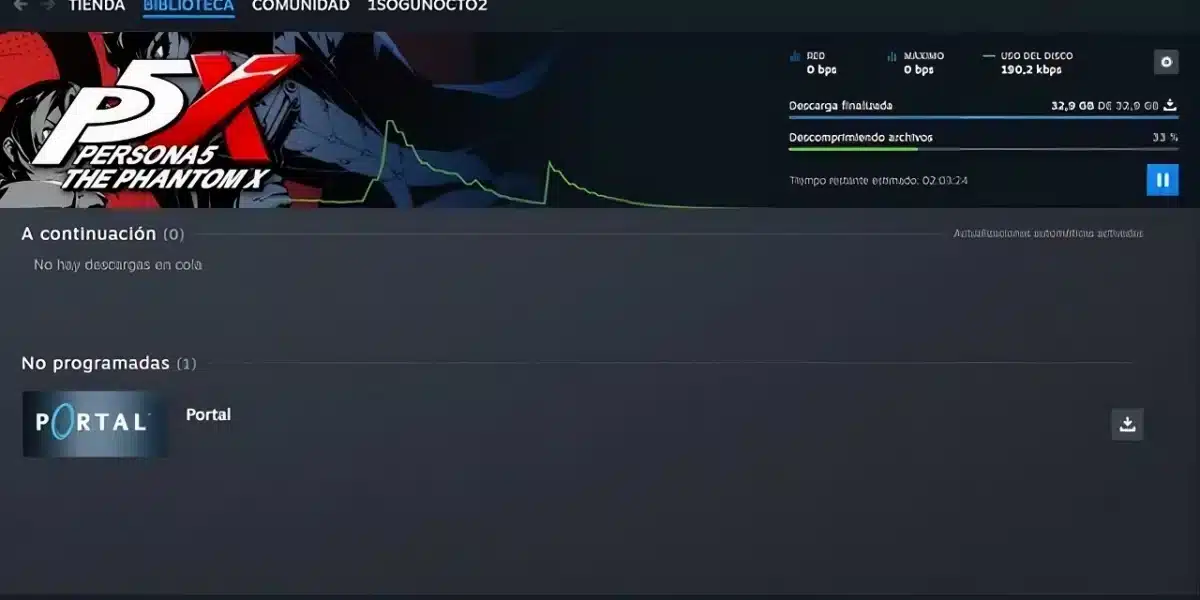
- Close or pause background downloads, cloud syncs, and streaming apps before playing.
- Restart your router periodically to clear temporary buffer buildup.
- Test your connection at different times to identify your personal peak congestion window.
- Consider a routing tool that avoids congested paths entirely, since not all congestion happens inside your home.
When the Congestion Is Outside Your Home Network
Sometimes the bottleneck is not your router at all. It is the path your data takes across the internet, through your ISP’s network and beyond, before reaching the game’s servers.
In these cases, no router setting can help, since the traffic jam exists several hops away from your house. This is exactly where a smarter routing approach becomes valuable.
How ExitLag Helps You Avoid Network Congestion
This is where I bring in the tool I actually use myself. ExitLag is not a VPN, and it is important to be clear about that difference from the start.
Instead, ExitLag is a game connection optimizer. It constantly analyzes multiple network paths in real time and picks the fastest, most stable route between your device and the game’s servers, without encrypting your traffic or masking your IP.
That distinction matters a lot when the problem is network congestion sitting somewhere between you and the server. ExitLag’s Multipath Technology sends your packets through several routes at once, so if one path gets congested or drops, the others keep your connection alive.
Its Multi-Internet feature goes further, supporting up to four simultaneous internet connections. If one connection degrades under load, another takes over instantly, which is a genuine advantage during peak-hour slowdowns.
For congestion that originates inside your own home, the Traffic Shaper feature is especially relevant. It prioritizes your game’s traffic and limits bandwidth from other apps, essentially applying smart QoS logic without you touching router settings manually.
Here is a quick rundown of what makes ExitLag useful for this specific problem:
- Real-time Optimization: Continuously reduces delay and packet loss so your inputs register faster.
- Multipath Technology: Routes packets through multiple paths, avoiding congested links automatically.
- Multi-Internet: Keeps your connection alive across up to four internet sources at once.
- Traffic Shaper: Prioritizes game data and restricts other apps from hogging bandwidth.
- PC Boost: Frees up RAM and background processes for smoother overall performance.
- AI-powered routing: Selects the best route automatically, with manual options if you prefer control.
ExitLag currently supports 4,000+ games on PC and Mobile, backed by 1,500+ servers spread across 190+ countries. It is trusted by more than 30 million users, processing over 18 million optimizations every week.
Safety is straightforward too. ExitLag does not modify game files, inject code, or interact with anti-cheat systems, so it is safe to use with Fortnite, Valorant, CS2, League Of Legends, and every other supported title. One thing to avoid: do not run ExitLag alongside a VPN, since the two can conflict and reduce effectiveness.
Pro Tips: Network Congestion
- Prioritize wired over wireless: Ethernet removes Wi-Fi interference and contention, which is a major hidden source of congestion-like symptoms. It works because wired connections do not share airtime with neighboring networks.
- Test at your actual peak hour: Run speed tests during your personal worst gaming time, usually evenings, to see the real congestion pattern. This works because averages hide the spikes that matter most.
- Reserve bandwidth for your game: Use QoS or a Traffic Shaper to guarantee your game gets priority even when others are streaming. This works because it stops competing traffic from ever filling the queue ahead of your packets.
- Restart your router weekly: Clearing buffers and cached routing tables prevents small congestion issues from compounding over time. This works because routers accumulate temporary state that degrades performance gradually.
- Use a multi-path routing tool: Tools that test several routes in real time can dodge congestion that exists outside your home entirely. This works because your ISP’s route is not always the fastest or least congested option available.
Common Mistakes Network Congestion Players Make
- Blaming the game every time: Players assume the game server is bad without checking their own connection first. Fix: run a speed test and check for packet loss before assuming server-side issues.
- Ignoring background apps: Cloud backups, auto-updates, and streaming devices quietly consume bandwidth during matches. Fix: pause or schedule these tasks outside your gaming hours.
- Never touching router settings: Many players never open their router’s admin panel, missing out on QoS entirely. Fix: enable QoS and prioritize your gaming device, even on basic consumer routers.
- Assuming a VPN fixes congestion: A VPN can help with throttling in some cases, but it does not solve general network congestion and can add latency. Fix: use a dedicated routing optimizer instead, and never combine it with a VPN.
Wrapping Up on Network Congestion
Ultimately, network congestion is manageable once you understand where it happens and why. Whether the bottleneck sits inside your home network or several hops away toward the game server, there is a fix available.
Start with the basics: wired connections, QoS, and smart scheduling of heavy tasks. From there, a routing tool that actively avoids congested paths gives you an extra layer of protection that router settings alone cannot provide.
All images referenced in this article are for illustrative purposes only and do not depict any specific product interface.
Got questions or want to connect with other players? Join the conversation at the ExitLag Forum!