

Watching a progress bar crawl while a new game sits at 12% is one of the most frustrating parts of PC gaming. If your Steam download speed slow problem keeps popping up, you are not alone.
Thousands of players search for this exact issue every single day. The good news is that steam download speed slow situations almost always trace back to a handful of fixable causes.
In most cases, the culprit is a wrong download region, a hidden bandwidth cap, an overloaded content server, or background apps quietly eating your connection. Clearing the cache, switching regions, and disabling Steam’s throttle settings solve the issue for the vast majority of players within minutes.
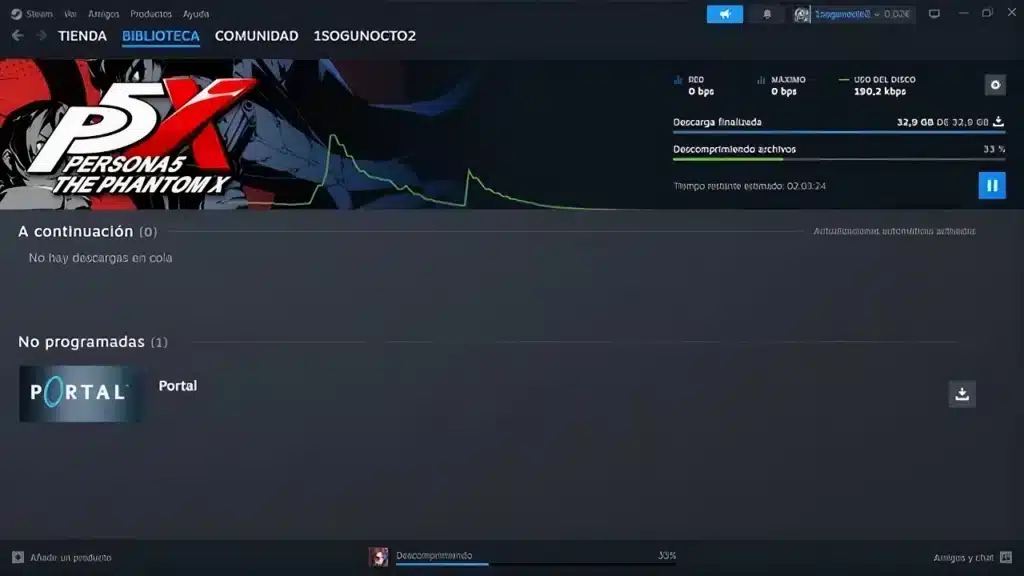
Steam Download Speed Slow: What Is Actually Causing It
Before jumping into fixes, it helps to understand what happens behind the scenes. Steam routes your download through a Content Delivery Network made up of servers spread across the world.
When everything works correctly, your client connects to the closest and least congested server. However, several things can interfere with that process and quietly wreck your download speed.
Common Causes Behind Slow Steam Downloads
Steam relies on a mix of client settings and network conditions. Any of the following can trigger a steam slow download experience:
- A manually set bandwidth limit left over from a previous session
- An automatically assigned download region that is congested or geographically far away
- A corrupted or bloated local download cache
- Background downloads from browsers, launchers, or cloud sync apps
- Wi-Fi interference or an unstable wireless signal
- ISP-level congestion during peak evening hours
How Steam Chooses Your Download Server
By default, Steam automatically selects a region based on your general location. Unfortunately, “closest” does not always mean “fastest.”
A server that is physically nearby can still be overloaded with traffic during a big release. As a result, manually testing nearby regions often produces a noticeably faster download than leaving it on automatic.
Why Is My Steam Download So Slow? Quick Diagnostic Steps
Before changing any settings, it is worth confirming where the bottleneck actually is. This saves time and prevents you from tweaking things that were never the problem.
Check Your Internet Speed First
Run a speed test on the same device and network you use for gaming. Keep in mind that ISPs advertise speeds in megabits per second, while Steam displays megabytes per second.
Therefore, divide your advertised speed by eight to estimate the realistic maximum Steam can show. A 100 Mbps plan, for example, tops out around 12.5 MB/s under ideal conditions.
Test Steam Servers For Overload
If your internet speed test looks healthy but Steam still crawls, the problem is likely server-side or region-related. Switching to two or three different download regions and comparing results is the fastest way to confirm this.
How To Fix Steam Slow Download Once And For All
Once you know roughly where the issue sits, these steps resolve the vast majority of steam download slow complaints. Work through them in order for the best results.
- Open Steam, go to Settings, then Downloads.
- Set Limit Bandwidth To to No Limit.
- Disable Throttle Downloads While Streaming.
- Change your Download Region to a nearby alternative.
- Scroll down and select Clear Download Cache, then restart Steam.
- Pause antivirus scanning temporarily or add your Steam library folder as an exception.
- Switch from Wi-Fi to a wired Ethernet connection if possible.
Adjust Bandwidth And Throttle Settings
Steam includes a built-in bandwidth limiter that can silently cap your download speed if it was ever enabled. Many players forget this setting even exists.
Similarly, the “Throttle Downloads While Streaming” option is turned on by default. It cuts your download speed whenever Steam detects Remote Play, broadcasting, or certain streaming software running in the background.
Clear The Download Cache
Over time, Steam accumulates temporary installation data that can become corrupted or bloated. This local mess can cause miscommunication between your client and the remote content server.
Clearing it forces Steam to rebuild a clean connection profile. Consequently, many users see an immediate jump in download speed right after doing this.
Why Does Steam Download So Slow On A Fast Connection?
This is one of the most common questions from players who already have a solid internet plan. If a speed test shows great numbers but Steam still lags, the cause usually sits outside your home network.
ISP Throttling And Peak Hours
Some internet providers deprioritize large file transfers during busy hours, treating them as lower-priority traffic. Local servers also get more congested between roughly 6 PM and 10 PM, when the largest number of players are active.
Testing a download during off-peak hours, such as early morning, can confirm whether congestion is the real cause. If speeds improve significantly, timing is a bigger factor than your hardware.
Background Apps Stealing Bandwidth
Cloud sync tools, browser downloads, other game launchers, and even automatic Windows updates all compete for the same bandwidth. Consequently, Steam ends up fighting for scraps even on a fast connection.
- Close browsers with active downloads or heavy tabs
- Pause OneDrive, Dropbox, or Google Drive syncing
- Exit Epic Games, EA App, Ubisoft Connect, and similar launchers
- Disable Windows Update temporarily while downloading
Is Steam Slow Download A Router Or Network Problem?
Sometimes the issue lives inside your home network rather than with Steam or your ISP. Router settings, firmware, and connection type all play a role.
Wired Vs Wireless Connections
Wireless connections are far more susceptible to interference, signal drop, and congestion from other devices on the same network. An Ethernet cable removes most of these variables instantly.
If a wired connection is not possible, moving closer to the router or switching to a 5GHz band instead of 2.4GHz can noticeably help.
Router QoS And Firmware Updates
Many modern routers include Quality of Service settings that let you prioritize specific devices or applications. Setting Steam traffic as a priority, or capping congestion control around 70 percent of your total bandwidth, can prevent one download from choking the rest of your network.
Outdated router firmware can also introduce random slowdowns. Checking for updates through your router’s admin panel takes only a few minutes and occasionally resolves stubborn issues entirely.
Steam Download Speed Comparison By Fix
The table below shows the typical impact of each fix, based on common community reports and troubleshooting patterns.
| Fix Applied | Typical Impact | Effort Level |
|---|---|---|
| Removing bandwidth limit | High | Low |
| Changing download region | High | Low |
| Clearing download cache | Medium | Low |
| Switching Wi-Fi to Ethernet | Medium to High | Medium |
| Pausing background apps | Medium | Low |
| Router QoS adjustment | Medium | Medium |
| Downloading during off-peak hours | Medium | Low |
Pro Tips: Steam Download Speed Slow
- Test multiple regions back to back: Download a small portion of a game on two or three regions and compare the numbers before committing to one.
- Restart your router before big downloads: A fresh connection often clears minor congestion issues that build up over days of uptime.
- Schedule large downloads overnight: Off-peak hours reduce both ISP congestion and Steam server load at the same time.
- Keep your network drivers updated: Outdated network adapter drivers can quietly cap your maximum throughput on any platform, not just Steam.
- Disable IPv6 if problems persist: Some home networks handle IPv6 poorly, and disabling it has fixed persistent slowdowns for many players.
Common Mistakes Steam Players Make
- Leaving the bandwidth limiter untouched: Many players never check this setting, assuming Steam always downloads at full speed. Fix: open Settings, then Downloads, and confirm it reads No Limit.
- Sticking with the automatic region forever: The default region is not always the fastest one available. Fix: manually test two or three nearby regions and pick the quickest.
- Ignoring background bandwidth hogs: Cloud backups and other launchers silently steal bandwidth during downloads. Fix: close unnecessary apps before starting a large install.
- Downloading during peak hours without checking: Evening hours bring the heaviest congestion on both local servers and ISPs. Fix: shift large downloads to early morning or late night when possible.
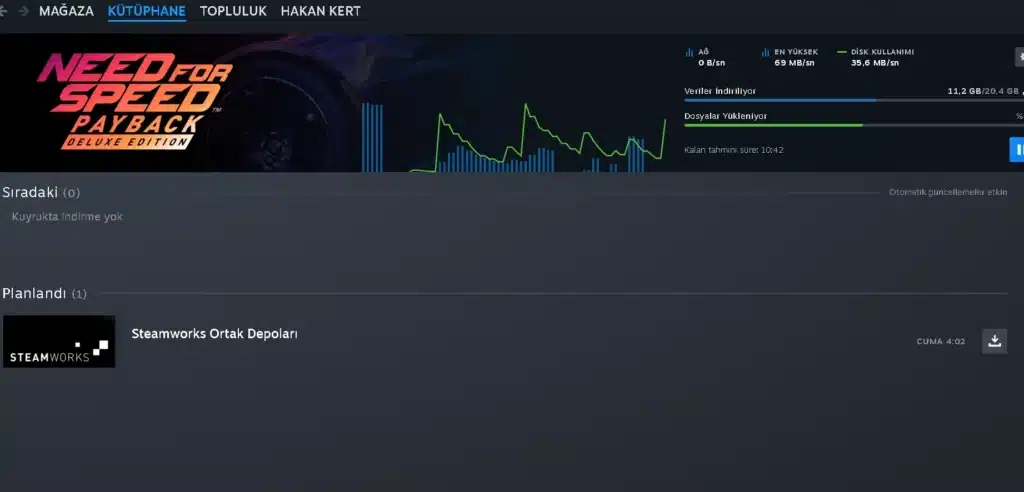
Fix Slow Download Speed Steam Issues With ExitLag
Once your Steam settings are optimized, your connection route still matters for everything that happens after the download finishes. This is where ExitLag comes in.
ExitLag is a game connection optimizer, not a VPN. It constantly analyzes multiple network paths in real time and automatically selects the fastest, most stable route between your PC and game servers.
What ExitLag Does For Steam Downloads And Gameplay
While ExitLag focuses primarily on in-game latency rather than raw download throughput, a slow download speed steam situation often points to a deeper routing problem. That same unstable path can hurt your ping once you finally load into a match.
ExitLag supports over 4,000 titles across PC and Mobile, backed by more than 1,500 servers in over 190 countries. It is trusted by more than 30 million users and processes over 18 million optimizations every week.
Key features that matter for a smoother overall connection include:
- Multipath Technology: Sends data through multiple routes simultaneously, so if one path fails, others keep the connection alive.
- Multi-Internet Support: Combines up to four internet connections at once, instantly switching if one drops.
- Traffic Shaper: Prioritizes your game traffic and limits bandwidth consumption from other apps running in the background.
- PC Boost: Cleans RAM, trims background processes, and adjusts settings for smoother in-game performance right after your download completes.
How To Get Started With ExitLag
ExitLag does not modify game files, inject code, or interact with anti-cheat systems in any way. It is safe to use with Valorant, CS2, League Of Legends, Fortnite, and every other supported title.
One important note: avoid running ExitLag alongside a VPN, since the two can interfere with each other and reduce overall effectiveness.
Final Thoughts On Steam Download Speed Slow Problems
Slow downloads are almost never a mystery once you check the right settings in the right order. Between bandwidth limits, download regions, cache issues, and background apps, most causes are fixable in under ten minutes.
If your Steam Download Speed Slow issue keeps returning even after these fixes, the root cause is likely sitting further upstream, in your router, your ISP, or your overall routing path. That is exactly the kind of problem a dedicated connection optimizer like ExitLag is built to address.
Work through the checklist above one step at a time, and keep an eye on peak hours whenever a massive update or new release hits Steam. A few small adjustments can turn a frustrating crawl into a download that finishes while you are still making coffee.
All game images used in this blog post belong to Valve Corporation. They are used for informational and educational purposes only and do not imply endorsement or affiliation with the rights holders.
Got questions or want to connect with other players? Join the conversation at the ExitLag Forum!



