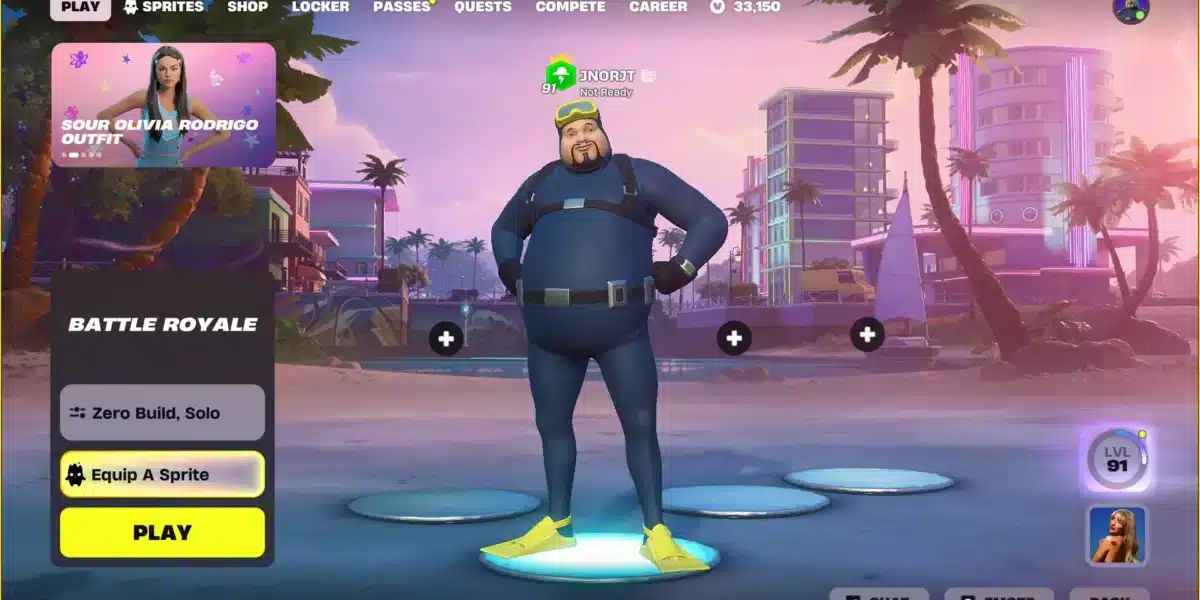
If you’re playing Fortnite and notice a small lock icon next to a player’s name or over an avatar, you might wonder what it means. This icon often creates confusion among new players or those returning after an update.
Here’s the deal: that Fortnite party lock icon, which appears across all platforms including PS5, PC, and mobile, indicates the privacy status of your party-essential information for anyone who values a smooth co-op experience.
Whether you’re coordinating a tight squad for a ranked match or just relaxing with friends in Creative mode, understanding the implications of this small symbol can dramatically improve your control over Fortnite’s social experience. Let’s dive deep into what it means, how it works, and how to make the most of your privacy settings in Fortnite.
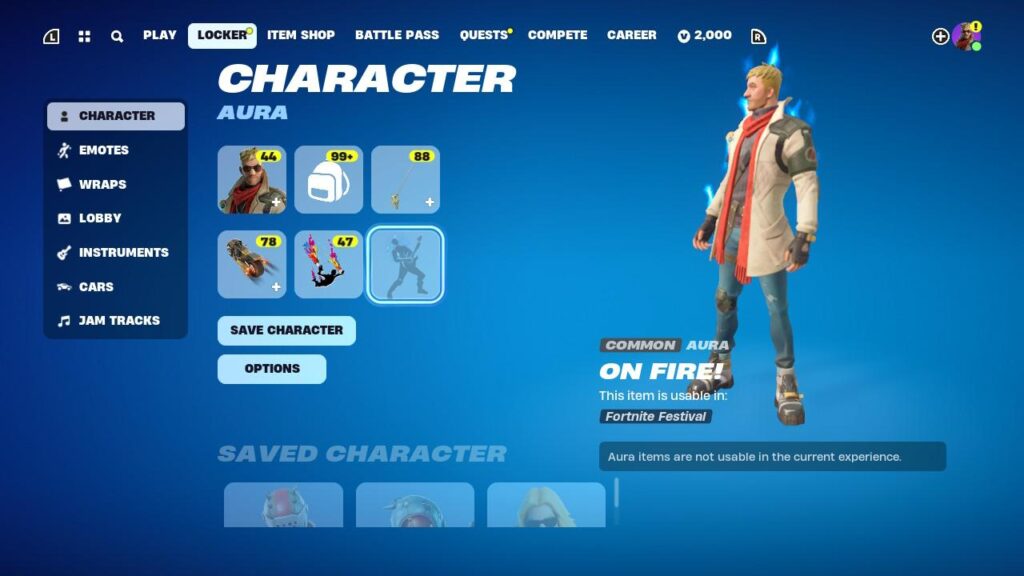
What is the Lock Icon in Fortnite?
The lock icon you see beside a name in your Fortnite party or over your avatar represents the privacy status of your group. It’s a signal to all players in the lobby that this party has restricted access.
This isn’t just a cosmetic indicator-it actively determines who can and cannot join your session. While exact terminology may vary slightly, it generally indicates:
- Invite-only access: Only players who receive direct invites can join
- Restricted access: Your friends or the public cannot join freely unless allowed
This cautious interpretation aligns with Epic Games’ own description: “The lock icon over your avatar will lock your party so that other players can only join by invite.”
More Than Just Privacy: Strategic Use of the Lock Icon
For many pro players, streamers, and content creators, setting a party to restricted access isn’t just about avoiding interruptions-it’s a tactical choice. By keeping access limited:
- You can control team composition more effectively.
- Voice chat remains cohesive and coordinated.
- Focus is maintained during events, tournaments, or practice matches.
This strategic use of privacy settings gives seasoned players a competitive edge, especially in modes like Ranked Battle Royale or Arena.
Where Does the Lock Icon Appear?
The lock icon can show up in various places depending on the platform and version of Fortnite you’re using. You might see it:
- Next to a friend’s name on your friends list
- Over your avatar in the party lobby
- Occasionally during error prompts when trying to join a restricted session
Visual placement may vary slightly based on UI layout or recent updates, so always look for subtle lock indicators in menus.
Who Controls the Party Privacy?
In Fortnite, only the party leader can change the privacy settings. This is a crucial point, especially when multiple friends are joining:
- Leader’s Role: Decides who gets in and who doesn’t
- Other Members: Must request invites or ask the leader to make the party joinable
If you’re not the leader and can’t invite a friend, check the lock icon-it’s likely a restricted party, and only the leader can extend an invitation.
In larger squads or when organizing community games, it’s often best to communicate who the leader is and ensure that person knows how to adjust settings when needed.
How to Change Party Privacy on PS5
Changing your Fortnite party settings on PS5 is quick and straightforward. Follow these steps to toggle your party’s access:
Step-by-step Instructions:
- From the Lobby Screen, press the Options button (the three-line icon on your DualSense controller).
- Scroll to “Party Settings” in the side menu.
- Select “Privacy” from the party options.
- Choose between available options, typically labeled as:
- Public
- Friends Only
- Private / Invite-only
Exact labels may vary slightly across updates and platform versions, but the functionality remains consistent.
Why Players Use Private or Restricted Parties
The Fortnite party lock icon is increasingly used among high-level players-and for good reason. Here are the top reasons to enable it:
- Avoiding Stream Snipers: If you’re live-streaming your gameplay, keeping the party locked blocks unwanted guests.
- Team Strategy: Working on builds, tactics, or communication benefits from a quieter, focused environment.
- Limiting Exposure: Sometimes you just want to play without being bombarded by invites or random voice chats.
Plus, locking your party also ensures that players already in the game aren’t disrupted by new joiners accidentally talking over key moments or distracting the squad.
Popular Use Cases
- Tournament Play
- Scrims or Custom Lobbies
- YouTube Recording Sessions
- Voice Chat Organization
ExitLag Optimizes Private Party Play
A restricted or private party can be ideal for strategic or immersive gameplay-but only if the experience runs smoothly. This is where ExitLag enters the picture:
- Reduces ping and latency, especially in crowded servers
- Prevents connection drops during intense fights or build battles
- Stabilizes voice chat for uninterrupted team communication
- Eliminates packet loss-key during edit-heavy gameplay or aim duels
Whether you’re organizing a custom lobby or just want a clean squad night, ExitLag ensures your private session isn’t ruined by lag or poor server routing. This can make the difference between a Victory Royale and an early elimination.
Troubleshooting the Lock Icon in Fortnite
When players encounter the lock icon and find they’re unable to join friends or invite others, the root cause is almost always a party setting issue.
Common Issues & Fixes
1. Can’t Join Friend’s Party
- Confirm the party isn’t set to Invite-Only.
- Ask the friend to send a manual invite.
- Restart Fortnite to refresh session permissions.
- Check if your friend is on the same platform or if crossplay is enabled. Each player should verify both their Epic Games account settings and their platform-level settings to ensure that cross-platform play is authorized.
2. Friend Can’t Join You
- Make sure your party isn’t locked.
- Switch the privacy setting to “Friends Only” or “Public.”
- Ensure your friend’s Epic and platform accounts have crossplay enabled.
3. Lock Icon Still Shows After Changing Settings
- Sometimes the UI doesn’t refresh instantly. Try:
- Exiting and re-entering the lobby
- Restarting Fortnite or your PS5
- Waiting a few minutes, as there can occasionally be a sync delay from Epic Games servers
4. Voice Chat Not Working in Private Parties
- Go to Fortnite Audio Settings → Voice Chat
- Ensure “Voice Chat Method” is set to “Party”
- Enable permissions in your PS5’s privacy settings for voice communication
- Double-check your Epic Games or console settings to confirm that “Party voice chat” or “Game chat” is turned on and not restricted by parental controls or privacy rules
Myths and Misunderstandings About the Lock Icon
With countless updates, UI changes, and cross-platform support, many myths have emerged around what the lock icon actually does. Let’s clear them up.
Lock Icon Myths Debunked
- Myth: The lock icon is exclusive to PS5.
- False. It appears across all platforms-mobile, console, and PC.
- Myth: If there’s a lock icon, the party is full.
- False. A locked party only restricts who can join, not how many can.
- Myth: You can’t play crossplay in a locked party.
- False. As long as crossplay is enabled in settings, privacy doesn’t limit platforms.
- Myth: The lock icon is a glitch.
- False. It’s an intentional feature signaling controlled access.
- Myth: The lock icon only applies to party access.
- Not always. Sometimes, a lock icon may also indicate profile privacy settings or parental restrictions depending on your account type and age settings.
Best Practices for Managing Party Access on PS5
If you frequently play with friends or stream, managing party settings efficiently will make your sessions smoother.
Tips for Party Leaders
- Always check your privacy status before inviting friends.
- Set your party to Friends Only if you’re expecting regulars.
- Use Private only when coordinating a tournament, scrim, or content capture.
- Appoint a co-leader if you’re stepping away during a long session.
Tips for Squad Players
- Communicate! Ask the leader to change settings if you’re locked out.
- Enable voice and crossplay settings before joining large group sessions.
- Don’t assume the lock icon is a bug-check your invites and platform settings first.
Managing Fortnite Parties with ExitLag
When playing with a locked party, you’re often participating in:
- High-stakes Ranked or Tournament matches
- Competitive Creative Modes
- Long-form streaming or YouTube content
For these scenarios, connection stability is just as critical as party access.
That’s where ExitLag helps:
- Stabilizes server routes so your match doesn’t lag
- Prioritizes voice packet routing for real-time team communication
- Reduces ping for PS5 cloud-based matchmaking via router optimization
You can still benefit from ExitLag on PS5 by configuring it through a compatible router or bridge setup. The effect? Cleaner lobbies, smoother matchmaking, and more stable voice channels.
Final Thoughts on the PS5 Fortnite Party Lock Icon
The party lock icon in Fortnite isn’t something to fear-it’s a tool. Used properly, it lets you control your session, protect your squad’s privacy, and reduce disruptions.
But like any tool, it requires understanding. By following the tips and fixes outlined above, you’ll avoid the frustration many players face. And with ExitLag supporting your backend, even private matches can be as stable as professional scrims.
General Disclaimer
All game images used in this blog belong to Epic Games. They are used for informational/educational purposes only and do not imply endorsement or affiliation with the rights holders.
Got questions or want to connect with other players? Join the conversation at the ExitLag Forum!