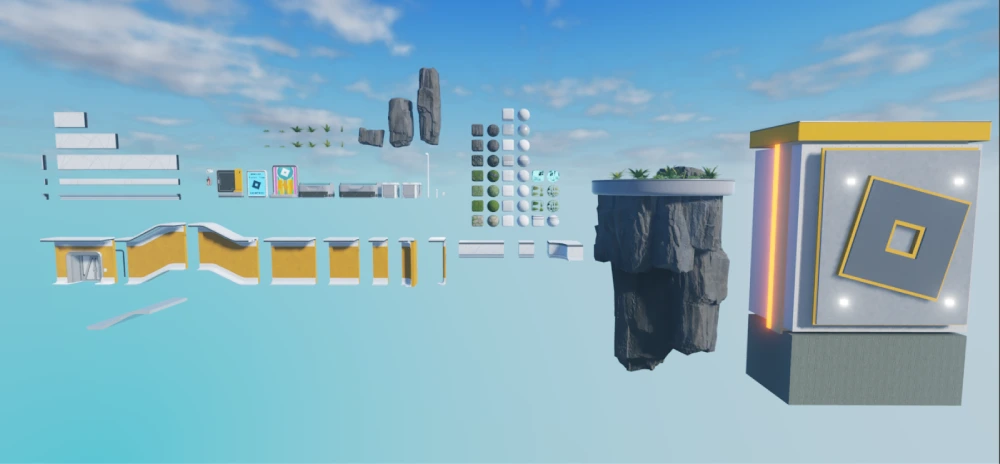
The Roblox Library is one of the most valuable tools available for creators who want to build better experiences on Roblox. Whether you're designing your first game or managing a large project, the platform provides access to thousands of assets that can help speed up development and improve quality.
For developers looking to save time and expand their creative possibilities, the Roblox Library offers models, audio files, plugins, decals, animations, and many other resources. As a result, creators can focus more on gameplay design and less on creating every asset from scratch. And before we continue, know that to know more about all the relevant content about gaming, you just have to check our blog.
What is Roblox Library and how does it work?
What is Roblox and why is the Library important?
Before diving deeper into the Library, it's important to understand what is Roblox and why the platform has become so popular among developers and players worldwide.
Roblox is an online platform that allows users to create, publish, and play games created by other members of the community. Unlike traditional games, Roblox provides powerful development tools that let creators build unique experiences across countless genres.
Because of this creator-focused ecosystem, the Roblox Library plays a critical role. It acts as a massive repository of community-made and official assets that can be integrated directly into projects.
In other words, instead of building every object, sound, or texture manually, developers can browse existing resources and implement them immediately.
The Library includes:
- Models
- Audio files
- Plugins
- Animations
- Decals
- Meshes
- Images
Above all, these resources help reduce development time while encouraging creativity and experimentation.
Check this: How to Download and Use Roblox via Microsoft
How Roblox Library helps developers
One of the biggest challenges in game development is creating content efficiently. Even experienced creators spend countless hours designing environments, scripting systems, and testing mechanics.
The Roblox Library simplifies this process by providing ready-to-use content.
For example, a developer creating a racing game may find:
- Vehicle models
- Track decorations
- Sound effects
- UI components
- Scripting tools
Right away, these assets can be added to a project and customized according to specific needs.
At the same time, newer developers can study existing assets to learn better development practices and improve their skills.
Therefore, the Library functions as both a development resource and an educational tool.
How to use Roblox Library in Roblox Studio
Accessing the Toolbox
Learning how to access the Library inside Roblox Studio is relatively simple.
At first, open Roblox Studio and create a new project or load an existing one.
Next, locate the Toolbox panel, which provides direct access to many Library assets.
Inside the Toolbox, users can browse categories such as:
- Models
- Images
- Audio
- Plugins
- Animations
Because of this integration, adding content to a project takes only a few clicks.
Developers can drag and drop assets directly into the workspace, making the workflow much faster. Similarly, creators can preview many items before inserting them into their projects.
Read also: What is Peroxide in Roblox?
Searching assets efficiently
Although the Library contains millions of assets, finding quality content requires proper search techniques.
To begin with, use specific keywords instead of broad terms.
For example:
- Medieval castle wall
- Sci-fi weapon
- Racing sound effect
- Fantasy tree model
This approach usually delivers more accurate results.
Additionally, pay attention to:
- Creator reputation
- Asset ratings
- Upload dates
- Community feedback
Because of that, you can avoid outdated or poorly optimized content.
Many developers also prefer browsing assets through the Roblox Creator Hub before importing them into Studio.
This method provides additional filtering options and makes asset discovery more efficient.
Roblox decals and Roblox image IDs explained
What are Roblox decals?
Among the most popular resources in the Library are roblox decals.
Decals are images applied to surfaces inside a game. They allow developers to customize environments with logos, signs, artwork, textures, and visual effects.
For example, decals can be used for:
- Billboards
- Posters
- Warning signs
- Decorative artwork
- Custom branding
As a result, games become more immersive and visually appealing.
Many creators use decals to establish a unique identity for their projects.
Even more, decals help developers tell stories through environmental design without requiring complex scripting.
How to find Roblox image IDs
When working with decals and custom images, developers often encounter roblox image ids.
These unique identifiers allow Roblox Studio to locate and display specific images across games and experiences.
A roblox image id functions as a reference number attached to uploaded content.
To find an image ID:
- Open the asset page.
- Locate the asset URL.
- Copy the numerical value displayed in the address.
- Use that ID within Roblox Studio.
Similarly, creators searching for an image id roblox asset can browse the Library and retrieve IDs directly from asset pages.
Understanding this system is essential because many advanced systems and interfaces rely on image references for proper functionality.
As a result, learning how IDs work becomes an important skill for every Roblox developer.
You may also like: How to Fix Roblox Lag on a Slow Phone
How to use image ID Roblox assets correctly
Uploading custom images
Many creators eventually decide to upload their own graphics.
The process begins by accessing the Creator Dashboard and selecting the upload option.
After approval, Roblox generates a unique image id roblox reference that can be used throughout your projects.
Custom images are frequently used for:
- User interfaces
- Inventory icons
- Team logos
- Achievement badges
- Promotional content
Therefore, mastering image management can significantly improve the professionalism of a game.
Managing Roblox image ID content
Proper asset organization becomes increasingly important as projects grow larger.
Developers often maintain spreadsheets or databases containing every roblox image id used throughout their experiences.
This strategy helps prevent confusion during updates and makes long-term maintenance easier.
At the same time, organized asset management reduces development mistakes and accelerates future content updates.
Because Roblox games frequently receive new content, having a structured asset system becomes extremely valuable.
Furthermore, teams working collaboratively benefit from centralized asset documentation that keeps everyone aligned. By understanding how decals, image IDs, and Library resources work together, developers can create cleaner workflows and significantly improve production efficiency.
Roblox models and plugins: which assets are worth using?

Safe model selection
One of the most useful sections of the Roblox Library is the collection of models created by both Roblox and the community. These assets can include complete buildings, vehicles, weapons, user interfaces, NPCs, and scripted systems that would otherwise take hours to create manually. As a result, developers can speed up production while focusing more attention on gameplay, balance, and player experience.
However, not every model is safe or optimized. Some community assets may include outdated scripts, unnecessary parts, or hidden code that can affect performance. Therefore, creators should always inspect a model before adding it permanently to a project.
Before using a model, check these details:
- Creator reputation and profile history
- Recent update date
- User ratings and comments
- Script structure and permissions
- Performance impact inside Roblox Studio
Above all, test assets in a separate place before inserting them into your main game. This habit helps prevent bugs, lag, and unwanted behavior during development. Because of that, safe asset testing is one of the best practices for anyone using Roblox free assets.
Check this: Everything You Should Know About the Roblox Company
Recommended plugins for developers
Plugins are another major part of the Roblox development workflow. Unlike models, plugins are designed to improve how creators build, organize, test, and optimize projects inside Roblox Studio. They can automate repetitive work, improve precision, and make complex tasks much easier to manage.
For example, some plugins help with terrain creation, animation editing, UI design, object alignment, and script organization. Similarly, optimization plugins can help developers identify heavy assets, memory issues, or inefficient systems before a game goes live.
Common plugin categories include:
- Building and alignment tools
- Animation editors
- Terrain generators
- UI layout tools
- Performance analyzers
- Script organization helpers
At the same time, plugins should be chosen carefully. A poorly maintained plugin can slow down your workflow or create compatibility problems after Roblox Studio updates. Therefore, always choose trusted tools with strong community feedback.
Roblox Library vs Toolbox: what's the difference?
Key differences
Many beginners confuse the Roblox Library and the Toolbox because both are connected to asset discovery. However, they are not exactly the same. The Roblox Library is the broader online repository where assets are stored, searched, managed, and reviewed, while the Toolbox is the in-Studio panel used to insert assets quickly during development.
In other words, the Library is better for research and asset management. The Toolbox is better for fast building and prototyping. Because of that, most creators benefit from using both depending on the stage of development.
The Library gives developers more control when comparing assets, checking creator details, and reviewing available categories. Meanwhile, the Toolbox keeps the process fast when you already know what you want to add to your game.
Read this: How to Reset Your Roblox Password Safely
Which option should you use?
If you are planning a project, the Library is usually the better starting point. It allows you to search more carefully, compare similar assets, and review whether a model, decal, plugin, or audio file fits your game’s style. As a result, you avoid filling your project with random assets that may not match your vision.
However, if you are already building inside Roblox Studio, the Toolbox becomes more practical. It lets you insert assets right away and test them directly in your workspace. Therefore, the best workflow is often to research assets through the Library first, then use the Toolbox to place and adjust them during production.
Roblox asset categories comparison
| Asset Type | Main Purpose | Best Use Case | Recommended For |
| Models | Ready-made objects and systems | Buildings, NPCs, vehicles, props | Builders and scripters |
| Audio | Music and sound effects | Ambience, UI feedback, game events | Sound designers |
| Plugins | Studio workflow tools | Faster building and optimization | Intermediate creators |
| Decals | Images and textures | Signs, posters, branding, details | Artists and designers |
| Animations | Character or object movement | Combat, emotes, cutscenes | Gameplay designers |
How ExitLag improves Roblox online experiences
Better connection stability for multiplayer games
Roblox development is not only about building great assets. It is also about making sure players enjoy smooth, responsive online experiences. Since many Roblox games depend on multiplayer interaction, unstable connections can quickly damage gameplay quality.
ExitLag helps players improve routing, reduce lag spikes, and stabilize ping in supported online games. For Roblox players, this can mean smoother movement, faster responses, and fewer frustrating delays during competitive or cooperative sessions. As a result, gameplay feels more consistent when connection quality matters most.
ExitLag can drastically improve your gameplay for an accessible price. To know more, check our pricing page.
Why performance matters during testing
Testing is one of the most important steps in Roblox development. However, poor connection stability can make it harder to understand whether a problem comes from your game design, server behavior, or the player’s network. Because of that, using optimization tools can help create a more reliable testing environment.
ExitLag is especially useful for players who want better responsiveness in online matches. It helps reduce routing problems and improves connection stability, which can make multiplayer gameplay feel cleaner and more predictable. Above all, smoother gameplay helps players focus on the experience instead of connection issues.
How to use Roblox Library assets safely
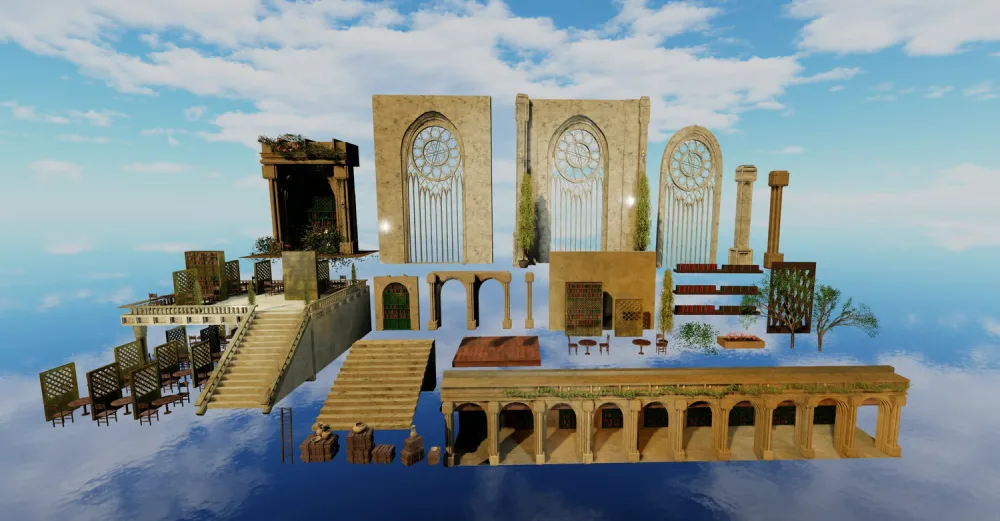
Check scripts before publishing
Scripts are powerful, but they can also create serious problems when used without review. Some assets from the Roblox Library include scripts that control animations, effects, interactions, or complete gameplay systems. While these scripts can be useful, they should never be trusted blindly.
To begin with, open the asset inside Roblox Studio and inspect its hierarchy. Look for unfamiliar scripts, suspicious names, or code that tries to access systems unrelated to the asset’s purpose. In other words, a simple decoration model should not need complex hidden scripts.
Test assets before using them live
A safe workflow protects your game from bugs and performance issues. First, create a separate test place. Then, insert the asset and run the game locally to see how it behaves. Finally, check performance, scripts, collisions, and visual quality before moving it into your main project.
Here is a simple process:
- Add the asset to a separate test place.
- Review every script and object inside it.
- Run the experience in Roblox Studio.
- Check performance and visual consistency.
- Move the asset only after approval.
This process may take a few extra minutes, but it can prevent major problems later. Therefore, careful testing is essential when working with community-made assets.
Frequently asked questions (FAQ)
What is the Roblox Library used for?
The Roblox Library is used to find assets that help developers build games faster and more efficiently. It includes models, plugins, audio files, decals, animations, meshes, and images that can be added to Roblox Studio projects. Because of that, it is one of the most important resources for creators who want to speed up production without creating everything manually. At the same time, the Library is also useful for learning. Beginners can study how assets are structured, how models are organized, and how certain systems function. However, every asset should still be reviewed before use, especially when it includes scripts.
Are Roblox Library assets free?
Many assets in the Roblox Library are free to use, especially community-made models, decals, and audio resources. However, developers should always check asset details, creator information, and usage permissions before adding content to a live project. This is especially important when using assets created by other users. Even when an asset is free, it may still affect performance or contain scripts that need review. Therefore, free does not always mean safe or optimized. The best approach is to combine asset discovery with careful testing.
What are Roblox decals?
Roblox decals are images that can be applied to surfaces inside a game. They are often used for posters, signs, logos, textures, warnings, decorations, and interface elements. As a result, decals help developers create richer environments and stronger visual identity. Decals are especially useful because they are flexible and easy to apply. For example, a city roleplay game can use decals for shop signs, road markings, and advertisements. Similarly, an adventure game can use decals for symbols, clues, and environmental storytelling.
How do Roblox image IDs work?
Roblox image ids are unique numbers connected to uploaded images. These IDs allow Roblox Studio to locate and display the correct image inside a project. Developers often use them for decals, UI icons, badges, thumbnails, and custom visual elements. An image id roblox asset can usually be found through the asset page URL or inside the Creator Dashboard. Once copied, the ID can be inserted into Roblox Studio wherever an image reference is needed. Because of that, understanding image IDs is essential for anyone working with custom visuals.
Does ExitLag help improve Roblox performance?
ExitLag can help improve the online experience by optimizing connection routes, reducing lag spikes, and improving ping stability in supported games. For Roblox players, this can make multiplayer sessions feel smoother and more responsive, especially when connection instability causes delays or rubberbanding. However, ExitLag does not replace good game optimization. Developers still need to manage scripts, assets, physics, and server performance carefully. In other words, ExitLag helps with connection quality, while smart development practices improve the game itself.
Is ExitLag compatible with Roblox?
ExitLag is focused on PC and Mobile optimization for online games. Since Roblox is widely played on PC and mobile devices, players can use ExitLag to improve connection stability where supported. This is useful for users who experience high ping, routing issues, or inconsistent responsiveness during online gameplay. At the same time, ExitLag is not available for consoles. Therefore, players who use Roblox on supported PC or Mobile platforms can benefit most from ExitLag’s optimization features. You should check more games compatible with ExitLag at our official games page.
In conclusion
The Roblox Library is an essential resource for creators who want to build faster, smarter, and more polished experiences. It gives developers access to models, plugins, audio, decals, images, and animations that can improve both creativity and production speed.
However, the best results come from using the Library carefully. Always review assets, test scripts, compare options, and organize your resources before publishing. Because of that, developers who combine creativity with safe workflows can get much more value from every asset they use.
Finally, connection stability also matters when players enter your experience. ExitLag can help improve online gameplay by reducing lag, stabilizing ping, and making supported Roblox sessions feel smoother. For developers and players who care about performance, Roblox Library assets and smarter connection optimization can work together to create better gameplay from start to finish. Download ExitLag now!