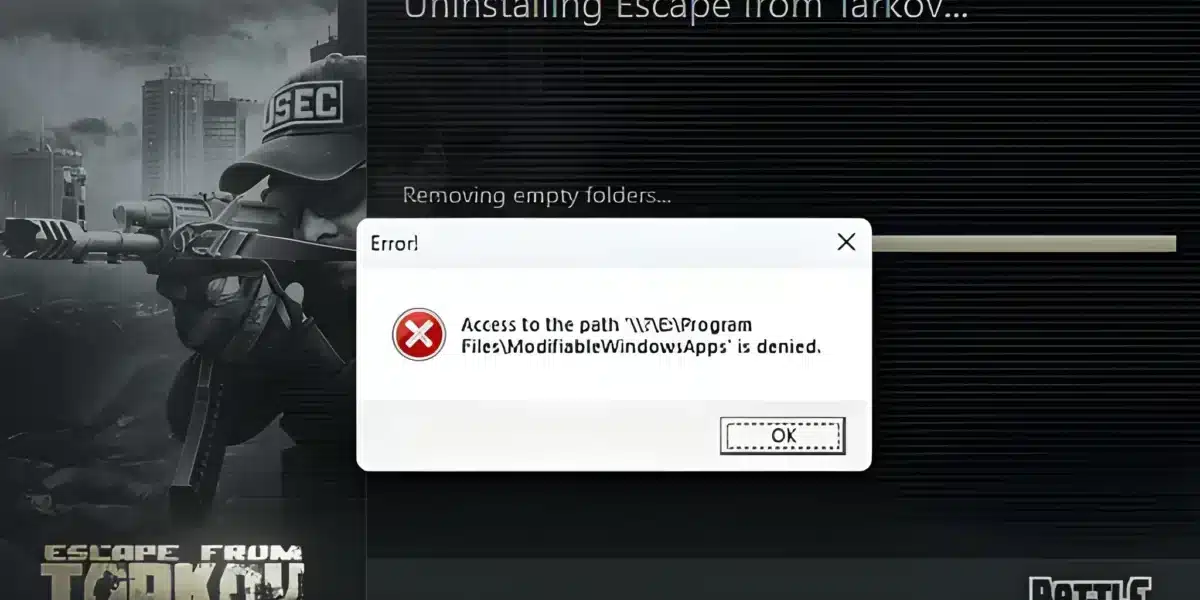
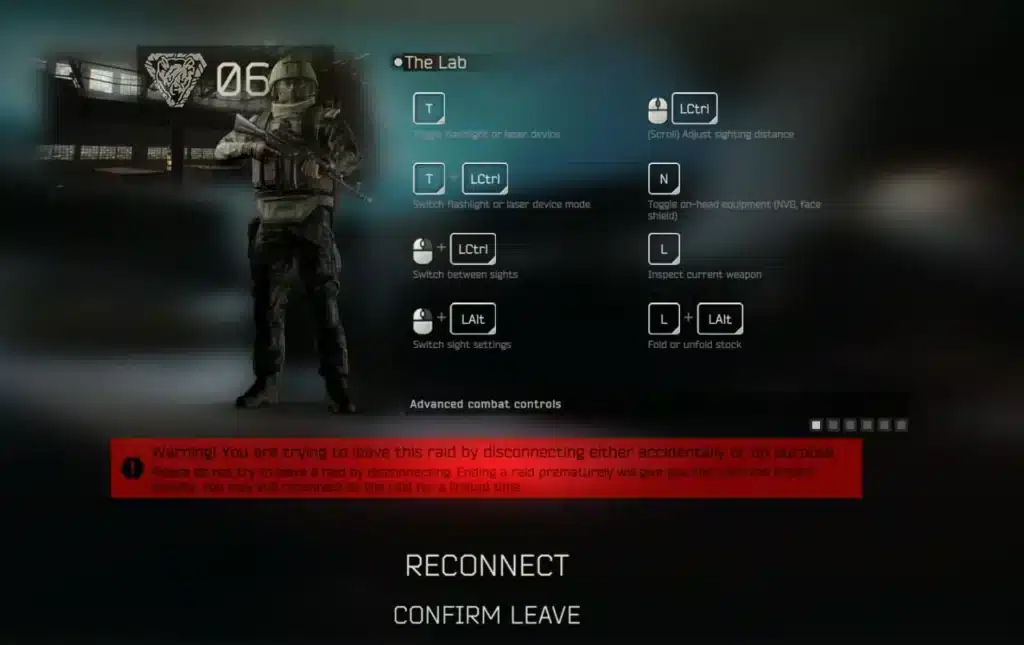
You are three minutes into a raid, loot in your backpack, and then it happens. The screen freezes, a small window pops up, and it reads “Server Connection Lost.” Every Escape From Tarkov player knows that sinking feeling.
This error is one of the most frustrating issues in the game today. Server Connection Lost Tarkov messages can strike during loading, mid raid, or right as you extract, wiping out your progress instantly.
The good news is that this error usually has a clear cause. In most cases, server connection lost tarkov happens because of an unstable route between your PC and Battlestate Games’ servers, a firewall block, or a temporary server side hiccup. Below, you will find every practical fix, tested and organized so you can get back into raids fast.
Escape From Tarkov uses very strict synchronization checks between client and server. Unlike many shooters that tolerate small latency spikes, Tarkov disconnects players who fall out of sync for even a short window. That design choice reduces cheating and exploit abuse, but it also means normal network hiccups get punished harshly.
Understanding why this happens is the first step. Once you know the real causes, the fixes below will make far more sense and stick long term.

What Causes Server Connection Lost Tarkov Errors
Several factors can trigger this error, and they are not always your fault. Sometimes the problem sits entirely on Battlestate Games’ side. Other times, it is a local networking issue you can solve in minutes.
Here are the most common causes reported by the community and confirmed through official channels:
- Server side overload or maintenance: heavy player traffic after a patch or event can overwhelm specific regional servers.
- Unstable ISP routing: your internet provider may send traffic through a congested or indirect path to the game servers.
- Firewall or antivirus interference: security software sometimes blocks the game’s connection without warning.
- Packet loss above 0.5%: even small amounts of dropped data can cause visible desync and force a disconnect.
- Outdated network drivers: old drivers can cause micro drops that Tarkov’s strict sync system flags as a lost connection.
- VPN conflicts: a poorly configured VPN can add latency or break the handshake entirely.
Because so many variables are involved, the fix is rarely one single tweak. Instead, most players need to work through a checklist until the disconnects stop.
Is It a Server Problem or Your Connection?
Before changing any settings, figure out where the fault actually lies. This step alone saves hours of unnecessary troubleshooting.
First, check whether other players are reporting the same issue at the same time. Community hubs like Reddit, X, and Downdetector fill up quickly whenever Battlestate Games has server trouble.
Next, run a simple test on your end:
- Open a command prompt and ping the server region you play on.
- Watch for consistent response times versus sudden spikes.
- Check your Windows Reliability Monitor for repeated network errors around the disconnect times.
- Compare results with a friend on a different ISP if possible.
If everyone in your region is affected, it is a server side issue and you simply need to wait it out. If only you are struggling, the fixes below should help.
How to Fix Tarkov Server Connection Lost on Your End
Once you have confirmed the problem is local, work through these steps in order. Each one addresses a different possible cause, so do not skip ahead.
The table below breaks down the most effective fixes, what they solve, and how difficult each one is to apply.
| Fix | What It Solves | Difficulty |
|---|---|---|
| Restart router and PC | Clears temporary network glitches | Easy |
| Switch to wired Ethernet | Removes Wi-Fi packet loss and interference | Easy |
| Allowlist the game in firewall | Stops security software from blocking connection | Medium |
| Update network drivers | Fixes micro drops causing desync | Medium |
| Change DNS servers | Improves routing to Battlestate Games servers | Medium |
| Verify game files on launcher | Repairs corrupted client data | Easy |
| Use a connection optimizer | Reduces packet loss on unstable ISP routes | Easy |
Router, Firewall, and Driver Fixes
Start with the basics. Many disconnect issues clear up before you even touch advanced settings.
- Restart your router and PC: this clears cached routes and resets your connection to the ISP, fixing a surprising number of random disconnects.
- Switch from Wi-Fi to Ethernet: wireless connections are far more prone to micro interruptions that Tarkov’s strict sync system treats as a dropped connection.
- Add Tarkov to your firewall exceptions: open Windows Defender Firewall settings, find the game executable, and allow it through both Private and Public networks.
- Forward the correct ports: some players have resolved persistent drops by opening TCP ports around 80 and 443 alongside the UDP range the game uses for raid traffic.
- Update your network adapter driver: outdated drivers are a common hidden cause of intermittent packet loss.
Why Does Tarkov Disconnect Me Mid Raid?
This is one of the most common questions players search for, and the answer usually comes down to timing. Mid raid disconnects tend to spike right after a new patch, during peak evening hours, or when a regional server is under heavy load.
Furthermore, mid raid drops are often tied to packet loss rather than total connection failure. Your PC is still online, but a few critical packets never arrive in time, and Tarkov’s tolerance for that is extremely low.
If this keeps happening at the same time every day, check whether that window overlaps with your ISP’s peak congestion hours. Therefore, a route optimization tool becomes far more valuable than simply restarting your router repeatedly.
Advanced Steps for Tarkov Server Connection Lost Issues
Once the basic fixes are done, a few advanced steps can eliminate the stubborn cases that keep coming back.
- Flush your DNS cache and switch to a faster public DNS provider to speed up server lookups.
- Disable any VPN before launching the game, since a misconfigured VPN can break the handshake with Battlestate Games’ servers.
- Verify your game files through the launcher to rule out corrupted data causing repeated timeouts.
- Close background applications that consume bandwidth, especially cloud backup tools and other games.
- Run the game as administrator so anti-cheat processes are not blocked by permission restrictions.
Indeed, most players only need two or three of these steps combined to see a real difference. However, if your ISP route to the game servers is genuinely unstable, software level fixes alone will not be enough.
Checking Your Route to the Server
Your internet traffic does not travel in a straight line to Battlestate Games’ servers. It hops through multiple networks, and any one of those hops can be congested.
- Use a tracert or pathping command to see every hop between you and the server.
- Look for hops with unusually high latency or dropped packets.
- Note that your ISP controls most of this route, which is exactly why a dedicated routing tool can help more than any router setting.
Pro Tips: Tarkov Server Connection Lost
These extra tips come from experienced players who deal with unstable connections regularly.
- Play on servers physically closest to you: lower geographic distance reduces the number of hops your data has to travel, which lowers the chance of a bad route.
- Avoid launching right after a major patch: server load is highest in the first hours after an update, so waiting even 30 minutes reduces disconnect risk significantly.
- Keep your router firmware updated: manufacturers regularly patch bugs that cause random micro drops, which directly helps with sync stability.
- Monitor packet loss with a dedicated tool: knowing your exact loss percentage tells you whether the issue is local or server side before you waste time troubleshooting the wrong thing.
- Disable Windows auto updates during play sessions: background downloads can eat bandwidth at the worst possible moment mid raid.
Common Mistakes Tarkov Players Make
Avoiding these mistakes will save you time and frustration the next time you see this error.
- Blaming the game immediately without checking server status. Fix: check community reports and official channels first, since a widespread outage needs no local troubleshooting at all.
- Reinstalling the entire game as a first step. Fix: try router restarts, firewall Allowlisting, and driver updates before a full reinstall, since those solve the vast majority of cases.
- Running a VPN and a connection optimizer at the same time. Fix: use only one tool at a time, since layering a VPN on top of a route optimizer usually adds latency instead of reducing it.
- Ignoring packet loss until it becomes unplayable. Fix: monitor your connection proactively so you catch a bad route before it ruins an entire raid.
Stop Server Connection Lost Tarkov Errors With ExitLag
If your tarkov server connection lost errors keep coming back even after the basic fixes, the issue is likely your route to the server rather than your local setup. This is exactly where a dedicated connection optimizer earns its place in your toolkit.
ExitLag is not a VPN. It is a game connection optimizer that continuously analyzes multiple network routes in real time and automatically selects the fastest, most stable path between your PC and the game servers.
It does not encrypt your traffic, does not mask your IP, and does not touch any application outside the games it supports. ExitLag currently supports more than 4,000 titles on PC and Mobile, runs on over 1,500 servers across 190+ countries, and is trusted by more than 30 million users processing over 18 million optimizations every week.
For a connection loss issue like this one, a few features matter most:
- Multipath Technology: sends your packets through multiple routes simultaneously, so if one path drops, the others keep your connection alive instead of triggering a disconnect.
- Real-time Optimization: constantly reduces delay and packet loss by adjusting your route as network conditions change.
- Multi-Internet: combines up to four simultaneous internet connections with automatic failover, which is a genuine safety net against the exact kind of drop that causes this error.
- Traffic Shaper: prioritizes your game’s traffic and limits bandwidth from other apps, preventing background downloads from stealing packets mid raid.
- PC Boost: cleans up RAM and reduces background processes for a smoother overall session.
Conclusion
ExitLag does not modify your game files, does not inject any code, and does not interact with anti-cheat systems, so it stays safe to use alongside Escape From Tarkov’s security software. One important note: avoid running it alongside a VPN, since the two can conflict and reduce each other’s effectiveness.
If unstable routing keeps kicking you out of raids, grabbing the ExitLag Download is one of the simplest ways to add real redundancy to your connection.
Combining that stability with the router, firewall, and driver fixes above gives you the best overall defense against server connection lost tarkov disconnects. Between confirmed causes, community fixes, and a solid routing tool, most players can eliminate the majority of these errors within a single session.
All game images used in this blog post belong to Battlestate Games. They are used for informational and educational purposes only and do not imply endorsement or affiliation with the rights holders.
Got questions or want to connect with other players? Join the conversation at the ExitLag Forum!