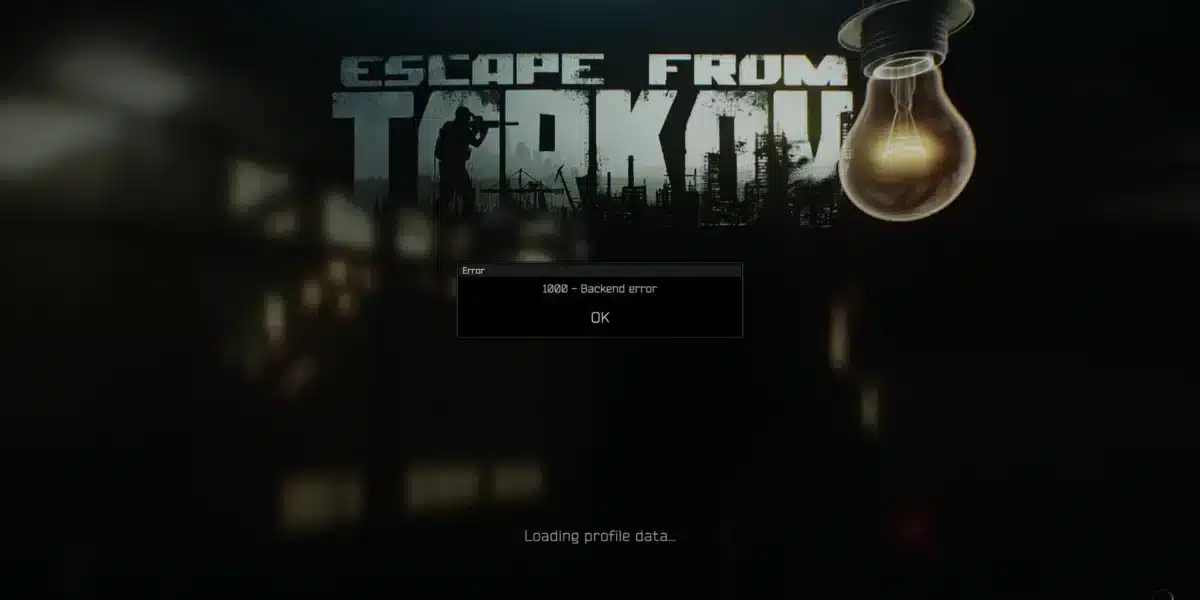
Escape From Tarkov is one of the most demanding extraction shooters on PC, and sometimes players just need a clean break. Ultimately, learning how to uninstall Escape From Tarkov properly matters, whether you are freeing up disk space, troubleshooting a corrupted install, or preparing for a fresh reinstall ahead of the current Kord Breach season.
Unlike typical Steam titles, Tarkov runs through the Battlestate Games Launcher. As a result, how to uninstall Escape From Tarkov is not always as simple as clicking “uninstall” in Windows settings. Consequently, leftover launcher files, cached data, and registry entries can linger long after the main folder disappears.
If you want the short answer on how to uninstall Escape From Tarkov: open the BsgLauncher folder, run the uninstaller executable inside it, then manually clear the AppData and registry remnants. This guide walks through every step in detail, including fixes for when the uninstaller refuses to run. By the end, your system will be completely free of Tarkov clutter, ready for a fresh install or something new entirely.
This guide is built for players who want a genuinely thorough cleanup, not just a half-finished folder deletion. Additionally, we will cover the standard removal process, advanced manual cleanup, common errors, and a few pro tips that most quick tutorials skip entirely.

How To Uninstall Escape From Tarkov Using The Official Launcher
The safest and most reliable method is always the built-in uninstaller that comes bundled with the Battlestate Games Launcher. As a result, it removes the bulk of the game files automatically and avoids the risk of deleting something Windows still needs.
Since Tarkov typically does not appear inside the standard Windows “Apps & Features” list, players often assume something is broken. In reality, this is expected behavior, and the fix is simply locating the launcher folder directly.
Locating The BsgLauncher Folder
Most installations default to a predictable location. However, custom install paths are common among PC gamers who manage multiple large titles across different drives.
- Default path: C:\Battlestate Games\BsgLauncher
- Custom drive installs: check D:\Games, E:\Games, or any dedicated SSD you assigned during setup
- Use the File Explorer search bar and type “Battlestate Games” if you are unsure where it landed
- Look inside the folder for files named uninstall.exe or unins000.exe
Running The Built-In Uninstaller
Once you find the correct executable, the removal process itself is quick. However, a few precautions make the process smoother and reduce the chance of leftover errors later.
- Close the Escape From Tarkov Launcher completely, including any background processes in Task Manager.
- Right-click uninstall.exe (or unins000.exe) and select “Run as administrator.”
- Follow the on-screen prompts and confirm removal when asked.
- Restart your PC once the process finishes to release any locked files.
Manual Cleanup: Removing Hidden Escape From Tarkov Files
Even after the official uninstaller finishes, Tarkov tends to leave behind cache files, logs, and settings folders. Therefore, a truly complete removal requires a manual pass through a few additional directories.
In other words, this step matters most if you plan to reinstall later and want a genuinely fresh setup, or if you are troubleshooting persistent bugs that survived a normal uninstall.
Checking AppData And LocalAppData
Windows hides these folders by default, so you may need to enable hidden items in File Explorer’s “View” tab first. Once visible, the process is straightforward.
- Press Windows + R, type %appdata%, and press Enter, then delete any Battlestate Games folder found there
- Press Windows + R again, type %localappdata%, and press Enter to check for a matching folder
- Look inside Documents for a “Battlestate Games” or “EscapeFromTarkov” folder containing screenshots and logs
- Check your Downloads folder for leftover installer files you no longer need
Clearing Registry Entries Safely
Registry cleanup is optional for most players, but it does help if you plan to reinstall the game or troubleshoot launcher errors. That said, editing the registry manually carries some risk, so back up before making changes.
- Press Windows + R, type regedit, and press Enter to open the Registry Editor
- Navigate to HKEY_CURRENT_USER\Software and look for a Battlestate Games key
- Right-click and delete only entries clearly tied to Tarkov or the launcher
- Consider a dedicated uninstaller tool instead if you are not comfortable editing the registry directly
What Should You Do If The Uninstaller Won’t Run?
This is one of the most common frustrations players report, especially after a failed update or interrupted patch download. Fortunately, there are a few reliable workarounds.
The uninstaller usually fails for one of three reasons: missing permissions, a corrupted launcher install, or a locked file still in use by a background process. Consequently, checking these three areas resolves most cases quickly.
Why Does Uninstall.exe Go Missing Or Show Access Denied?
Before assuming the worst, run through this quick troubleshooting checklist. In most cases, access issues come down to permissions or a launcher process refusing to close.
| Problem | Likely Cause | Recommended Fix |
|---|---|---|
| Uninstall.exe missing | Corrupted launcher installation | Delete the folder manually, then clean AppData and registry |
| Access denied error | Insufficient admin permissions | Right-click and select “Run as administrator” |
| Uninstaller freezes | Background process still running | Open Task Manager, end BsgLauncher.exe, retry |
| Files won’t delete | Files locked by antivirus or OS | Restart PC in Safe Mode, then delete the folder |
| Registry keys remain | Manual deletion incomplete | Use a trusted third-party uninstaller tool |
Using Third-Party Uninstaller Tools
If manual cleanup feels risky or time consuming, dedicated uninstaller software can scan for every trace automatically. As a result, this is especially useful for players who reinstall large games frequently.
- Download a reputable uninstaller tool from its official website only.
- Run a scan specifically for Battlestate Games or Escape From Tarkov entries.
- Review the detected files and registry keys before confirming deletion.
- Restart your computer to finalize the cleanup process.
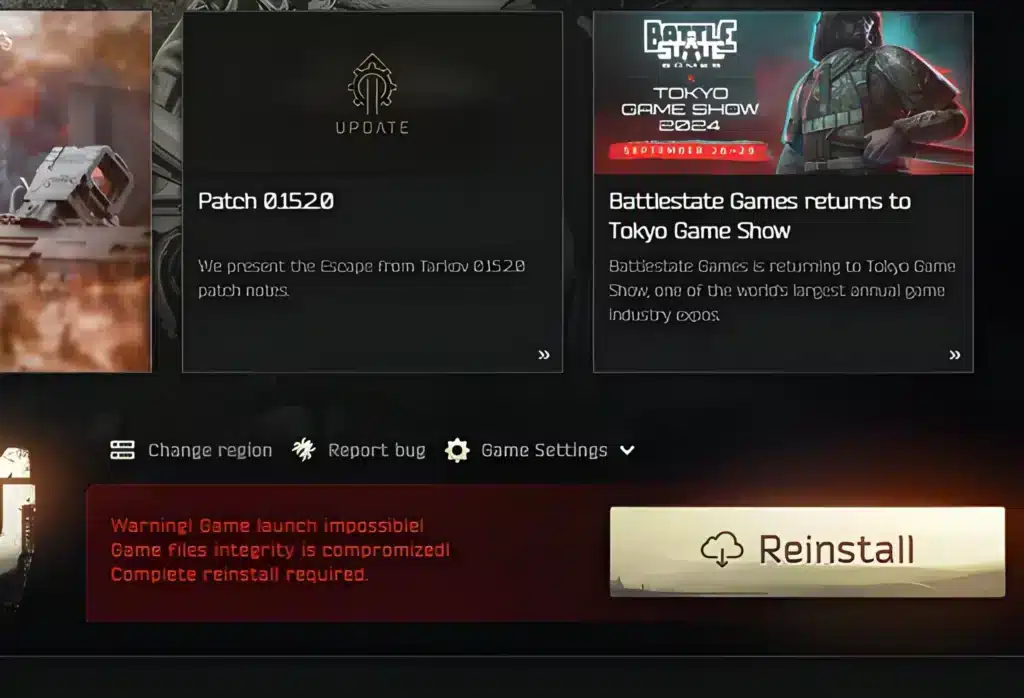
Pro Tips For A Cleaner Removal Process
Experienced players who reinstall Tarkov regularly, whether for wipes or troubleshooting, tend to follow a few extra habits. For instance, these small steps consistently save time down the line.
Tips Before You Uninstall
Taking a few minutes to prepare beforehand makes the entire process smoother and prevents surprises later.
- Back up your settings first: Copy your keybinds and graphics config before uninstalling, since Tarkov does not always preserve custom settings through a fresh install.
- Disconnect from the launcher before deleting files: This prevents partial writes or sync errors that can corrupt your account cache locally.
Tips For A Smoother Reinstall Later
These extra habits pay off most when you plan to reinstall Tarkov soon after removing it.
- Free up at least 60GB before reinstalling: Tarkov’s install size is substantial, and the launcher itself needs breathing room for temporary update files.
- Check your antivirus exclusions: Security software sometimes locks Tarkov files mid-delete, so temporarily pausing real-time protection can speed up a stubborn uninstall.
Common Mistakes When Uninstalling Escape From Tarkov
Even experienced PC gamers run into avoidable issues here. In fact, this happens mostly because Tarkov’s launcher-based structure behaves differently from a typical Steam or Epic Games title.
Mistakes During The Removal Process
These errors happen most often when players rush through the uninstall itself.
- Deleting the folder without running the uninstaller first: This skips registry cleanup entirely and often causes reinstall errors later. Fix: always run uninstall.exe or unins000.exe before manually removing anything.
- Forgetting to close background processes: Windows will block file deletion if BsgLauncher.exe is still active in the background. Fix: check Task Manager and end related processes before uninstalling.
Mistakes That Cause Problems Later
Other mistakes only become obvious once you try to reinstall or clean up the system afterward.
- Ignoring AppData folders entirely: Many players assume the main installation folder holds everything, leaving gigabytes of cache behind. Fix: always check %appdata% and %localappdata% as part of the process.
- Using unreliable third-party cleaners: Some free tools bundle unwanted software or make aggressive registry changes. Fix: only download uninstaller tools from official, well-reviewed sources.
How To Uninstall Escape From Tarkov Safely Before Reinstalling
Reinstalling is completely safe and does not affect your account or progress. Indeed, your Battlestate Games account, purchased edition, and progression remain tied to your account online, not to local files.
However, players preparing for a fresh Tarkov install, or jumping into any other online shooter, should also think about connection quality. A large download combined with an unstable route to game servers can turn a simple reinstall into a frustrating wait.
Improving Connection Stability For Online Games
This is where ExitLag becomes genuinely useful for competitive and casual players alike. ExitLag is not a VPN. Instead, it is a game connection optimizer that analyzes multiple network paths in real time and automatically routes your traffic through the fastest, most stable option available.
For extraction shooters and other online titles, every millisecond of ping and every dropped packet matters. Therefore, this kind of real-time optimization can make a noticeable difference during raids, downloads, and even launcher syncing.
- Supports over 4,000 titles across PC and Mobile platforms
- Runs on more than 1,500 servers across 190+ countries worldwide
- Trusted by over 30 million users, processing 18 million optimizations weekly
- Uses Multipath Technology to maintain stable routing even if one path degrades
ExitLag does not modify game files, inject code, or interact with anti-cheat systems in any way, so it remains safe to use alongside Escape From Tarkov and virtually any other online title. Once you finish learning how to uninstall Escape From Tarkov and reinstall it, a stable route matters just as much as a clean setup. Players ready to test a smoother connection can grab the ExitLag Download and get set up in just a few minutes before their next session.
All game images used in this blog post belong to Battlestate Games. They are used for informational and educational purposes only and do not imply endorsement or affiliation with the rights holders.
Got questions or want to connect with other players? Join the conversation at the ExitLag Forum!