How To Block A Website On Chrome is a question parents, students, and productivity-focused professionals search for regularly. Whether you want to block distracting social media during work hours, restrict inappropriate content for a child, or protect a shared device from harmful sites, Chrome offers several effective methods.
How To Block A Website On Chrome can be done through browser extensions, Chrome’s built-in parental control features, system-level tools, or router settings. The right method depends on your situation: whether you want to block sites for yourself, another user, or an entire household.
The most straightforward approach for personal use is a Chrome extension like BlockSite or StayFocusd, which lets you block specific URLs or entire categories of websites in minutes. For child accounts or shared devices, Google Family Link or macOS Screen Time offers a more robust and bypass-resistant solution.
How To Block A Website In Chrome Using Extensions
Installing and Configuring BlockSite
BlockSite is one of the most widely used Chrome extensions for blocking websites. It is free for basic use, simple to configure, and supports both URL blocking and category-based restrictions.
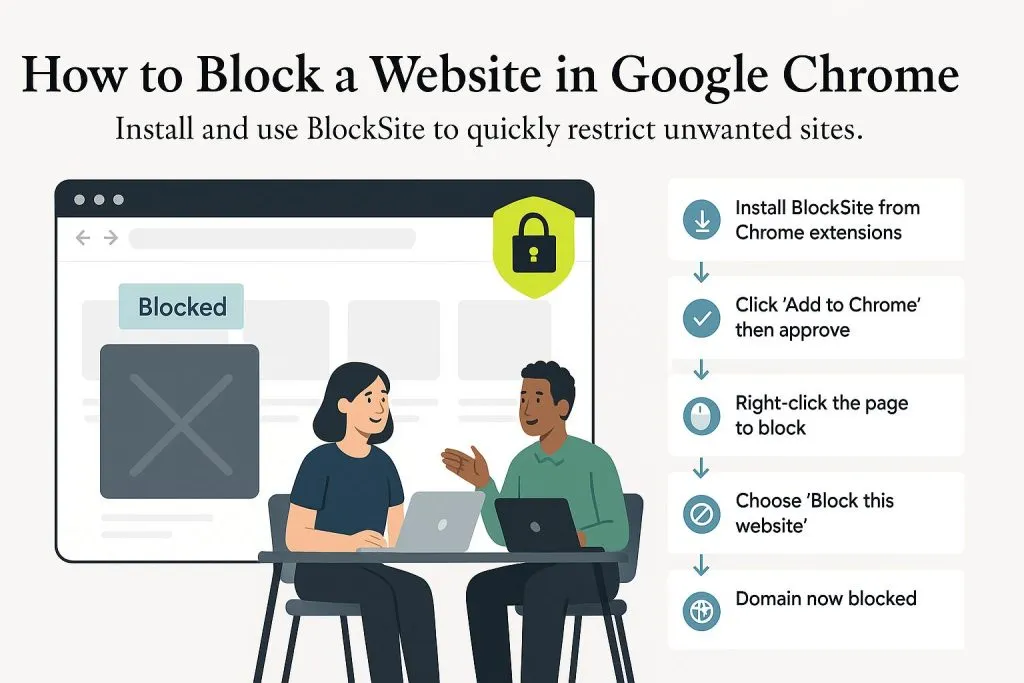
How to block a website on Chrome using BlockSite:
- Open the Chrome Web Store and search for BlockSite
- Click Add to Chrome and confirm the installation when prompted
- Open the BlockSite extension from the Chrome toolbar
- Create a free BlockSite account when prompted
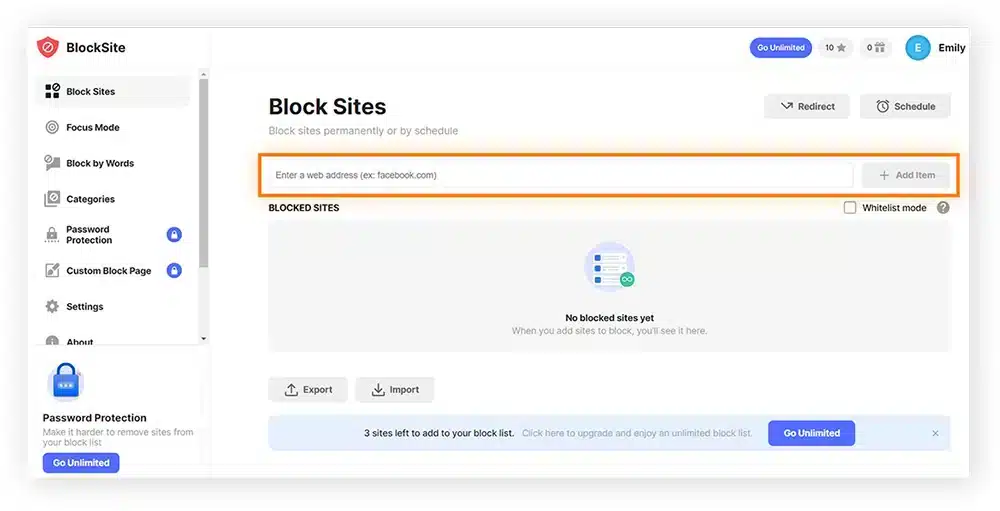
- Click Block Sites in the left panel and type the URL you want to block
- Press Enter to confirm, and the site will be blocked immediately
BlockSite also supports scheduling, allowing you to block sites only during specific hours. This is useful for blocking social media during work hours while keeping it accessible evenings and weekends.
Using StayFocusd for Time-Limited Site Access
StayFocusd takes a different approach. Instead of blocking sites outright, it limits the total time you can spend on specified websites each day. Once your time budget is exhausted, the site is blocked for the remainder of the day.
How to set up StayFocusd:
- Install StayFocusd from the Chrome Web Store
- Click the StayFocusd icon in the Chrome toolbar
- Go to the Blocked Sites section and add the URLs you want to restrict
- Set your daily time allowance in minutes under Max Time Allowed
- Enable the Nuclear Option in StayFocusd settings for a temporary, bypass-proof block
The Nuclear Option locks you out of specified sites for a set period with no override mechanism, making it particularly effective for users who struggle with self-imposed limits.
How To Block A Website On Chrome for Child Accounts
Using Google Family Link for Parental Control
Google Family Link is a free parental control system that allows parents to manage their child’s Google Account and browsing on Android devices and Chrome. It provides centralized control with more bypass resistance than basic browser extensions.
Setting up Family Link to block websites on Chrome:
- Download the Google Family Link app on your phone (available for Android and iOS)
- Create or link your child’s Google Account through the app
- Log in to Chrome on your child’s device using their supervised account
- In the Family Link app on your phone, go to Manage Settings
- Select Filters on Google Chrome, then Manage Sites
- Add blocked URLs under the Blocked tab and save
Family Link can also restrict entire content categories, including adult content, violence, and gambling sites, across all Chrome browsing sessions tied to the child’s account.
Blocking Websites System-Wide Beyond Chrome
One important limitation of Chrome extensions is that they only block websites within Chrome. If the same device has Firefox, Edge, or another browser installed, those browsers remain unrestricted.
For more comprehensive control, use operating system-level tools:
- Windows Family Safety: Create a child account in Windows Settings, then manage web access through the Microsoft Family Safety app. Restrictions apply across all browsers on the device.
- macOS Screen Time: Go to System Settings and select Screen Time. Enable Content and Privacy restrictions and specify blocked websites under Web Content. This applies to all browsers on the Mac.
- Router-Level Blocking: Log in to your router’s admin panel and use the URL filtering or parental controls section to block websites at the network level. This blocks access across all devices on the network.
Comparison of Website Blocking Methods
| Method | Applies To | Bypass Difficulty | Best For |
|---|---|---|---|
| Chrome Extension (BlockSite) | Chrome only | Easy to bypass (delete extension) | Personal productivity blocking |
| Chrome Extension (StayFocusd) | Chrome only | Moderate (Nuclear Option helps) | Time management |
| Google Family Link | Chrome on supervised accounts | Hard to bypass | Child accounts |
| Windows Family Safety | All browsers on Windows | Hard to bypass | Shared family devices |
| macOS Screen Time | All browsers on Mac | Hard to bypass | Mac household management |
| Router-Level Blocking | All devices on network | Very hard to bypass | Full household control |
How To Block A Website On Google Chrome for Productivity
Why Blocking Distracting Sites Improves Focus
Research consistently shows that social media and news sites are among the top sources of workplace distraction. The average knowledge worker checks their phone or browser for non-work content dozens of times per day, fragmenting concentration.
Blocking high-distraction websites during focused work periods removes the option to visit them impulsively. Most productivity experts recommend blocking these categories:
- Social media platforms (Instagram, X, TikTok, Reddit)
- News aggregators and entertainment portals
- Video streaming sites (YouTube, Twitch) during work hours
- Online shopping sites that trigger impulse browsing
How To Unblock a Blocked Website On Google Chrome
If you need to temporarily unblock a site you previously blocked, the process is straightforward through the same extension you used to block it.
How to unblock a site in BlockSite:
- Click the BlockSite icon in the Chrome toolbar
- Navigate to Block Sites in the left panel
- Find the blocked URL in the list
- Click the trash icon or toggle next to the site to remove the block
For sites blocked through Family Link or Screen Time, the parent or administrator must make the change through the control app or system settings on their own device.
How To Block a Website on Firefox and Safari Using Chrome-Inspired Methods
Are the Methods the Same Across Browsers?
The extension-based approach for How To Block A Website On Chrome does not carry over directly to Firefox or Safari. Each browser has its own extension ecosystem, and Chrome extensions are not compatible with other browsers.
For Firefox, similar extensions like LeechBlock NG provide the same functionality as BlockSite. For Safari, the Focus mode feature in macOS and iOS handles website restrictions at the operating system level rather than through individual browser extensions.
How to block sites in Safari on Mac using Screen Time:
- Open System Settings and click Screen Time
- Enable Screen Time if it is not already active
- Click Content and Privacy, then Web Content
- Select Limit Adult Websites or Allowed Websites Only
- Under Never Allow, click Add Website and enter the URL to block
Pro Tips: Blocking Websites More Effectively
- Use Router-Level Blocking for Household Devices: Blocking at the router means all devices, including phones, tablets, and smart TVs, are covered by the same rules without needing to install extensions on each one.
- Combine Time Limits With URL Blocking: Instead of blocking sites entirely, use StayFocusd or Family Link’s time limits to allow limited access. Complete restriction often triggers workarounds, while time limits reduce use without total prohibition.
- Block by Category, Not Just Individual URLs: Sites frequently change domain names or create subdomains. Category-based blocking in tools like Family Link or DNS filtering services catches new URLs automatically.
- Use a Privacy DNS Service for Network-Wide Filtering: Services like NextDNS or CleanBrowsing allow you to set content filters at the DNS level, blocking entire categories of sites across every device on your network without touching individual browser settings.
Common Mistakes When Blocking Websites On Chrome
- Using Only a Chrome Extension on a Shared Device: If another browser or user account is not covered by the extension, the block is easily bypassed. Fix: Use system-level controls through Windows Family Safety or macOS Screen Time for multi-user devices.
- Forgetting to Enable Block All Browsers Options: Many parents install a Chrome-only blocker and assume all internet access is covered. Fix: Always verify whether your blocking method applies to every browser installed on the device.
- Not Using a Password to Protect Extension Settings: Chrome extensions can be removed by anyone with access to the browser. Fix: Set a password in BlockSite or use Google Family Link, which requires the parent’s Google account credentials to modify.
Protect Your Browsing and Your Devices With Norton 360 For Gamers
How To Block A Website On Chrome addresses the distraction and access control problem. However, the websites you or your family visit can still deliver threats, even on sites that appear legitimate. Malvertising, phishing overlays, and drive-by downloads can affect users on sites they visit regularly.
Norton 360 For Gamers adds real-time web protection that operates beyond simple site blocking. Its Safe Web feature evaluates links and websites for threats before you load them, warning you about phishing sites, malware-infected pages, and suspicious redirects.
For gaming households especially, the combination of controlled access and active security creates a safer environment. ExitLag complements the setup by optimizing game connection routing, reducing lag through multipath technology across 1,500+ servers in 190+ countries, without modifying game files or interacting with anti-cheat systems.
ExitLag gives you complete peace of mind: How To Block A Website On Chrome handles access control, while Norton and ExitLag handle active protection and performance.
All images used in this blog post belong to their respective owners and are used for informational and educational purposes only. They do not imply endorsement or affiliation with the rights holders.
Got questions or want to connect with other players? Join the conversation at the ExitLag Forum!