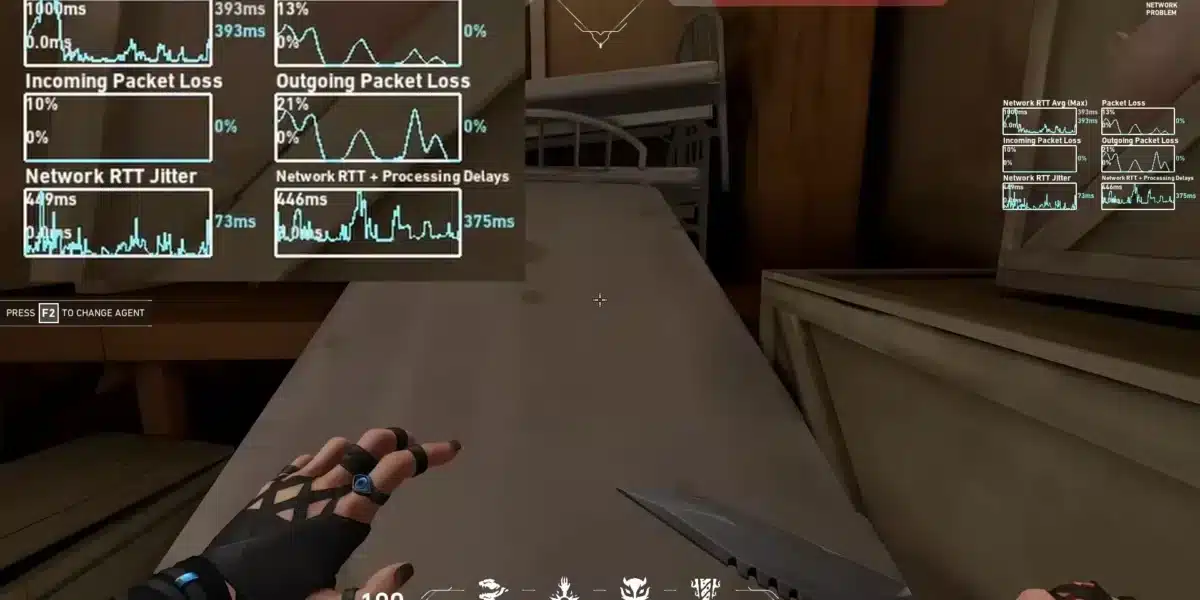
VAN 68 is a connection error. It means Vanguard or the Riot Client cannot reach Riot’s login or authentication servers. Unlike the 9000-series errors that are about hardware settings, VAN 68 is about your network path to Riot’s infrastructure. The good news: most cases are caused by something on your end that you can fix. The bad news: sometimes the problem is on Riot’s servers, and only waiting resolves it.

What Does VAN 68 Mean?
VAN 68 indicates connection problems. It normally means that the Riot login servers are not stable or that your client is unable to connect to the servers. It appears to many players during high-traffic periods such as log-in spikes.
Step 1: Check Riot Server Status
Before troubleshooting your own setup, verify that Riot’s servers are operational:
- Visit status.riotgames.com and select your region
- Check downdetector.com/status/valorant for user-reported outages
- Check @RiotSupport on X for official incident announcements
If servers are confirmed down or degraded, no local fix will help. Wait for Riot to resolve the incident.
Step 2: Switch to Wired Ethernet
Wi-Fi packet loss during authentication can trigger VAN 68 repeatedly. Switching to wired Ethernet eliminates the variable latency and packet loss that Wi-Fi introduces during Vanguard’s connection to Riot’s servers.
If you are on Wi-Fi and see VAN 68, plug in an Ethernet cable before trying anything else. This single change resolves the error for a large number of players.
Step 3: Restart Your Router and PC
A simple network reset clears temporary glitches in your router’s connection state:
- Turn off your PC completely
- Unplug your router and modem from power
- Wait 30 seconds
- Plug the modem back in first and wait for it to fully connect
- Plug the router back in and wait for it to stabilize
- Turn your PC on and launch VALORANT
Step 4: Flush DNS and Reset Network Stack
Stale DNS cache can cause routing failures to Riot’s servers:
- Open Command Prompt as Administrator (search “cmd”, right-click, Run as administrator)
- Run these commands one at a time:
netsh winsock reset
netsh int ip reset
ipconfig /flushdns
- Restart your PC after running all three commands
- Launch VALORANT
Step 5: Check Firewall and Antivirus Settings
Your firewall or security software may be blocking Vanguard’s outbound connections:
- Open Windows Defender Firewall
- Click “Allow an app or feature through Windows Defender Firewall”
- Ensure both VALORANT and Riot Vanguard are listed and checked for both Private and Public networks
- If you use third-party antivirus, add Vanguard to its exception list
Step 6: Change Your DNS to Google or Cloudflare
If your ISP’s DNS is routing incorrectly to Riot’s servers:
- Open Network Settings
- Go to your active network adapter, Properties
- Select Internet Protocol Version 4 (TCP/IPv4), Properties
- Set Preferred DNS to 8.8.8.8 and Alternate DNS to 8.8.4.4 (Google)
- Or use 1.1.1.1 and 1.0.0.1 (Cloudflare)
- Click OK and restart

Play VALORANT Without VAN 68 Using ExitLag
VAN 68 caused by routing issues between your ISP and Riot’s servers is exactly what ExitLag is built to solve. ExitLag analyzes multiple network routes in real time and selects the fastest, most stable path to Riot’s authentication and game servers, bypassing the congested or inefficient ISP routes that trigger VAN 68.
ExitLag is a connection optimizer used by over 30 million players across 4,000+ game titles including VALORANT.
- Real-Time Optimization: selects the fastest route to Riot’s servers continuously
- Multipath Technology: routes your authentication data through multiple simultaneous paths so a single packet loss does not trigger a VAN 68 disconnect
- Traffic Shaper: prioritizes VALORANT traffic so no background process interrupts the Vanguard-to-server connection
Download ExitLag and try it free.
Got questions or want to connect with other players? Join the conversation at the ExitLag Forum!