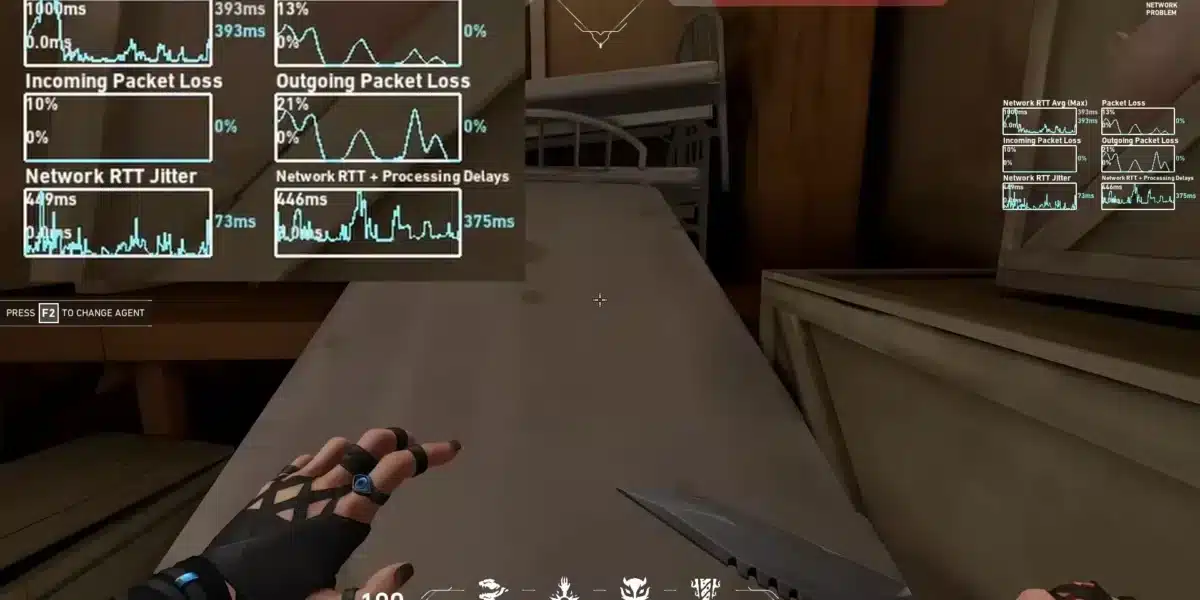
Valorant VAN errors can prevent the game from launching, disconnect you from online services, or stop Riot VANguard from working correctly. The difficult part is that VAN codes do not all point to the same problem, so randomly changing network or Windows settings can waste time without addressing the actual cause.
Each code provides a clue about where troubleshooting should begin. Some Valorant VAN errors are linked to VANguard or Windows security requirements, while others can involve Riot services or connectivity. Identifying the exact code first helps you choose the right fix instead of reinstalling everything immediately. And before we continue, know that to know more about all the releVANt content about gaming, you just have to check our blog.

What are Valorant VAN errors and why do they happen?
Valorant VAN errors are error codes that appear when VALORANT cannot operate normally because of a problem involving Riot VANguard, system requirements, Riot services, or connectivity. VALORANT is Riot Games’ competitive 5v5 tactical shooter, and its PC version relies on the VANguard anti-cheat system, which means certain VAN codes require system-level troubleshooting rather than a simple network restart.
As a result, there is no universal solution for every VAN message. A security-related code can require checking Windows settings, while another error may justify restarting VANguard, the Riot Client, or the computer. Connection symptoms require a different approach again.
Before changing anything, note the complete error code shown on screen. Then check whether Riot services are operating normally and whether the problem began after a Windows, game, or VANguard update. This context can narrow down the likely source considerably.
Riot VANguard and VAN error codes
Riot VANguard is an anti-cheat system used by VALORANT on PC. It operates closely with Windows, so VANguard must initialize correctly and meet applicable security requirements before the game can function as expected.
This is why restarting your router is not an appropriate first response to every error. The most useful starting points depend on the message you receive:
- Check Windows security requirements for security-related VAN codes.
- Confirm that Riot VANguard is running correctly.
- Restart VALORANT and the Riot Client after an unexpected failure.
- Check Riot service availability when connection problems appear.
- Investigate your network when other signs of instability are present.
Knowing these categories makes how to fix Valorant errors much easier to understand. Instead of searching for one fix that supposedly solves every code, players can troubleshoot the component associated with their particular problem.
Check the error code before changing settings
Start with simple checks before modifying Windows or firmware configuration. Restart VALORANT and the Riot Client, then reboot the computer if the error remains. This gives VANguard another opportunity to initialize normally.
If the same Valorant VAN errors continue after restarting, record the exact VAN number. From there, follow a code-specific process:
- Identify the complete VAN error displayed by VALORANT.
- Restart the Riot Client and your PC.
- Check Riot’s current service status.
- Determine whether the code points toward VANguard or system security.
- Investigate your connection if network symptoms are also present.
- Reinstall VANguard only when simpler troubleshooting does not work.
This order also reduces unnecessary changes. For example, reinstalling VALORANT is a much larger step than restarting VANguard, and changing BIOS settings should never be the first experiment for an unrelated connection error.
Valorant error 9003: Secure Boot and TPM problems
Valorant error 9003 is different from a typical high-ping or server connection issue. On Windows 11 systems, VAN 9003 is associated with security requirements involving Secure Boot and TPM 2.0, which VANguard uses as part of its security environment.
Therefore, connection optimization is not the appropriate solution when VAN 9003 is specifically caused by these requirements. Players should first check their current Windows security configuration rather than changing DNS servers, restarting a router repeatedly, or testing network routes.
How to check Secure Boot
Before entering your BIOS or UEFI firmware, verify the current Secure Boot status from Windows. Press Windows + R, type msinfo32, and open System Information. Look for the Secure Boot State entry.
If Secure Boot is already enabled, avoid toggling firmware settings without a clear reason. If it is disabled and VANguard requires it, consult the documentation for your motherboard or PC manufacturer because UEFI interfaces and configuration steps vary between systems.
Firmware changes deserve extra care. Incorrect BIOS settings can create boot problems, so do not copy instructions designed for a different motherboard without checking the manufacturer’s documentation.
How to check TPM 2.0
Windows also provides a direct way to inspect TPM status. Press Windows + R, enter tpm.msc, and check whether a compatible Trusted Platform Module is available and ready for use.
If TPM 2.0 is unavailable or disabled, the next step depends on the hardware and firmware configuration. Manufacturers may use different names for TPM-related options, so official motherboard or computer documentation is preferable to guessing inside the BIOS.
This distinction is central to troubleshooting Valorant VAN errors. A VANguard security requirement needs a system-level solution, while an unstable online connection requires network diagnostics.
Valorant error 79 and VANguard connection problems
Valorant error 79 can appear when VALORANT encounters a problem involving VANguard or its ability to establish the services required for the game to run. Consequently, restarting the PC and checking VANguard should come before aggressive changes to the game installation or network.
If the error persists, focus on whether VANguard is starting normally. This provides a more targeted troubleshooting path and can help determine whether reinstalling the anti-cheat component is actually necessary.
Check the VGC service
On Windows, VANguard relies on its VGC service. Press Windows + R, enter services.msc, and locate VGC. Check its status before making additional changes.
If VANguard is not starting correctly, restarting the PC may restore normal operation. Persistent problems may require repairing or reinstalling VANguard rather than reinstalling the entire game.
Restart or reinstall Riot VANguard
When a normal restart does not resolve Valorant error 79, reinstalling VANguard can be a reasonable later troubleshooting step. After removing VANguard, restart the PC and launch the Riot Client so the required component can be installed again.
However, Valorant VAN errors can also appear alongside genuine online connection problems. Once VANguard, Windows requirements, and Riot service availability have been checked, the next stage is to separate anti-cheat failures from latency, packet loss, routing instability, and other network conditions that can affect Valorant.
Valorant error 128: what to check
Valorant error 128 can prevent VALORANT from starting correctly when VANguard or related services fail to initialize as expected. Like other Valorant VAN errors, it should be diagnosed according to the code and symptoms rather than treated automatically as an internet problem.
Start with the least disruptive fixes. Restarting VALORANT, Riot Client, and Windows can resolve temporary initialization problems without requiring changes to security settings or a complete game installation.
Restart VALORANT, Riot Client, and VANguard
Close VALORANT and Riot Client completely before restarting the computer. A full reboot also restarts VANguard components, which makes it more useful than repeatedly opening and closing the game.
After Windows loads, launch Riot Client normally and test VALORANT again. If Valorant error 128 continues, check VANguard services and look for other system or security software conflicts before moving toward reinstallation.
When to reinstall VANguard
Reinstalling VANguard becomes reasonable when restarts do not work and the error consistently points toward the anti-cheat system. Remove Riot VANguard through Windows, restart the PC, then launch Riot Client to reinstall the required components.
If Valorant VAN errors continue after a clean VANguard installation, avoid repeatedly reinstalling the game. At that stage, checking Riot’s service status and contacting Riot Support may provide a more useful path.
How to fix Valorant errors related to your connection
Knowing how to fix Valorant errors also means recognizing when the network is actually involved. High ping, packet loss, jitter, and unstable routing can affect online gameplay, but they should not be confused with errors caused by Secure Boot, TPM, or VANguard initialization.
A network problem often comes with additional symptoms. You may notice unstable latency, delayed actions, packet loss, or other online applications behaving differently.
Check Riot services and your network
First, check Riot’s service availability. If there is an ongoing outage, changing local network settings will not restore the affected Riot infrastructure.
If services are operating normally, test your connection. Useful checks include:
- Compare Ethernet and Wi-Fi when both are available.
- Restart your router before making adVANced changes.
- Stop bandwidth-heavy downloads during testing.
- Check whether packet loss or ping changes significantly.
- Test whether other online games experience similar instability.
You can also consult the official Riot Games VALORANT Support for current technical guidance and service-related troubleshooting.
Check ping, packet loss, firewall, and routing
Stable latency matters in a tactical shooter where a small delay can affect movement, peeking, and gunfights. However, raw download speed does not tell the entire story. A connection can be fast while still suffering from jitter, packet loss, or an inefficient route.
The table below helps separate common troubleshooting scenarios.
| Symptom | Area to check | Recommended first step |
| VAN 9003 | Secure Boot and TPM | Check Windows security status |
| VAN 79 | VANguard or services | Restart PC and check VGC |
| VAN 128 | VANguard initialization | Restart Riot Client and PC |
| High ping or packet loss | Network connection | Test network stability |
| Several players cannot connect | Riot services | Check service status |
| Error persists after local fixes | Account or software | Contact Riot Support |
The important point is that similar interruptions can have different causes. Valorant error 9003, for example, should not receive the same troubleshooting process as packet loss during a match.
Valorant VAN errors and connection optimization
Connection optimization becomes releVANt to Valorant VAN errors when diagnostics reveal a genuine network problem. It can be useful when your route to the game infrastructure produces unstable latency, jitter, packet loss, or other connection problems.
However, route optimization is not a replacement for VANguard troubleshooting. Players should first identify whether their error involves Windows security, anti-cheat initialization, Riot services, or the network itself.
When ExitLag can help
ExitLag supports VALORANT on PC and focuses on improving the route used by game traffic. Its connection optimization technology can select better paths to game servers, helping players affected by routing-related lag, latency, or packet loss.
For players experiencing network instability, ExitLag provides features designed around route optimization and connection stability. You can also read this guide about reducing high ping and lag in VALORANT for additional connection troubleshooting.
A practical approach is to fix problems in this order:
- Identify the VAN code.
- Check Riot service availability.
- Resolve VANguard or Windows security requirements.
- Test local network stability.
- Consider route optimization when routing or latency is the remaining problem.
This sequence prevents a connection tool from being used to address an unrelated VANguard problem.
When ExitLag cannot fix a VAN error
ExitLag cannot enable Secure Boot or TPM 2.0, repair a broken VANguard installation, restore unavailable Riot services, or solve an internal VALORANT problem. Therefore, it should not be described as a universal solution for Valorant VAN errors.
Its role is specifically releVANt to network performance. If routing, ping, jitter, or packet loss is affecting the connection, optimization may help provide a more stable path. ExitLag officially lists VALORANT among its supported games.
Frequently asked questions (FAQ)
Do route optimization tools or ping reducers help with VALORANT?
Yes, when the underlying problem involves network routing, high ping, jitter, or packet loss. Route optimization can improve how game traffic travels between your PC and the releVANt servers.
However, it cannot solve hardware limitations, unavailable Riot services, Secure Boot requirements, or VANguard failures. Always identify the source of the problem first.
How much does ExitLag cost?
ExitLag pricing can vary according to plan, billing period, currency, region, and available promotions. ExitLag can drastically improve your gameplay for an accessible price. To know more, check our pricing page.
Is ExitLag compatible with VALORANT?
Yes. ExitLag currently lists VALORANT among the games it supports for connection optimization on PC.
This does not mean ExitLag can resolve every VALORANT error. Its optimization features are releVANt to network-related conditions rather than VANguard or Windows security failures.
What are the most common Valorant VAN errors?
Players can encounter different VAN codes, including VAN 9003, VAN 79, and VAN 128. Their causes and troubleshooting paths can differ, which is why reading the complete code is important before changing settings.
Does reinstalling VANguard fix VAN errors?
It can help when the problem is specifically related to VANguard installation or initialization. It will not solve every VAN code, particularly errors tied to Windows security requirements, Riot service outages, or network conditions.

In conclusion
The fastest way to approach these errors is to identify the code before applying fixes. Check Riot services, Windows security requirements, VANguard, and your connection in a logical order instead of changing several settings at once.
When network instability is the actual problem, testing your connection and optimizing its route can improve stability during matches. Understanding what each code points toward is ultimately the safest and most efficient way to resolve Valorant VAN errors. You should check more games compatible with ExitLag at our official games page.
Got questions or want to connect with other players? Join the conversation at the ExitLag Forum!