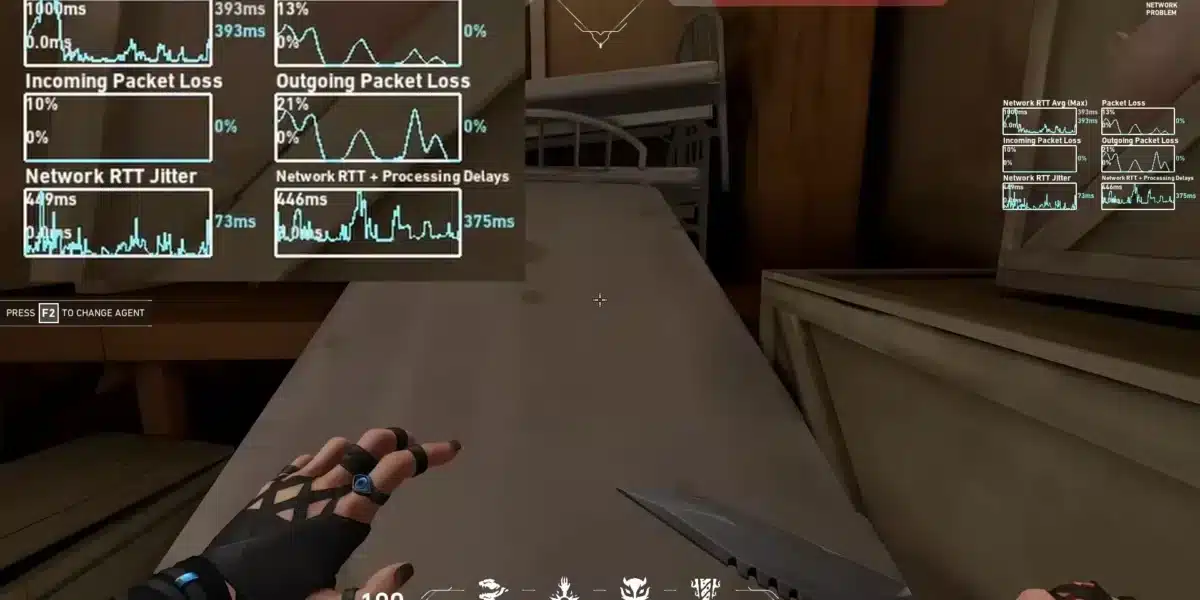
Getting kicked mid round by the Van 185 Valorant error is one of the most frustrating experiences in competitive play. One second you are holding an angle, the next you are staring at a disconnect screen. This guide breaks down exactly why it happens and how to fix it today.
Valorant players across ranked and unrated queues have reported this error spiking after client updates. Van 185 Valorant issues are not tied to bans or cheat detection, which is good news for anyone panicking after a sudden drop.
So what actually triggers it? In most cases, Van 185 Valorant appears when Vanguard, Riot’s anti-cheat driver, fails to refresh its secure connection to the game servers mid session. Unstable network paths, a stuck client session, or a background driver conflict are the usual culprits. Understanding this cause is the first step toward a permanent fix.
This article covers the technical causes in depth, the official and community fixes that actually work, and a few network level tricks most guides skip entirely. We will also look at why a stable route between your PC and Riot’s servers matters more than most players realize.

What Is The Van 185 Valorant Error?
Before jumping into fixes, it helps to understand what this code actually represents. Valorant uses a family of “VAN” error codes to flag Vanguard related connectivity problems, and 185 specifically points to a lost secure session.
How Vanguard Triggers This Error
Vanguard runs as a kernel level driver that constantly verifies your connection integrity. When that verification process stalls, either from a service crash or an interrupted handshake, the client throws Van 185 instead of quietly reconnecting.
- The VGC service (Vanguard’s core process) stops responding mid match
- A recent GPU or network driver update conflicts with the anti-cheat hooks
- Windows Update silently restarts a background service Vanguard depends on
Why It Happens Mid Match Specifically
Most players notice Van 185 Valorant errors appear after several rounds rather than at launch. That timing is a clue.
- Long sessions accumulate memory or handle leaks in the Vanguard process
- Network paths shift over time due to ISP level rerouting
- Overlay software (chat apps, capture tools) gradually destabilizes the session
Why Does Valorant Show Van 185 Error?
This is the question most players ask first when the screen freezes. The direct answer: your game client lost its encrypted link to Riot’s authentication servers, usually because of a local network hiccup or a Vanguard service interruption.
Van 185 Valorant almost never means you did anything wrong on the account level. It is a plumbing problem, not a punishment.
Common triggers reported by the community include:
- Unstable Wi-Fi or a router struggling under load
- Firewall or antivirus software blocking Vanguard’s driver traffic
- Outdated or corrupted Valorant installation files
- IPv6 misconfiguration causing handshake failures
- Server side instability during Riot maintenance windows
How Do You Fix Van 185 Error In Valorant?
Fixing this error usually starts simple and escalates only if needed. Below is the order most experienced players follow, from fastest to most involved.
Quick Client And Service Restarts
Start here before touching any deeper settings, since this resolves a large share of cases.
- Fully close Riot Client, Vanguard, and Valorant through Task Manager
- Restart your PC to clear any stuck driver handles
- Open Services (services.msc), find “vgc,” set Startup Type to Automatic, and start it manually
- Relaunch Valorant and confirm Vanguard initializes before the client loads
Network Level Fixes For VAN 185 Error Valorant
If restarts do not hold, the problem is likely upstream in your network stack. This is where most guides stop, but it is worth digging further.
- Flush and re-register your DNS: open Command Prompt as Administrator, run ipconfig /flushdns, then ipconfig /registerdns
- Switch to a public DNS like 8.8.8.8 or 1.1.1.1 if your ISP’s resolver is inconsistent
- Disable IPv6 on your network adapter, since many handshake failures trace back to it
- Add Valorant, Riot Client, and Vanguard as firewall exceptions on both Private and Public profiles
- Use a wired Ethernet connection instead of Wi-Fi whenever possible
How To Fix VAN 185 Error Valorant On Driver Conflicts
Driver mismatches are a less obvious cause that many players overlook entirely. If the error started right after updating your GPU driver, this section is for you.
Rolling Back Problematic Drivers
Vanguard hooks deeply into system level processes, so a fresh GPU driver can occasionally break compatibility.
- Open Device Manager and locate your graphics card
- Right click, select Properties, then the Driver tab
- Choose “Roll Back Driver” if the option is available
- Restart and test Valorant before reinstalling any newer version
Reinstalling Vanguard Cleanly
Sometimes the anti-cheat driver itself becomes corrupted rather than the GPU driver.
- Uninstall Vanguard from Windows Apps settings
- Delete leftover folders in Program Files named Riot Vanguard
- Reinstall Valorant, which automatically reinstalls Vanguard fresh
Comparing Causes And Solutions For VAN 185 Error Valorant
| Cause | Recommended Fix | Estimated Time |
|---|---|---|
| Stuck Vanguard service (VGC) | Restart service via services.msc | 2 to 5 minutes |
| DNS or IPv6 misconfiguration | Flush DNS, switch to public DNS, disable IPv6 | 5 to 10 minutes |
| Firewall blocking Vanguard | Add firewall exceptions for all Riot processes | 5 minutes |
| Outdated GPU driver conflict | Roll back to previous stable driver | 10 to 20 minutes |
| Unstable or high latency route | Use a wired connection or a routing optimizer | 5 minutes setup |
| Corrupted installation files | Reinstall Valorant and Vanguard | 20 to 40 minutes |
Pro Tips: Van 185 Valorant
- Run as Administrator always: Launching Riot Client without admin rights can silently block Vanguard from initializing correctly, which increases disconnect risk.
- Keep only one antivirus active: Running Windows Defender alongside third party antivirus software creates conflicting hooks that Vanguard misreads as interference.
- Monitor your route, not just your ping: A stable route matters more than a low number on the scoreboard, since sudden path changes are what actually trigger handshake drops.
- Update Windows before ranked sessions: Pending updates can force background service restarts mid match, which is a frequent hidden cause of Van 185 Valorant errors.
Common Mistakes VAN 185 Error Valorant Players Make
- Reinstalling immediately without checking services: Many players jump straight to a full reinstall when a simple VGC service restart would have solved it. Fix: always try the service restart first.
- Ignoring firewall prompts during setup: Dismissing Windows security prompts for Riot Vanguard blocks the driver traffic it needs. Fix: manually add exceptions in firewall settings.
- Blaming their account instead of their network: Some players assume a ban wave caused the error and waste time submitting tickets. Fix: check network stability first, since Van 185 Valorant is rarely account related.
Can ExitLag Help With VAN 185 Error Valorant?
Once the local fixes are done, the remaining issue is often route instability between your PC and Riot’s servers. This is where a connection optimizer earns its place in your toolkit.
Why Routing Stability Matters For Vanguard
ExitLag is not a VPN. It analyzes multiple network paths in real time and automatically picks the fastest, most stable route between your device and the game server.
For an error like Van 185 Valorant, that stability directly reduces the handshake timeouts and connection drops that trigger the code in the first place. A cleaner route means fewer opportunities for Vanguard to lose its secure session mid match.
ExitLag’s Multipath Technology sends packets through several routes simultaneously, so if one path degrades, the others keep the session alive. Combined with Multi-Internet support for up to four simultaneous connections, this creates a real safety net against the exact kind of instability behind connection interruption errors.
- Real-time Optimization: Continuously reduces delay and packet loss for faster, more reliable inputs
- Multipath Technology: Keeps your session alive even if one route degrades mid match
- Multi-Internet: Automatically fails over between connections if one drops
- Traffic Shaper: Prioritizes Valorant traffic over background downloads and updates
- AI-powered routing: Selects the best path automatically, with manual control available too
Importantly, ExitLag does not modify game files, inject code, or interact with anti-cheat systems, which makes it fully compatible with Vanguard. Just avoid running it alongside a separate VPN, since the two can conflict.
Trusted by over 30 million users and handling more than 18 million optimizations per week across 1,500+ servers in 190+ countries, ExitLag supports 4,000+ titles including Valorant. Grab the ExitLag Download to start stabilizing your route before your next match.
All game images used in this blog post belong to Riot Games. They are used for informational and educational purposes only and do not imply endorsement or affiliation with the rights holders.
Got questions or want to connect with other players? Join the conversation at the ExitLag Forum!