Learning 7 days to die console commands can make managing a world,testing game mechanics, or administering a multiplayer server much easier. Whether you’re hosting a private session with friends or running a dedicated server, console commands provide powerful tools for adjusting gameplay, monitoring players, and simplifying administrative tasks. Understanding how these commands work helps you use them responsibly and efficiently.
7 days to die console commands are designed primarily for administrators, server hosts, and players who want to customize their experience in appropriate environments. 7 days to die console commands allow users to perform a wide range of actions, from changing game settings and managing players to checking server information and assisting with testing. When used correctly, these official tools improve flexibility without requiring unofficial modifications.
What are 7 days to die console commands? They are built-in commands available through the game’s developer console that allow authorized users to configure gameplay, manage servers, monitor performance, and perform administrative tasks. Unlike third-party tools, these commands are officially supported by the game and intended for legitimate server management and private gameplay customization.
In this guide, you’ll learn how console commands work, how to access the developer console, commonly used administrative commands, multiplayer considerations, and best practices for using these features responsibly.
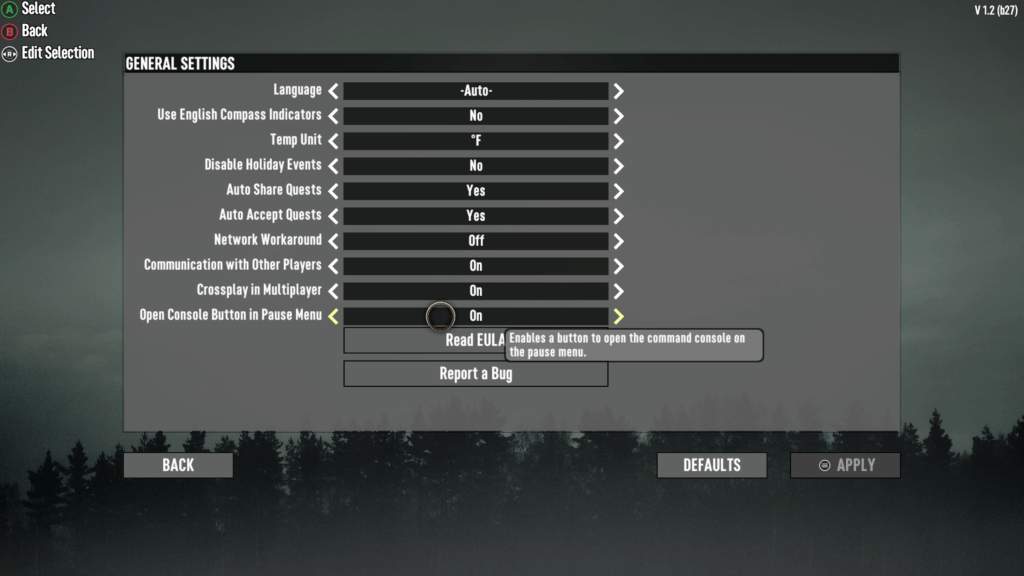
7 Days to Die Console Commands: Understanding the Basics
Before using console commands, it’s important to understand their intended purpose.
Although many commands are available, access is typically restricted to administrators or users with the appropriate permissions.
What Are Console Commands?
Console commands are text-based instructions entered into the game’s developer console.
They allow authorized players to:
- Configure server settings;
- Monitor server status;
- Manage connected players;
- Test gameplay mechanics;
- Access administrative tools.
Most commands are designed to simplify server management rather than alter normal gameplay for competitive purposes.
Who Can Use Console Commands?
Access depends on the type of game session you’re playing.
Generally, console commands are available for:
- Dedicated server administrators;
- Private world hosts;
- Single-player testing;
- Development and troubleshooting;
- Authorized moderators.
Public multiplayer servers often limit command access to protect gameplay integrity.
How to Open the Console
Before entering 7 days to die console commands, you’ll need to access the in-game developer console.
The exact key may vary depending on your keyboard layout and game settings.
Opening the Console
On most PC installations, the console can be opened using the designated console key.
Once opened, players can:
- Enter commands;
- Review command output;
- Check server responses;
- Verify administrative actions.
If the console doesn’t appear, verify your keyboard layout or consult the game’s current control settings.
Permissions Matter
Even if you can open the console, certain commands require administrative privileges.
Without proper permissions:
- Commands may fail;
- Error messages may appear;
- Administrative actions will be blocked;
- Server security remains protected.
This permission system helps prevent unauthorized changes during multiplayer sessions.
Common 7 Days to Die Commands
Many administrators rely on a relatively small group of commands during daily server management.
These commands help maintain stability and assist players when necessary.
Frequently Used Administrative Commands
Some common 7 days to die commands include actions related to:
- Player management;
- Server information;
- Time control;
- Weather adjustments;
- World settings.
The exact syntax may vary between game versions, so always consult the latest official documentation before using administrative commands.
Monitoring Server Activity
Server administrators frequently use commands to monitor game performance.
Common monitoring tasks include:
- Viewing connected players;
- Checking server statistics;
- Monitoring performance;
- Reviewing server logs;
- Confirming configuration changes.
These tools help maintain a stable multiplayer environment.
Console Commands vs. Third-Party Tools
Players sometimes encounter references to external utilities while searching for console commands.
Understanding the difference is important.
Official Commands
Official 7 days to die console commands are built directly into the game.
Advantages include:
- Supported by the developers;
- Intended for administration;
- Regularly maintained;
- Compatible with official updates;
- Safe for authorized server management.
These commands represent the recommended way to customize gameplay in supported scenarios.
Understanding 7cheats
Some players also search for 7cheats when looking for administrative features.
However, it’s important to distinguish between official console commands and third-party tools. 7cheats is not part of the official game, and external software may violate server rules or negatively affect multiplayer experiences.
For legitimate gameplay and server administration, using the built-in console commands provided by the developers is the recommended approach.
Console Command Categories
The following table summarizes common categories of official console commands.
| Category | Primary Purpose | Typical Users |
| Player Management | Moderate players | Server Admins |
| Server Settings | Configure gameplay | Hosts |
| Information | View server data | Admins |
| Debug Tools | Testing and troubleshooting | Developers/Admins |
| Monitoring | Performance analysis | Server Operators |
Understanding these categories makes it easier to identify the right command for a particular task.
Best Practices for Using Console Commands
Responsible command usage benefits both administrators and players. Good server management helps create a fair and enjoyable multiplayer experience.
Use Commands Carefully
Before entering any command:
- Verify its purpose;
- Confirm permissions
- Review official documentation;
- Test changes when possible;
- Inform players if necessary.
Small configuration changes can have significant gameplay effects.
Keep Server Documentation
Many experienced administrators maintain records of server settings.
Useful documentation includes:
- Server configuration changes;
- Administrator permissions;
- Scheduled maintenance;
- Backup procedures;
- Command reference notes.
Organized documentation makes long-term server management much easier.
Multiplayer Administration Tips
Managing a multiplayer server involves much more than entering commands. Successful administrators also communicate effectively with their communities.
Support Your Players
Good administrators:
- Answer questions;
- Resolve disputes fairly;
- Explain server rules;
- Maintain consistent moderation;
- Encourage respectful gameplay.
These habits help build healthy multiplayer communities.
Stay Updated
Game updates occasionally introduce changes to commands and server features.
Following official developer announcements ensures your server remains compatible with the latest version of the game.
Advanced Tips for Server Administration
As you become more familiar with 7 days to die console commands, you’ll discover that effective server management involves much more than entering commands.
Successful administrators combine technical knowledge with clear communication and regular maintenance to create a better multiplayer experience.
Developing consistent management habits also reduces the likelihood of configuration errors.
Test Changes Before Applying Them
Whenever possible, test new settings in a private environment before using them on an active multiplayer server.
This approach allows you to:
- Verify command behavior;
- Confirm compatibility after updates;
- Identify unexpected side effects;
- Adjust server balance;
- Avoid disrupting active players.
A small amount of preparation can prevent larger problems later.
Keep Regular Backups
Server backups are an important part of long-term administration.
Before making significant configuration changes, consider backing up:
- World saves;
- Server configuration files;
- Player data;
- Administrative settings;
- Custom server files.
Having recent backups makes recovery much easier if something goes wrong.
Common Mistakes When Using 7 Days to Die Commands
Even experienced administrators occasionally make mistakes when managing a server. Fortunately, most of these issues are easy to prevent.
Running Commands Without Verification
One common mistake is entering 7 days to die commands without first confirming their purpose.
Before executing any command:
- Read the official documentation;
- Verify command syntax;
- Check permission requirements;
- Confirm the current game version;
- Understand the expected result.
Taking a few extra seconds can prevent unnecessary server issues.
Forgetting Version Differences
7 Days to Die continues to evolve through updates. Because of this:
- Some commands may change;
- Parameters may be updated;
- Older guides may become outdated;
- New administrative features may be introduced.
Always rely on current official resources whenever possible.
Maintaining a Healthy Multiplayer Server
Strong communities depend on more than technical tools. Clear communication and consistent moderation often have a greater impact than administrative commands alone.
Establish Clear Rules
Players appreciate knowing what is expected.
Effective server rules often include:
- Respect other players;
- Avoid griefing;
- Follow community guidelines;
- Report problems respectfully;
- Cooperate with administrators.
Well-defined expectations help reduce conflicts.
Monitor Server Performance
In addition to managing players, administrators should regularly monitor technical performance.
Useful indicators include:
- Server stability;
- Player connection quality;
- Performance during peak hours;
- Update compatibility;
- Overall community feedback.
Monitoring these areas helps create a smoother multiplayer experience.
Why Connection Quality Matters in 7 Days to Die
Whether you’re surviving alone or managing a busy multiplayer server, connection quality directly affects gameplay.
Network instability may contribute to:
- Delayed interactions;
- Rubberbanding;
- Desynchronization;
- Longer loading times;
- Interrupted multiplayer sessions.
Although server optimization and player hardware also influence performance, maintaining a stable network connection remains an important part of the overall experience.
ExitLag helps optimize the route between your PC and supported game servers using intelligent multi-path routing technology.
Rather than functioning as a VPN, ExitLag focuses on improving routing efficiency, helping reduce lag, high ping, and packet loss whenever possible during supported online games.
FAQ
What are 7 Days to Die console commands?
7 days to die console commands are official text-based commands available through the game’s developer console. They allow authorized users to manage servers, adjust settings, monitor performance, and perform administrative tasks.
Who can use console commands?
In most cases, console commands are available to server administrators, dedicated server hosts, or players with the appropriate permissions in private or multiplayer sessions.
Are 7 Days to Die commands the same in every version?
Not always. Some 7 days to die commands may change as the game receives updates, so it’s important to consult the latest official documentation for your current version.
Is 7cheats an official feature?
No. 7cheats is not part of the official game. Players should distinguish between built-in console commands supported by the developers and third-party software, which may violate server rules or negatively impact multiplayer experiences.
Does ExitLag help with 7 Days to Die?
Yes. ExitLag supports compatible online games on PC by optimizing the connection route to supported game servers. It is not a VPN and does not modify your IP address or game files.
Manage 7 Days to Die Servers More Efficiently with ExitLag
Understanding 7 days to die console commands gives players and server administrators greater control over their multiplayer experience.
From managing players and adjusting server settings to monitoring performance and troubleshooting issues, these official tools make server administration more efficient when used responsibly.
Whether you’re learning 7 days to die commands for the first time or refining your skills as an experienced administrator, following official documentation and maintaining good server management practices will help create a more enjoyable environment for everyone.
At the same time, avoiding unofficial tools such as 7cheats helps protect server integrity and ensures a fair experience for all players.
Finally, a reliable connection plays an important role in smooth multiplayer sessions, especially when managing active servers or surviving alongside friends.
Ready for a more stable online experience? Download ExitLag today and optimize your connection for 7 Days to Die and hundreds of other supported online games.
Got questions or want to connect with other players? Join the conversation at the ExitLag Forum!