Mastering the best camera settings Rocket League players use can significantly elevate your gameplay. From precision aerials to consistent flicks, your camera settings directly affect performance.
Whether you’re new or grinding through Champion ranks, this guide on the best camera settings Rocket League will help you fine-tune your view to gain that competitive edge.
Why Camera Settings Matter in Rocket League
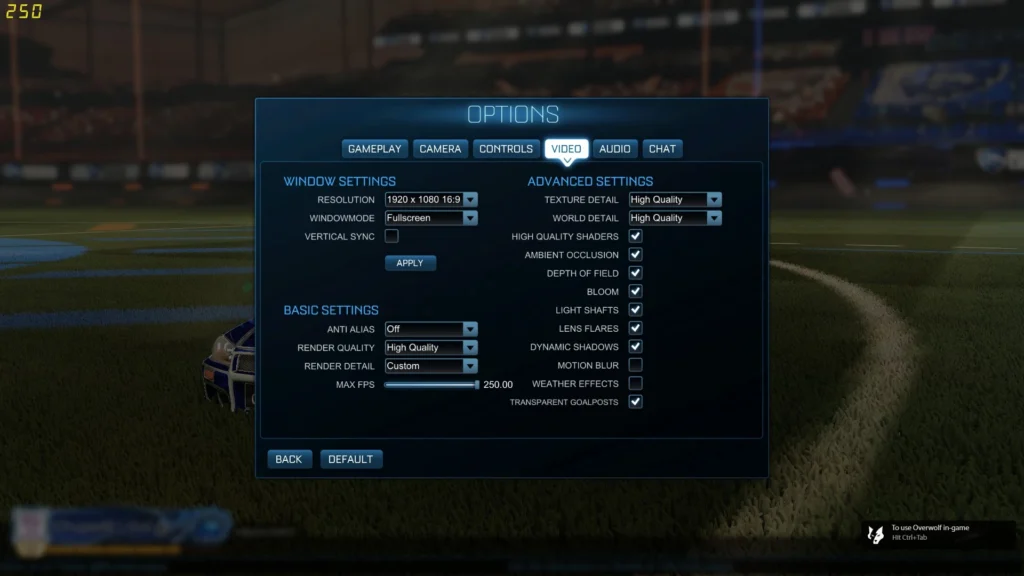
Understanding your camera’s behavior is crucial in Rocket League. With the default setup, many players feel disoriented or limited in field awareness. By tweaking your camera settings, you can:
- Improve car control
- Boost spatial awareness
- Execute precise aerials
- Enhance dribbling and 50/50s
- Reduce oversteering and understeering
- Make better reads on opponent movement
- Improve reaction time during fast-paced moments
- Align more naturally with rotation and game flow
Using the best rocket league camera settings reduces guesswork. You get a consistent visual field, better ball tracking, and more confidence in decision-making.
Improve your Rocket League performance with ExitLag’s network optimization tools, ensuring your adjusted camera settings work seamlessly online.
What Are the Best Camera Settings for Rocket League?
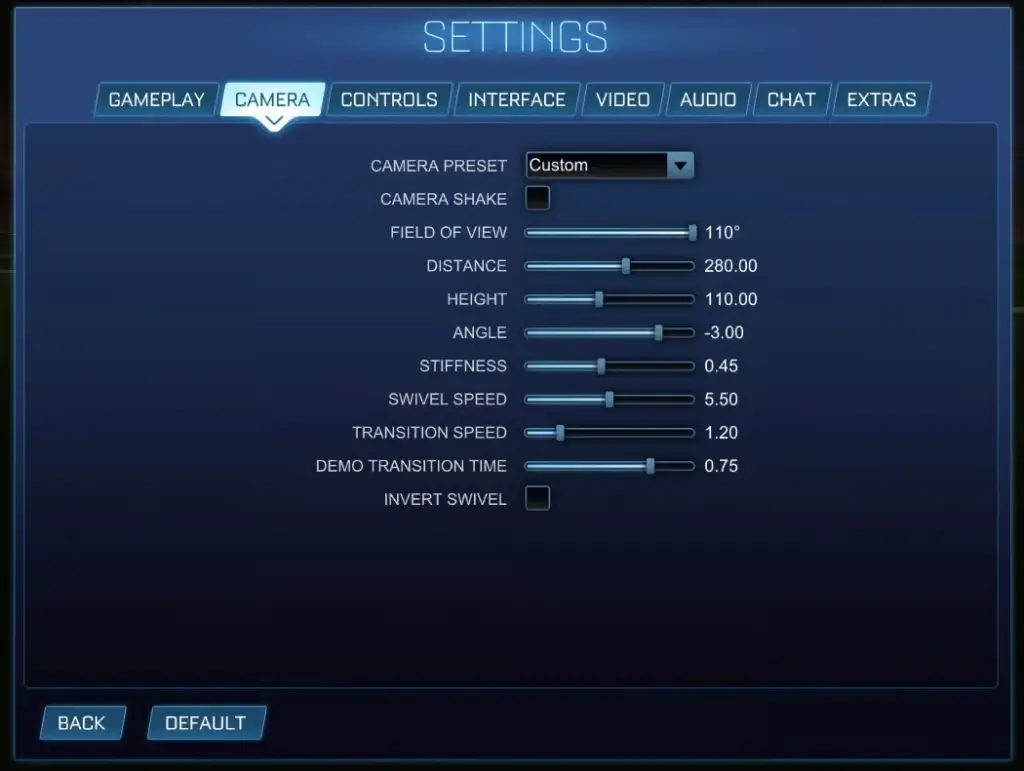
The best camera settings for Rocket League are those that balance field visibility and control comfort. Here’s a breakdown of settings many pros and top-ranked players use:
| Setting | Recommended Value |
| Camera Shake | Off |
| Field of View | 110 |
| Distance | 270 – 280 |
| Height | 100 – 110 |
| Angle | -3.0 |
| Stiffness | 0.40 – 0.50 |
| Swivel Speed | 5.0 – 7.0 |
| Transition Speed | 1.0 – 1.5 |
| Invert Swivel | Personal Preference |
Key Setting Highlights
- Camera Shake: Turning this off removes unnecessary visual disturbance.
- FOV (Field of View): 110 offers the widest and most practical scope.
- Distance & Height: Personal tweaks within the recommended range provide better car-to-ball perspective.
- Stiffness: Controls how closely the camera sticks to your car, impacting control feel.
- Transition Speed: Affects how quickly your camera shifts when toggling ball cam.
Always test changes incrementally. Even small differences in best camera settings Rocket League can impact your comfort and reaction speed.
Understanding Each Camera Setting in Depth
To fully benefit from optimal settings, it’s essential to understand what each value controls and how it impacts your play:
Field of View (FOV)
The wider your FOV, the more of the field you can see. A setting of 110 is widely considered optimal because it increases peripheral awareness, allowing better tracking of opponents and teammates.
Distance
This determines how far the camera is from your car. Higher values give a broader perspective, useful in rotations and wall play, but may reduce close control.
Height
Refers to how high the camera sits above your car. A setting between 100-110 gives a solid vertical angle to judge bounces and aerials.
Angle
Negative values tilt the camera downward. A -3.0 angle helps keep the ball and car in view without straining your eyes.
Stiffness
A higher stiffness makes the camera follow the car more tightly, reducing movement during speed changes. It’s ideal for players who want a more locked-in view during flips and dribbles.
Swivel Speed
Controls how quickly the camera rotates when manually adjusting view. Faster values aid awareness, while lower values help with stability.
Transition Speed
Affects how fast the view switches when toggling ball cam. Smooth transitions help maintain orientation.
What Are the Best Aerial Camera Settings Rocket League Players Use?
In high-level gameplay, aerial control makes or breaks your performance. The best aerial camera settings Rocket League pros use focus on precision and visibility:
Top Aerial-Focused Adjustments:
- FOV: Maximize to 110 for broader tracking
- Angle: Keep at -3.0 for accurate tilt
- Distance: Use 270 for consistent mid-air judgment
- Stiffness: Increase to 0.50 to stabilize camera during fast aerials
Why Aerial Settings Matter
Precision is everything during aerials. Your spatial awareness must be sharp to land fast aerials, redirects, and ceiling shots. A stable, wide camera angle ensures you can gauge depth, speed, and positioning with minimal correction.
Aerial play requires fast reaction and accurate depth judgment. These settings reduce disorientation mid-air and provide a better read of opponents challenging the ball.
Pro Tip: Practice with these settings in custom aerial training packs. This helps adjust your muscle memory to the new depth perception.
What Are the Best Ball Camera Settings Rocket League Players Prefer?
Toggling the ball cam effectively is a key skill. But with poor ball camera settings, the toggle can disorient or cause poor reads.
Optimize Ball Cam With These Tips:
- Swivel Speed: Set between 5.5 and 7.0 for responsive yet controllable motion
- Transition Speed: 1.2 or higher for smooth cam toggling
- Invert Swivel: Try both settings to see which improves your muscle memory
Ball cam helps you track the ball in chaotic moments, but toggling at the wrong time can make you lose control. Tuning these settings allows smoother transitions and better handling during recoveries.
You should train your toggling habits in Free Play and 1v1 matches. Watch replays to see when you’re losing awareness due to poor toggles.
How to Adjust and Test Your Camera Settings in Rocket League
- Open Options > Select Camera tab
- Toggle Camera Shake OFF
- Adjust FOV, Distance, Height, Angle to your comfort
- Test each change in Free Play or Custom Training
- Play Casual Matches before diving into Ranked
- Revisit settings monthly to refine as your skill improves
Bonus Tip: Save different camera presets for freestyling, competitive play, and 1v1 duels.
Additional Pro Camera Setups to Try
Explore these configurations from top Rocket League players:
Squishy Muffinz Settings
- Distance: 270
- Height: 100
- Angle: -3.0
- Stiffness: 0.45
- Swivel Speed: 5.0
Jstn Settings
- Distance: 270
- Height: 110
- Angle: -3.0
- Stiffness: 0.50
- Swivel Speed: 7.0
GarrettG Settings
- Distance: 270
- Height: 110
- Angle: -4.0
- Stiffness: 0.50
- Swivel Speed: 6.5
These slight variations show that while the best rocket league camera settings have a base standard, personalization is key.
Other notable pros like ViolentPanda and Kaydop often use higher stiffness and customized angles for consistency in tournaments. Observing pro replays can reveal how their settings influence their reactions.
Should You Use Pro Camera Settings in Rocket League?
Yes, but with adjustments. While pro settings provide a solid starting point, each player’s control sensitivity, monitor size, and playstyle differ.
- Taller FOV helps for widescreen monitors
- Lower height suits players who prefer tighter car control
- Faster swivel speed aids aggressive players
- Some prefer slightly more distance for rotation clarity
Remember, camera settings aren’t static. As you evolve in rank and mechanics, your preferences might shift. Re-evaluate your setup regularly.
Final Thoughts: Best Camera Settings Rocket League Players Swear By
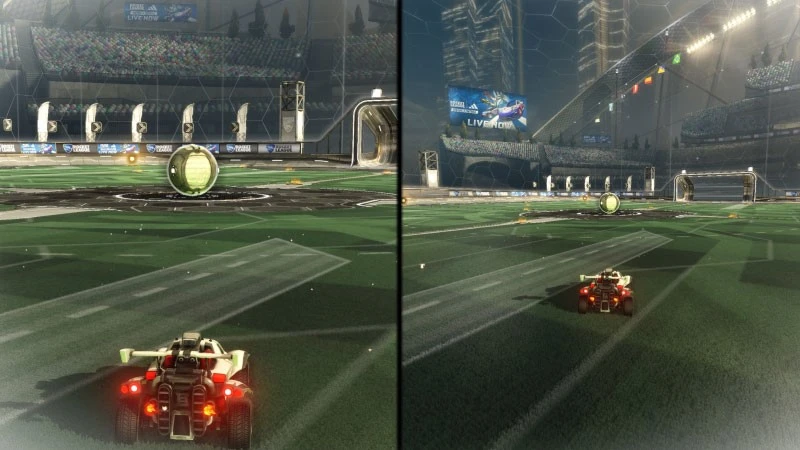
Take control of your visual experience—your camera is just as important as your mechanics. A consistent, personalized camera view enhances your confidence, reactions, and execution.
Whether you’re optimizing for aerial consistency or better ball cam transitions, take time to personalize the camera to your style. And remember, ExitLag ensures that your network stays as sharp as your camera settings.
Mastering the best camera settings Rocket League can instantly level up your gameplay. These adjustments influence how you perceive the field, react to plays, and execute advanced mechanics.
FAQ: Best Camera Settings Rocket League
What are the best camera settings in Rocket League for beginners?
Start with FOV 110, Distance 270, Height 100, Angle -3.0, and Stiffness 0.45. These are forgiving and help new players adapt.
How do I know if my camera settings are good?
If you can track the ball, control your car mid-air, and feel aware of opponents, your settings are working.
What is camera stiffness in Rocket League?
It controls how much the camera lags behind your car. Higher stiffness = more stable view.
Do pros use the same camera settings in Rocket League?
Most pros use similar settings but adjust them slightly for personal comfort and monitor setup.
Should I copy pro settings or make my own?
Start with pro settings and adjust gradually based on your playstyle and how you feel in game.
Is camera shake really that bad in Rocket League?
Yes. Camera shake introduces unnecessary visual movement, which can throw off your aim and tracking during high-speed moments.
How often should I adjust my Rocket League camera settings?
Reassess your camera every few months or when you feel discomfort, inconsistency, or visual confusion in matches.
Do Rocket League camera settings affect car control?
Absolutely. Better camera positioning helps you align your car correctly with the ball and improves mechanical consistency over time.
Can changing camera settings reduce Rocket League tilt?
Yes. Having visual clarity and personalized control often reduces frustration, which can help your mental game.
Got questions or want to connect with other players? Join the conversation at the ExitLag Forum!