Roblox feels amazing when everything is smooth: your camera tracks instantly, movement feels responsive, and fast-paced experiences stop looking like a slideshow. That is the real goal behind an FPS boost in Roblox—clean motion, consistent frame pacing, and control that matches your skill.
But when your FPS dips or your connection spikes, Roblox can feel unpredictable. You get tiny freezes when the server catches up, delayed hits in competitive games, and camera stutters that ruin movement. If your issue includes unstable ping, start here: this Roblox high ping fix guide.
This guide shows how to get an FPS boost in Roblox using ExitLag as the main stability tool, plus system and in-game tweaks to increase FPS and keep more FPS during crowded lobbies, heavy effects, and peak hours. For a fast start, download from the official ExitLag website and test it in the same Roblox experience with ExitLag OFF vs ON.
Activate the ExitLag free trial for gamers and benchmark your Roblox performance in a real match.
Why FPS matters
Why high FPS is crucial in Roblox
Roblox is not “one game.” It is a platform with competitive shooters, arena fighters, parkour, roleplay hubs, survival games, racing, and massive social experiences. In many of these, high and stable FPS is the difference between:
- clean camera control ✅
- consistent movement timing ✅
- accurate aim in FPS experiences ✅
- smoother building and editing ✅
- fewer motion-sickness moments ✅
If you want an FPS boost in Roblox, stability matters as much as the raw number.
What FPS is: Frames Per Second
FPS is how many images your computer renders every second. Picture it like a camera filming motion:
- 30 FPS feels choppy, especially during fast turns
- 60 FPS feels smooth and playable for most users
- 144 FPS feels crisp, sharp, and easier to track motion
Impact snapshot:
- 30 → 60 FPS is a massive smoothness jump ✅
- 60 → 144 FPS improves tracking and precision ✅
- high FPS with bad frame pacing still feels rough ⚠️
Benefits of high FPS in Roblox
Here is what stable high FPS gives you across Roblox experiences:
- smoother camera movement in fast traversal ✅
- better aim consistency in competitive shooters ✅
- faster reaction timing in PvP and arena modes ✅
- more precise jumps in obbies and parkour ✅
- cleaner hit registration feel when the match is stable ✅
- less visual fatigue in long sessions ✅
- better performance in crowded servers and events ✅
That is why an FPS boost in Roblox is not just a flex—it is a quality-of-play upgrade.
FPS rating for Roblox
| FPS range | Quality | Experience | Competitive? |
| 144+ FPS | ⭐⭐⭐⭐⭐ Excellent | Perfect | ✅ Ideal |
| 90–144 FPS | ⭐⭐⭐⭐ Great | Very good | ✅ Yes |
| 60–90 FPS | ⭐⭐⭐ Good | Acceptable | ⚠️ Slight disadvantage |
| 30–60 FPS | ⭐⭐ Fair | Choppy | ❌ Hard to compete |
| <30 FPS | ⭐ Bad | Unplayable | ❌ Impossible |
High FPS vs pretty graphics
Roblox experiences vary wildly in visual load. Some maps use heavy lighting, particles, reflections, and dense geometry. In competitive or fast gameplay, prioritize:
- performance over visuals ✅
- stable frame time over peak FPS ✅
- input responsiveness over effects ✅
A clean FPS boost in Roblox usually comes from balancing graphics and stability—not maxing everything.
Why Roblox can feel choppy even with decent FPS
Frame time is the hidden enemy
You can sit at 80–120 FPS and still feel stutters if frame time spikes. Your eyes and hands feel:
- stable frame pacing ✅
- consistent 1% lows ✅
- fewer sudden spikes ✅
That is why a stability-first FPS boost in Roblox often feels bigger than the FPS counter suggests.
Micro-stuttering can be network-driven
Roblox is online-first. When routing is unstable or jitter rises, you can see:
- sudden camera hitches
- movement corrections
- rubber-banding moments
- mini-freezes when the client resyncs
Those moments are frequently described as micro-stutters—and they are a common reason players chase an FPS boost in Roblox.
Input delay makes everything feel slower
The loop is simple:
Input → server → response → frame
When the loop is inconsistent, your movement and aim feel late. Fixing stability can make the game feel like more FPS without changing hardware.
How ExitLag increases FPS in Roblox
What ExitLag is and why it is not a VPN
ExitLag is a gaming network optimizer focused on stability for online games.
ExitLag is NOT a VPN. A typical VPN focuses on privacy and location routing. ExitLag focuses on performance routes, jitter reduction, and stable packet delivery.
Learn the fundamentals here: how ExitLag works for gaming.
How ExitLag can improve FPS feel in Roblox
ExitLag does not upgrade your GPU. What it can do is reduce network instability that triggers:
- micro-stuttering ✅
- resync spikes ✅
- inconsistent input response ✅
- heavy movement feel ✅
That is why many players describe an FPS boost in Roblox after enabling ExitLag—the game simply feels smoother.
7 ways ExitLag supports an FPS boost
- micro-stutter reduction ✅ ExitLag helps stabilize routing so fewer correction hitches happen mid-action.
- lower perceived input lag ✅ more consistent delivery makes movement and aim feel sharper.
- frame time stability improvements ✅ fewer spikes can make the experience feel smoother even at similar average FPS.
- multi-path routing optimization ✅ ExitLag can avoid weak ISP hops that cause jitter.
- gaming traffic prioritization ✅ cleaner packet handling reduces interference from background traffic.
- lower latency to better nodes ✅ better sync often reduces the delayed feedback feeling.
- more reliable routing under congestion ✅ stability during peak hours can preserve more FPS feel.
Check supported titles using the ExitLag supported games list.
ExitLag vs other FPS boost solutions
| Solution | Increases FPS? | Reduces lag? | Stability | Ease | Recommendation |
| ExitLag | ✅ Yes stability-driven | ✅✅✅ Excellent | ⭐⭐⭐⭐⭐ | ⭐⭐⭐⭐⭐ | ✅ Best |
| Common VPN | ❌ Often worse | ❌ Often worse | ⭐⭐ | ⭐⭐⭐ | ❌ Avoid |
| Game booster apps | ⚠️ Minimal | ❌ No | ⭐⭐⭐ | ⭐⭐⭐⭐ | ⚠️ Limited |
| Windows tuning | ⚠️ Some | ❌ No | ⭐⭐⭐ | ⭐⭐ | ⚠️ Helpful |
| Hardware upgrade | ✅ Yes | ❌ No | ⭐⭐⭐⭐ | ⭐ | 💰 Expensive |
| Doing nothing | ❌ No | ❌ No | ⭐ | ⭐⭐⭐⭐⭐ | ❌ Bad results |
Why ExitLag works so well for Roblox
Roblox servers and experiences can be chaotic: crowded lobbies, fast PvP, heavy effects, and variable server quality. ExitLag helps by focusing on:
- route stability ✅
- reduced jitter ✅
- fewer correction spikes ✅
Download from the official ExitLag website and activate your ExitLag free trial for gamers.
How to configure ExitLag for maximum FPS
Installation and first setup
- Download from the official ExitLag website
- Install ExitLag in under a minute in most cases ✅
- Create an account using the ExitLag account registration page
- Activate testing with the ExitLag free trial page
- Open ExitLag and search for Roblox
- choose the best region based on stability, not only distance ✅
- apply optimized routes
- launch Roblox and enter a consistent test scenario
- compare results with ExitLag OFF vs ON
- fine-tune advanced settings if needed
Advanced ExitLag settings to try in Roblox
To push a stronger FPS boost in Roblox, test:
- automatic vs manual routing ⚠️
- alternate regions during peak congestion ✅
- traffic shaping options to reduce background interference ✅
- multi-routing options for higher stability ✅
For deeper technical context, revisit how ExitLag works for gaming.
How to test FPS changes the right way
Use repeatable conditions:
- same Roblox experience ✅
- same server type if possible ✅
- same graphics settings ✅
- same time window peak hours matter ✅
- track average FPS and 1% lows ✅
Recommended tools:
- an FPS overlay like RTSS for consistent tracking
- Windows Task Manager to watch CPU and GPU usage
- in-experience benchmarks if the experience supports it
Console and mobile notes
Roblox runs on console and mobile, but ExitLag is primarily a PC routing tool. If you are on console, you can still benefit indirectly by improving your home network path through a PC hotspot method, but the most reliable FPS boost in Roblox path is on PC where you control routing and system settings.
Real FPS boost results
What realistic results look like
In Roblox, the best results are often stability improvements:
- fewer stutters ✅
- fewer server catch-up hitches ✅
- smoother camera movement ✅
- more consistent aim feel ✅
That is why an FPS boost in Roblox is often described as smoothness first.
Success cases examples
Case 1 player South America Before: 85 FPS average with drops 40–120 After: 92 FPS average with stable 70–120 Improvement: +8% average and major stability gain ✅ Micro-stuttering: near eliminated ✅
Case 2 player North America Before: 120 FPS average with drops 65–165 After: 126 FPS average with stable 95–165 Improvement: +5% average and improved 1% lows ✅
Case 3 competitive group Before: inconsistent fights during peak congestion ❌ After: cleaner timing, fewer random hitches ✅ Impact: more consistent duels and movement ✅
Performance comparison table
| Metric | Without ExitLag | With ExitLag | Gain |
| Average FPS | 120 FPS | 126 FPS | +5% |
| Minimum FPS | 65 FPS | 95 FPS | +46% ✅ |
| Frame time | 9.2 ms | 7.6 ms | -17% ✅ |
| Micro-stutters/min | 6 | ~0 | -95%+ ✅ |
| Input lag | 42 ms | 34 ms | -19% |
| Ping | 58 ms | 44 ms | -24% |
| Experience | ⭐⭐ | ⭐⭐⭐⭐⭐ | Transformative |
Competitive impact you can feel
A stable FPS boost in Roblox can show up as:
- smoother tracking in shooter experiences ✅
- fewer missed jumps in parkour ✅
- better reaction timing in PvP ✅
- less frustration from random hitches ✅
Extra optimizations to maximize FPS with ExitLag
In-game settings that usually help in Roblox
Not every experience exposes the same options, but these principles often help you increase FPS:
- lower graphics quality one step at a time ✅
- reduce shadows and lighting effects when available ✅
- turn off heavy post effects if the experience allows ✅
- use fullscreen mode on PC ✅
- cap FPS slightly below your stable peak for smoother pacing ✅
If your goal is an FPS boost in Roblox, prioritize stable frame time over extreme visual quality.
Windows optimizations for more FPS
These are safe baseline changes that often help you get more FPS:
- set Power Mode to Best performance ✅
- disable unnecessary startup apps ✅
- close browsers and heavy background processes ✅
- update GPU drivers ✅
- disable overlays you do not need ✅
- ensure your PC is not thermally throttling ✅
Hardware optimizations without spending money
- clean fans and filters ✅
- improve airflow intake and exhaust ✅
- keep your laptop on a hard surface for cooling ✅
- monitor temperatures during Roblox sessions ✅
Key truth: cooling is performance.
GPU settings checklist
NVIDIA settings
- prefer maximum performance ✅
- low latency mode on test ✅
- V-Sync off ✅
AMD settings
- Anti-Lag on test ✅
- performance profiles tuned for gaming ✅
Why network optimization can improve FPS feel
The lag and FPS connection
Roblox is a live client-server environment. When your route is unstable:
- packets arrive inconsistently
- the client corrects state
- corrections create tiny freezes
- freezes break frame pacing
That is why ExitLag can support an FPS boost in Roblox as a stability multiplier.
Packet loss and micro-stutters
Packet loss can trigger:
- retransmits
- prediction errors
- resync spikes
Symptoms:
- hitching mid-fight ❌
- delayed interactions ❌
- sudden camera jitter ❌
Reducing instability often creates more FPS feel because the game stops freezing during corrections.
Frame time consistency is the real goal
- high FPS with unstable frame time still feels rough ⚠️
- moderate FPS with stable frame time feels clean ✅
That is why a real FPS boost in Roblox should be measured by stability and 1% lows, not only average FPS.
FAQ
Does ExitLag really increase FPS in Roblox?
Yes. ExitLag can support an FPS boost in Roblox by reducing micro-stutters and improving stability through network optimization.
Raw FPS is what your GPU renders. Perceived smoothness is what stable pacing and low jitter create.
How much FPS will I gain?
It depends on:
- your ISP routing quality
- peak-hour congestion
- jitter and packet loss
- the Roblox experience and its server behavior
Typical improvements:
- smoother pacing ✅
- fewer stutters ✅
- better 1% lows ✅
- sometimes a modest average FPS increase ✅
Will ExitLag help on a weak PC?
ExitLag optimizes network stability, not GPU power. It can help you keep gameplay stable and reduce stutters, but it will not turn a low-end PC into a high-end one. It complements hardware limits.
Is ExitLag safe to use?
Yes. ExitLag does not modify Roblox files. It optimizes routing for your gaming traffic. Use only official pages like the official ExitLag website.
Does ExitLag work on console?
Roblox exists on consoles, but the most direct results come from PC routing control. If you want the cleanest FPS boost in Roblox, use ExitLag on PC. Console users can test alternative home-network setups, but results will vary.
Do I need fast internet for ExitLag?
Not necessarily. ExitLag optimizes route quality, not bandwidth. A stable connection with moderate speed can outperform a fast unstable one in online games.
What is the difference between ExitLag and a VPN?
ExitLag is NOT a VPN.
| Feature | ExitLag | VPN |
| Main goal | Gaming performance | Privacy and location |
| Route optimization | ✅ Yes | ⚠️ Not gaming-first |
| Jitter reduction | ✅ Yes | ❌ Not designed for it |
| Competitive feel | ✅ Often better | ❌ Often worse |
Learn more here: how ExitLag works for gaming.
How much does ExitLag cost?
Avoid outdated numbers. Check plans on the ExitLag pricing and plans page. You can test first using the ExitLag free trial page.
Does ExitLag support Roblox?
Roblox support can vary by region and app listing. Confirm your current availability using the ExitLag supported games list.
Can Roblox be capped to a lower FPS by an experience?
Yes. Some experiences and hardware profiles behave differently. Even when average FPS is capped, stability improvements can still make gameplay feel smoother.
Why do some Roblox servers feel worse than others?
Server load and routing quality can differ. That is exactly why stability tools like ExitLag can matter.
Create your account via the ExitLag account registration page and start testing with the ExitLag free trial for gamers.
Side-by-side comparison
Experience without ExitLag
- ❌ FPS feels unstable in crowded servers
- ❌ micro-stuttering during fast camera turns
- ❌ random hitching during PvP
- ❌ input feels delayed under congestion
- ❌ inconsistent match quality
- ❌ frustration builds fast
Experience with ExitLag
- ✅ smoother frame pacing
- ✅ fewer micro-stutters
- ✅ more consistent timing in PvP
- ✅ sharper input response
- ✅ better stability during peak hours
- ✅ more enjoyable sessions
Side-by-side table
| Aspect | Without ExitLag | With ExitLag |
| FPS feel | Unstable | Stable ✅ |
| Stuttering | Frequent | Rare/none ✅ |
| Input response | Slower | Sharper ✅ |
| Consistency | ⭐⭐ | ⭐⭐⭐⭐⭐ ✅ |
| Competitive play | Disadvantage | Advantage ✅ |
| Fun factor | ⭐⭐ | ⭐⭐⭐⭐⭐ ✅ |
Conclusion
If you want an FPS boost in Roblox, the best path is not only lowering graphics—it is improving stability so Roblox stops stuttering when the server or route becomes messy. With ExitLag, many players get smoother frame pacing, fewer micro-stutters, and better perceived responsiveness, which can feel like more FPS even when average FPS changes only slightly.
ExitLag is NOT a VPN. It is a gaming stability tool designed for performance routes and smoother online play.
How to use ExitLag in Roblox
The process is extremely simple:
Step 1 – Access the official ExitLag website and download the application. There’s a free trial period for new users.
Step 2 – Install and open the program. Log in with your account.
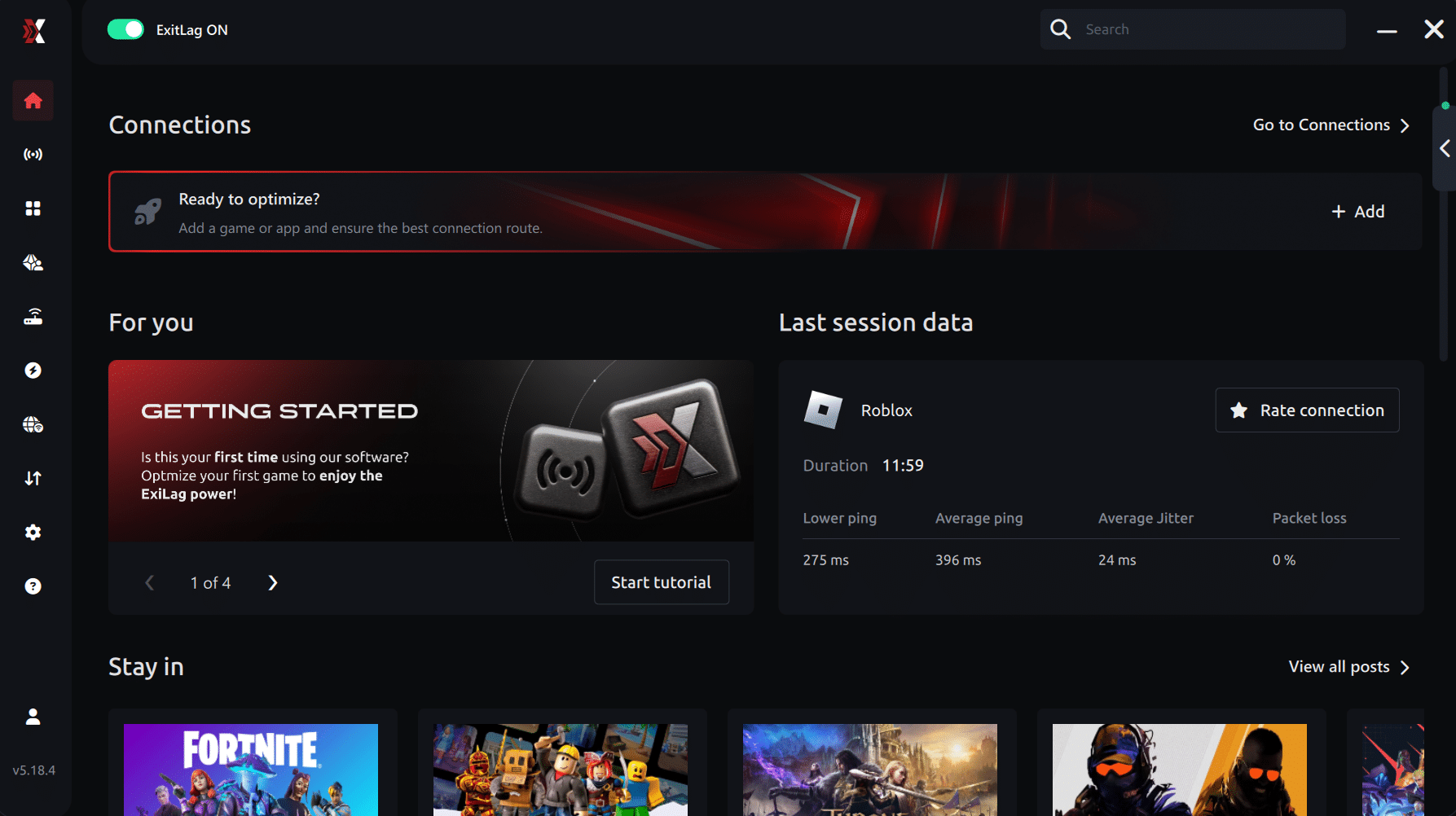
Step 3 – In the search bar, type “Roblox” and select the game from the list.
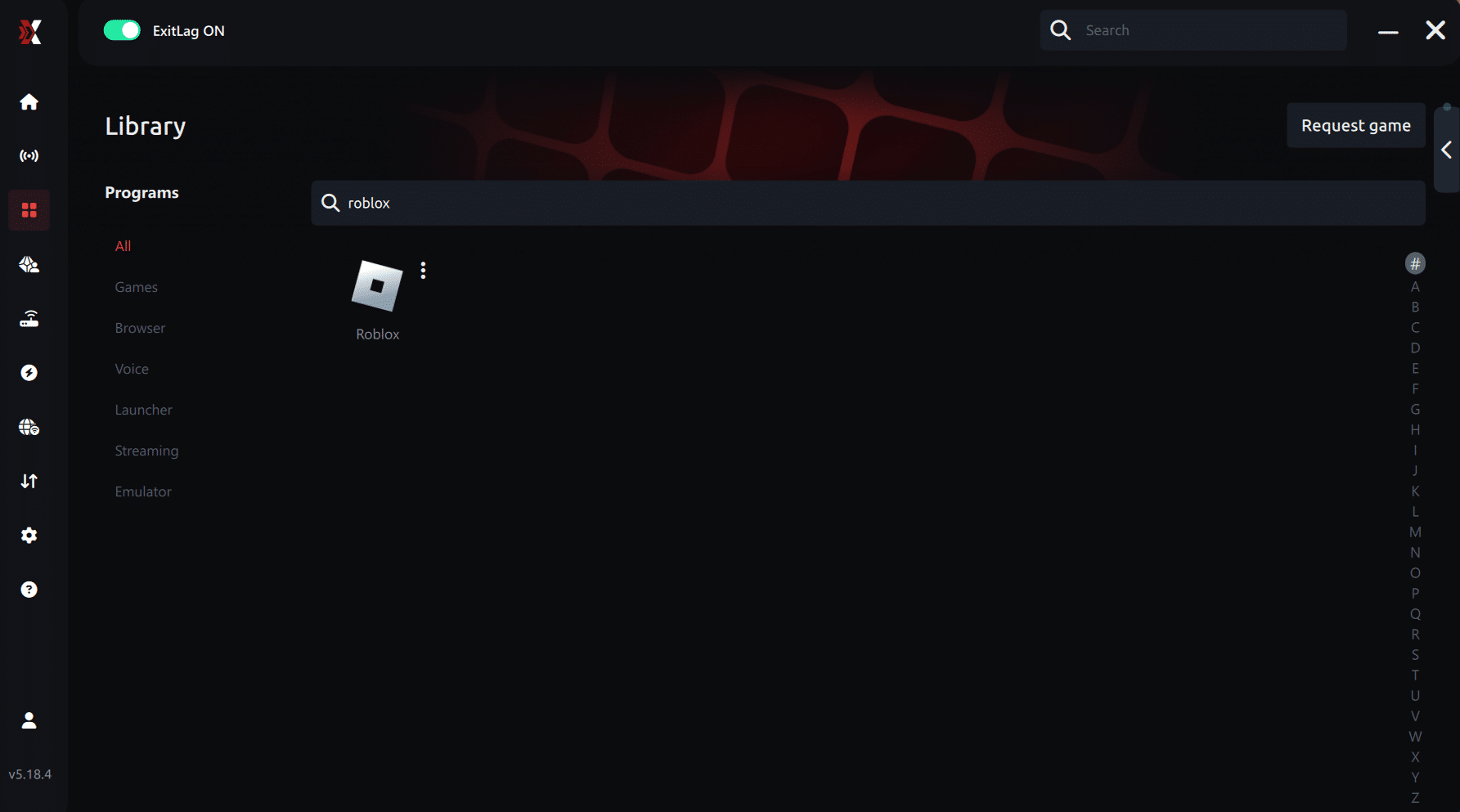
Step 4 – Choose between automated or manual route
Based on the results, you can let ExitLag automatically select the best route or manually choose the server that showed the lowest latency for your connection.
AI-optimized automated route
Based on the results, you can let ExitLag automatically select the best route through AI optimization. The system analyzes multiple connection paths in real time and automatically identifies the most efficient route for your connection, ensuring the lowest possible latency without requiring manual choices.
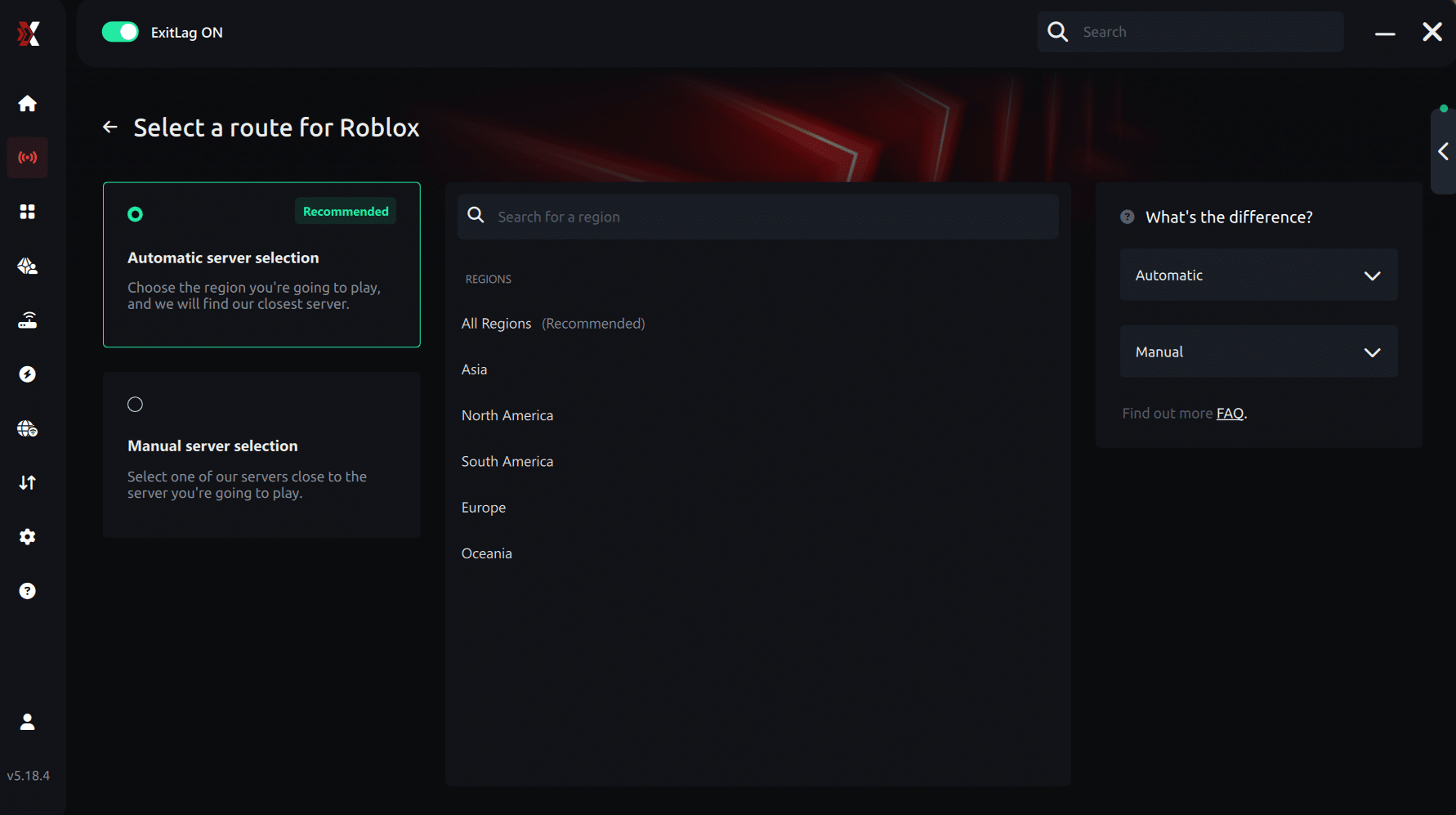
Manual route
If you prefer to have full control over your connection, you can manually choose the server based on the ping test results. Simply select the server that showed the lowest latency or the one that best meets your specific gaming needs, allowing complete customization of your experience.
Step 5 – Click “Apply routes” or the play button. ExitLag will begin optimizing your connection automatically.
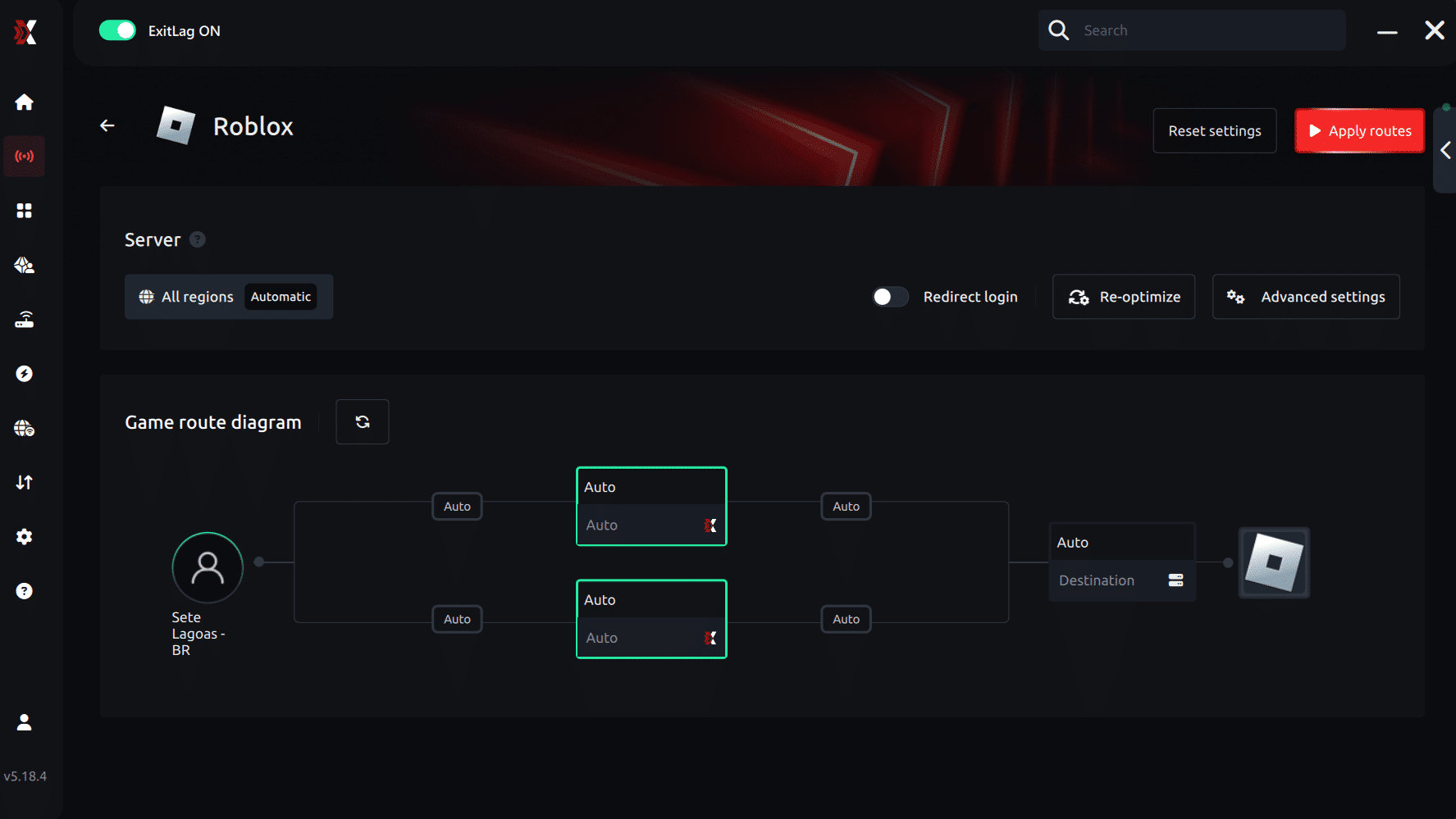
Step 6 – Wait a few seconds until optimization is complete. You’ll see ping indicators in the interface.
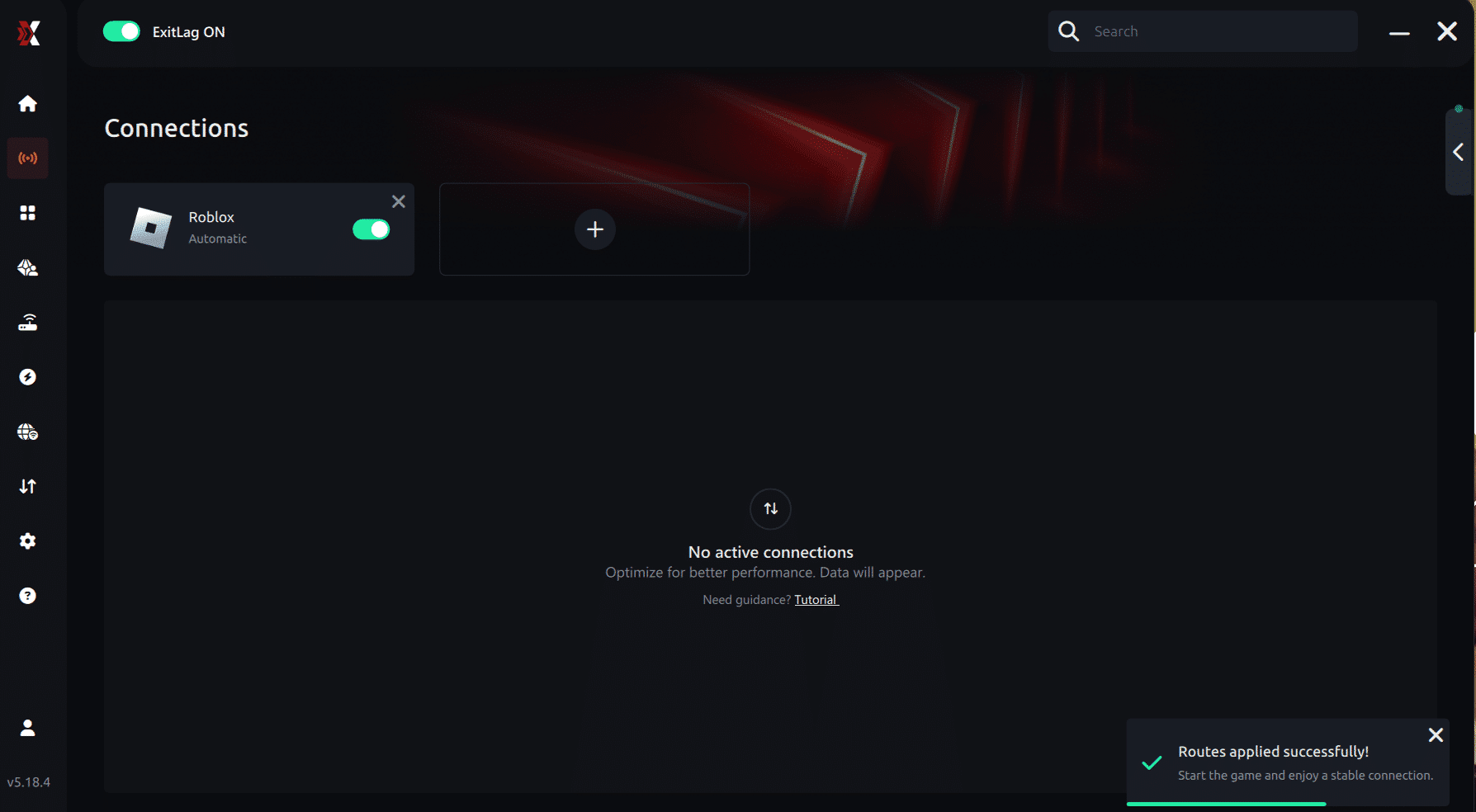
Step 7 – Launch Roblox normally. The optimization will already be active.
ExitLag runs in the background while you play, constantly adjusting routes to maintain the best possible performance.
How to use Ping for Games: step-by-step guide (Roblox)
Checking your connection quality before entering a game has never been easier. Here’s how to use Ping for Games in just a few steps:
1. Open the ExitLag software on your PC Ensure the application is installed and open. The feature is integrated into the platform and available for free to all users.
2. Access the Network Analyzer tool Locate the Network Analyzer in the software menu. This is where you’ll find Ping for Games along with other connection analysis features.
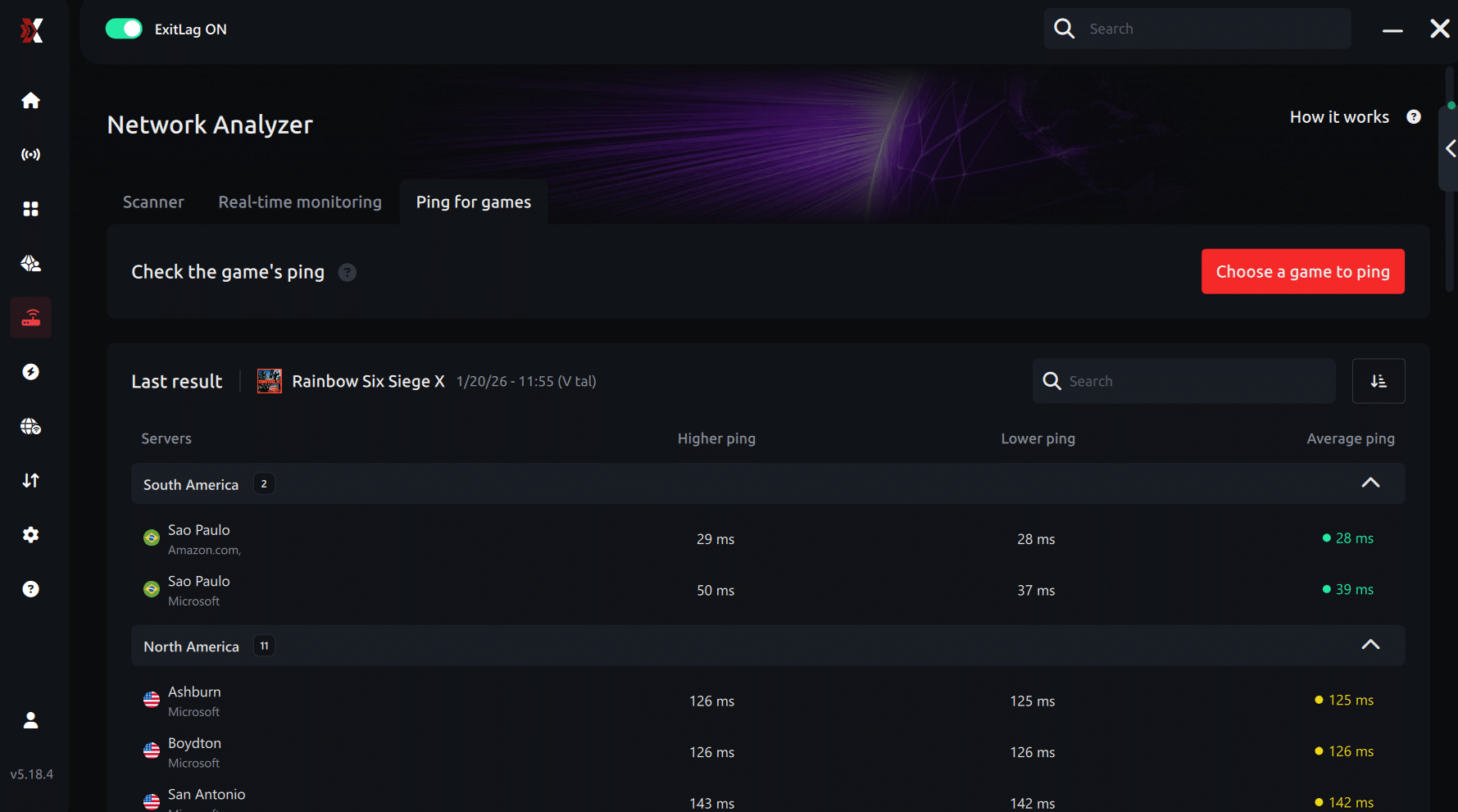
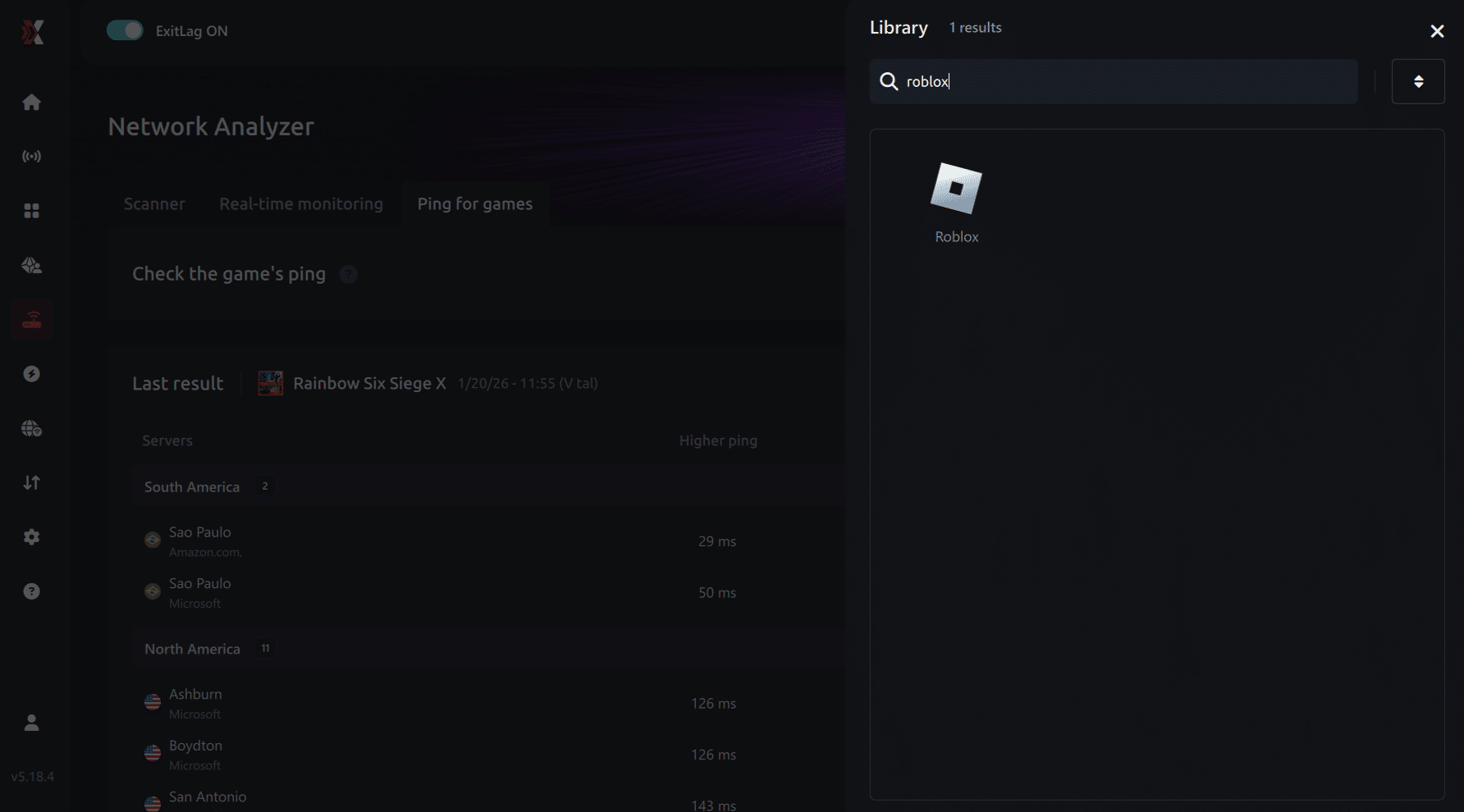
3. Select the game you want to test Choose Roblox from the list. The tool supports major online multiplayer games, including FPS, Battle Royales, MOBAs, MMORPGs, and more.
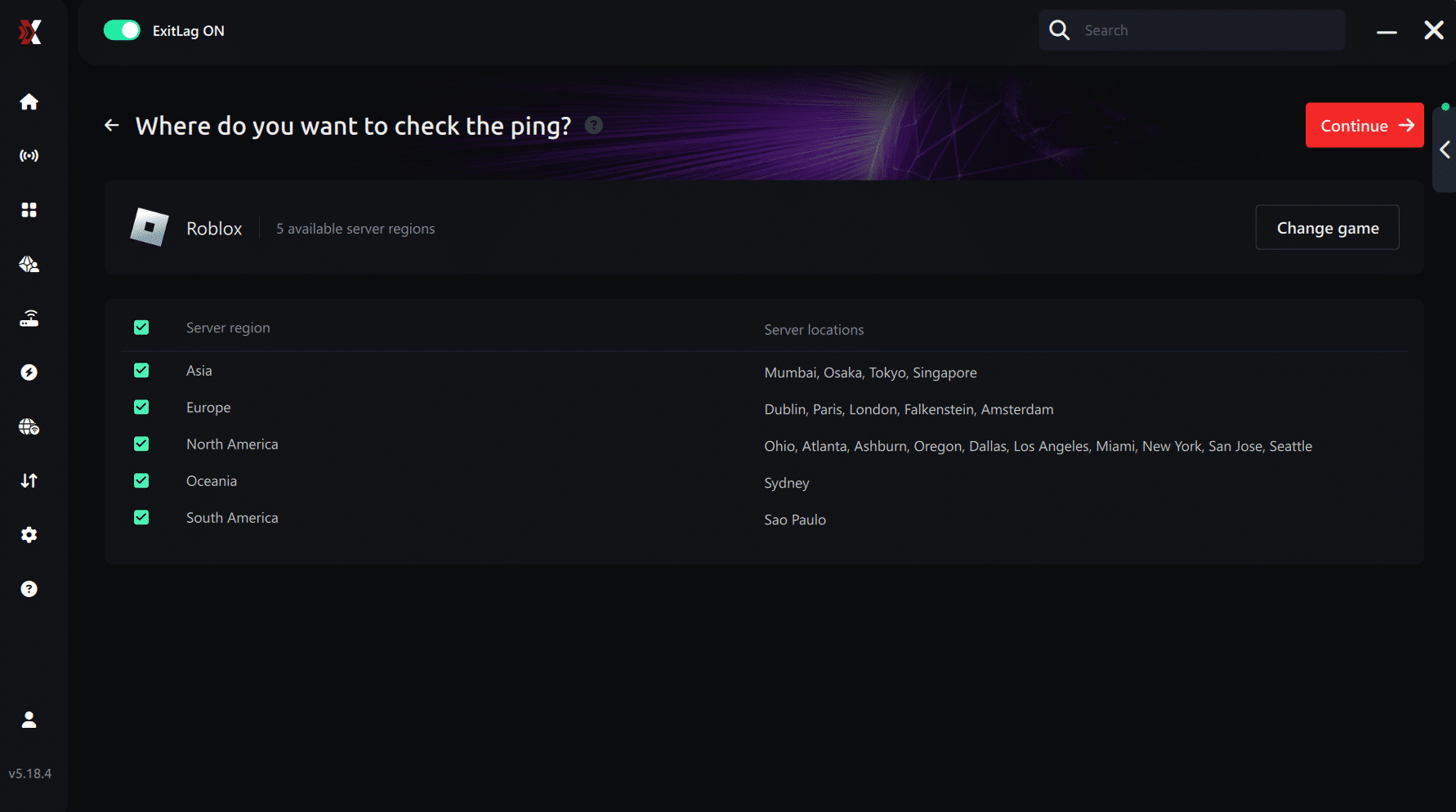
4. Choose the specific server Select the exact Roblox server you want to test instead of a generic region. This ensures more accurate results for your match or experience.
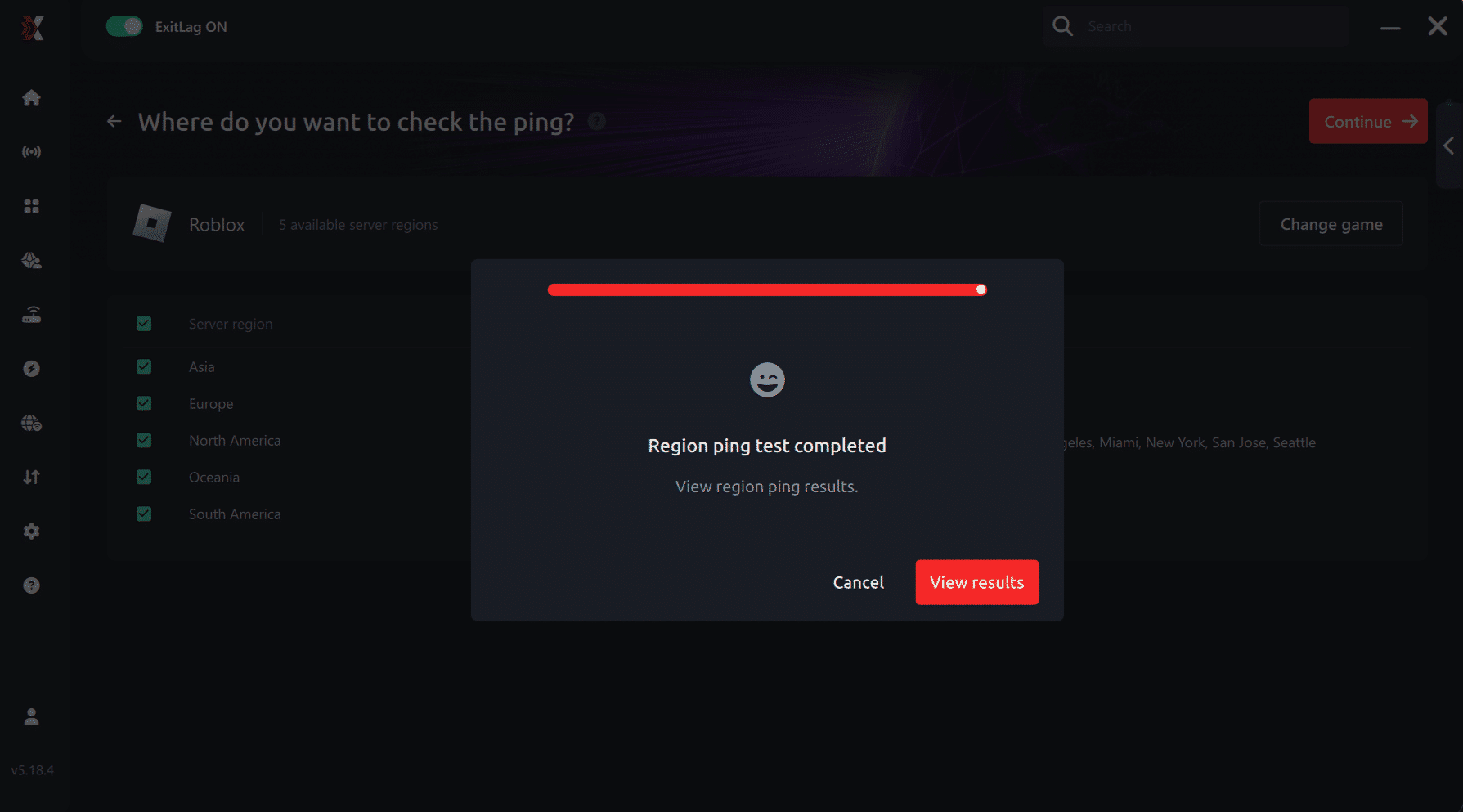
5. Start the ping test With one click, the measurement is performed in real time between your device and the selected Roblox server, considering your current connection (cable or Wi-Fi).
6. Analyze the results Results appear in milliseconds (ms), automatically sorted from best to worst ping. You can also reorganize the view alphabetically if you prefer.
7. Choose the best server and play worry-free With this information, simply select the server with the lowest latency and jump into Roblox knowing your connection is optimized.
Final thoughts: Play Roblox without lag forever
At the end of the day, Roblox lag should never ruin your experience. Whether you’re playing competitive games, role-play servers, or just chilling with friends, your internet connection should never be the reason things go wrong.
With ExitLag, you finally take control of your network performance. The software finds the fastest routes, eliminates lag, and stabilizes your ping so that every move, every action, and every interaction happens exactly when you want it to.
Try ExitLag for free right now and experience how smooth Roblox can be when your connection is fully optimized. Play with confidence, have more fun, and make lag a thing of the past.