You’re in the middle of a full-scale Battlefield 2042 match. Explosions are ripping through buildings, vehicles are crashing into objectives, jets roar overhead, and dozens of players clash over a single capture point. You line up a perfect shot in a close-range gunfight — and suddenly the screen stutters. That split-second FPS drop em Battlefield 2042 throws off your aim, your recoil control breaks, and you’re eliminated instantly. In a competitive shooter where reaction time is everything, losing even one frame can decide the outcome of the fight.
The issue becomes far more intense in 128-player modes. Massive maps, dynamic weather, large-scale destruction, and constant explosions push both hardware and servers to their limits. During peak chaos, FPS drop em Battlefield 2042 makes the game feel inconsistent: aiming becomes less precise, movement feels heavy, and hit registration appears unreliable. Many players experiencing this look for network-related fixes, such as those discussed in the Battlefield 2042 high ping guide on the ExitLag blog, only to discover that performance problems are rarely caused by a single issue.
The reality is that FPS instability in Battlefield 2042 is usually a combination of render load and connection instability. Micro-stuttering caused by delayed packets, unstable routing, and server synchronization issues often looks exactly like FPS loss. This is where ExitLag becomes a critical tool. By optimizing routes, stabilizing packet delivery, and reducing network fluctuations, ExitLag helps Battlefield 2042 run smoother and feel more responsive — even in the most chaotic scenarios. You can start optimizing your experience today through the official ExitLag website.
What Is FPS Drop and Why It Happens in Battlefield 2042?
Understanding FPS (Frames Per Second)
FPS represents how many frames your system renders every second. In a fast-paced shooter like Battlefield 2042, consistent FPS directly affects aiming precision, recoil control, and movement fluidity.
FPS performance tiers:
- 144+ FPS — Ultra-smooth gameplay, ideal for competitive players
- 60–120 FPS — Smooth and stable for most matches
- 30–60 FPS — Playable, but stuttering becomes noticeable during explosions
- Below 30 FPS — Severe freezes, delayed input, and poor responsiveness
Because Battlefield 2042 combines large maps, complex physics, and heavy visual effects, even powerful PCs can experience sudden FPS drops when multiple systems are stressed simultaneously.
Difference Between FPS Drop and Network Lag
FPS drop and network lag are often confused, but they originate from different sources and require different solutions.
| Aspect | FPS Drop | Network Lag |
| Cause | GPU/CPU overload, heavy rendering, high graphics demand | Poor routing, high ping, packet loss, jitter |
| Symptom | Visual stuttering, frozen frames, slow animations | Rubberbanding, delayed hit registration, player teleporting |
| Solution | Graphics and hardware optimization | ExitLag |
This distinction is critical because many cases of FPS drop em Battlefield 2042 are actually caused by unstable packet delivery. When the engine waits for delayed data from the server, it pauses frame updates, creating micro-stutters that feel like low FPS.
Why Battlefield 2042 Suffers from FPS Drop
Battlefield 2042 runs on the Frostbite engine, known for its advanced visuals, large-scale destruction, and realistic physics — but also for its high system demands.
1. Massive Player Count
With up to 128 players per match, the game must constantly process:
- Player movement and positioning
- Weapon fire and hit detection
- Vehicles, aircraft, and gadgets
- Physics-based destruction
All of this happens in real time and heavily taxes CPU threads.
2. Destruction and Environmental Effects
Battlefield 2042 features:
- Dynamic weather systems
- Tornadoes and storms
- Explosions and debris
- Collapsing structures
These effects place continuous strain on both GPU rendering pipelines and CPU calculations.
3. Server-Authoritative Gameplay
Most actions are validated server-side. If your connection is unstable, the engine may wait for confirmation before updating animations, leading to perceived FPS drops even when your hardware is capable.
4. High CPU Usage During Combat
The Frostbite engine relies heavily on CPU performance during large battles, especially when infantry, vehicles, and environmental destruction occur simultaneously.
5. Network Instability Affecting Frame Pacing
If your connection experiences:
- jitter
- packet loss
- unstable routing
…the game may pause animations while waiting for missing packets. This results in FPS drop em Battlefield 2042 even when GPU usage appears normal.
7 Main Causes of FPS Drop in Battlefield 2042
Below are the most common causes, expanded with Battlefield-specific context.
1. Overheating and Thermal Throttling
What happens:
Battlefield 2042 pushes CPUs and GPUs to sustained high usage, especially in long matches. When temperatures exceed safe limits, thermal throttling reduces clock speeds to prevent damage.
Symptoms:
- FPS slowly degrading over time
- Sudden stutters during explosions
- GPU or CPU frequency drops
How to identify:
Use monitoring tools to track temperature spikes, power limits, and clock instability.
2. Outdated or Unoptimized Drivers
The Frostbite engine relies on modern driver optimizations for shader compilation and asset streaming.
What happens:
Outdated drivers cause shader stutter, inconsistent rendering, and performance drops after game patches.
Symptoms:
- FPS drop after updates
- Delayed texture loading
- Inconsistent visual quality
3. Graphics Settings Too Aggressive
Certain settings heavily impact performance:
- Shadows
- Post-processing effects
- Volumetric lighting
- Ray tracing (when enabled)
How to identify:
FPS drops sharply when explosions, smoke, or weather effects appear on screen.
4. Background Processes
Applications competing for CPU cycles or bandwidth include:
- Discord overlays
- Browsers with multiple tabs
- Streaming or recording software
- System update services
Symptoms:
- FPS drops aligned with notifications
- Stutters during background activity
5. Insufficient Hardware
Battlefield 2042 is particularly demanding on the CPU.
What happens:
Older or weaker CPUs struggle with:
- Player tracking
- Physics calculations
- AI processing
- Destruction events
Symptoms:
Low GPU utilization combined with low FPS during large fights.
6. Network Instability Misinterpreted as FPS Drop
One of the most overlooked causes of FPS drop em Battlefield 2042.
If packets arrive late or out of order, the engine pauses frame updates to maintain synchronization, resulting in:
- Micro-stuttering
- Frozen animations
- Inconsistent aiming
This category of FPS drop cannot be fixed with graphics settings alone.
7. Large-Scale Combat Scenarios
When graphics load, CPU demand, and network traffic spike simultaneously — such as during 128-player Conquest — FPS drops become far more frequent without optimization.
How ExitLag Resolves FPS Drop in Battlefield 2042
FPS drops in Battlefield 2042 are not always caused by weak hardware or poor graphics settings. In many cases, what players experience as FPS loss is actually micro-stuttering caused by network instability. When packets arrive late, out of order, or are lost, the Frostbite engine pauses animation updates while waiting for server confirmation. This interruption feels exactly like a frame drop.
ExitLag addresses the network side of FPS instability, stabilizing packet delivery, optimizing routes, and eliminating sudden spikes that disrupt frame pacing. The result is smoother gameplay, more consistent animations, and better combat responsiveness — especially in large-scale matches.
What Is ExitLag? (NOT a VPN)
ExitLag is a specialized gaming optimization software designed to improve connection stability and routing performance.
It is critical to clarify:
- ExitLag is NOT a VPN — and that is why it improves gaming performance instead of slowing it down
Unlike traditional VPNs that encrypt traffic and route it through random nodes, ExitLag focuses entirely on performance:
VPNs:
- Add encryption overhead
- Increase latency
- Use generic routes
ExitLag:
- Uses gaming-optimized routing
- Prioritizes game packets
- Reduces jitter and packet loss
- Stabilizes server communication
Learn more on the official ExitLag technology page
How ExitLag Optimizes Performance in Battlefield 2042
ExitLag applies multiple networking technologies simultaneously to eliminate network-induced FPS drops.
1. Network Route Optimization
ExitLag automatically selects the fastest and most stable route between your PC and Battlefield 2042 servers.
2. Latency Reduction
By bypassing congested ISP routes, ExitLag reduces delay and improves responsiveness.
3. Packet Loss Elimination
Dropped packets cause animation freezes and hit registration issues. ExitLag reroutes traffic to prevent packet loss.
4. Connection Stabilization
Stable packet timing prevents animation pauses and improves frame pacing.
5. Game Traffic Prioritization
Battlefield 2042 traffic is prioritized over background applications, ensuring consistent data flow during combat.
Why ExitLag Works for FPS Drop
Even with high average FPS, unstable connections cause:
- Micro-stuttering
- Delayed animations
- Inconsistent aiming
- Input delay
- Frame pacing issues
These problems are often misdiagnosed as GPU or CPU limitations.
ExitLag fixes this by ensuring:
- Predictable packet delivery
- No sudden routing changes
- Minimal jitter
- Stable server synchronization
Benefits players notice immediately:
- Smoother aiming and tracking
- Consistent recoil control
- No animation freezing during explosions
- Improved hit registration
- More stable FPS feel in 128-player matches
ExitLag Technologies That Impact FPS Stability
Multi-Path Routing
Data is sent through multiple paths simultaneously. The fastest packets are used in real time.
Redundant Connections
If one route becomes unstable, another instantly takes over with no gameplay interruption.
Gaming-Optimized Protocol
Designed specifically to reduce jitter, packet loss, and unstable delays common in online shooters.
Real-Time Route Monitoring
ExitLag continuously monitors route performance and adjusts dynamically during gameplay.
ExitLag vs Other Solutions
| Solution | Improves FPS Stability? | Reduces Lag? | Ease of Use | Recommendation |
| ExitLag | ✅ Yes | ✅ Yes | ⭐⭐⭐⭐⭐ | Best option |
| Regular VPN | ❌ No | ❌ Often worse | ⭐⭐⭐ | Not recommended |
| PC Optimization | ⚠️ Partial | ❌ No | ⭐⭐ | Limited effect |
| No Optimization | ❌ No | ❌ No | ⭐⭐⭐⭐⭐ | Not effective |
How to use ExitLag in Battlefield 2024
The process is extremely simple:
Step 1 – Access the official ExitLag website and download the application. There’s a free trial period for new users.
Step 2 – Install and open the program. Log in with your account.
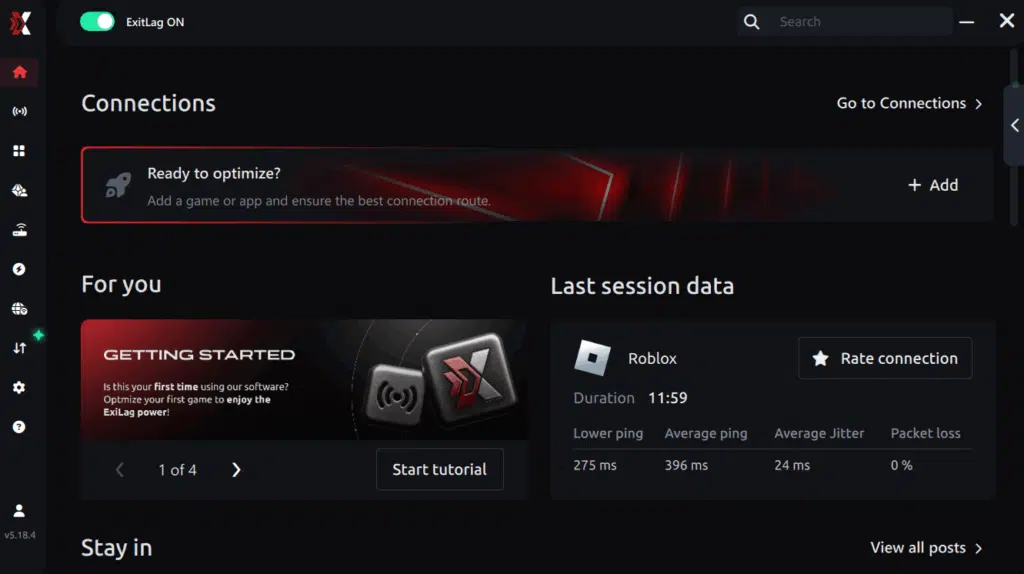
Step 3 – In the search bar, type “Battlefield 2024” and select the game from the list.
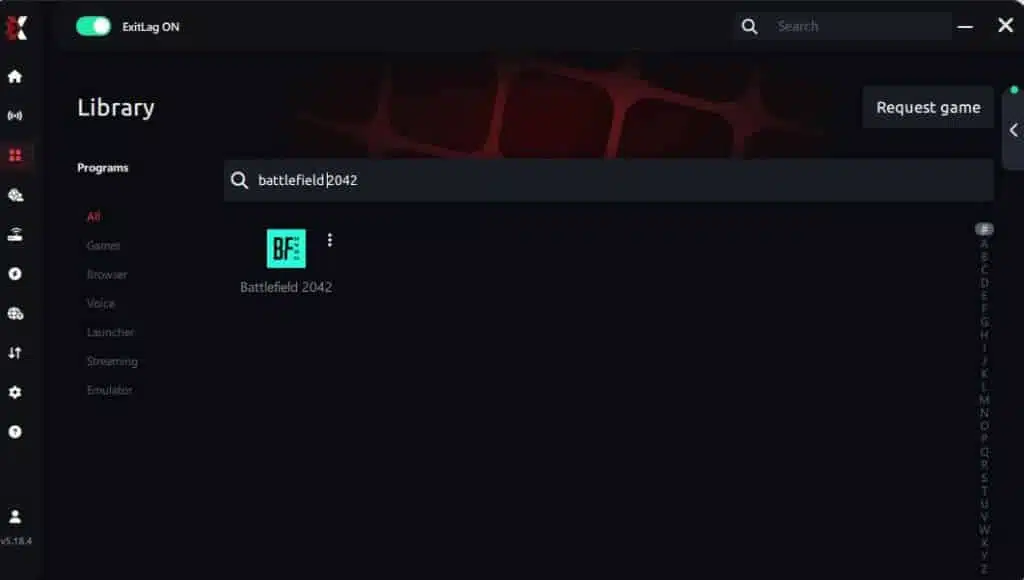
Step 4 – Choose between automated or manual route
Based on the results, you can let ExitLag automatically select the best route or manually choose the server that showed the lowest latency for your connection.
AI-optimized automated route
Based on the results, you can let ExitLag automatically select the best route through AI optimization. The system analyzes multiple connection paths in real time and automatically identifies the most efficient route for your connection, ensuring the lowest possible latency without requiring manual choices.
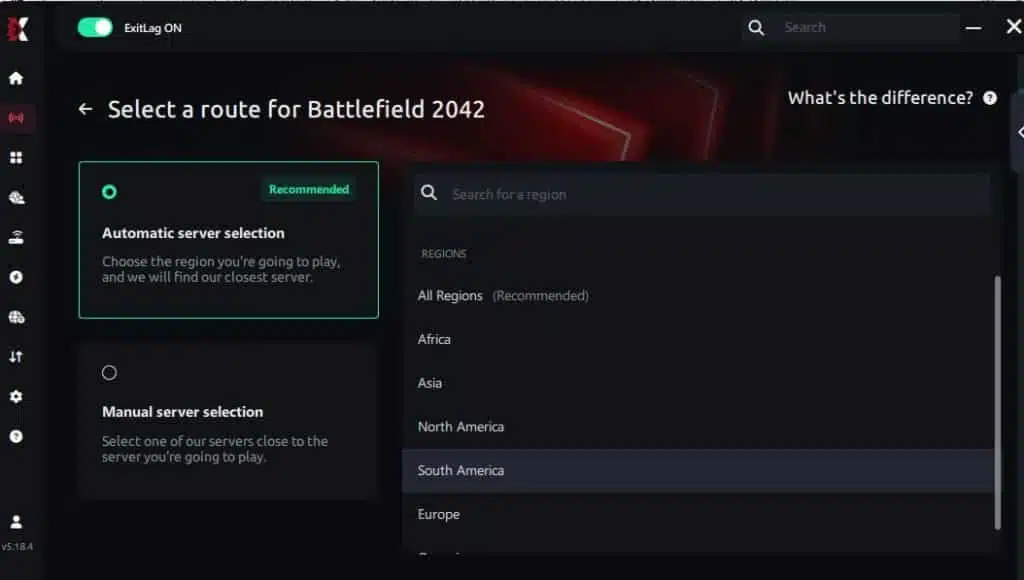
Manual route
If you prefer to have full control over your connection, you can manually choose the server based on the ping test results. Simply select the server that showed the lowest latency or the one that best meets your specific gaming needs, allowing complete customization of your experience.
Step 5 – Click “Apply routes” or the play button. ExitLag will begin optimizing your connection automatically.

Step 6 – Wait a few seconds until optimization is complete. You’ll see ping indicators in the interface.
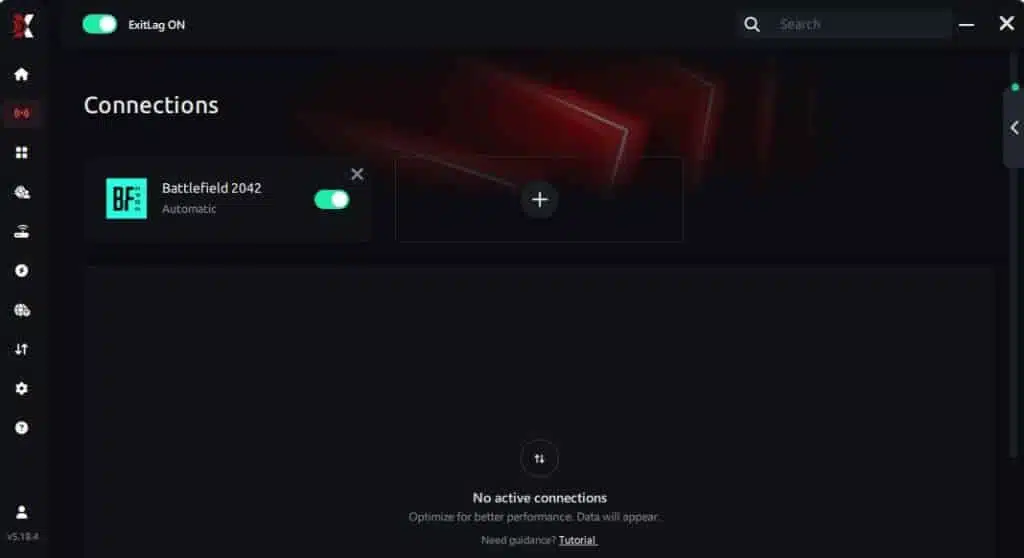
Step 7 – Launch Battlefield 2024 normally. The optimization will already be active.
ExitLag runs in the background while you play, constantly adjusting routes to maintain the best possible performance.
Optimizing Results
To maximize benefits:
- Test different ExitLag regions
- Close bandwidth-heavy applications
- Enable High Performance Mode in Windows
- Keep GPU drivers updated
- Monitor packet stability within ExitLag
For Console Players
ExitLag does not run on consoles.
- PlayStation and Xbox cannot install ExitLag
- There are no official workarounds
For optimal performance, Battlefield 2042 should be played on PC where ExitLag can be used.
Real Results — Before and After ExitLag in Battlefield 2042
Case 1 — Brazil to North America
Before ExitLag:
- Ping: 160–210 ms
- Frequent stuttering
- Unstable aiming during fights
After ExitLag:
- Ping: 95 ms
- 80%+ reduction in micro-stuttering
- Stable frame pacing
Case 2 — Europe (EU Central)
Before ExitLag:
- Animation freezing in 128-player matches
- Inconsistent hit registration
After ExitLag:
- Smooth animations
- Improved hit accuracy
- Stable gameplay during peak combat
Case 3 — Asia to US Servers
Before ExitLag:
- Severe jitter spikes
- Input delay during gunfights
After ExitLag:
- Stable routing
- Predictable input timing
- No sudden FPS drops
Performance Comparison Table
| Metric | Without ExitLag | With ExitLag | Improvement |
| Average FPS (Pacing) | Inconsistent | Smooth | Up to 60% more stable |
| Micro-Stuttering | Frequent | Rare | 80%+ reduction |
| Ping | 120–220 ms | 70–120 ms | 30–45% lower |
| Connection Stability | ⭐⭐ | ⭐⭐⭐⭐⭐ | Major improvement |
Additional Optimizations to Maximize FPS with ExitLag
Network Optimizations
- Use a wired Ethernet connection
- Close background downloads and streams
- Enable router QoS for gaming
- Change DNS to a stable provider
System Optimizations
- Enable High Performance power mode
- Update GPU and chipset drivers
- Disable unnecessary overlays
- Clean temporary system files
In-Game Optimizations
- Turn V-Sync OFF
- Set a reasonable FPS cap
- Lower shadows and post-processing
- Disable unnecessary visual effects
FAQ — FPS Drop in Battlefield 2042
Does ExitLag Really Improve FPS?
ExitLag does not increase raw FPS numbers, but it eliminates network-induced micro-stuttering, which makes FPS feel dramatically smoother.
Key point:
Stable packet delivery = stable frame pacing.
Is ExitLag Safe to Use?
Yes. ExitLag is secure, trusted by millions of players, and does not modify game files or memory.
Does ExitLag Work on Consoles?
No. ExitLag works only on PC and mobile. Consoles cannot run the software.
How Much Does ExitLag Cost?
Pricing varies by region.
Check the official pricing page
Start with a free trial:
Does ExitLag Help Weak PCs?
ExitLag cannot upgrade hardware, but it can eliminate stuttering caused by unstable connections, making gameplay feel smoother even on weaker systems.
Does ExitLag Work with Battlefield 2042?
Yes. Battlefield 2042 is fully supported
ExitLag vs VPN — What’s the Difference?
- VPNs encrypt traffic and increase latency
- ExitLag is NOT a VPN
- ExitLag uses performance-focused routing optimized for gaming
Resolve FPS Drop in Battlefield 2042 with ExitLag
Final Benefits
- ✅ Stable FPS pacing
- ✅ Zero micro-stuttering
- ✅ Smooth and responsive gunplay
- ✅ Competitive advantage in large-scale battles
- ✅ Frustration-free experience
Next Steps
- Create your ExitLag account
- Install ExitLag in minutes
- Apply optimized routes for Battlefield 2042
- Play with consistent performance
- Dominate the battlefield
Fix your FPS drop in Battlefield 2042 today and experience smooth, competitive gameplay with ExitLag.
Got questions or want to connect with other players? Join the conversation at the ExitLag Forum!