

You’re in the middle of an intense martial arts duel in Where Winds Meet. Your timing needs to be perfect. The enemy starts a fast combo, you prepare the counter, and suddenly the FPS drop in Where Winds Meet hits. The screen stutters for a split second. That brief freeze is enough to miss the parry and lose control of the fight. Moments like this are frustrating, especially when skill and precision should decide the outcome.
The problem doesn’t stop there. Large open-world cities, crowded quest areas, and battles filled with flashy wuxia-style skill effects can also trigger performance instability. Many players report FPS drop in Where Winds Meet during busy hubs or story moments with heavy asset streaming.
These issues are similar to what players experience in other online titles, as explained in detailed performance breakdowns available on the official ExitLag blog, such as this guide on network instability and performance issues in online games.
That’s why ExitLag stands out as a focused solution. Instead of risky tweaks or unrealistic promises, ExitLag targets connection stability, smoother frame pacing, and less micro-stuttering caused by network issues. By optimizing how your PC connects to the game servers, ExitLag helps Where Winds Meet feel consistent again through the official ExitLag gaming optimization platform.

What is FPS drop and why it happens in Where Winds Meet?
Understanding FPS (frames per second)
FPS, or frames per second, measures how many images your system renders every second. The higher and more stable this number is, the smoother the gameplay feels, especially in action-oriented combat.
Here’s how FPS ranges usually feel in practice:
- 144+ FPS – Extremely smooth and responsive
- 60–120 FPS – Stable and fluid for most players
- 30–60 FPS – Playable but prone to stutter
- Under 30 FPS – Choppy, delayed, and frustrating
An FPS drop happens when your system can’t maintain a consistent range, causing sudden dips that break immersion.
Difference between FPS drop and network lag
FPS drop and network lag are often confused, but they come from different sources and require different solutions.
| Aspect | FPS drop | Network lag |
| Cause | Hardware or render pipeline overload | High latency, unstable routing, packet loss |
| Symptom | Stutter, frame spikes, freezing | Delay, rubberbanding, delayed actions |
| Best fix | Settings or hardware optimization | ExitLag network optimization |
In Where Winds Meet, unstable connections often create micro-stuttering that feels like FPS problems, even when your GPU and CPU aren’t fully overloaded.
Why Where Winds Meet suffers from FPS drops
Where Winds Meet is built around a visually rich open world inspired by traditional Chinese martial arts fiction. This design brings unique performance challenges.
First, combat is effect-heavy. Fast martial arts animations, particle effects, and cinematic camera movements place constant pressure on the rendering pipeline, especially during large encounters.
Second, the open-world structure relies heavily on streaming assets. Moving quickly between regions, entering dense cities, or triggering scripted story events can cause brief stalls as new data loads in real time.
Finally, system requirements don’t always reflect real-world conditions. Even if your PC meets the recommended specs, background tasks, driver behavior, and unstable network routes can combine to create inconsistent frame delivery.
This is where network stability becomes critical. ExitLag is NOT a VPN. It is specialized software designed to optimize gaming routes and reduce packet loss. By stabilizing the connection layer, ExitLag minimizes the network-related micro-stuttering that often disrupts frame pacing in online and semi-online experiences like Where Winds Meet.
It’s important to understand that ExitLag is NOT a VPN. Unlike generic VPN services that can introduce longer routes and additional latency, ExitLag focuses exclusively on selecting the most stable paths for game traffic. This reduces interruptions that make FPS feel unstable, even when your hardware is capable.
FPS drop in Where Winds Meet is rarely caused by a single issue. It’s usually a combination of rendering load and connection instability. Addressing both sides—especially the network side—helps ensure smoother gameplay, more reliable combat timing, and a more immersive journey through the game’s dynamic world.
7 main causes of FPS drop in Where Winds Meet
1. Overheating and thermal throttling
When CPU or GPU temperatures rise too high, the system activates thermal throttling to protect components. Clock speeds are reduced automatically.
In Where Winds Meet, this usually appears during long play sessions, boss fights, or extended exploration in dense areas. FPS feels fine at first, then degrades over time.
You can identify this cause by monitoring temperatures. If performance drops after 30–60 minutes, overheating is likely involved.
2. Outdated GPU drivers
Old or poorly optimized drivers struggle with newer rendering techniques and patches. This creates inefficiencies in how frames are processed.
In Where Winds Meet, outdated drivers often cause stutter during flashy martial arts skills or cinematic story moments.
If FPS issues appeared after an update, checking GPU driver versions is one of the fastest ways to confirm this cause.
3. Graphics settings too high
High-impact options like shadows, volumetric lighting, and effects density are visually impressive but expensive.
Large-scale fights, skill chains, and crowded environments can overwhelm even strong GPUs when these settings are maxed out.
Lowering effect-related options and retesting the same scenario helps confirm if graphical load is responsible.
4. Background processes and overlays
Background applications consume CPU, memory, and sometimes GPU resources. Overlays are particularly disruptive.
In Where Winds Meet, FPS drops may happen when browsers, launchers, or recording tools spike usage mid-session.
Open the task manager while playing. If external apps show sudden usage increases, background processes are contributing.
5. CPU bottleneck and thread saturation
Despite modern hardware, some games still rely heavily on limited CPU threads. Thread saturation can occur quickly.
In Where Winds Meet, busy cities and AI-heavy encounters often stress the CPU more than the GPU, causing inconsistent frame delivery.
If GPU usage is low but FPS still drops, a CPU bottleneck is likely the issue.
6. Storage streaming issues
The game streams assets dynamically as you move through the world. Slow drives cause interruptions.
Players using HDDs often experience stutter when entering new zones or loading NPCs and animations. SSDs reduce these stalls significantly.
If FPS drops align with area transitions, asset streaming speed is a key factor.
7. Network instability causing micro-stuttering
Unstable routing, packet loss, or retransmissions do not lower FPS directly, but they disrupt synchronization.
In Where Winds Meet, this appears as random stutter during combat or delayed reactions, even when hardware usage looks stable.
If FPS drops happen mostly during online interactions, network instability is often the hidden cause.
How ExitLag solves FPS drop in Where Winds Meet
What is ExitLag? (NOT a VPN)
ExitLag is a gaming network optimization software designed to stabilize connections between players and game servers. ExitLag is NOT a VPN.
Unlike common VPNs that route all traffic through generic tunnels, often increasing latency, ExitLag analyzes routes in real time and selects the most stable paths for gaming traffic only. This routing logic is explained in detail on the official page about how ExitLag works at the network level.
How ExitLag optimizes performance in Where Winds Meet
ExitLag focuses on the network layer that directly affects online synchronization and frame pacing. Its optimization stack includes:
- Route optimization
- Latency reduction
- Packet loss mitigation
- Connection stabilization
- Game traffic prioritization
These systems adapt continuously, even during peak hours or regional congestion.
Why ExitLag helps with FPS drops
Unstable connections cause delayed packets and retransmissions. The game engine waits for data, which creates micro-stuttering that feels like FPS drop.
By stabilizing routes and reducing packet loss, ExitLag minimizes these interruptions without claiming higher FPS numbers.
Key benefits include:
- Smoother frame pacing during online synchronization
- Less micro-stutter triggered by route instability
- More consistent responsiveness in combat and movement
This is why gameplay feels smoother even though FPS values remain the same.
ExitLag technologies that impact perceived FPS
Several ExitLag systems directly influence how smooth the game feels:
Multi-path routing
Traffic is sent through multiple paths, avoiding congested routes in real time.
Redundant connections
If one route degrades, another takes over instantly, preventing sudden instability.
Gaming-optimized protocol
Game data is prioritized differently from standard traffic, improving responsiveness.
Together, these technologies reduce the network disruptions that break frame pacing.
ExitLag vs other solutions
| Solution | Improves FPS? | Reduces lag? | Ease | Recommendation |
| ExitLag | ✅ (network stability) | ✅ | ⭐⭐⭐⭐⭐ | ✅ Best option |
| Common VPN | ❌ | ❌ | ⭐⭐⭐ | ❌ Avoid |
| PC optimization | ⚠️ Limited | ❌ | ⭐⭐ | ⚠️ Partial |
| Nothing | ❌ | ❌ | ⭐⭐⭐⭐⭐ | ❌ Worst |
ExitLag is NOT a VPN, and it targets the specific network factors that cause micro-stuttering in online games.
Where Winds Meet is fully compatible with ExitLag, along with many other online titles officially listed on the page of games supported by ExitLag optimization.
How to use ExitLag in Where Winds Meet
The process is extremely simple:
Step 1 – Access the official ExitLag website and download the application. There’s a free trial period for new users.
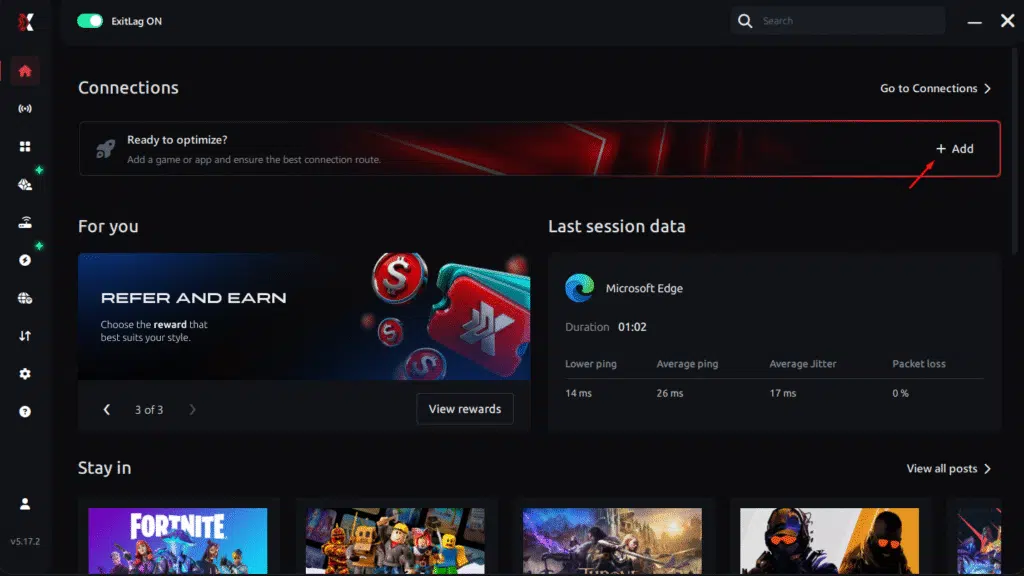
Step 2 – Install and open the program. Log in with your account.
Step 3 – In the search bar, type “Where Winds Meet” and select the game from the list.
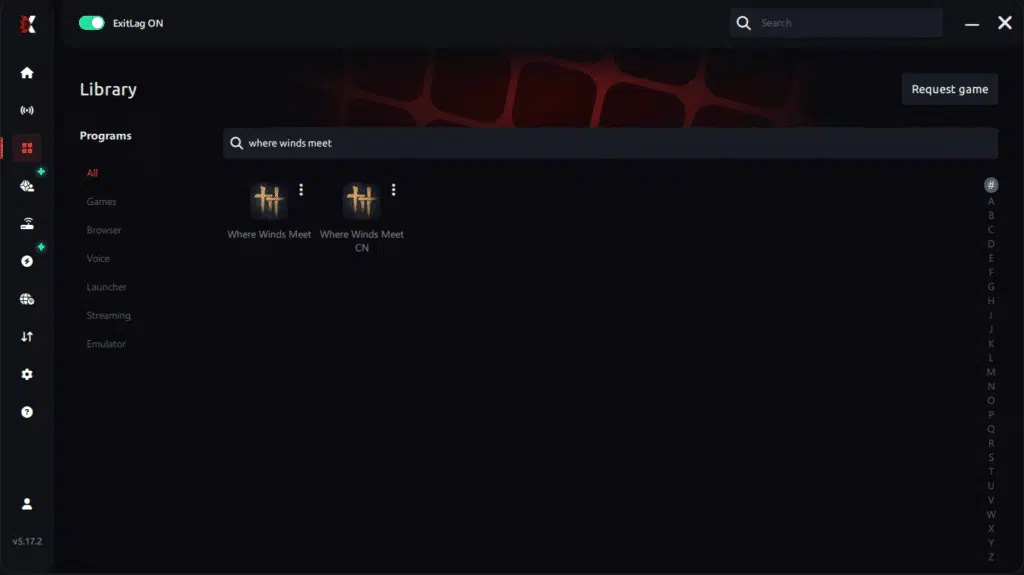
Step 4 – Choose between automated or manual route
Based on the results, you can let ExitLag automatically select the best route or manually choose the server that showed the lowest latency for your connection.
AI-optimized automated route
Based on the results, you can let ExitLag automatically select the best route through AI optimization. The system analyzes multiple connection paths in real time and automatically identifies the most efficient route for your connection, ensuring the lowest possible latency without requiring manual choices.
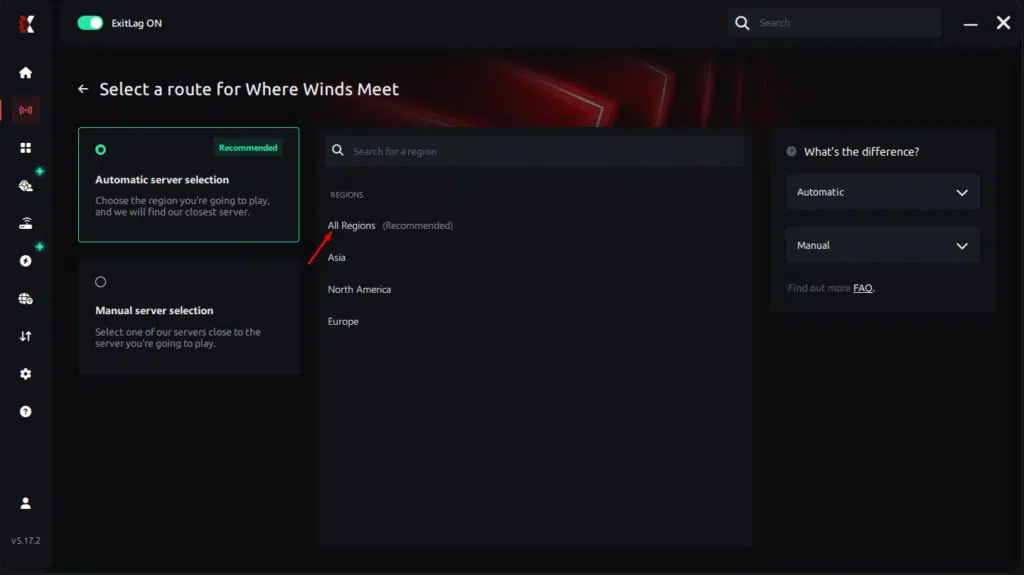
Manual route
If you prefer to have full control over your connection, you can manually choose the server based on the ping test results. Simply select the server that showed the lowest latency or the one that best meets your specific gaming needs, allowing complete customization of your experience.
Step 5 – Click “Where Winds Meet” or the play button. ExitLag will begin optimizing your connection automatically.
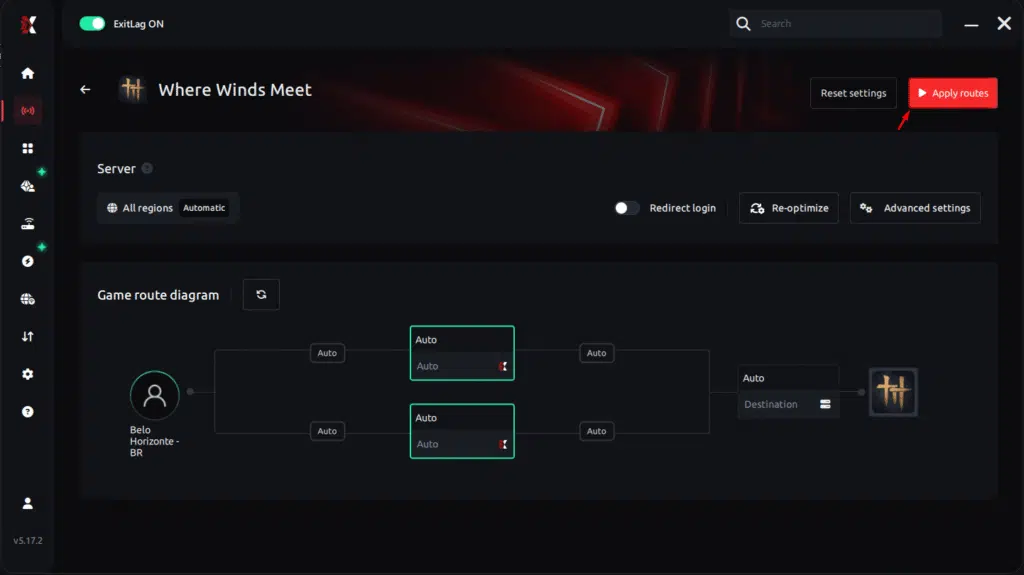
Step 6 – Wait a few seconds until optimization is complete. You’ll see ping indicators in the interface.
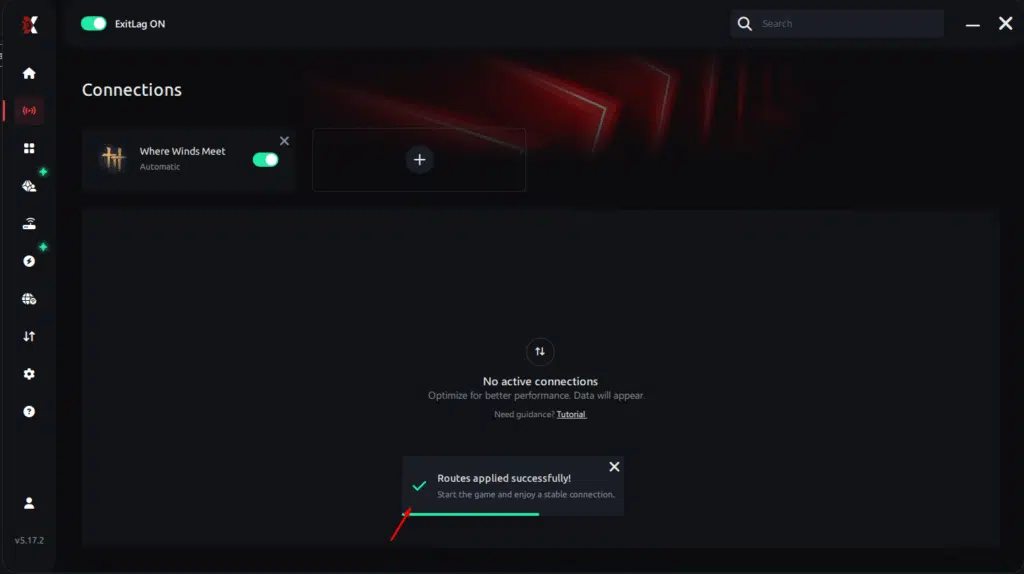
Step 7 – LaunchWhere Winds Meet normally. The optimization will already be active.
ExitLag runs in the background while you play, constantly adjusting routes to maintain the best possible performance.
Emulator setup
Where Winds Meet is designed exclusively for PC. Android emulators such as BlueStacks, LDPlayer, or NoxPlayer are not applicable and should not be used.
Optimizing results
For best results, test different regions if you play on multiple servers. Monitor stability over longer sessions, not just short tests. Auto-routing works well in most cases, while manual route selection can help during regional congestion.
Console players
ExitLag operates at the PC network level. Console versions do not support direct integration. Players experiencing frequent instability should consider playing the PC version to benefit from route optimization.
Optimizations to maximize smooth FPS with ExitLag
Network optimizations
- Use a wired Ethernet connection instead of Wi-Fi
- Close bandwidth-heavy apps such as downloads or cloud sync tools
- Enable QoS on your router to prioritize gaming traffic
- Test alternative DNS settings carefully, without unrealistic expectations
System optimizations
- Enable Windows high-performance power mode
- Keep GPU and chipset drivers updated
- Disable unnecessary background applications
- Clean startup programs and temporary files regularly
In-game optimizations
- Reduce effects density in large fights
- Turn V-Sync OFF to avoid input delay
- Use a stable FPS cap instead of uncapped rendering
- Lower shadow quality in dense environments
FAQ about FPS drop in Where Winds Meet
Does ExitLag really improve FPS?
ExitLag does not increase FPS numbers. It improves perceived FPS by reducing micro-stuttering caused by unstable network routing and packet retransmissions.
Is ExitLag safe?
Yes. ExitLag does not modify game files and works only at the network routing level.
Does it work on console?
No. ExitLag is designed for PC only and cannot be used directly on consoles.
How much does ExitLag cost?
ExitLag offers flexible subscription plans depending on region and duration. Full details are available on the official ExitLag pricing plans and subscriptions.
My PC is weak—does ExitLag help?
ExitLag cannot overcome hardware limitations. However, it can remove network-related stutter that often feels like hardware FPS drops.
Does ExitLag work with Where Winds Meet?
Yes. Where Winds Meet is fully supported, and many players use ExitLag to stabilize online performance.
What’s the difference between ExitLag and a VPN?
ExitLag is NOT a VPN. VPNs route all traffic generically and often increase latency, while ExitLag uses game-specific optimized routes.

Does ExitLag help during PvP encounters?
Yes. PvP is highly sensitive to synchronization issues, and ExitLag reduces network instability that causes sudden stutter.
Will ExitLag help in large cities?
Yes. Crowded hubs stress both rendering and networking. ExitLag stabilizes the network side, reducing perceived stuttering.
Fix FPS drop in Where Winds Meet with ExitLag
Final benefits
- ✅ Stable FPS experience
- ✅ Less micro-stuttering
- ✅ Smooth gameplay
- ✅ Competitive advantage
- ✅ Less frustration
Next steps
- Start your ExitLag free trial for smoother gameplay through the official ExitLag free trial program.
- Configure ExitLag in under five minutes.
- Compare performance before and after optimization.
- Dominate Where Winds Meet with consistent responsiveness.
If stutters are breaking your immersion and costing you fights, it’s time to act. Smooth gameplay changes everything in skill-based combat. ExitLag is NOT a VPN, and it targets the network issues that disrupt frame pacing. Create your account today using the official ExitLag account registration page.
Got questions or want to connect with other players? Join the conversation at the ExitLag Forum!



