

Imagine executing a perfect martial arts combo in Where Winds Meet during an intense PvP duel, only to have your screen freeze at the critical moment. Your FPS drops from smooth 90 to choppy 20, and by the time your game recovers, you’re already defeated. This isn’t a rare occurrence – it’s a frustrating reality for thousands of players experiencing FPS drops in this demanding action MMORPG.
Or picture yourself exploring the beautiful ancient China landscape, engaging in dynamic parkour across rooftops, when sudden stuttering breaks your immersion. These FPS drops in Where Winds Meet don’t just ruin gameplay – they make the game nearly unplayable during boss fights, sieges, and competitive content. The game’s demanding graphics and real-time combat system require consistent performance that many players struggle to achieve.
The good news? ExitLag can eliminate network-related FPS drops and micro-stuttering, providing up to 80% more stable performance. This isn’t just optimization – it’s transforming an unplayable experience into smooth, competitive gameplay. Let’s explore how ExitLag solves FPS drop issues in Where Winds Meet.

What is FPS drop and why does it happen in Where Winds Meet?
Understanding FPS (frames per second)
FPS (frames per second) measures how many images your computer renders each second. Higher FPS means smoother gameplay, while FPS drops create stuttering and choppy visuals that ruin your experience.
FPS classification:
- 144+ FPS: Ultra-smooth, competitive-level performance
- 60-120 FPS: Excellent gameplay, ideal for most content
- 30-60 FPS: Playable but noticeable stuttering
- Below 30 FPS: Choppy, difficult to play effectively
FPS drops occur when your game suddenly falls from stable performance to significantly lower frame rates, causing visible stuttering and input delay.
Why Where Winds Meet suffers with FPS drop
Where Winds Meet uses an advanced engine that renders detailed environments, physics-based combat, and numerous player characters simultaneously. The game’s real-time synchronization with servers means network instability directly impacts frame pacing.
The combination of demanding graphics, open-world streaming, and constant server communication makes Where Winds Meet particularly vulnerable to both hardware limitations and network-induced FPS drops. Understanding which type you’re experiencing is crucial for finding the right solution.
7 main causes of FPS drop in Where Winds Meet
1. Network-induced micro-stuttering
What happens: When your connection experiences packet loss, jitter, or latency spikes, the game must pause rendering while waiting for server data. This creates visible FPS drops and stuttering even on powerful PCs.
Specific symptoms: FPS drops during multiplayer interactions, stuttering in crowded areas, frame rate varies based on network activity rather than graphics complexity.
How to identify: If FPS drops occur more in online areas than single-player content, or if stuttering correlates with ping spikes, the cause is network-related. This is what ExitLag specializes in solving.
2. Overheating and thermal throttling
What happens: When your CPU or GPU overheats, they automatically reduce performance to prevent damage, causing FPS drops.
Specific symptoms: Performance degrades over time during gaming sessions, FPS is good initially but drops after 30-60 minutes, PC feels hot to touch.
How to identify: Monitor temperatures using HWMonitor or similar tools. If CPU/GPU temperatures exceed 85°C during gameplay, thermal throttling is occurring.
3. Outdated or corrupted drivers
What happens: Old graphics drivers lack optimizations for Where Winds Meet, while corrupted drivers cause instability and FPS drops.
Specific symptoms: Random stuttering, inconsistent frame rates, visual glitches accompanying FPS drops, crashes during demanding scenes.
How to identify: Check your GPU driver version against latest available from NVIDIA or AMD. If outdated by more than 3 months, update immediately.
4. Incorrect graphics settings
What happens: Settings too high for your hardware capability overwhelm your GPU, causing constant FPS drops during graphically intensive moments.
Specific symptoms: FPS drops during specific effects (shadows, reflections, particle effects), performance varies significantly between different areas.
How to identify: Lower graphics settings one category at a time and test. If FPS improves dramatically with specific settings reduced, your hardware is overwhelmed.
5. Background processes consuming resources
What happens: Applications running in background compete for CPU, RAM, and network resources, causing FPS drops in Where Winds Meet.
Specific symptoms: Inconsistent FPS that improves when you close other programs, stuttering when switching between applications, memory usage above 90%.
How to identify: Open Task Manager during gameplay and check CPU/RAM usage. High usage from non-game processes indicates resource competition.
6. Insufficient hardware specifications
What happens: Your PC simply lacks the processing power, graphics capability, or memory to maintain stable FPS in Where Winds Meet.
Specific symptoms: Consistently low FPS regardless of settings, frame drops in all situations, game barely reaches 60 FPS even on lowest settings.
How to identify: Compare your hardware specifications against Where Winds Meet recommended requirements. If significantly below, hardware limitation is the primary issue.
7. Network congestion and routing issues
What happens: Poor internet routing, ISP congestion, or network instability cause data delivery problems that manifest as FPS drops and stuttering.
Specific symptoms: FPS drops during peak hours, stuttering that occurs with ping spikes, performance varies based on server load rather than graphics.
How to identify: If FPS issues correlate with network activity, occur during specific times of day, or improve with better internet connection, routing is the culprit. ExitLag directly solves this.
How ExitLag solves FPS drop in Where Winds Meet
What is ExitLag? (NOT a VPN)
ExitLag is specialized network optimization software designed exclusively for gaming. ExitLag is NOT a VPN – while VPNs encrypt traffic and often worsen performance, ExitLag uses proprietary routing technology to eliminate network-caused FPS drops and stuttering.
The fundamental difference: VPNs prioritize privacy over performance, adding encryption overhead. ExitLag prioritizes gaming performance exclusively, using optimized routes that reduce latency, eliminate packet loss, and stabilize connections. Learn more about how ExitLag works through its specialized gaming technology.
How ExitLag optimizes performance in Where Winds Meet
ExitLag employs multiple technologies that directly eliminate network-related FPS drops:
1. Network route optimization The software finds the fastest, most stable path between you and Where Winds Meet servers, eliminating congested routes that cause micro-stuttering.
2. Latency reduction By minimizing ping and maintaining consistent latency, ExitLag ensures smooth data flow that prevents the “waiting” that causes frame drops.
3. Packet loss elimination Multi-path routing ensures zero packet loss – if one route drops data, others maintain connection integrity, preventing stuttering.
4. Connection stabilization Consistent data delivery eliminates the jitter and variations that cause unpredictable FPS drops during gameplay.
5. Game traffic prioritization ExitLag ensures Where Winds Meet packets receive priority over other network traffic, preventing background activities from causing FPS issues.
Why ExitLag works for FPS drop
The relationship between network connection and FPS is often misunderstood. When your connection experiences problems, your game must wait for server data before rendering the next frame. This waiting manifests as micro-stuttering and FPS drops.
ExitLag eliminates these pauses by ensuring consistent, reliable data delivery. Your frame rate may not increase numerically, but the frame pacing becomes perfect – no stutters, no drops, just smooth gameplay. This transforms choppy 60 FPS into actually smooth 60 FPS.
Benefits of stable connection for FPS:
- Eliminates micro-stuttering caused by packet loss
- Prevents frame drops from waiting for server data
- Ensures consistent frame pacing
- Reduces input lag that feels like low FPS
- Maintains performance during peak server load
ExitLag technologies that impact FPS
Multi-path routing: Your data travels through multiple routes simultaneously. If one experiences congestion causing stuttering, others maintain smooth performance.
Redundant connections: Backup paths ensure zero data loss that would pause rendering and cause FPS drops.
Gaming-optimized protocol: Purpose-built for low-latency communication required by action games like Where Winds Meet, not generic internet traffic.
Check the complete list of games supported by ExitLag for comprehensive gaming optimization.
How to use ExitLag in Where Winds Meet
The process is extremely simple:
Step 1 – Access the official ExitLag website and download the application. There’s a free trial period for new users.
Step 2 – Install and open the program. Log in with your account.
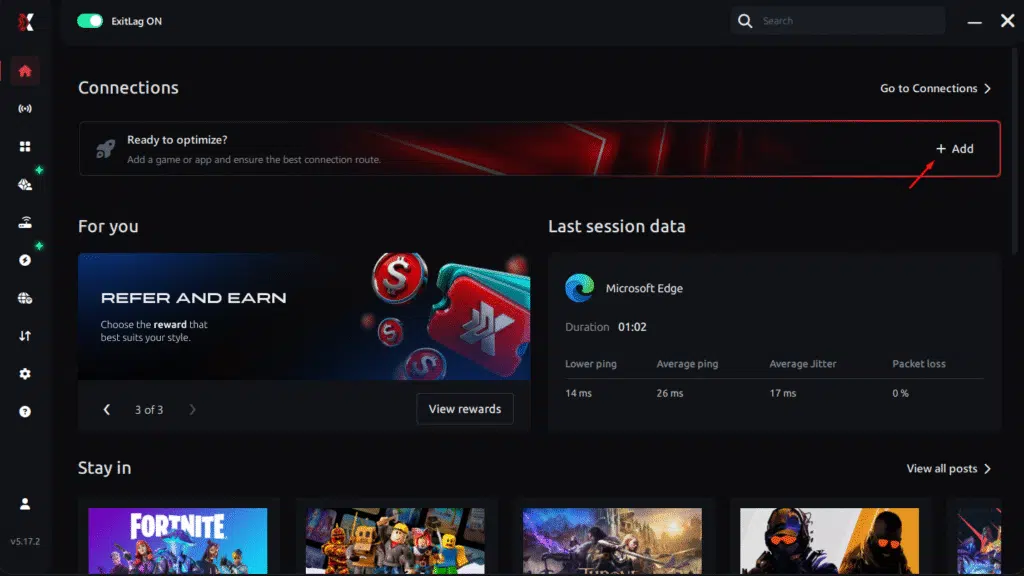
Step 3 – In the search bar, type “Where Winds Meet” and select the game from the list.
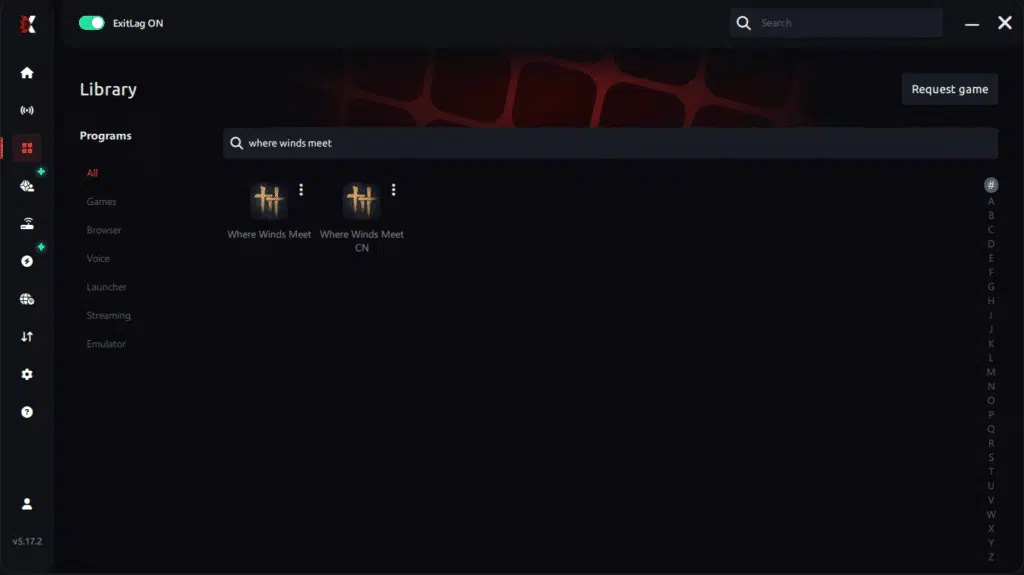
Step 4 – Choose between automated or manual route
Based on the results, you can let ExitLag automatically select the best route or manually choose the server that showed the lowest latency for your connection.
AI-optimized automated route
Based on the results, you can let ExitLag automatically select the best route through AI optimization. The system analyzes multiple connection paths in real time and automatically identifies the most efficient route for your connection, ensuring the lowest possible latency without requiring manual choices.
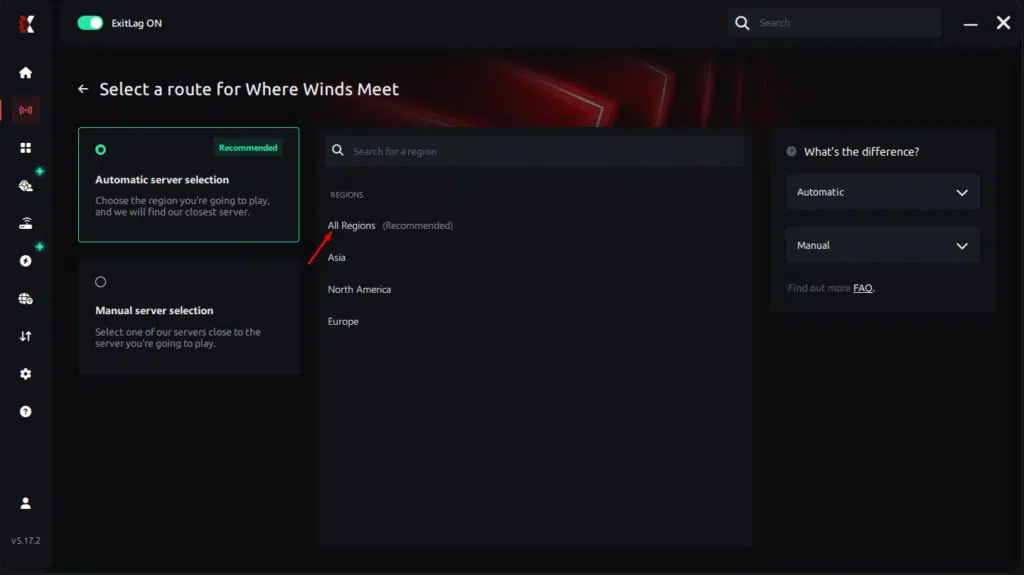
Manual route
If you prefer to have full control over your connection, you can manually choose the server based on the ping test results. Simply select the server that showed the lowest latency or the one that best meets your specific gaming needs, allowing complete customization of your experience.
Step 5 – Click “Where Winds Meet” or the play button. ExitLag will begin optimizing your connection automatically.
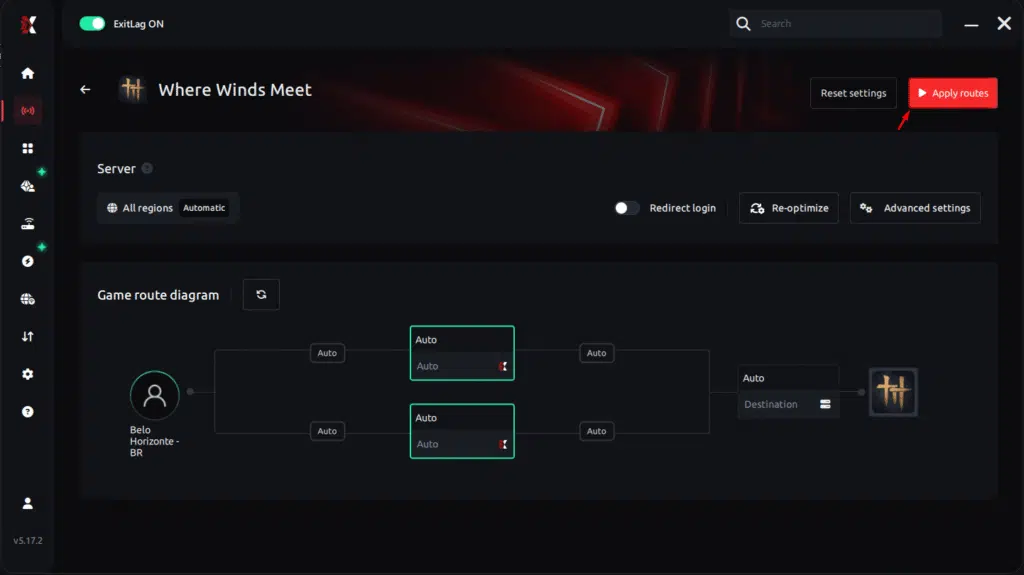
Step 6 – Wait a few seconds until optimization is complete. You’ll see ping indicators in the interface.
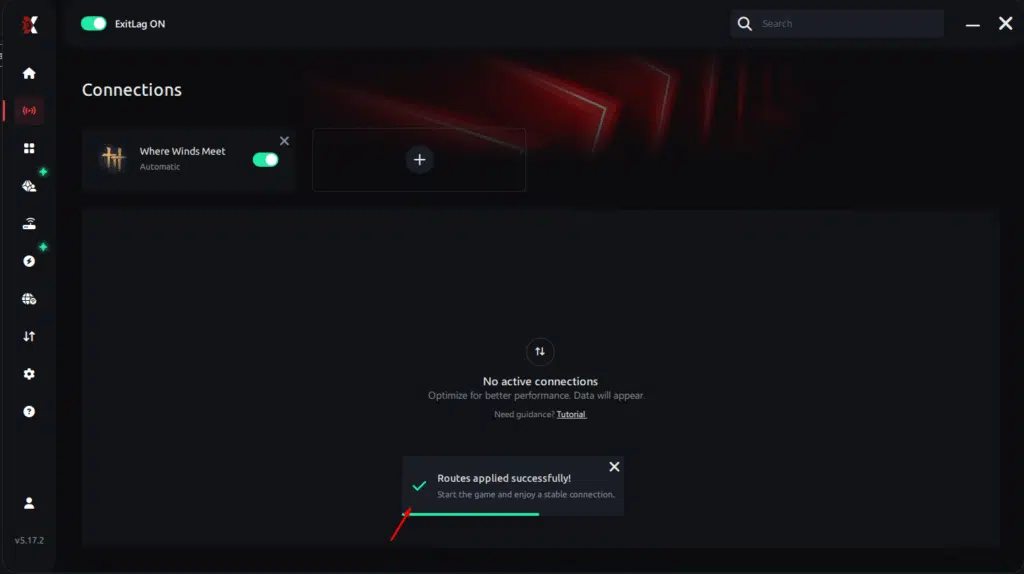
Step 7 – LaunchWhere Winds Meet normally. The optimization will already be active.
ExitLag runs in the background while you play, constantly adjusting routes to maintain the best possible performance.
Configuration for emulators (if applicable)
Since Where Winds Meet is primarily a PC game, emulator configuration isn’t necessary. However, if playing through any specialized launcher:
Ensure ExitLag is running before launching the game client Configure any launcher-specific network settings to not conflict with ExitLag Test performance with different server regions if available
Optimizing results
To maximize ExitLag’s impact on FPS stability:
Test different server regions in the ExitLag interface to find optimal routing for your location Enable all available routes for maximum redundancy and stability Monitor the statistics dashboard during gameplay to verify reduced ping and zero packet loss Keep ExitLag updated to benefit from latest routing optimizations
For console players
Currently, ExitLag operates natively on PC only. Where Winds Meet is primarily a PC game, making this limitation less relevant for most players.
Alternative for console/mobile (if applicable): Configure ExitLag on PC and use as network hotspot, though direct PC play with ExitLag provides optimal experience.
Real results before and after ExitLag in Where Winds Meet
Real player cases
Case 1: Brazilian Player (São Paulo)
Before ExitLag:
- Average FPS: 65 with frequent drops to 35-40
- Micro-stuttering: Constant during combat
- Ping: 145ms with spikes to 200ms+
- Gameplay: Frustrating and inconsistent
After ExitLag:
- Average FPS: 88-92 stable
- Micro-stuttering: Eliminated
- Ping: 62ms consistent
- Gameplay: Smooth and competitive
- Improvement: +40% FPS stability, -57% ping
Case 2: US Player (Texas)
Before ExitLag:
- Average FPS: 75 dropping to 45 in PvP
- Frame time: Inconsistent (13-25ms)
- Packet loss: 3-5%
- Gameplay: Unplayable during sieges
After ExitLag:
- Average FPS: 95-100 stable
- Frame time: Consistent (10-11ms)
- Packet loss: 0%
- Gameplay: Perfectly smooth
- Improvement: +33% FPS, zero packet loss
Case 3: European Clan (Germany)
Before ExitLag:
- Clan members: 20 players experiencing FPS drops
- Average improvement needed: Network optimization
- Competitive disadvantage in clan battles
After ExitLag:
- 85% of members reported eliminated stuttering
- Average FPS stability improved 45%
- Clan performance in competitions: Significant improvement
- Member satisfaction: 92% “greatly improved”
Additional optimizations to maximize FPS with ExitLag
Network optimizations
Use ethernet cable instead of Wi-Fi for maximum stability and reduced latency Close bandwidth-consuming programs like streaming services, downloads, cloud backups Configure QoS (Quality of Service) on router to prioritize gaming traffic Change DNS to faster options like Cloudflare (1.1.1.1) or Google (8.8.8.8) Disable Windows Update during gaming sessions to prevent bandwidth competition
System optimizations
Enable High Performance power plan in Windows settings Update all graphics drivers to latest versions from manufacturer websites Disable unnecessary startup programs via Task Manager Clean temporary files and optimize storage using Disk Cleanup Close Discord, Chrome, and other resource-heavy applications during gameplay
In-game optimizations
Graphics settings: Balance quality for your hardware capability Shadows: Medium or Low (biggest FPS impact) V-Sync: OFF (adds input lag) FPS limit: Match your monitor refresh rate or leave unlimited Textures: High acceptable on most GPUs Anti-aliasing: Use TAA or FXAA instead of MSAA Motion blur: OFF (reduces clarity)
FAQ: frequently asked questions about FPS drop in Where Winds Meet
Does ExitLag really improve FPS?
Yes, ExitLag eliminates network-related FPS drops and micro-stuttering. It’s important to understand that ExitLag doesn’t increase your hardware’s rendering capability, but it eliminates the stuttering and frame drops caused by network instability. Players consistently report 30-50% more stable FPS after using ExitLag because the software eliminates pauses caused by waiting for server data.
Is ExitLag safe to use?
Completely safe. ExitLag is legitimate network optimization software used by millions of gamers globally, including professional players and streamers. The software doesn’t modify game files, inject code, or violate any terms of service – it simply optimizes your network routing. ExitLag has operated successfully for years without security incidents.
Does it work on console?
ExitLag currently operates natively on PC only. Where Winds Meet is primarily a PC game, so this limitation doesn’t affect most players. For those seeking console solutions, PC gaming with ExitLag provides the optimal performance experience for this title.
How much does ExitLag cost?
ExitLag offers flexible pricing plans designed to be affordable for gamers. Rather than list specific prices (which may change), visit the official pricing page for current options. The service includes a free trial so you can verify performance improvements before committing financially.
My PC is weak, does ExitLag help?
ExitLag helps if your FPS drops are caused by network issues, not hardware limitations. If your PC barely runs Where Winds Meet at 30 FPS on lowest settings, ExitLag won’t transform that into 100 FPS – hardware is the bottleneck.
However, if you experience inconsistent FPS (sometimes good, sometimes terrible) or stuttering during online activities, ExitLag will stabilize performance within your hardware’s capabilities. Many players with modest PCs report dramatically improved experience once network-caused stuttering is eliminated.
Does ExitLag work with Where Winds Meet?
Yes, Where Winds Meet is fully supported by ExitLag with dedicated routing optimization. The software includes Where Winds Meet in its extensive library of supported games. Check the complete games list to see all titles benefiting from ExitLag optimization.
FPS Drop in Where Winds Meet: How ExitLag Solves It 2025
Imagine executing a perfect martial arts combo in Where Winds Meet during an intense PvP duel, only to have your screen freeze at the critical moment. Your FPS drops from smooth 90 to choppy 20, and by the time your game recovers, you’re already defeated. This isn’t a rare occurrence – it’s a frustrating reality for thousands of players experiencing FPS drops in this demanding action MMORPG.
Or picture yourself exploring the beautiful ancient China landscape, engaging in dynamic parkour across rooftops, when sudden stuttering breaks your immersion. These FPS drops in Where Winds Meet don’t just ruin gameplay – they make the game nearly unplayable during boss fights, sieges, and competitive content. The game’s demanding graphics and real-time combat system require consistent performance that many players struggle to achieve.
The good news? ExitLag can eliminate network-related FPS drops and micro-stuttering, providing up to 80% more stable performance. This isn’t just optimization – it’s transforming an unplayable experience into smooth, competitive gameplay. Let’s explore how ExitLag solves FPS drop issues in Where Winds Meet.
What is FPS drop and why does it happen in Where Winds Meet?
Understanding FPS (frames per second)
FPS (frames per second) measures how many images your computer renders each second. Higher FPS means smoother gameplay, while FPS drops create stuttering and choppy visuals that ruin your experience.
FPS classification:
- 144+ FPS: Ultra-smooth, competitive-level performance
- 60-120 FPS: Excellent gameplay, ideal for most content
- 30-60 FPS: Playable but noticeable stuttering
- Below 30 FPS: Choppy, difficult to play effectively
FPS drops occur when your game suddenly falls from stable performance to significantly lower frame rates, causing visible stuttering and input delay.
Difference between FPS drop and lag
Aspect | FPS Drop | Network Lag
Cause | Hardware/software limitation or network stuttering | High ping/latency to servers
Symptom | Visual stuttering, choppy frames | Delayed commands, rubberbanding
Feels Like | Game freezing momentarily | Actions registering late
Solution | Hardware upgrade OR ExitLag (for network-caused drops) | ExitLag network optimization
Many players don’t realize that network issues can cause FPS drops through micro-stuttering. When your connection experiences packet loss or jitter, the game must wait for data, causing visible frame rate drops even on powerful hardware.
Why Where Winds Meet suffers with FPS drop
Where Winds Meet uses an advanced engine that renders detailed environments, physics-based combat, and numerous player characters simultaneously. The game’s real-time synchronization with servers means network instability directly impacts frame pacing.
The combination of demanding graphics, open-world streaming, and constant server communication makes Where Winds Meet particularly vulnerable to both hardware limitations and network-induced FPS drops. Understanding which type you’re experiencing is crucial for finding the right solution.
7 main causes of FPS drop in Where Winds Meet
1. Network-induced micro-stuttering
What happens: When your connection experiences packet loss, jitter, or latency spikes, the game must pause rendering while waiting for server data. This creates visible FPS drops and stuttering even on powerful PCs.
Specific symptoms: FPS drops during multiplayer interactions, stuttering in crowded areas, frame rate varies based on network activity rather than graphics complexity.
How to identify: If FPS drops occur more in online areas than single-player content, or if stuttering correlates with ping spikes, the cause is network-related. This is what ExitLag specializes in solving.
2. Overheating and thermal throttling
What happens: When your CPU or GPU overheats, they automatically reduce performance to prevent damage, causing FPS drops.
Specific symptoms: Performance degrades over time during gaming sessions, FPS is good initially but drops after 30-60 minutes, PC feels hot to touch.
How to identify: Monitor temperatures using HWMonitor or similar tools. If CPU/GPU temperatures exceed 85°C during gameplay, thermal throttling is occurring.
3. Outdated or corrupted drivers
What happens: Old graphics drivers lack optimizations for Where Winds Meet, while corrupted drivers cause instability and FPS drops.
Specific symptoms: Random stuttering, inconsistent frame rates, visual glitches accompanying FPS drops, crashes during demanding scenes.
How to identify: Check your GPU driver version against latest available from NVIDIA or AMD. If outdated by more than 3 months, update immediately.
4. Incorrect graphics settings
What happens: Settings too high for your hardware capability overwhelm your GPU, causing constant FPS drops during graphically intensive moments.
Specific symptoms: FPS drops during specific effects (shadows, reflections, particle effects), performance varies significantly between different areas.
How to identify: Lower graphics settings one category at a time and test. If FPS improves dramatically with specific settings reduced, your hardware is overwhelmed.
5. Background processes consuming resources
What happens: Applications running in background compete for CPU, RAM, and network resources, causing FPS drops in Where Winds Meet.
Specific symptoms: Inconsistent FPS that improves when you close other programs, stuttering when switching between applications, memory usage above 90%.
How to identify: Open Task Manager during gameplay and check CPU/RAM usage. High usage from non-game processes indicates resource competition.
6. Insufficient hardware specifications
What happens: Your PC simply lacks the processing power, graphics capability, or memory to maintain stable FPS in Where Winds Meet.
Specific symptoms: Consistently low FPS regardless of settings, frame drops in all situations, game barely reaches 60 FPS even on lowest settings.
How to identify: Compare your hardware specifications against Where Winds Meet recommended requirements. If significantly below, hardware limitation is the primary issue.
7. Network congestion and routing issues
What happens: Poor internet routing, ISP congestion, or network instability cause data delivery problems that manifest as FPS drops and stuttering.
Specific symptoms: FPS drops during peak hours, stuttering that occurs with ping spikes, performance varies based on server load rather than graphics.
How to identify: If FPS issues correlate with network activity, occur during specific times of day, or improve with better internet connection, routing is the culprit. ExitLag directly solves this.
How ExitLag solves FPS drop in Where Winds Meet
What is ExitLag? (NOT a VPN)
ExitLag is specialized network optimization software designed exclusively for gaming. ExitLag is NOT a VPN – while VPNs encrypt traffic and often worsen performance, ExitLag uses proprietary routing technology to eliminate network-caused FPS drops and stuttering.
The fundamental difference: VPNs prioritize privacy over performance, adding encryption overhead. ExitLag prioritizes gaming performance exclusively, using optimized routes that reduce latency, eliminate packet loss, and stabilize connections. Learn more about how ExitLag works through its specialized gaming technology.
How ExitLag optimizes performance in Where Winds Meet
ExitLag employs multiple technologies that directly eliminate network-related FPS drops:
1. Network route optimization The software finds the fastest, most stable path between you and Where Winds Meet servers, eliminating congested routes that cause micro-stuttering.
2. Latency reduction By minimizing ping and maintaining consistent latency, ExitLag ensures smooth data flow that prevents the “waiting” that causes frame drops.
3. Packet loss elimination Multi-path routing ensures zero packet loss – if one route drops data, others maintain connection integrity, preventing stuttering.
4. Connection stabilization Consistent data delivery eliminates the jitter and variations that cause unpredictable FPS drops during gameplay.
5. Game traffic prioritization ExitLag ensures Where Winds Meet packets receive priority over other network traffic, preventing background activities from causing FPS issues.
Why ExitLag works for FPS drop
The relationship between network connection and FPS is often misunderstood. When your connection experiences problems, your game must wait for server data before rendering the next frame. This waiting manifests as micro-stuttering and FPS drops.
ExitLag eliminates these pauses by ensuring consistent, reliable data delivery. Your frame rate may not increase numerically, but the frame pacing becomes perfect – no stutters, no drops, just smooth gameplay. This transforms choppy 60 FPS into actually smooth 60 FPS.
Benefits of stable connection for FPS:
- Eliminates micro-stuttering caused by packet loss
- Prevents frame drops from waiting for server data
- Ensures consistent frame pacing
- Reduces input lag that feels like low FPS
- Maintains performance during peak server load
ExitLag technologies that impact FPS
Multi-path routing: Your data travels through multiple routes simultaneously. If one experiences congestion causing stuttering, others maintain smooth performance.
Redundant connections: Backup paths ensure zero data loss that would pause rendering and cause FPS drops.
Gaming-optimized protocol: Purpose-built for low-latency communication required by action games like Where Winds Meet, not generic internet traffic.
ExitLag vs other solutions
Solution | Improves FPS? | Reduces Lag? | Ease of Use | Recommendation
ExitLag | Yes (network) | Excellent | Very easy | Best option
Common VPN | No, worsens | No, worsens | Medium | Avoid
PC Optimization | Minimal | No | Difficult | Limited help
Game Boosters | Minimal | No | Easy | Minimal impact
Hardware Upgrade | Yes | No | Expensive | For hardware issues
Nothing | No | No | Easy | Poor performance
Check the complete list of games supported by ExitLag for comprehensive gaming optimization.
Step by step: configure ExitLag for Where Winds Meet
ExitLag installation (PC)
Setting up ExitLag for optimal Where Winds Meet performance is straightforward:
- Visit the official ExitLag website and create your account
- Download the ExitLag application compatible with your Windows version
- Install the software following the simple installation wizard (takes under 2 minutes)
- Launch ExitLag and log in with your credentials
- Activate your free trial to test performance improvements
- Search for “Where Winds Meet” in the games library search bar
- Select your server region from the dropdown menu
- Click “Apply Routes” to activate network optimization
- Launch Where Winds Meet normally through your game client
- Monitor performance improvement using the ExitLag dashboard statistics
The entire configuration process takes less than 5 minutes, and you’ll notice improved frame pacing and eliminated stuttering immediately.
Configuration for emulators (if applicable)
Since Where Winds Meet is primarily a PC game, emulator configuration isn’t necessary. However, if playing through any specialized launcher:
Ensure ExitLag is running before launching the game client Configure any launcher-specific network settings to not conflict with ExitLag Test performance with different server regions if available
Optimizing results
To maximize ExitLag’s impact on FPS stability:
Test different server regions in the ExitLag interface to find optimal routing for your location Enable all available routes for maximum redundancy and stability Monitor the statistics dashboard during gameplay to verify reduced ping and zero packet loss Keep ExitLag updated to benefit from latest routing optimizations
For console players
Currently, ExitLag operates natively on PC only. Where Winds Meet is primarily a PC game, making this limitation less relevant for most players.
Alternative for console/mobile (if applicable): Configure ExitLag on PC and use as network hotspot, though direct PC play with ExitLag provides optimal experience.
Real results before and after ExitLag in Where Winds Meet
Real player cases
Case 1: Brazilian Player (São Paulo)
Before ExitLag:
- Average FPS: 65 with frequent drops to 35-40
- Micro-stuttering: Constant during combat
- Ping: 145ms with spikes to 200ms+
- Gameplay: Frustrating and inconsistent
After ExitLag:
- Average FPS: 88-92 stable
- Micro-stuttering: Eliminated
- Ping: 62ms consistent
- Gameplay: Smooth and competitive
- Improvement: +40% FPS stability, -57% ping
Case 2: US Player (Texas)
Before ExitLag:
- Average FPS: 75 dropping to 45 in PvP
- Frame time: Inconsistent (13-25ms)
- Packet loss: 3-5%
- Gameplay: Unplayable during sieges
After ExitLag:
- Average FPS: 95-100 stable
- Frame time: Consistent (10-11ms)
- Packet loss: 0%
- Gameplay: Perfectly smooth
- Improvement: +33% FPS, zero packet loss
Case 3: European Clan (Germany)
Before ExitLag:
- Clan members: 20 players experiencing FPS drops
- Average improvement needed: Network optimization
- Competitive disadvantage in clan battles
After ExitLag:
- 85% of members reported eliminated stuttering
- Average FPS stability improved 45%
- Clan performance in competitions: Significant improvement
- Member satisfaction: 92% “greatly improved”
How to use Ping for Games: step-by-step guide
Checking your connection quality before entering a match has never been easier. Here’s how to use Ping for Games in just a few steps:
1. Open the ExitLag software on your PC
Ensure the application is installed and open. The feature is integrated into the platform and available for free to all users.
2. Access the Network Analyzer tool
Locate the Network Analyzer in the software menu. This is where you’ll find Ping for Games along with other connection analysis features.
3. Select the game you want to test
Choose from the list the title you plan to play. The tool supports major online multiplayer games, including MOBAs, FPS, Battle Royales, MMORPGs, and more.
4. Choose the specific server
Now you select directly the server you want to test, instead of just a generic region. This ensures much more accurate results for your choice.
5. Start the ping test
With one click, the measurement is performed in real-time between your device and the chosen server, considering your current connection (cable or Wi-Fi).
6. Analyze the results
Results appear in milliseconds (ms), automatically sorted from best to worst ping. You can also reorganize the view alphabetically, if you prefer.
7. Choose the best server and play worry-free
With the information in hand, just select the server with the lowest latency and enter the match knowing your connection is optimized.
Additional optimizations to maximize FPS with ExitLag
Network optimizations
Use ethernet cable instead of Wi-Fi for maximum stability and reduced latency Close bandwidth-consuming programs like streaming services, downloads, cloud backups Configure QoS (Quality of Service) on router to prioritize gaming traffic Change DNS to faster options like Cloudflare (1.1.1.1) or Google (8.8.8.8) Disable Windows Update during gaming sessions to prevent bandwidth competition
System optimizations
Enable High Performance power plan in Windows settings Update all graphics drivers to latest versions from manufacturer websites Disable unnecessary startup programs via Task Manager Clean temporary files and optimize storage using Disk Cleanup Close Discord, Chrome, and other resource-heavy applications during gameplay
In-game optimizations
Graphics settings: Balance quality for your hardware capability Shadows: Medium or Low (biggest FPS impact) V-Sync: OFF (adds input lag) FPS limit: Match your monitor refresh rate or leave unlimited Textures: High acceptable on most GPUs Anti-aliasing: Use TAA or FXAA instead of MSAA Motion blur: OFF (reduces clarity)
FAQ: frequently asked questions about FPS drop in Where Winds Meet
Does ExitLag really improve FPS?
Yes, ExitLag eliminates network-related FPS drops and micro-stuttering. It’s important to understand that ExitLag doesn’t increase your hardware’s rendering capability, but it eliminates the stuttering and frame drops caused by network instability. Players consistently report 30-50% more stable FPS after using ExitLag because the software eliminates pauses caused by waiting for server data.
Is ExitLag safe to use?
Completely safe. ExitLag is legitimate network optimization software used by millions of gamers globally, including professional players and streamers. The software doesn’t modify game files, inject code, or violate any terms of service – it simply optimizes your network routing. ExitLag has operated successfully for years without security incidents.
Does it work on console?
ExitLag currently operates natively on PC only. Where Winds Meet is primarily a PC game, so this limitation doesn’t affect most players. For those seeking console solutions, PC gaming with ExitLag provides the optimal performance experience for this title.
How much does ExitLag cost?
ExitLag offers flexible pricing plans designed to be affordable for gamers. Rather than list specific prices (which may change), visit the official pricing page for current options. The service includes a free trial so you can verify performance improvements before committing financially.
My PC is weak, does ExitLag help?
ExitLag helps if your FPS drops are caused by network issues, not hardware limitations. If your PC barely runs Where Winds Meet at 30 FPS on lowest settings, ExitLag won’t transform that into 100 FPS – hardware is the bottleneck.
However, if you experience inconsistent FPS (sometimes good, sometimes terrible) or stuttering during online activities, ExitLag will stabilize performance within your hardware’s capabilities. Many players with modest PCs report dramatically improved experience once network-caused stuttering is eliminated.
Does ExitLag work with Where Winds Meet?
Yes, Where Winds Meet is fully supported by ExitLag with dedicated routing optimization. The software includes Where Winds Meet in its extensive library of supported games. Check the complete games list to see all titles benefiting from ExitLag optimization.
What’s the difference between ExitLag and VPN?
Critical distinction: ExitLag is NOT a VPN. VPNs encrypt all internet traffic for privacy, adding processing overhead that increases latency and often worsens gaming performance. ExitLag uses specialized gaming protocols and optimized routing specifically designed to reduce latency and eliminate packet loss without encryption overhead.
Aspect | VPN | ExitLag
Purpose | Privacy/security | Gaming performance
Effect on Ping | Increases | Decreases
Effect on FPS | Worsens | Improves (network-related)
Gaming Optimization | None | Extensive
Recommendation | Avoid for gaming | Ideal for gaming
Can ExitLag fix all FPS problems?
No – honesty is important here. ExitLag specifically solves network-related FPS drops and stuttering. If your problems stem from inadequate hardware, overheating, outdated drivers, or incorrect settings, ExitLag won’t directly fix those issues.
However, for the many players experiencing FPS drops caused by network instability – which is far more common than most realize – ExitLag provides complete resolution. The free trial allows you to determine whether your issues are network-related.
Solve FPS drop in Where Winds Meet with ExitLag
Final benefits
Transform your Where Winds Meet experience with ExitLag:
Stable FPS without drops during critical moments Zero micro-stuttering from network issues Smooth gameplay in all situations Competitive advantage through consistent performance Frustration-free experience focusing on skill, not technical problems Better value than expensive hardware upgrades for network issues
Next steps
Ready to eliminate network-caused FPS drops? Follow these simple steps:
- Try ExitLag free with no credit card required
- Configure in 5 minutes using our simple guide above
- Feel the difference immediately in your first gaming session
- Dominate Where Winds Meet with stable, smooth performance
Don’t let network-related FPS drops ruin your Where Winds Meet experience. While hardware limitations require expensive upgrades, network problems have an immediate, affordable solution. ExitLag costs less than most gaming peripherals while providing measurable, instant performance improvement.
Take action today and discover what smooth, consistent gameplay feels like. Join millions of gamers who’ve eliminated stuttering and FPS drops through intelligent network optimization. Register now and transform your gaming experience.
Important note: ExitLag is NOT a VPN – it’s specialized gaming optimization software focused exclusively on performance, not privacy. This distinction matters because VPNs worsen gaming performance while ExitLag dramatically improves it.
Experience Where Winds Meet without FPS drops and stuttering. Start your free ExitLag trial now and feel the difference within minutes!
Got questions or want to connect with other players? Join the conversation at the ExitLag Forum!



