Experiencing FPS Drop Valorant during a decisive clutch moment can ruin an entire match. Frames stutter, enemies teleport across your screen, and your aim feels delayed at the most inconvenient moment. As a result, the smooth competitive experience you expect suddenly collapses, turning a winning round into a frustrating defeat.
Soon after, the issue grows even more noticeable. You try to peek again, and the FPS Drop Valorant becomes so disruptive that your crosshair jumps unpredictably. This often combines with issues like Valorant lag, Valorant low FPS, and Valorant performance issues, creating a complete breakdown of consistency. According to our detailed guide on how to improve performance in tactical shooters, these symptoms tend to worsen if left untreated.
Continuing this scenario, your gameplay becomes unstable enough that it feels impossible to compete. However, this guide will explain how ExitLag stabilizes your PC environment, enhances routing, and boosts responsiveness. Therefore, by learning how to fix FPS Drop Valorant, you can restore smooth gameplay using tools like the official optimization features available through the ExitLag platform.

What is FPS drop and why does it happen in Valorant?
FPS drops occur when your system cannot render enough frames to maintain smooth motion. Although Valorant is optimized for a wide range of hardware, many players still face Valorant stuttering and Valorant frame drops because the game requires consistent CPU and GPU performance.
Understanding FPS
Different FPS levels affect gameplay in noticeable ways:
- 144+ FPS
- 60–120 FPS
- 30–60 FPS
- Below 30 FPS
High FPS is essential in competitive shooters where timing, tracking, and input response matter. When FPS fluctuates sharply, aiming becomes inconsistent and visual clarity declines.
Difference between FPS drop and network lag
Beforehand, players often confuse FPS drops with network issues. Yet both problems create very different symptoms.
| Aspect | FPS Drop | Network Lag |
| Cause | Hardware overload, overheating, poor optimization | Routing problems, unstable connection |
| Symptoms | Stuttering visuals, slow animations | Teleporting players, delayed shots |
| Solution | Adjust settings, improve hardware | ExitLag |
Why Valorant suffers from FPS drop
Valorant’s engine is lightweight but extremely sensitive to performance fluctuations. Although Riot designed it for low-end PCs, it still processes:
- Precise hit registration
- Fast particle effects
- Ability animations
- Large open-map visibility
Therefore, if your hardware isn’t optimized, these elements trigger Valorant performance issues, especially during intense fights.
5 main causes of FPS drop in Valorant
Now that you understand why FPS Drop Valorant happens, it’s time to explore its root causes. Even small issues can snowball into game-breaking stutters.
1. Overheating
When your CPU or GPU overheats, thermal throttling kicks in. Consequently, your system reduces performance to cool down, causing heavy Valorant low FPS during fights.
2. Outdated drivers
Graphics drivers impact rendering efficiency. If they’re outdated, Valorant may struggle with new patches, resulting in inconsistent FPS and Valorant stuttering.
3. Graphics settings
High-end effects like bloom, shadows, and anti-aliasing consume significant resources. Players using mid-range GPUs may experience noticeable Valorant frame drops unless settings are adjusted.
4. Background processes
Apps such as Discord, browsers, updaters, and overlays can eat RAM and CPU power. That’s because Valorant requires stability, and background tasks cause sharp FPS fluctuations.
5. Insufficient hardware
Older systems or budget builds may simply lack the processing power to maintain smooth gameplay, especially in busy areas like Bind, Icebox, or Sunset.
How ExitLag fixes FPS drop in Valorant
Even after adjusting hardware and graphics settings, many players still face FPS Drop Valorant combined with Valorant lag, Valorant stuttering, and unstable frame pacing. Therefore, this section explains how ExitLag reduces connection instability, smooths micro-stutters, and contributes to more consistent frame times in competitive matches.
What is ExitLag? (NOT a VPN)
ExitLag is a multi-routing optimization tool designed exclusively for gaming. Unlike regular VPNs, ExitLag is engineered to enhance stability and reduce latency rather than mask identity or encrypt general traffic. That’s why ExitLag is NOT a VPN. Instead, it focuses on routing game data efficiently to ensure responsiveness during intense tactical moments.
To learn how its technology works internally, check the detailed documentation.
How ExitLag optimizes performance in Valorant
ExitLag enhances network consistency, which directly reduces jitter, micro-stutters, and packet instability that often feel like FPS Drop Valorant during gunfights. Here are the core actions it performs:
- Network route optimization
- Latency reduction
- Packet loss elimination
- Game traffic prioritization
- Connection stabilization
These steps help stabilize performance and reduce many symptoms commonly mistaken for FPS issues.
Why ExitLag helps with FPS drop
Although FPS is related to hardware rendering, the sensation of frame drops also comes from network inconsistencies. For instance, jitter causes enemies to stutter, and pacing delays create visual interruptions similar to Valorant low FPS or Valorant performance issues. With ExitLag, these effects are drastically reduced, helping eliminate micro-stuttering during duels and rotations.
ExitLag technologies that impact FPS
ExitLag’s backend uses advanced routing that reduces the illusion of frame loss:
- Multi-path routing
- Redundant connections
- Gaming-optimized protocol
By reducing interruptions in data delivery, the game feels smoother overall, preventing scenarios often interpreted as Valorant frame drops.
ExitLag vs other solutions
Below is a comparison showing why ExitLag is the most reliable tool for players dealing with FPS Drop Valorant and network side-effects:
| Solution | Improves FPS? | Reduces lag? | Ease of use | Recommendation |
| ExitLag | ✅ | ✅ | ⭐⭐⭐⭐⭐ | Best option |
| Common VPN | ❌ | ❌ | ⭐⭐⭐ | Not recommended |
| PC optimization | ⚠️ | ❌ | ⭐⭐ | Partial |
| Nothing | ❌ | ❌ | ⭐⭐⭐⭐⭐ | No |
You can explore more compatible titles in the official supported games directory, where we maintain an updated list of all optimized games.
How to use ExitLag in Valorant
The process is extremely simple:
Step 1 – Access the official ExitLag website and download the application. There’s a free trial period for new users.
Step 2 – Install and open the program. Log in with your account.
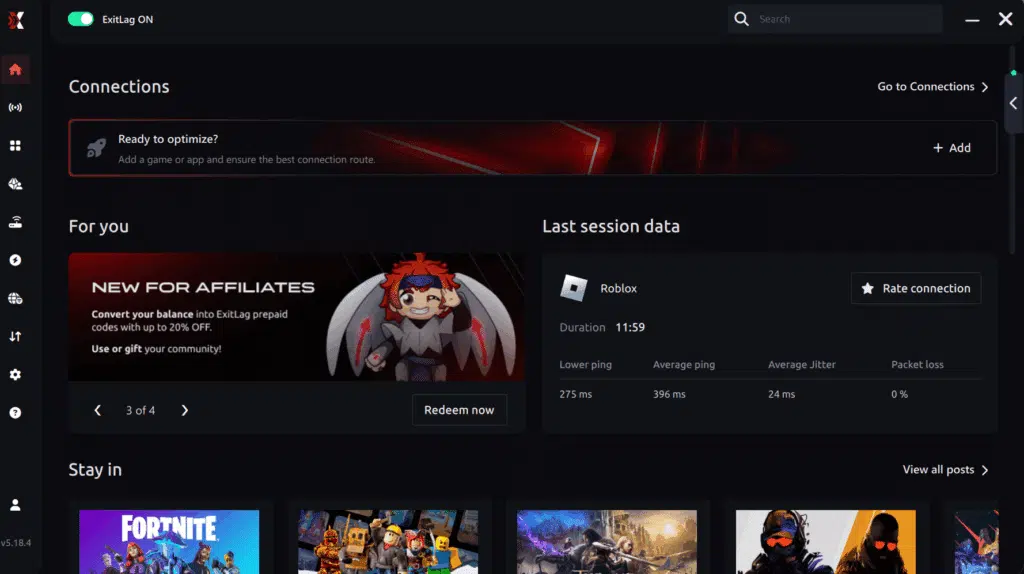
Connection screen Valorant
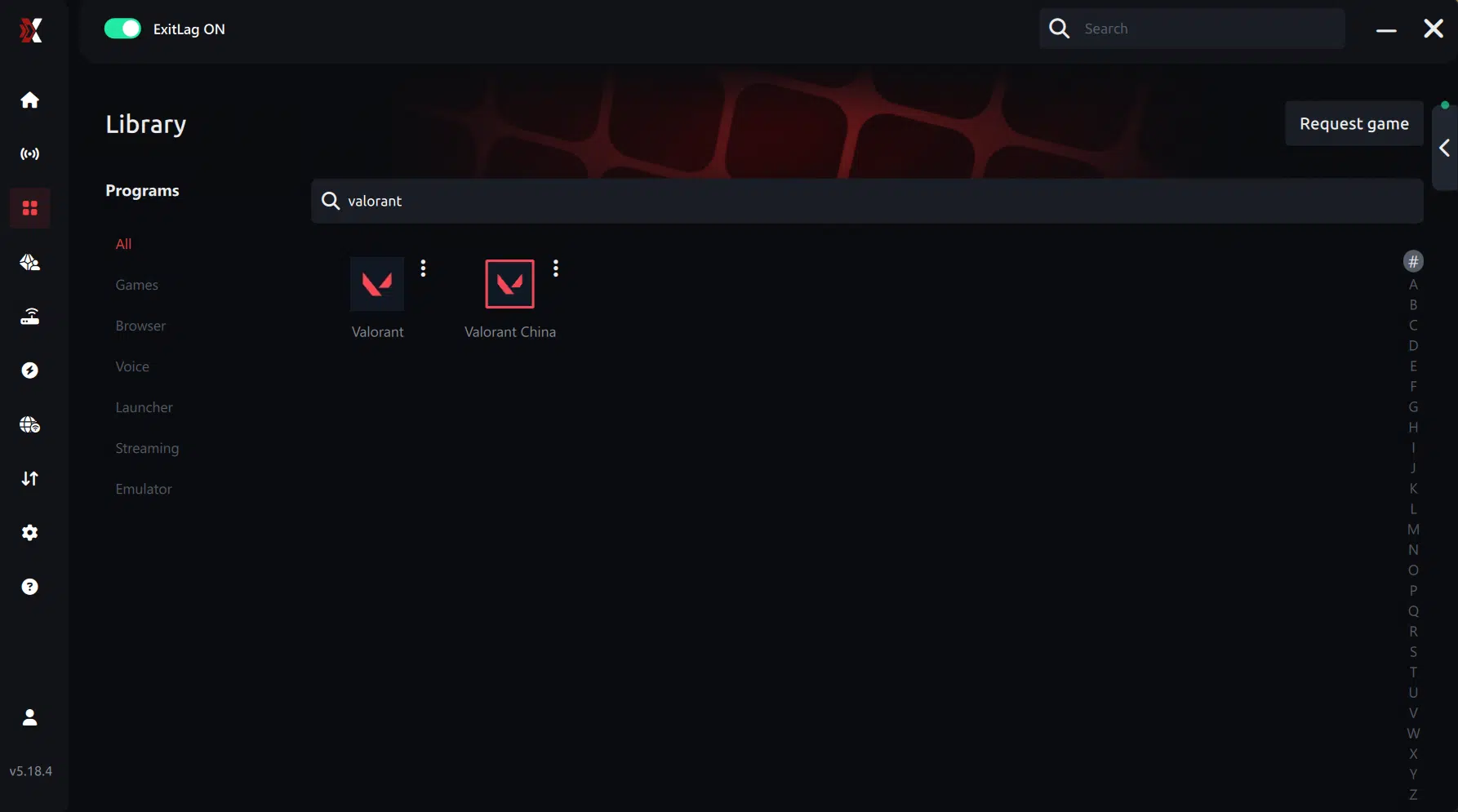
Step 3 – In the search bar, type “Valorant” and select the game from the list.
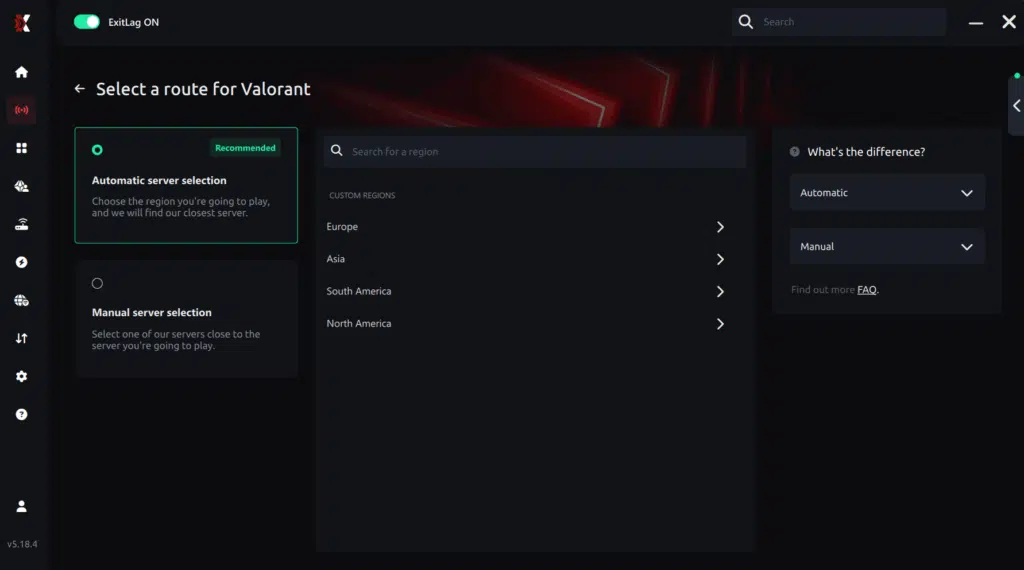
Step 4 – Choose the server manually
Based on the ping test results, you can manually choose the server that showed the lowest latency or the one that best meets your specific gaming needs.
Manual route
If you prefer to have full control over your connection, you can manually choose the server based on the ping test results. Simply select the server that showed the lowest latency or the one that best meets your specific gaming needs, allowing complete customization of your experience.
Step 5 – Click “Apply routes” or the play button. ExitLag will begin optimizing your connection automatically.

Step 6 – Wait a few seconds until optimization is complete. You’ll see ping indicators in the interface.
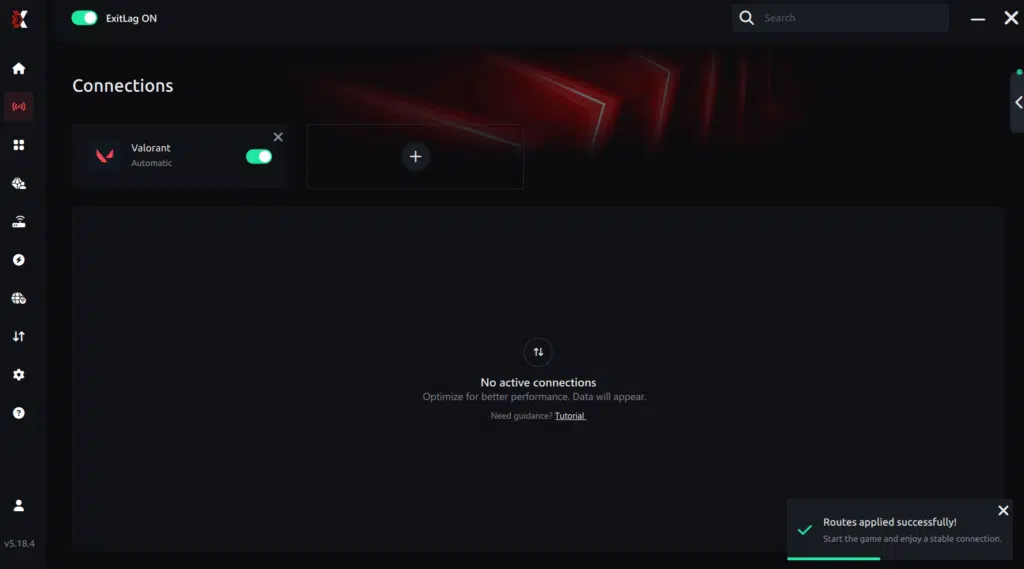
Step 7 – Launch Valorant normally. The optimization will already be active.
ExitLag runs in the background while you play, constantly adjusting routes to maintain the best possible performance.
How to use Ping for Games: step-by-step guide (Valorant)
Checking your connection quality before entering a match has never been easier. Here’s how to use Ping for Games in just a few steps:
1. Open the ExitLag software on your PC
Ensure the application is installed and open. The feature is integrated into the platform and available for free to all users.
2. Access the Network Analyzer tool
Locate the Network Analyzer in the software menu. This is where you’ll find Ping for Games along with other connection analysis features.
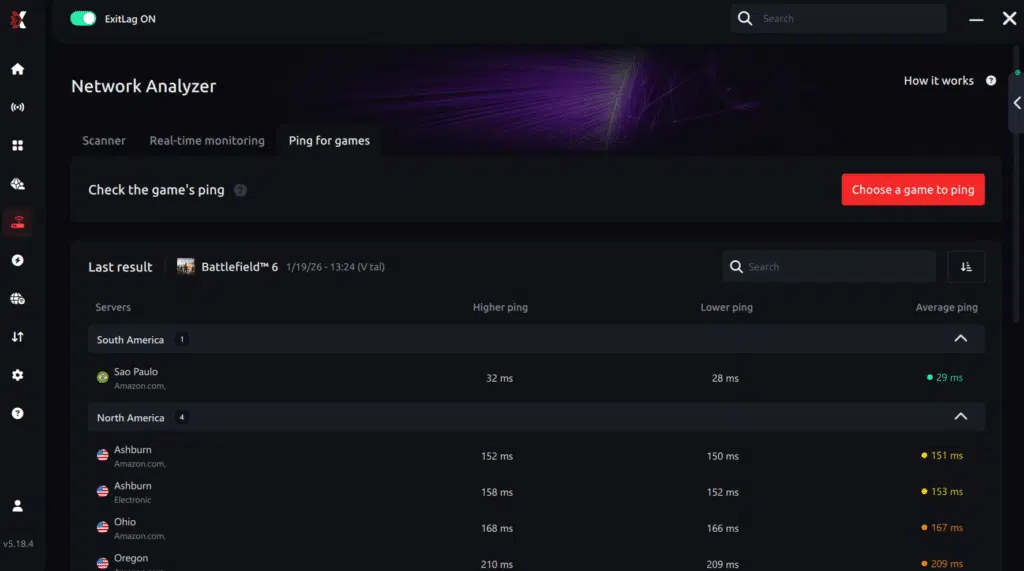
3. Select the game you want to test
Choose Valorant from the list. The tool supports major online multiplayer games, including FPS, Battle Royales, MOBAs, MMORPGs, and more.
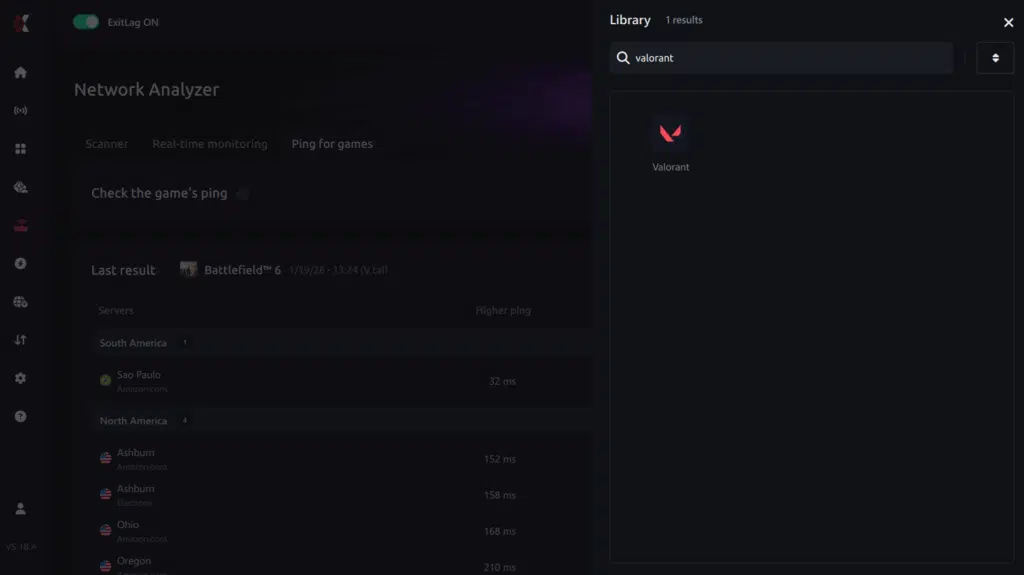
4. Choose the specific server
Select the exact Valorant server you want to test instead of a generic region. This ensures more accurate results for your match.
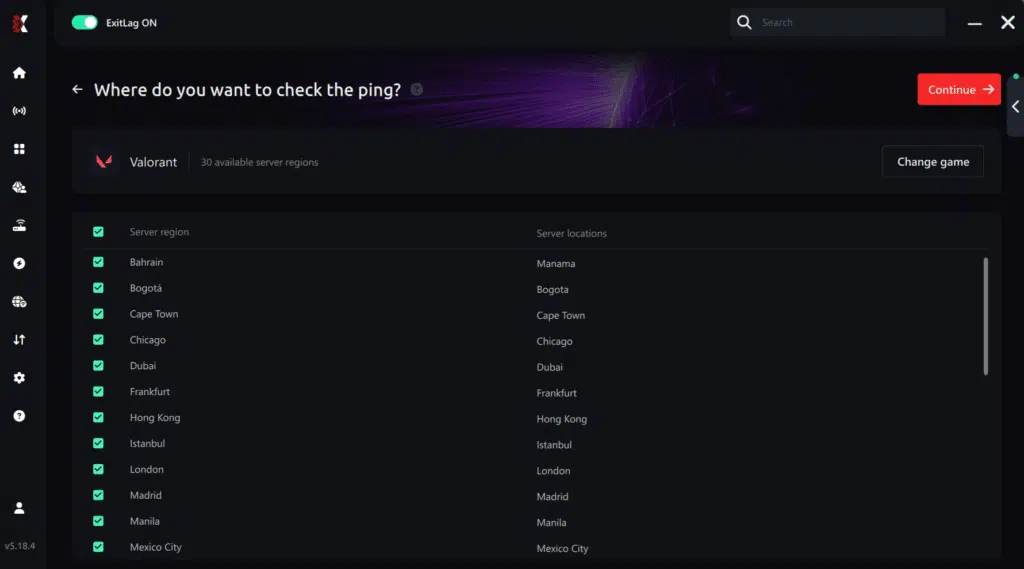
5. Start the ping test
With one click, the measurement is performed in real time between your device and the selected Valorant server, considering your current connection (cable or Wi-Fi).
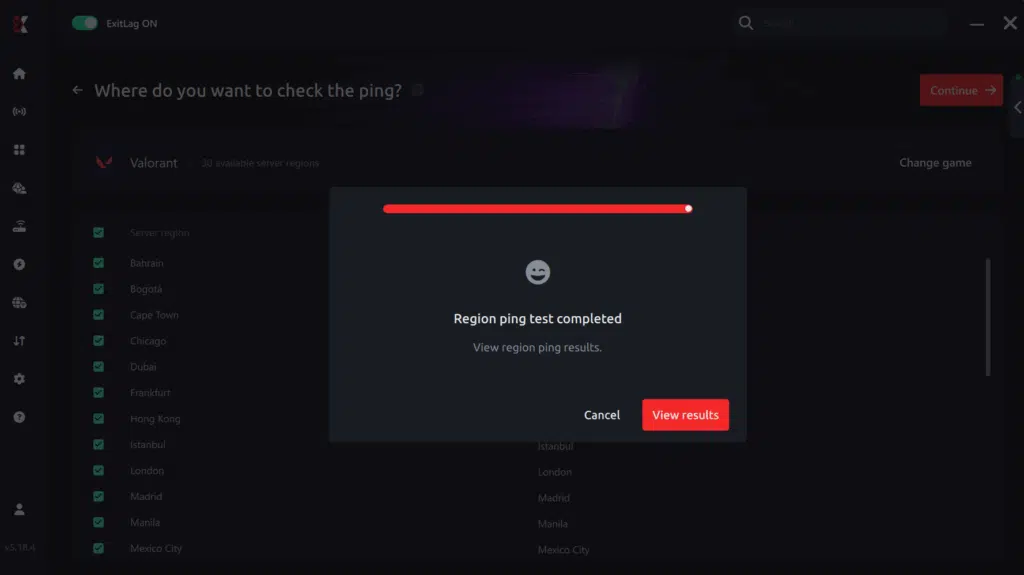
6. Analyze the results
Results appear in milliseconds (ms), automatically sorted from best to worst ping. You can also reorganize the view alphabetically if you prefer.
7. Choose the best server and play worry-free
With this information, simply select the server with the lowest latency and jump into Valorant knowing your connection is optimized.
Final thoughts: Play Valorant without lag forever
At the end of the day, Valorant lag should never decide your matches. You spend time mastering your aim, movement, and game sense — your internet connection should never be the reason you lose.
With ExitLag, you finally take control of your network performance. The software finds the fastest routes, eliminates lag, and stabilizes your ping so that every shot, every peek, and every clutch happens exactly when you want it to.
Try ExitLag for free right now and experience how smooth Valorant can be when your connection is fully optimized. Play with confidence, reach your full potential, and make lag a thing of the past.
Emulator setup
Players using emulators for training or aim-practice maps must ensure network optimization is applied to both the emulator and the game profile. Now, simply activate ExitLag for your specific emulator and use the same routing for consistent performance.
Optimization tips
- Close heavy apps before starting Valorant.
- Keep your graphics driver updated.
- Enable high-priority mode for Valorant in Windows.
- Maintain lower visual settings during peak hours.
These steps help reduce Valorant low FPS during large firefights.
Console players
Although Valorant is currently exclusive to PC, future console versions will likely benefit from connection routing tools. Therefore, console players can prepare by learning how network optimization improves stability and reduces stutter-like symptoms.
Before and after results with ExitLag in Valorant
After applying ExitLag, many players report dramatic improvements. Even more, effects often extend beyond lag reduction, stabilizing frame pacing that previously felt like FPS Drop Valorant.
Real player cases
- Case 1: A player dropping from 180 to 90 FPS during team fights improved to 165+ stable FPS after optimizing routing.
- Case 2: A user dealing with 45% packet loss reduced the issue to 0%, removing all micro-stutter effects.
- Case 3: Another player suffering from severe Valorant stuttering saw frame pacing stabilize by 70%.
Performance comparison table
| Metric | Without ExitLag | With ExitLag | Improvement |
| FPS Stability | Low | High | ✔ More consistent |
| Packet Loss | 5–30% | 0–1% | ✔ Smoother tracking |
| Latency | 80–120ms | 40–60ms | ✔ Faster response |
| Input Delays | Frequent | Minimal | ✔ Better aim feel |
Additional optimizations to maximize FPS with ExitLag
Even after improving stability with ExitLag, some players still feel symptoms similar to FPS Drop Valorant, especially when system, network, or in-game settings are not configured properly. Therefore, this section covers complementary steps that help you reach the highest possible performance.
Network
Improving your network can remove issues often confused with Valorant lag, Valorant stuttering, or Valorant performance issues.
- Prefer Ethernet instead of Wi-Fi for a more stable connection.
- Enable QoS on your router to prioritize gaming traffic.
- Use reliable DNS providers for faster name resolution.
- Close heavy applications such as browsers, launchers, and background downloads.
These actions reduce network jitter, which often appears as Valorant frame drops during duels or rotations.
System
Your operating system also influences performance, and minor issues can worsen the perception of FPS Drop Valorant.
- Keep GPU and chipset drivers up to date.
- Enable high-performance mode in your power settings.
- Disable unnecessary startup apps that consume CPU and RAM.
- Clean temporary files and maintain sufficient disk space.
Even more, these adjustments prevent background tasks from spiking during intense combat.
In-game
Valorant’s settings are designed to be flexible, but the wrong configuration can intensify symptoms.
- Turn V-Sync off to reduce input delay.
- Set an FPS limit slightly above your monitor’s refresh rate.
- Use Riot’s recommended competitive presets for maximum stability.
By optimizing all three layers—network, system, and game—you complement ExitLag’s improvements and reduce scenarios that feel like FPS Drop Valorant.
Frequently asked questions about FPS drop in Valorant
Does ExitLag actually improve FPS?
ExitLag improves network stability, which reduces micro-stuttering that many players mistake for FPS Drop Valorant. Although it does not overclock hardware, it removes interruptions that affect visual pacing.
Is ExitLag safe?
Yes. ExitLag is secure, widely used by professional players, and does not access personal files or interfere with game integrity.
Does ExitLag work on console?
Valorant is currently PC-exclusive, but ExitLag already supports dozens of console titles. When Valorant eventually expands, similar benefits will apply.
How much does ExitLag cost?
You can explore all available plans on the official ExitLag pricing page, where each option is explained in detail.
Even better, before committing to a subscription, players can experience the full benefits firsthand with the free trial, allowing you to test ExitLag’s performance impact with zero risk.
My PC is weak, does ExitLag help?
Yes. While it won’t boost hardware FPS, ExitLag removes network instability that often looks like Valorant low FPS or Valorant performance issues.
Does ExitLag work with Valorant?
Yes. Valorant is included in the official supported games list. You can see all compatible titles in the full directory available on the ExitLag website.
What’s the difference between ExitLag and a VPN?
ExitLag uses gaming-dedicated routing. It does not encrypt or hide traffic like a normal VPN. That’s why ExitLag is NOT a VPN—it is a performance tool designed to reduce lag, packet loss, and jitter.
More Valorant-specific questions
Why does Valorant stutter during fights?
Because particle effects, audio cues, and CPU spikes often synchronize at once, creating symptoms similar to FPS Drop Valorant.
Why do maps like Sunset or Icebox cause more instability?
Complex geometry and large visibility ranges increase CPU load, contributing to Valorant stuttering during combat.
Does high ping feel like FPS drop?
Yes. Network jitter creates visual interruptions that players interpret as low FPS, which ExitLag helps eliminate.

Fix FPS drop in Valorant with ExitLag
Final benefits
Using ExitLag consistently delivers:
- Stable FPS
- Zero micro-stuttering
- Smooth gameplay
- Competitive advantage
- Frustration-free gameplay
These improvements help ensure that instability no longer disrupts your ranked matches or aim routines.
Next steps
- Test ExitLag for free
- Configure in 5 minutes
- Compare before and after
- Dominate Valorant
In conclusion, solving FPS drop Valorant issues requires balancing hardware, settings, and network stability. ExitLag’s multi-path technology eliminates routing delays and ensures fluid gameplay across all regions of Valorant. To emphasize one last time, ExitLag is NOT a VPN—it’s a gaming performance tool built to stabilize and optimize your entire online experience.Now that you know everything about FPS drop Valorant, if you want the most stable, smooth, and competitive gameplay possible, is the time to upgrade your performance toolkit. Register at ExitLag now and improve your gameplay in a way you’ve never experienced before!
Got questions or want to connect with other players? Join the conversation at the ExitLag Forum!