Changing your character appearance is one of the easiest ways to personalize your Minecraft experience. Whether you want to look like a fantasy warrior, a futuristic hero, or a funny custom character, skins help make your adventures feel much more unique.
Many players search for how to change Minecraft skin settings because customization has become a huge part of the game’s identity. From multiplayer servers to survival worlds, custom skins allow players to express creativity and stand out during online gameplay.
If you are trying to learn how to upload skins, switch appearances, or use custom designs safely, this guide will show you everything you need to know about Minecraft skin customization for both Java and Bedrock editions.
How to change Minecraft skin in Java Edition
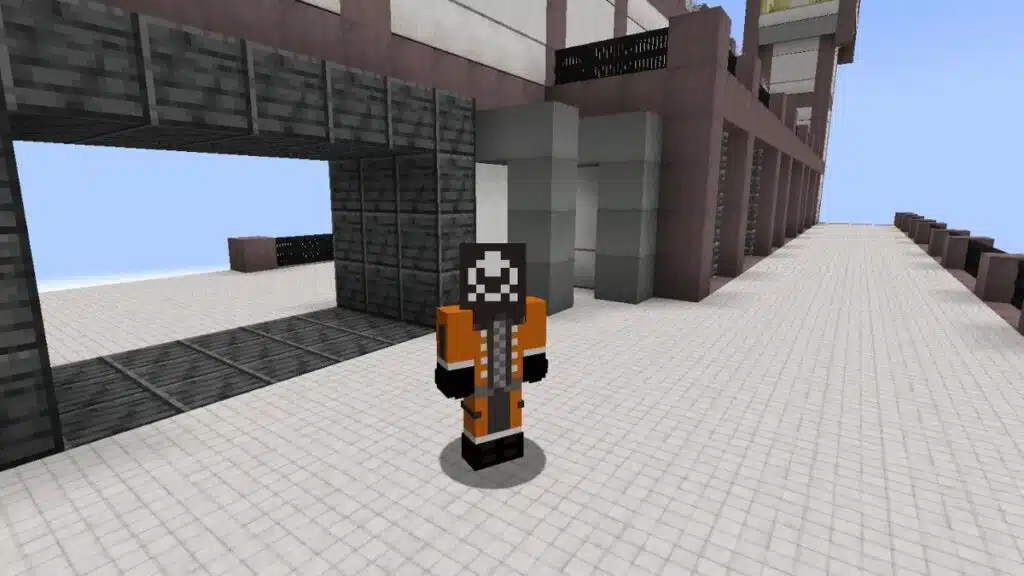
If you are learning how to change Minecraft skin settings for the first time, the Java Edition is actually one of the easiest versions to customize. One of the biggest reasons players love Java is the complete freedom it offers for skins, mods, textures, and community-created content.
Unlike many games with limited customization systems, Minecraft Java Edition allows you to fully personalize your character using almost any skin design you want.
Whether you prefer realistic characters, anime-inspired skins, fantasy warriors, superheroes, or funny memes, there are thousands of possibilities available online.
For many players, using a custom skin Minecraft design is part of what makes multiplayer servers feel more personal and immersive.
After all, nobody wants to look exactly the same as every other player forever.
How Minecraft skin upload works in Java
Fortunately, the Minecraft skin upload process is very beginner-friendly and usually takes only a few minutes to complete.
If you already have a skin downloaded, the setup process is extremely simple.
Players only need to:
- Download a Minecraft skin PNG file;
- Open the official Minecraft Launcher;
- Access the “Skins” tab;
- Select “New Skin”;
- Upload the PNG file;
- Save and apply the skin.
Once the upload is complete, your new appearance automatically becomes active during gameplay.
This means you can instantly join servers or survival worlds using your updated character design.
One important thing to remember is that Java Edition supports both classic and slim character models. If your skin appears visually broken or distorted after uploading, the issue is usually related to selecting the wrong body model during the upload process.
Fortunately, fixing this only takes a few seconds.
Another major advantage of Java Edition is how easy it is to switch Minecraft skin designs whenever you want. Some players change skins depending on seasons, multiplayer events, roleplay servers, or even specific survival worlds.
For example, you might use:
- Medieval skins for fantasy servers;
- Sci-fi skins for futuristic builds;
- Casual skins for survival worlds;
- Competitive-themed skins for PvP gameplay.
That flexibility is one reason why Minecraft customization remains so popular after all these years.
Best websites for custom skin Minecraft downloads
Players searching for a good custom skin Minecraft design usually explore community skin libraries filled with thousands of creations made by other players.
Popular skin sources often include:
- Community skin websites;
- Official Minecraft marketplaces;
- Creator-made collections;
- Fan-made character libraries;
- Gaming community forums.
Some websites even allow you to edit skins directly inside the browser before downloading them.
This is especially useful if you want to personalize colors, clothing, accessories, or facial details without building an entirely new skin from scratch.
However, downloading skins safely is extremely important.
While many Minecraft skin websites are legitimate, some suspicious pages may attempt to trick users with unnecessary downloads, fake launchers, or unsafe files.
To stay safe while using any Minecraft skin changer or skin website:
- Only download PNG skin files;
- Avoid websites requesting passwords;
- Never install suspicious executables;
- Use trusted Minecraft communities;
- Keep your launcher updated.
In most cases, the official launcher already provides everything necessary for safe customization.
Because of that, external software is often unnecessary unless you are using advanced customization tools.
Once you understand the basics of Minecraft skin upload, changing skins becomes incredibly fast and fun. Many players eventually build entire collections of skins for different gameplay styles, events, and multiplayer experiences.
Change skin Minecraft Bedrock edition guide
The change skin Minecraft bedrock process works slightly differently compared to Java Edition.
Bedrock includes built-in customization systems and marketplace integrations.
How to change skins in Bedrock Edition
Players using Bedrock Edition can customize skins through the Dressing Room menu.
The process usually involves:
- Opening the main menu;
- Accessing character customization;
- Selecting owned skins;
- Uploading custom files;
- Saving the selected appearance.
Bedrock also supports detailed cosmetic customization options.
Players can combine accessories, animations, and custom items alongside skins.
Differences between Java and Bedrock skin systems
Although both versions support customization, there are important differences.
| Feature | Java Edition | Bedrock Edition |
| Custom Uploads | Fully supported | Supported |
| Marketplace Integration | No | Yes |
| Advanced Cosmetics | Limited | Extensive |
| Community Modding | Strong | Moderate |
Understanding these differences helps players choose the best customization approach.
Switch Minecraft skin quickly and easily
Many players frequently switch Minecraft skin designs depending on mood, servers, or gameplay themes.
Fortunately, Minecraft makes skin switching very easy.
Why players switch skins regularly
There are several reasons players enjoy changing skins often.
Common motivations include:
- Seasonal events;
- Multiplayer roleplay;
- PvP server identity;
- Content creation;
- Personal creativity;
- Themed survival worlds.
For example, some players use fantasy skins during RPG servers while using modern skins during PvP gameplay.
Skin customization helps create stronger player identity online.
Organizing multiple Minecraft skins
Players who use many skins should organize files properly.
Helpful tips include:
- Creating skin folders;
- Naming skins clearly;
- Keeping backup PNG files;
- Separating favorite designs.
This makes switching much faster later.
Organization becomes especially useful for content creators and multiplayer players.
Custom skin Minecraft creation tips
Creating your own custom skin Minecraft design can be incredibly rewarding.
Many players eventually move from downloading skins to designing original characters.
Best tools for creating Minecraft skins
Several tools help simplify skin creation.
Popular options include:
- Online skin editors;
- Pixel art software;
- Community skin creators;
- Minecraft-focused design tools.
Most editors allow players to preview skins in 3D before exporting them.
That makes customization much easier for beginners.
Common mistakes when creating skins
New creators often make several common design mistakes.
These include:
- Overusing bright colors;
- Ignoring shading;
- Creating low-contrast designs;
- Forgetting side textures;
- Misaligning facial details.
Small adjustments can dramatically improve skin quality.
Practice usually leads to much better results over time.
Minecraft skin changer tools and safety tips
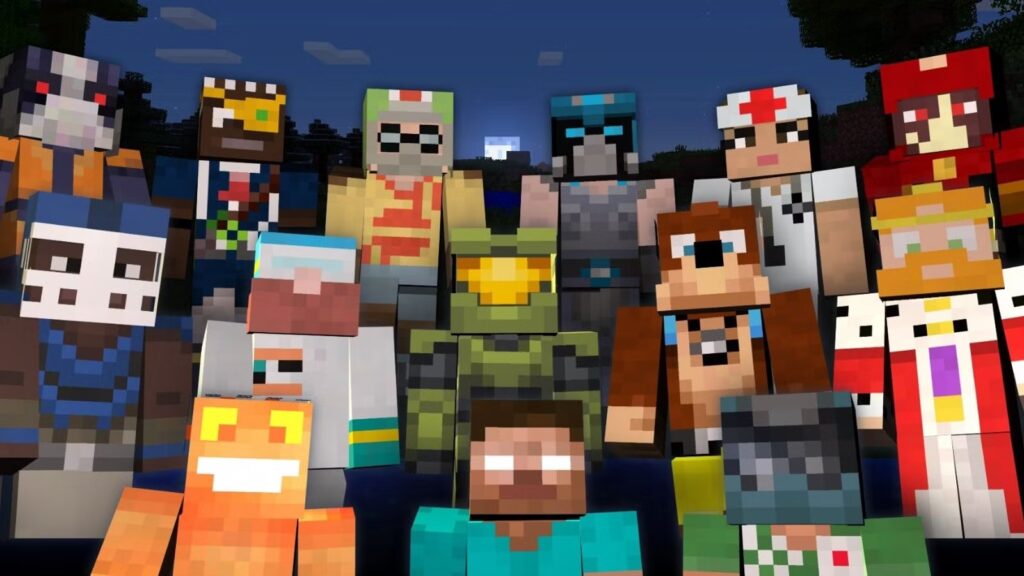
Many players search for a Minecraft skin changer to simplify customization.
However, not every tool online is safe or necessary.
Are Minecraft skin changer tools safe?
Some third-party skin tools are legitimate, while others may create security risks.
To stay safe:
- Use trusted websites;
- Avoid suspicious downloads;
- Never share account passwords;
- Use official launchers whenever possible.
The official Minecraft launcher already supports skin uploads directly.
Because of that, external software is often unnecessary.
Best practices for secure skin customization
Players should always prioritize account security.
Important safety practices include:
- Enable two-factor authentication;
- Download skins only from trusted sources;
- Avoid unofficial account generators;
- Keep launcher software updated.
Safe customization helps protect your Minecraft account long term.
Why stable connections matter in Minecraft multiplayer
Minecraft multiplayer gameplay still depends heavily on connection stability.
Connection problems may negatively impact gameplay during online sessions.
Common multiplayer connection problems
Several issues may affect multiplayer servers:
- Delayed chunk loading;
- Rubberbanding;
- Server lag;
- Delayed interactions;
- Combat desynchronization.
These problems become especially frustrating during competitive servers or large multiplayer worlds.
How ExitLag helps optimize online gameplay
ExitLag helps optimize online gaming routes for smoother multiplayer performance.
Unlike traditional VPN services, ExitLag focuses specifically on gaming traffic optimization.
The software helps by:
- Reducing packet loss;
- Stabilizing routing;
- Improving responsiveness;
- Optimizing server communication;
- Supporting online multiplayer games.
Its multi-route technology automatically searches for more stable paths between players and servers.
That may help improve Minecraft multiplayer consistency.
FAQ
Players learning how to change Minecraft skin in Java Edition need to upload a PNG skin file through the Minecraft launcher.
The change skin Minecraft bedrock process uses the Dressing Room menu and supports custom uploads alongside marketplace cosmetics.
Yes, players can create and upload their own custom skin Minecraft files using PNG skin templates.
Yes, the Minecraft skin upload process is completely free through official Minecraft tools.
The safest Minecraft skin changer method is using the official Minecraft launcher or Bedrock customization tools.
Customize your Minecraft experience with smoother gameplay
Learning how to change Minecraft skin settings allows players to personalize their worlds, multiplayer experiences, and overall gameplay identity. Whether you prefer funny skins, fantasy characters, or detailed custom creations, Minecraft customization remains one of the game’s most enjoyable features.
At the same time, stable online performance is essential for smooth multiplayer gameplay and server interactions.
That is why many players use ExitLag to reduce packet loss, stabilize routing, and improve responsiveness during online gaming sessions.
Ready for smoother Minecraft multiplayer gameplay? Try ExitLag and optimize your gaming experience today.
Got questions or want to connect with other players? Join the conversation at the ExitLag Forum!