A good skin Minecraft setup can completely change how you feel in the game. Your skin is not just a cosmetic detail. It is the visual identity you bring into survival worlds, creative servers, roleplay sessions, and multiplayer matches. Whether you want a clean aesthetic, a funny look, or a character inspired by another universe, choosing the right skin is one of the easiest ways to make Minecraft feel more personal.
Personal style is only one part of the experience once you join a world with other people. When servers feel unstable or movement starts stuttering, it helps to understand how to fix Minecraft lag in multiplayer sessions before assuming the problem is related to your skin or game files.
More than that, skin Minecraft options let players stand out, express their personality, and make their characters feel unique from the default crowd. Some players prefer cool Minecraft skins with detailed armor, hoodies, or fantasy themes. Others want funny Minecraft skins, superhero-inspired looks, or simple designs made with a Minecraft skin maker. No matter your style, the process is easier than many players expect.
If you have never changed your appearance before, do not worry. A skin Minecraft customization can be as simple as downloading a ready-made PNG and uploading it to your account. On the other hand, if you want full control, you can create Minecraft skin designs from scratch with a Minecraft skin creator or edit an existing template until it matches exactly what you want.
In this guide, you will learn where to find skins, how to make your own, how to upload them, how skins work in Java and Bedrock, and what to do if your skin does not appear correctly. You will also see how ExitLag can help create a smoother online experience when you want to show off your look in multiplayer worlds and servers.
What is a skin Minecraft option and why does it matter?
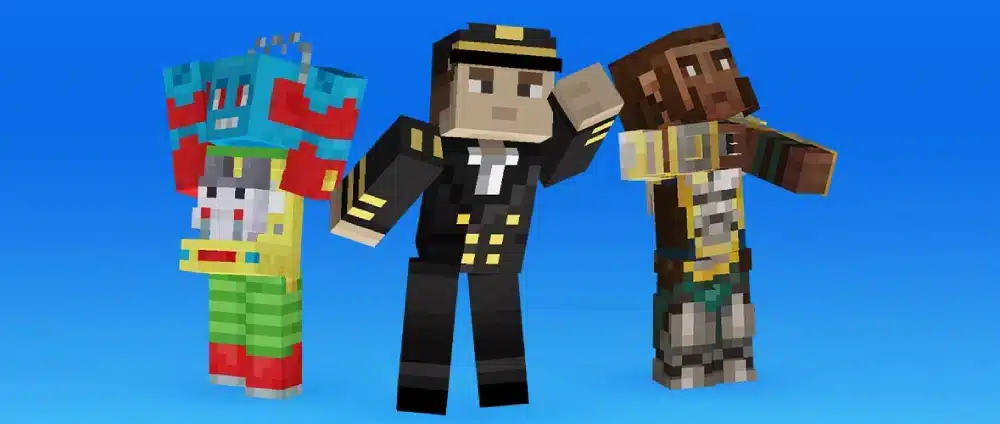
A skin in Minecraft is the texture file that changes how your character looks in the game. Instead of using the default Steve or Alex appearance, you can apply a custom design that changes clothing, colors, facial features, accessories, and overall style.
This matters because Minecraft is a game built around creativity. Players customize their builds, worlds, farms, redstone systems, and even roleplay stories. So it makes sense that character appearance becomes part of that same creative loop.
A custom skin can help you:
- Look different from other players
- Match a roleplay or server theme
- Build a recognizable multiplayer identity
- Express humor, style, or fandoms
- Make your experience feel more personal
There are also different approaches depending on what kind of player you are. Some prefer free Minecraft skins from community sites. Others want to use a Minecraft skin maker for full creative freedom. Some search specifically for Minecraft Java skins, while others just want a fast answer for how to change Minecraft skin without extra steps.
Why players care so much about skins
Skins may not affect stats or gameplay mechanics, but they affect identity. In multiplayer games, appearance becomes part of social presence. It can make your character easier to recognize and help you fit into the mood of a server or group.
For example, a player might want:
- A medieval skin for fantasy roleplay
- A spooky outfit for Halloween events
- A sleek PvP-themed design
- A meme-inspired design for casual servers
- A minimalist modern look
That is why so many players look for awesome skins in Minecraft, Minecraft skins cool skins, and Minecraft great skins instead of staying with the default appearance.
What a Minecraft skin file actually is
A skin is usually a PNG image mapped onto the game’s character model. The image tells Minecraft what color and design each body section should display. That is why editing skins is really about editing a texture layout.
This also makes the process simple. Once you understand that the skin is just an image file, it becomes much easier to download, edit, save, and upload your own design.
How do you download skins for Minecraft?
The most direct way to get started is by choosing a ready-made skin. This is the easiest path for players who want a fast result without designing anything themselves.
To begin, search for a design you like and complete a Minecraft skins download from a trusted source. Most skin files come in PNG format, which Minecraft supports for manual uploads. After that, you log into your account, go to the skin or profile settings, and upload the file.
The basic process looks like this:
- Find a skin you like
- Download the PNG file
- Log into your Minecraft or Mojang/Microsoft account
- Open the skin settings or profile area
- Upload the PNG
- Save the changes
- Launch the game and confirm the update
This is the easiest skin Minecraft workflow for most players.
However, there are a few details to keep in mind. Some skins are designed for the classic model, while others are made for the slim model. If you upload the wrong one for your preference, the arms may look slightly off. That is not usually a major issue, but it is worth checking.
What to look for before downloading a skin
Before starting a Minecraft skins download, pay attention to these factors:
- File format should be PNG
- The source should look trustworthy
- The design should match the right character model
- The preview should show front and back clearly
- The skin should not be corrupted or low-quality
Also, if you want to keep things simple, choose well-made free Minecraft skins rather than downloading random files from suspicious sites.
Best types of skins to try first
If you are new to customization, start with categories that are easy to evaluate visually:
- Casual modern outfits
- Fantasy or medieval themes
- Cute or colorful character styles
- Minimalist hoodie skins
- Popular funny Minecraft skins
These are often easier to judge at a glance than heavily detailed designs.
What are the best ways to create Minecraft skin designs?
If you want something more personal, the best option is to create Minecraft skin content yourself. This gives you total control over colors, outfits, accessories, and facial features. You can start from scratch or modify an existing design.
Many players use a Minecraft skin creator or Minecraft skin maker because these tools simplify the process. Instead of editing a confusing flat image manually, you can paint on a character preview and rotate it in real time.
That makes design much more intuitive.
Here are the usual steps:
- Open a skin editor
- Choose a base template
- Paint or modify body sections
- Add outer layers like jackets or accessories
- Preview the skin from all angles
- Save and export the PNG
Using a Minecraft skin maker is especially useful if you want to experiment without learning advanced image editing software.
That is also why many players start with an editor instead of a blank template. A good Minecraft skin editor with practical customization options makes it much easier to test colors, outfits, and small details before you export the final PNG.
Why use a skin editor?
A dedicated editor helps because it offers:
- Real-time 3D preview
- Easy brush and color tools
- Layer editing
- Mirror tools for symmetry
- Faster adjustments to clothing and faces
If your goal is to create Minecraft skin designs that actually look polished in-game, an editor is much easier than guessing from a flat texture sheet.
Ideas for your custom design
When using a Minecraft skin creator, think about the style you want before painting details. That prevents the design from feeling random.
Good starting ideas include:
- Your favorite colors
- A specific fashion style
- Fantasy classes like mage or knight
- Sci-fi or cyberpunk themes
- Cozy casual outfits
- Seasonal or holiday looks
Easy first customizations
If you are nervous about making a skin from zero, start with small edits:
- Change hair color
- Add a hoodie
- Edit shoes
- Add glasses
- Change eye color
- Add a cape-style back design
How to make your skin look better
To improve quality, focus on contrast and depth. Use slightly darker shades under sleeves, around the neck, and near edges. Small shadows make the design feel much more polished.
That is often the difference between average skins and truly awesome skins in Minecraft.
What websites help with Minecraft skins download?
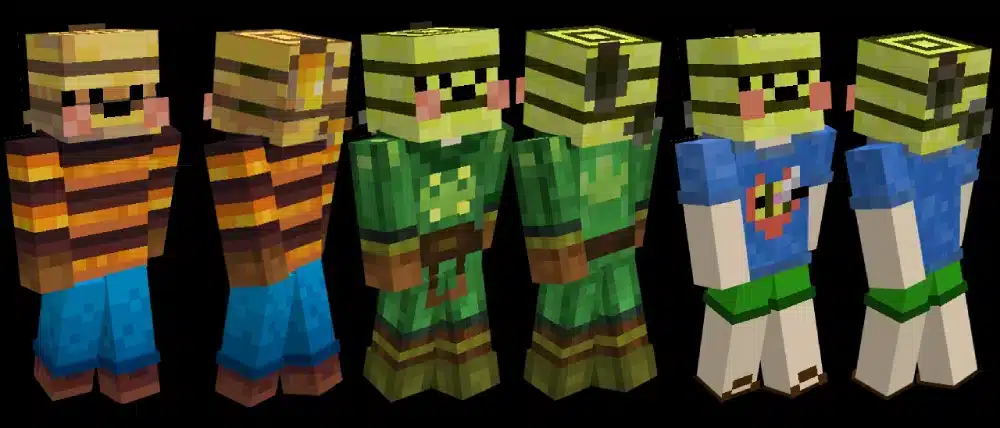
If designing is not your thing, there are plenty of sites that offer community-made skins. A good site makes Minecraft skins download easy, gives you previews, and lets you browse by style or popularity.
Players often look for:
- Trending skins
- Seasonal skins
- Character-inspired skins
- cool Minecraft skins
- funny Minecraft skins
- high-quality free Minecraft skins
The best sites usually offer filters, previews, and search tools so you can find something that fits your taste faster.
When browsing, it helps to search by theme:
- Cute
- Fantasy
- Sci-fi
- Aesthetic
- Meme
- PvP
- Halloween
- Medieval
A good gallery can save a lot of time when you want fast skin Minecraft customization.
What makes a good skin site?
A quality site usually has:
- Clear skin previews
- PNG download options
- Search or category filters
- Active community uploads
- Safe-looking navigation
- Updated popular designs
Some sites also let you edit the skin before downloading, which is useful if you find something close to what you want but not perfect.
Should you always use ready-made skins?
Not necessarily. Ready-made designs are great for speed, but editing them often gives better results. Even simple changes can turn a common look into something more personal.
For example, you can:
- Change colors
- Add details to the hoodie
- Edit hair
- Add accessories
- Swap shoes or gloves
That is a smart middle ground between full custom work and basic Minecraft skins download use.
Once your character is ready, the next step is usually deciding where to use it. If you are planning new worlds or multiplayer exploration, a Minecraft structure finder for planning builds and routes can pair nicely with a fresh look and give your next session a clearer direction.
How to change Minecraft skin in Java and other versions
One of the most common questions is how to change Minecraft skin, and the answer depends slightly on which version of the game you use.
For Minecraft Java skins, the process usually happens through the launcher or account page. You upload the PNG, save the change, and the game applies it the next time you start playing. This is the standard route for most Java players.
For other versions, the interface may differ, but the general logic stays similar: choose or import a custom skin and confirm the change through the account or dressing room system.
How to change skin on Java Edition
For Minecraft Java skins, the typical process is:
- Open the Minecraft Launcher
- Go to the skins tab
- Select a new skin
- Upload your PNG file
- Choose the correct model type
- Save and launch the game
This is the easiest answer to how to change Minecraft skin for Java players.
For the most reliable results, it is always better to follow the account and launcher flow supported by the game itself. The official Minecraft site for account access and game services is the safest place to manage that process without relying on third-party pages.
Common mistakes when changing skins
If your new skin does not appear properly, check these issues:
- Wrong PNG format
- Corrupted file
- Wrong model type selected
- Account sync delay
- Launcher not refreshed
These are simple problems, but they can make players think the upload failed entirely.
Why your skin may not appear in multiplayer
Sometimes your skin is correct on your side, but other players do not see it immediately. That can happen because of connection issues, launcher delays, or server-related sync problems.
How to confirm the change worked
The easiest way is to:
- Check your launcher preview
- Join a world
- Switch to third-person view
- Ask a friend what they see on a multiplayer server
Can ExitLag improve your Minecraft experience?
Even though skins are visual customization, the best place to enjoy them is often online. Multiplayer servers, minigames, social hubs, roleplay worlds, and community events are where your character design becomes part of the experience.
That is where ExitLag fits in.
ExitLag is not a skin tool, and it does not create or edit a skin Minecraft file. However, it can help support a smoother online experience by improving routing stability and reducing connection issues in supported gaming scenarios. That matters when you are playing on servers, joining events, or moving through busy multiplayer worlds where responsiveness makes the game feel better overall.
If you spend time on:
- Public multiplayer servers
- PvP environments
- Minigame hubs
- Roleplay communities
- Social Minecraft worlds
then a more stable connection can improve the overall experience of showing off your custom look in action.
Why ExitLag makes sense for multiplayer Minecraft players
ExitLag may help with:
- More stable online sessions
- Better routing consistency
- Lower chance of connection instability
- Smoother gameplay in supported scenarios
It is especially useful if your connection path to a server is inconsistent.
What ExitLag does not do
To keep expectations accurate, ExitLag does not:
- Design skins
- Replace a Minecraft skin maker
- Fix a broken PNG file
- Change account settings for you
Its value is in the online play environment, not in the skin creation process itself.
What are the best skin Minecraft ideas for different player styles?
A lot of players know they want a new skin, but they do not know what type to choose. The best direction depends on your style, your servers, and what kind of identity you want your character to have.
Here are some strong categories to consider:
| Style | Best for |
| Casual hoodie skins | Everyday multiplayer use |
| Fantasy skins | RPG and roleplay servers |
| Futuristic skins | Sci-fi worlds and tech builds |
| Meme skins | Social servers and comedy |
| Dark aesthetic skins | PvP and dramatic themes |
| Bright cute skins | Creative and community play |
This is where searches for Minecraft great skins, cool Minecraft skins, and Minecraft skins cool skins make sense. Players are often looking for a category before they are looking for one exact skin.
Great ideas for beginners
If you are changing your look for the first time, try one of these:
- A hoodie and sneaker design
- A wizard or rogue theme
- A seasonal outfit
- A pixel-art meme character
- A clean black-and-white minimalist skin
Good themes for custom creators
If you want to use a Minecraft skin creator, try themes that give you room for detail:
- Adventurer
- Cyberpunk hacker
- Vampire
- Forest elf
- Cozy winter character
- Space traveler
Best choices for multiplayer visibility
If you want your character to be easy to recognize in servers, use:
- Strong color contrast
- A distinct hair color
- A memorable accessory
- A clean face design
- Bold sleeves or jackets
Best choices for humor
For players who want personality more than polish, funny Minecraft skins are always a strong option. Meme characters, exaggerated outfits, silly facial expressions, and parody skins work especially well in casual multiplayer spafaci
If your skin refuses to load, appears incorrectly, or behaves differently across versions, checking official troubleshooting steps can save time. The Minecraft Help Center for skin and account support is the best reference when the problem looks tied to launcher behavior, account sync, or version-specific settings.
FAQ
The exact steps vary by version, but the basic answer to how to change Minecraft skin is simple: upload a PNG file through the launcher or account skin settings, save it, and relaunch the game if needed.
The best Minecraft skin maker for beginners is one that offers a live 3D preview, simple drawing tools, and layer editing. A good editor makes it much easier to create Minecraft skin designs without advanced art skills.
Yes, as long as you download from trustworthy-looking community sites and the file is a normal PNG skin. Many players use free Minecraft skins every day without issues.
Minecraft Java skins are usually uploaded through the launcher or account interface, while other versions may use different menus or dressing room systems. The concept is similar, but the steps can vary.
Yes. You can complete a Minecraft skins download, then open that file in a Minecraft skin creator and customize it further before uploading it.
Popular categories include cool Minecraft skins, fantasy designs, minimalist outfits, funny Minecraft skins, and themed characters based on anime, games, or seasonal events.
Final thoughts on skin Minecraft customization
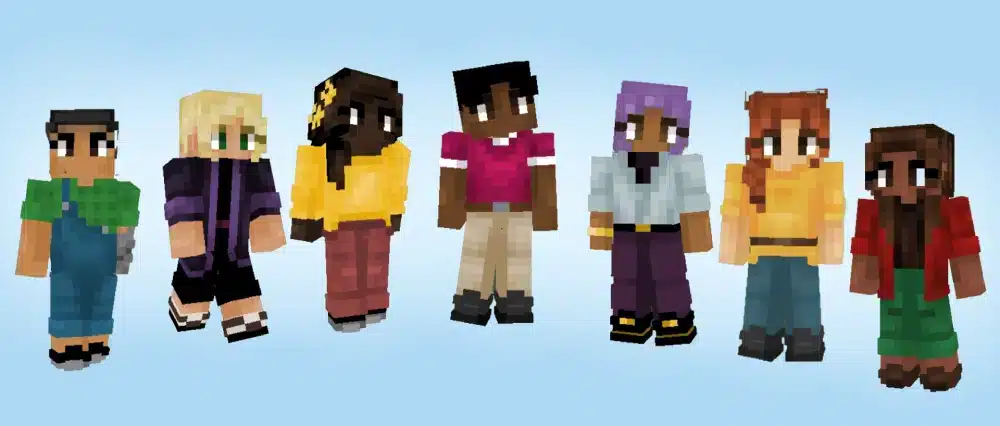
A great skin Minecraft choice can make your character feel more personal, more recognizable, and much more fun to use in every world you join. Whether you want to browse free Minecraft skins, use a Minecraft skin maker, complete a quick Minecraft skins download, or fully create Minecraft skin art with a Minecraft skin creator, the tools are easy enough for beginners and flexible enough for advanced players.
The best part is that there is no single correct style. Some players want simple Minecraft Java skins, some want bold fashion looks, some want funny Minecraft skins, and others search for awesome skins in Minecraft that feel completely original. Whatever direction you choose, taking the time to personalize your appearance adds another creative layer to the game.
And once your character looks exactly the way you want, multiplayer becomes even better. If you want smoother online sessions while showing off your custom style on servers and community worlds, try ExitLag and bring your next skin Minecraft experience into the game with more stability and less interruption.
Got questions or want to connect with other players? Join the conversation at the ExitLag Forum!