Playing Minecraft Lag should be a fun and immersive experience, whether you are building intricate structures, exploring new worlds, or battling mobs. However, nothing ruins the game faster than sudden freezes, delayed actions, or stuttering gameplay. Lag interrupts your flow, makes PvP unfair, and can even cause world corruption if not addressed.
Minecraft Lag affects many players, even those with high-end PCs and fast internet connections. Therefore, understanding what causes lag and learning how to fix it is essential for every serious player. In this guide, you will discover the main reasons for lag, practical solutions, and tools that help you enjoy Minecraft smoothly.
Lag in Minecraft can appear in many forms, from delayed block placement to sudden frame drops, making even simple tasks frustrating. Identifying the cause is the first step to a smoother experience.
What is lag in Minecraft?
Before exploring solutions, it is important to understand what lag means in Minecraft. Lag occurs when the game does not respond to your commands immediately. You might experience:
- Delayed block placement or breaking
- Freezing during multiplayer sessions
- Sudden drops in frames per second
- Slow movement or delayed mob reactions
Like this, lag can make your gameplay frustrating and affect your enjoyment. It is often caused by network issues, server overload, or hardware limitations. By identifying the root cause, you can apply the most effective fixes and enjoy smoother Minecraft sessions.
Common causes of Minecraft Lag
There are several reasons why Minecraft may lag. Understanding these causes helps players troubleshoot and solve the issue effectively.
1. Network Problems
Unstable internet connections are a primary source of Minecraft Lag. High latency, packet loss, and fluctuating speeds can result in delayed block interactions and voice chat issues in multiplayer sessions.
2. Server Distance and Overload
The location of the Minecraft server and its player load can influence performance. Servers far from your location or with too many players can increase lag significantly.
3. Hardware Limitations
Older PCs or insufficient RAM can struggle to run Minecraft, especially with mods or shaders. Even with a fast internet connection, hardware limitations can lead to stuttering and frame drops.
4. Software Conflicts
Background applications, outdated drivers, or conflicting software can affect Minecraft’s performance. Running multiple resource-heavy programs while playing can cause noticeable lag.
Understanding FPS, ping, and lag in Minecraft
It is important to differentiate between FPS, ping, and general lag to accurately diagnose issues.
| Term | Meaning | Common Cause | Effect on Gameplay |
| Lag | Delay between action and game response | Network instability, server overload | Delayed block placement, movement delays |
| Ping | Time for data to travel to server and back | Distance to server or routing issues | High ping causes delayed multiplayer responses |
| FPS | Frames per second, visual smoothness | Hardware limitations | Stuttering, frame drops, choppy visuals |
Therefore, understanding these differences helps identify whether Minecraft Lag originates from your network, your PC, or the server itself.
Why Minecraft lag happens even with good internet
Many players experience Minecraft even when their internet is fast. However, the problem often lies in how data travels to the server or in hardware performance. Internet providers may route data inefficiently, and servers can become overloaded during peak hours.
Additionally, mods, shaders, and high-resolution texture packs can increase the demand on your hardware. Like this, players may notice freezing, stuttering, or delayed block interactions even with strong internet connections.
Solutions to fix Minecraft Lag
There are multiple solutions to reduce or eliminate Minecraft Lag. Combining network optimization, hardware improvements, and software adjustments ensures the best results.
1. Optimize Your Internet Connection
- Use a wired Ethernet connection instead of Wi-Fi to reduce packet loss.
- Close bandwidth-heavy background applications.
- Choose servers closer to your geographic location.
2. Adjust Minecraft Settings
- Reduce render distance and graphical settings.
- Disable unnecessary animations or particle effects.
- Lower the number of entities or mobs if possible.
3. Update Hardware and Software
- Ensure your PC meets the recommended Minecraft specifications.
- Upgrade RAM or GPU if necessary.
- Keep graphics drivers and Java versions updated.
4. Manage Mods and Add-ons
- Use lightweight mods to reduce performance impact.
- Remove outdated or conflicting mods.
- Optimize shaders or choose less demanding texture packs.
Finally, applying these changes provides a noticeable improvement in gameplay and reduces Minecraft for most players.
Advanced tips and tools for lag reduction
For players seeking advanced solutions, several tools and techniques can further reduce lag:
Performance Mods and Plugins
Some mods and plugins are designed to optimize Minecraft performance by reducing unnecessary processes or managing server load efficiently.
Network Monitoring Tools
Applications like PingPlotter or network analyzers can identify bottlenecks, allowing you to choose the most stable server paths.
Switching to Optimal Servers
Some hosting providers offer servers optimized for low latency and stable connections. Choosing such servers can drastically reduce lag.
Summary table of Minecraft lag solutions
| Issue | Solution | Benefit |
| Network instability | Wired connection, close apps | Lower latency, smoother multiplayer |
| High ping | Use nearby servers, optimize routing | Faster response, less delay |
| Hardware limitations | Upgrade RAM, GPU, CPU | Smoother gameplay and FPS |
| Software conflicts | Update Minecraft, clear cache | Fewer crashes and freezes |
| Mods and shaders | Use lightweight mods, optimize packs | Reduced lag and better stability |
Like this, players can quickly identify the main causes of Minecraft and apply the right solution for a smoother experience.
Improve Minecraft performance today
Do not let lag ruin your adventures, builds, or PvP battles. By optimizing your network, updating hardware, and adjusting settings, you can enjoy Minecraft without interruptions.
Try performance optimization tools today and experience stable Minecraft gameplay with minimal lag. Take action now to explore, build, and play without delays.
Say goodbye to Minecraft lag
In conclusion, Minecraft affects many players even with fast internet connections. However, by understanding its causes, optimizing your network, updating software, and improving hardware, you can significantly reduce delays, freezes, and stuttering.
Finally, taking the right steps ensures smooth gameplay, responsive controls, and a better overall Minecraft experience. Act today to minimize Minecraft Lag and enjoy your worlds to the fullest.
How to use ExitLag in Minecraft
The process is extremely simple:
Step 1 – Access the official ExitLag website and download the application. There’s a free trial period for new users.
Step 2 – Install and open the program. Log in with your account.
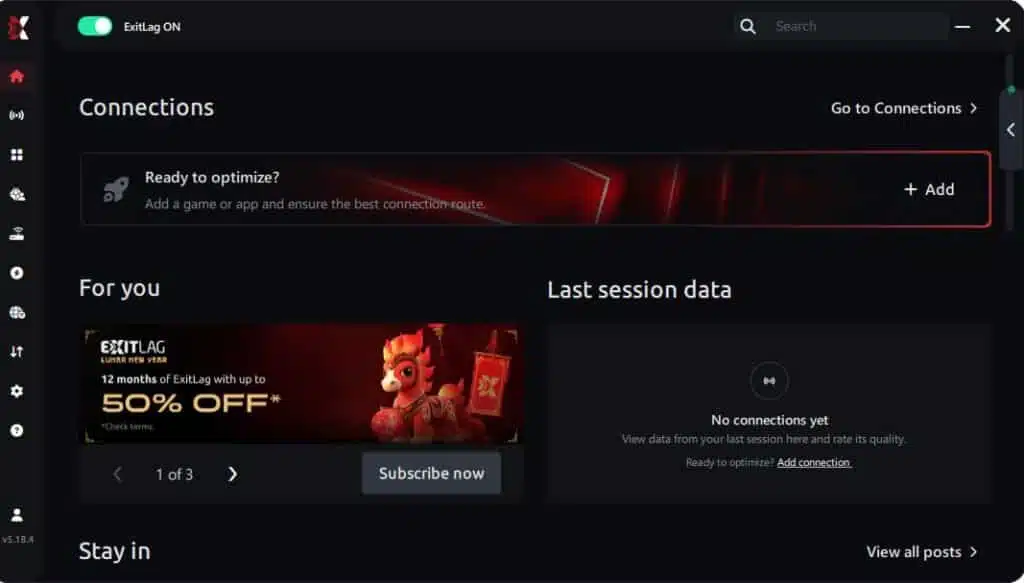
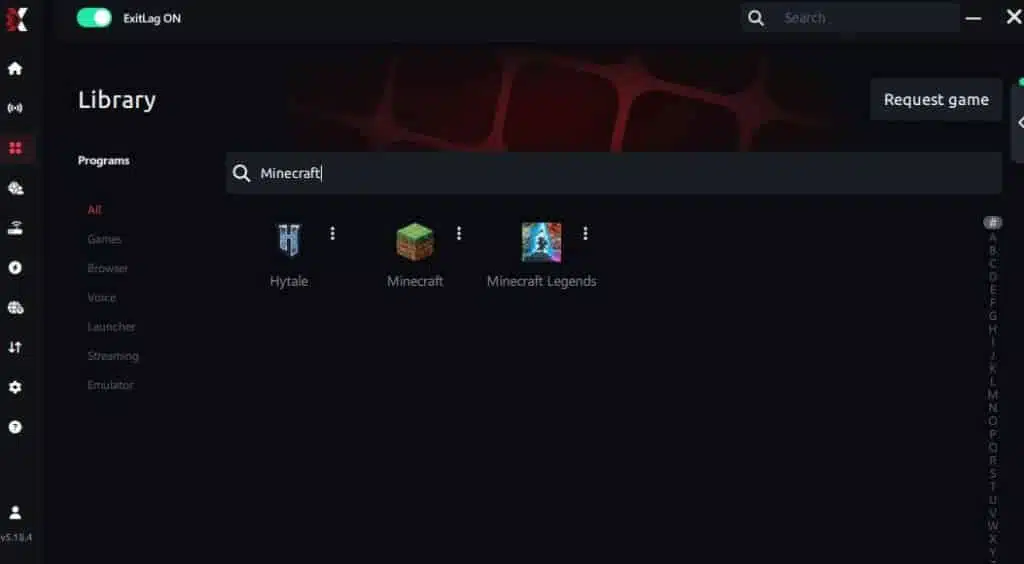
Step 3 – In the search bar, type “Minecraft” and select the game from the list.
Step 4 – Choose between automated or manual route

Based on the results, you can let ExitLag automatically select the best route or manually choose the server that showed the lowest latency for your connection.
AI-optimized automated route
Based on the results, you can let ExitLag automatically select the best route through AI optimization. The system analyzes multiple connection paths in real time and automatically identifies the most efficient route for your connection, ensuring the lowest possible latency without requiring manual choices.
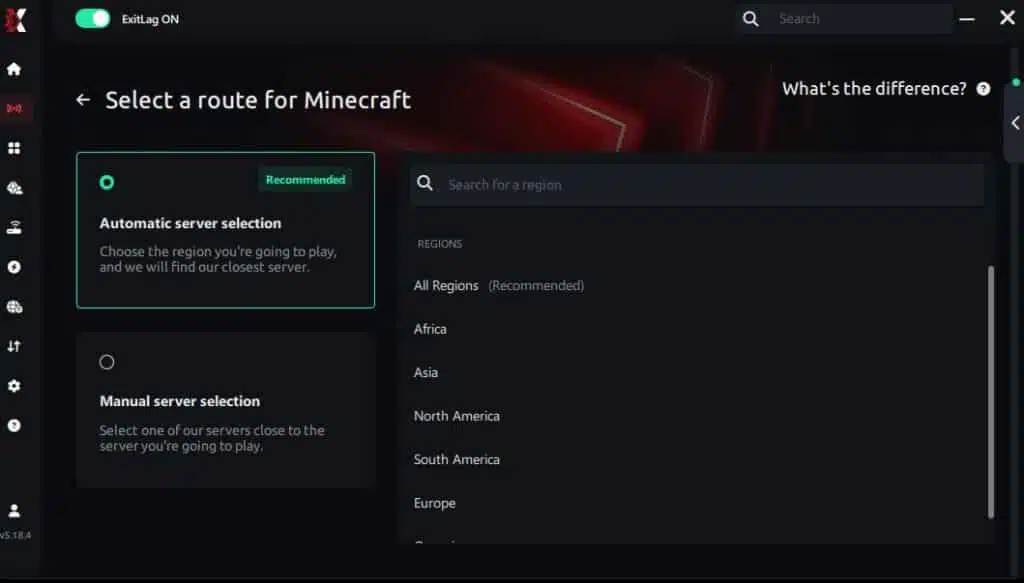
Manual route
If you prefer to have full control over your connection, you can manually choose the server based on the ping test results. Simply select the server that showed the lowest latency or the one that best meets your specific gaming needs, allowing complete customization of your experience.
Step 5 – Click “Minecraft” or the play button. ExitLag will begin optimizing your connection automatically.

Step 6 – Wait a few seconds until optimization is complete. You’ll see ping indicators in the interface.
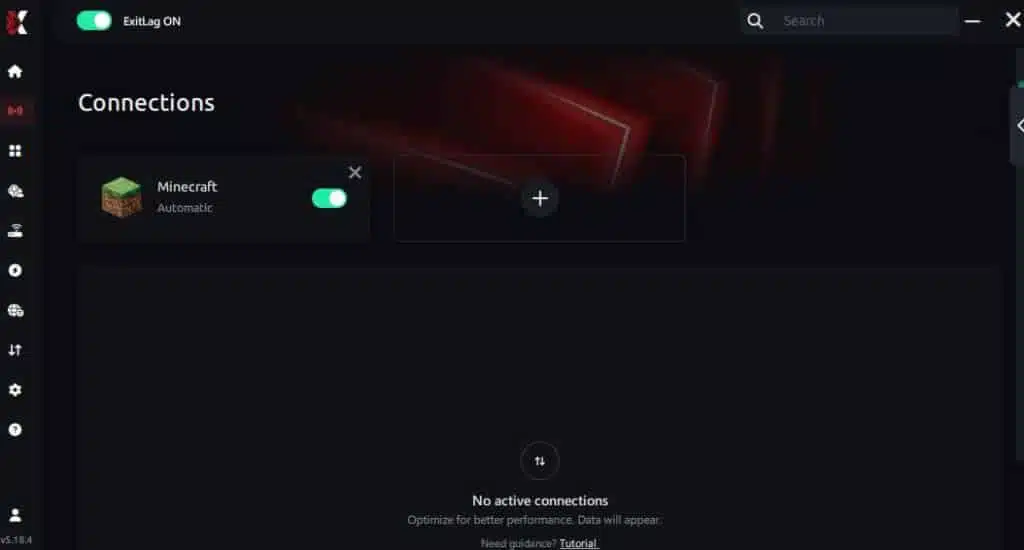
Step 7 – Launch Minecraft normally. The optimization will already be active.
ExitLag runs in the background while you play, constantly adjusting routes to maintain the best possible performance.
Got questions or want to connect with other players? Join the conversation at the ExitLag Forum!