Roblox shaders are one of the most popular ways players try to make Roblox look more detailed, cinematic, and immersive. Instead of relying only on the default visual settings, shaders can change lighting, shadows, contrast, color depth, bloom, and other effects that make each experience feel more polished.
Before adding visual upgrades, it helps to understand what the platform already offers and how players can access experiences safely. This Roblox for free guide is useful for beginners who want the basics clear before experimenting with graphics tools.
Roblox shaders can be especially useful for players who create videos, screenshots, roleplay content, or cinematic showcases. They can also help certain Roblox worlds feel more atmospheric by improving Roblox graphics enhancement, adding stronger Roblox visual effects, and making lighting feel less flat.
Roblox shaders are not official Roblox features, though. Most shader setups depend on third-party software, external injectors, custom launchers, or visual presets. Because of that, players should be careful with downloads, compatibility, account safety, and performance before installing anything.
In this guide, you’ll learn what shaders do, how they compare to standard graphics, how to install them more safely, which tools are commonly discussed, what risks to avoid in 2026, and how ExitLag can help you keep Roblox gameplay smoother when visual upgrades put more pressure on your setup.
What are Roblox shaders?
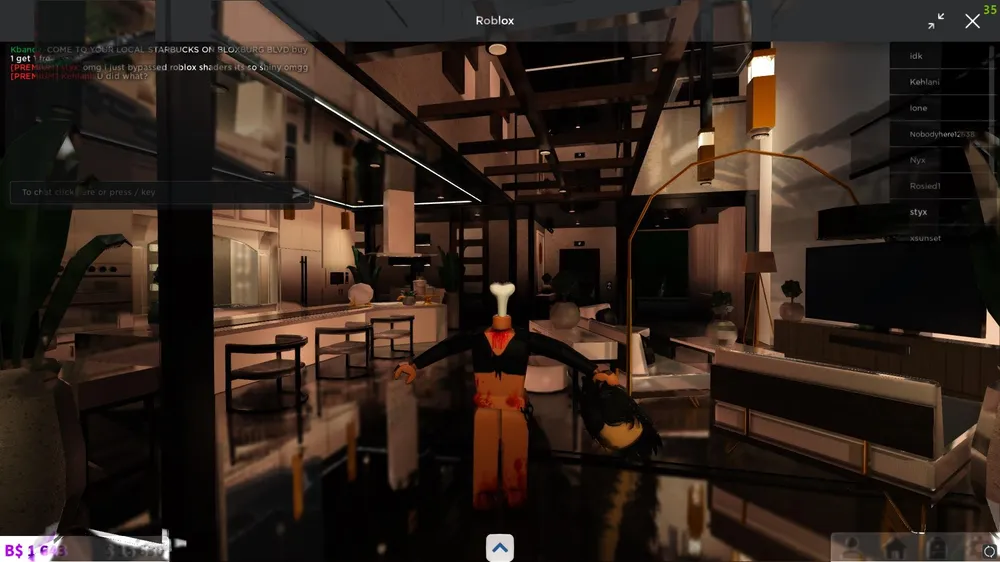
Roblox shaders are visual modifications that change how Roblox appears on your screen. They usually work by applying post-processing effects over the game image, such as bloom, sharpening, color correction, ambient occlusion, depth effects, and stronger contrast.
In simple terms, they do not usually change the actual Roblox experience created by the developer. Instead, they change how the final image looks on your device. This is why many players describe shaders as a form of Roblox graphics improvement rather than a new gameplay feature.
However, Roblox does not provide a native shader menu for players. Roblox’s own graphics settings are limited to general quality levels, performance behavior, and platform-based rendering options. So, most shader use depends on unofficial tools.
That is why it is important to understand the difference between visual improvement and client modification. Roblox’s Terms of Use restrict copying, modifying, reverse engineering, disassembling, or creating derivative works of Roblox services or related technology, which makes third-party tools something players should approach with caution.
How Roblox shaders change lighting and color
Shaders can make Roblox look better by changing how the game image is processed after the scene is rendered. Depending on the preset, they may add softer lighting, brighter highlights, deeper shadows, richer colors, or cinematic contrast.
Common shader effects include:
| Shader effect | What it changes | Visual result |
| Bloom | Bright areas and light sources | Soft glow around lights |
| Ambient occlusion | Contact shadows | More depth around objects |
| Color correction | Tone, saturation, contrast | More cinematic colors |
| Sharpening | Edge clarity | Crisper textures |
| Depth effects | Focus and background blur | Screenshot-friendly visuals |
| Reflections simulation | Surface highlights | More realistic-looking materials |
These effects can make simple Roblox environments look more dramatic. For example, city games can look moodier at night, horror games can feel darker, and showcase maps can look more professional.
Still, not every experience benefits from heavy shaders. Some bright or stylized Roblox games may look worse if the preset adds too much contrast or blur.
Roblox shaders vs standard graphics settings
Standard Roblox graphics settings are designed to work across many devices. That includes low-end laptops, tablets, phones, consoles, and gaming PCs. Because Roblox has such a wide player base, default graphics need to balance performance and compatibility.
Roblox shaders have a different goal. They focus on visual quality first. That means they may look better, but they can also increase GPU usage, reduce FPS, or create visual bugs.
Here is the basic difference:
| Feature | Standard Roblox graphics | Roblox shaders |
| Official support | Yes | No, usually third-party |
| Ease of use | Very easy | Depends on the tool |
| Performance impact | Usually lower | Can be moderate or high |
| Visual customization | Limited | Medium to high |
| Mobile compatibility | Built in | Very limited |
| Risk level | Low | Depends on source and method |
For most players, the safest first step is to increase Roblox’s built-in graphics quality before installing external Roblox visual mods. If that is not enough, shaders can be explored carefully on PC.
Visual upgrades are often used in social games, showcases, and roleplay spaces, where who you play with can matter as much as how the game looks. If you are adjusting your Roblox experience more broadly, this Roblox unblock someone guide can help with the social side before returning to graphics settings.
How do you install Roblox shaders safely?
Installing Roblox shaders safely starts with one rule: never download random shader installers from unknown websites, comment sections, file mirrors, or “free RTX Roblox” pages. Shader tools often need deep access to game files, graphics rendering, or launch behavior, which makes fake downloads especially risky.
A safe installation process should focus on source quality, antivirus scanning, compatibility checks, and reversibility. You should know how to remove the tool before you install it.
Also, remember that compatibility changes over time. A shader method that worked in 2023 or 2025 may not work the same way in 2026. Roblox updates, anti-tamper systems, client changes, and rendering changes can affect shader tools.
Safe download checklist before installing
Before installing any Roblox shaders, use this checklist:
- Download only from the tool’s official website, verified GitHub, or trusted community source.
- Avoid shortened links, reupload sites, or “cracked” shader packs.
- Scan the installer with antivirus software.
- Check recent community feedback before installing.
- Confirm whether the tool still works with the current Roblox client.
- Create a system restore point if you are unsure.
- Avoid tools that ask for your Roblox password or .ROBLOSECURITY cookie.
- Avoid modified Roblox APKs on mobile.
- Read uninstall instructions before running the installer.
This matters because Roblox shader searches often attract unsafe downloads. Some pages use popular terms like Roblox reshade, RTX, realistic graphics, or free shader pack to lure players into downloading questionable files.
If a tool asks for your login credentials, browser cookies, or account token, stop immediately. Visual mods should not need your Roblox password.
General installation process on PC
The exact process depends on the tool, but most PC shader setups follow a similar structure:
- Check whether the tool still supports the current Roblox client.
- Download the installer from a trusted source.
- Scan the file before opening it.
- Close Roblox completely.
- Run the installer only if you trust the source.
- Follow the setup instructions carefully.
- Choose a lighter preset first.
- Launch Roblox and test in a low-stakes experience.
- Check FPS, input delay, and visual stability.
- Adjust shader intensity if performance drops.
Start with subtle settings. Do not turn on every effect at once. Bloom, ambient occlusion, depth effects, and heavy sharpening can quickly reduce performance on mid-range hardware.
For safer testing, use a private server, empty baseplate-style experience, or low-population game first. Then test your usual Roblox games.
Shader testing often happens in roleplay, hangout, or showcase experiences where communication helps organize scenes and sessions. Players who use those spaces can also check this Roblox voice chat guide to understand how voice features fit into social gameplay.
What are the best Roblox shader tools in 2026?
The best Roblox shader tool in 2026 depends on what still works with the current Roblox client, what your PC can handle, and how much risk you are comfortable accepting. It is better to think in terms of “tool categories” than one guaranteed best option.
Some players look for easy presets. Others want manual control. Some only want launcher-level visual tweaks. Others want full post-processing through Roblox reshade style setups.
Because these tools are third-party and compatibility can change, avoid any article or video that promises a permanent working method without explaining risks.
Roshade, ReShade, Bloxshade, and Bloxstrap compared
Roshade has historically been one of the most recognized names connected to Roblox shaders. Its older GitHub repository describes it as an installation package for installing ReShade presets and shaders to the Roblox directory, but that repository was archived in 2023, which means players should verify any current download source carefully.
ReShade is a broader post-processing injector used across many PC games. However, Roblox compatibility has changed over time, and ReShade’s own compatibility information can flag Roblox-related injection instability, so it should not be treated as a guaranteed plug-and-play solution for Roblox in 2026.
Bloxstrap is different. It is not simply a shader tool. Its official site describes it as an alternative launcher for Roblox with additional useful features, and its GitHub page describes it as a third-party replacement for the standard Roblox bootstrapper.
Here is a practical comparison:
| Tool or method | Main purpose | Ease of use | Customization | 2026 caution |
| Roshade-style tools | Shader presets for Roblox | Medium | Medium | Verify current source carefully |
| ReShade | General post-processing injector | Advanced | Very high | Compatibility may be unstable |
| Bloxshade-style tools | Roblox-focused visual presets | Easy to medium | Medium | Check current safety and support |
| Bloxstrap | Alternative Roblox bootstrapper | Medium | Medium | Not a pure shader tool |
| Mobile APK mods | Unofficial mobile modifications | Variable | Low | High risk; avoid |
The safest approach is to choose tools that are transparent, widely discussed, easy to uninstall, and do not ask for account credentials.
Which shader tool should you choose?
Choose based on your goal.
For screenshots and cinematic content, a heavier shader preset may be worth testing. Look for bloom, depth of field, ambient occlusion, and color grading. These effects make scenes more dramatic, but they can also reduce FPS.
For normal gameplay, choose a lighter preset. Focus on sharpening, mild contrast, and subtle color correction. This gives you Roblox graphics improvement without making gameplay feel delayed.
For older PCs, avoid heavy shaders. Even if the game launches, your FPS may drop too much. Roblox games with large maps, complex lighting, or many players can become unstable with high-intensity Roblox visual effects.
Use this quick guide:
| Player type | Best shader approach |
| Competitive player | Light preset only |
| Screenshot creator | High-quality preset |
| Roleplay player | Cinematic preset |
| Low-end laptop user | Avoid heavy shaders |
| Mobile player | Avoid APK shader mods |
| New user | Start with built-in graphics settings |
Are Roblox shaders safe or bannable?
Roblox shaders exist in a gray area because they are not official Roblox features. Many players have used visual tools without problems, but that does not make every shader tool safe. The risk depends on how the tool works, where you downloaded it, and whether it modifies or injects into Roblox in ways that Roblox may restrict.
Roblox’s Terms of Use prohibit several forms of modifying, reverse engineering, disassembling, or circumventing technologies connected to the service. That does not automatically mean every visual preset leads to enforcement, but it does mean players should avoid treating third-party client modification as risk-free.
In other words, Roblox shaders can be safe from a device perspective only if the software is clean, but they can still create compatibility or account concerns depending on how they interact with Roblox.
Account risks, malware risks, and client stability
There are three main risks to understand.
First, there is the account risk. Tools that behave like injectors, modify files, or interfere with the Roblox client may be flagged by security systems. This is especially important if the tool is bundled with exploit software or suspicious scripts.
Second, there is the malware risk. Fake shader downloads can contain spyware, token stealers, browser hijackers, or unwanted software. Any tool asking for credentials, cookies, or external account access should be avoided.
Third, there is the stability risk. Poorly optimized shaders can cause:
- FPS drops.
- Crashes.
- Stuttering.
- Longer loading times.
- Visual glitches.
- Black screens.
- Input delay.
- Higher GPU temperature.
This is why Roblox visual mods should be installed only after checking your system and the tool’s current reputation.
Best practices for safer use
To reduce risk, follow these best practices:
- Use official Roblox settings first.
- Install only one visual tool at a time.
- Avoid exploit menus or script executors.
- Avoid shader packs bundled with cheats.
- Never enter your Roblox password into a shader tool.
- Do not install modified Roblox clients.
- Keep Windows, GPU drivers, and Roblox updated.
- Scan all downloaded files.
- Keep a clean uninstall path.
- Remove the tool if Roblox crashes or shows errors.
Also, avoid using aggressive shader setups in competitive or high-action experiences. Heavy post-processing can make the game harder to play, especially if it affects visibility or timing.
Can you use Roblox shaders on mobile?
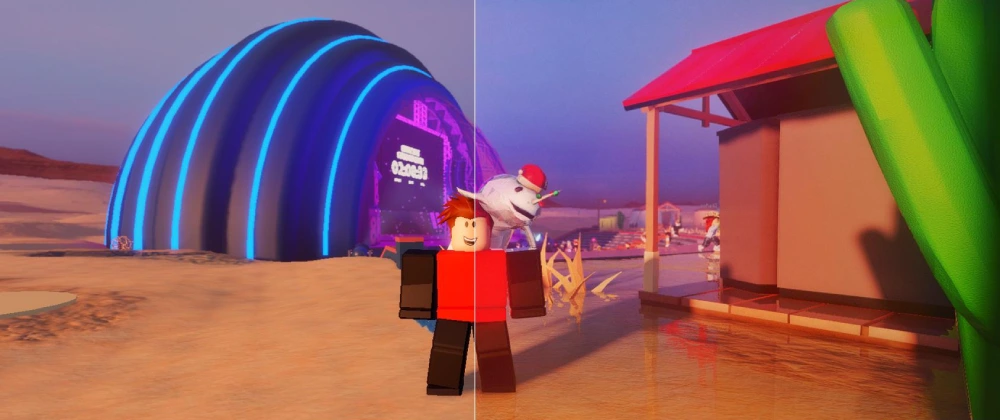
Roblox shaders on mobile are extremely limited. Traditional PC shader tools usually do not work on iOS or Android because mobile operating systems restrict app modification, external injection, and file-level changes.
The official Roblox mobile app does not include a dedicated shader system. Any visual improvements on mobile usually come from Roblox updates, device display quality, or in-game lighting choices made by the developer.
This means mobile players should be skeptical of APKs or apps claiming to add full Roblox shaders.
Why iOS and Android shader support is limited
iOS and Android are designed to protect app integrity. That makes traditional shader injectors difficult or impossible to use safely. On iOS, app sandboxing is strict. On Android, sideloaded APKs are possible, but they create serious security risks.
Mobile devices also have limited thermal headroom. Even if a shader-like effect worked, it could cause:
- Battery drain.
- Overheating.
- FPS drops.
- Crashes.
- Touch input delay.
- Visual instability.
For mobile players, the best options are usually safer and simpler:
- Increase Roblox graphics quality if your device allows it.
- Close background apps.
- Keep the Roblox app updated.
- Lower screen brightness if overheating happens.
- Use a stable Wi-Fi connection.
- Choose experiences optimized for mobile.
Why modified APKs are risky
Modified APKs that promise Roblox shaders are risky because they often require installing an unofficial version of the Roblox app. That can expose your phone and account to malware or credential theft.
Avoid APKs that promise:
- Free Robux.
- RTX graphics.
- Unlimited FPS.
- Account unlocks.
- Hidden shader menus.
- Anti-ban protection.
- Premium features for free.
These promises are common red flags. A visual upgrade is not worth losing your Roblox account or compromising your phone.
For most mobile players, the safest answer is simple: do not use modified APKs for Roblox shaders.
When checking account settings, app access, or official experience pages, it is safer to start directly from Roblox instead of using suspicious downloads. The main Roblox official website gives players a clean place to log in, browse experiences, and avoid unsafe shader-related links.
How can ExitLag improve Roblox gameplay with shaders?
ExitLag does not install Roblox shaders, change graphics, or modify Roblox visuals. Instead, ExitLag helps with connection stability. That matters because shaders can make your PC work harder, and online Roblox experiences still depend on stable routing, low latency, and consistent packet delivery.
When you add visual upgrades, your system may be under more pressure. If your FPS drops and your connection is unstable at the same time, gameplay can feel worse even if the visuals look better.
ExitLag helps by optimizing the route your connection takes to game servers. For Roblox players, this can reduce lag spikes, improve route stability, and help online sessions feel smoother.
Why shaders and connection stability should work together
Good visuals are only part of a better Roblox experience. Smooth gameplay also depends on:
- Stable ping.
- Low packet loss.
- Consistent FPS.
- Fast response time.
- No sudden disconnects.
- Reliable routing.
- Stable Wi-Fi or wired connection.
Roblox shaders can improve how the game looks, but they cannot fix lag. If you want better visuals and better online consistency, you need to look at both graphics performance and network performance.
That is where ExitLag fits into the setup. It helps players reduce connection instability while they focus on choosing the right visual settings for their PC.
When to use ExitLag with Roblox shaders
Use ExitLag if you notice problems like:
- Lag spikes in Roblox.
- Delayed movement.
- Random disconnects.
- Ping changes during gameplay.
- Stuttering that feels network-related.
- Server instability on specific routes.
- Worse performance at peak hours.
ExitLag is especially useful for players who record content, play competitive Roblox experiences, or spend time in multiplayer games where connection quality affects movement, timing, and reactions.
The best setup combines:
- A safe shader tool or Roblox’s built-in graphics settings.
- Moderate visual presets.
- Updated GPU drivers.
- Stable FPS.
- ExitLag for better connection routing.
That way, you can enjoy better visuals without ignoring gameplay stability.
Popular roleplay experiences are a good place to see why players care about lighting, screenshots, and atmosphere. Browsing Brookhaven experiences on Roblox can help show how visual style, social play, and performance all matter in active community spaces.
FAQ
Roblox shaders can be confusing because different tools, videos, and communities use different terms. Some people say shaders. Others say ReShade, Roshade, visual mods, RTX, or graphics packs. These answers clarify the most common questions.
To get shaders in Roblox, you need to use a third-party visual tool or post-processing setup on PC. Search only for trusted sources, check recent compatibility, scan files before installing, and avoid tools that ask for your Roblox login.
Start with Roblox’s built-in graphics settings first. Then explore external shader tools only if you understand the risks.
After installing a shader tool, you usually launch Roblox and open the shader menu or preset manager connected to that tool. The exact shortcut or interface depends on the software.
Use a light preset first. Then adjust bloom, sharpening, contrast, and color correction gradually.
Download Roblox shaders only from trusted sources, official project pages, or verified community links. Avoid random file mirrors, suspicious YouTube links, and pages that promise “free RTX Roblox” with no clear developer information.
Never download a shader tool that asks for your Roblox password or security cookie.
Adding shaders usually means installing a third-party visual tool that applies post-processing effects to Roblox on PC. After installation, you select a preset and test it in-game.
If Roblox crashes, fails to launch, or behaves strangely, uninstall the shader tool and return to default settings.
Yes. Roblox shaders can affect FPS because they add extra visual processing. Bloom, ambient occlusion, depth of field, and heavy color grading can reduce performance, especially on low-end PCs.
For normal gameplay, use lighter presets and disable the most demanding effects.
Roblox shaders are not automatically safe. The risk depends on the tool, source, installation method, and compatibility with the current Roblox client.
Use antivirus scans, trusted downloads, and avoid anything bundled with exploits, executors, or account tools.
Traditional Roblox shaders are not realistically supported on mobile. Modified APKs that claim to add shaders are risky and should be avoided.
Mobile players should use official graphics settings and keep the Roblox app updated.
Some shader methods may still work for some users, but support changes often. Roblox updates, client protections, and rendering changes can break shader tools.
Always check recent information before installing anything. Do not rely on old videos or outdated download links.
Final thoughts
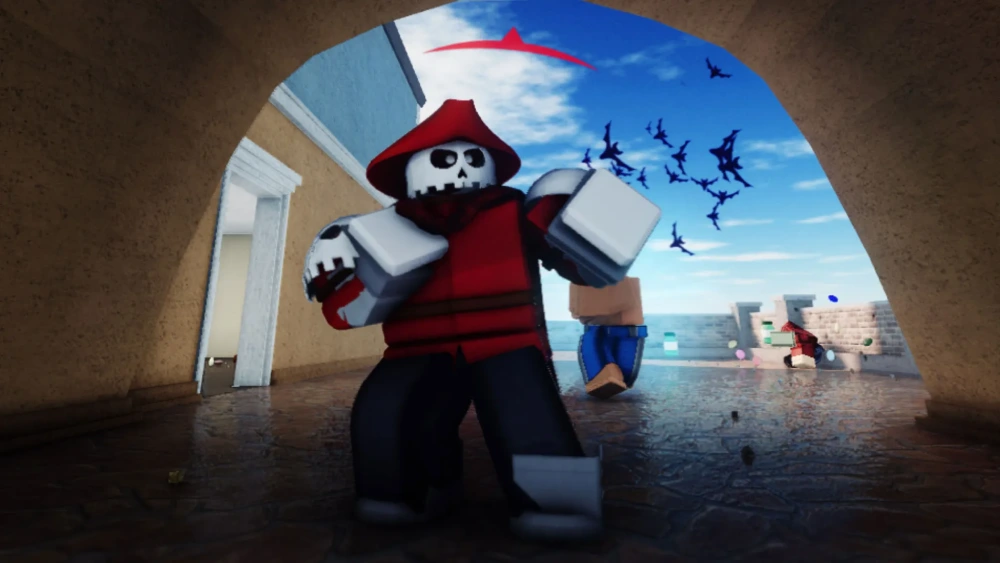
Roblox shaders can make Roblox look more cinematic, detailed, and immersive, especially for screenshots, videos, roleplay, and showcase experiences. However, they also come with real trade-offs. You need to think about source safety, Roblox compatibility, FPS impact, account risk, and whether your device can handle the extra visual load.
The safest path is to start with official Roblox graphics settings, then test trusted PC-based tools carefully if you still want stronger visual upgrades. Avoid mobile APKs, avoid suspicious downloads, and never use anything that asks for your account credentials.
For the best experience, combine visual upgrades with stable online performance. Roblox shaders can improve the look of your game, while ExitLag can help improve connection routing, reduce lag spikes, and make Roblox sessions feel smoother. Try ExitLag today and enjoy Roblox with stronger visuals, better stability, and gameplay that feels as good as it looks.
Got questions or want to connect with other players? Join the conversation at the ExitLag Forum!