

Reviving teammates is one of the most critical mechanics in Fortnite squad-based modes. A failed revive can instantly turn a winning fight into a full squad wipe. Because of this, any inconsistency in revive behavior feels far more punishing than missed shots or failed builds.
When revives feel “random,” it’s usually because your game isn’t staying stable at the exact moments you need consistent inputs. Start by tightening performance so your frames don’t hitch mid-interaction—this guide on Fortnite FPS boost settings that actually help is a solid baseline before you touch controller bindings.
Sticky revive Fortnite is a term that has become increasingly popular among controller players frustrated with revives canceling mid-action. If you have ever tried to revive a teammate only to see the progress bar reset because of slight movement or input delay, you are not alone.
For many players, sticky revive Fortnite feels like a missing quality-of-life feature. The idea is simple: once the revive starts, it should continue without requiring constant button holding or perfect input stability. Unfortunately, Fortnite does not label or present such a setting clearly.
So what is sticky revive Fortnite, and does it actually exist? Sticky revive is not an official Epic Games feature. Instead, it is a community term used to describe controller behavior that makes reviving feel more consistent by adjusting interaction, input, and sensitivity settings.
Before you chase hidden toggles or “secret settings,” it’s worth checking what Epic actually documents about interactions and troubleshooting. The Fortnite Help Center is the safest reference so you’re not relying on patch-rumor threads.
Sticky revive Fortnite: what players mean
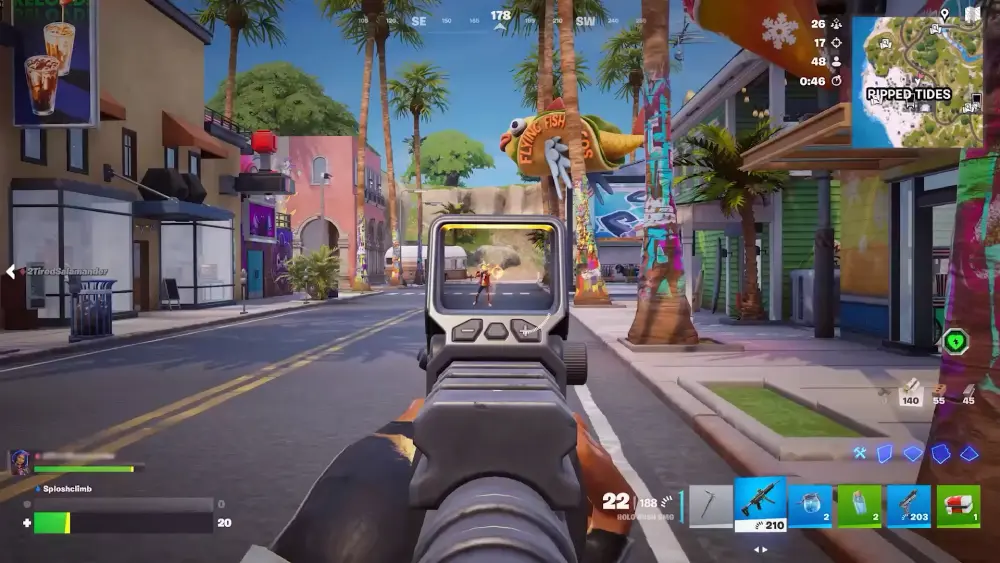
The term sticky revive Fortnite emerged organically from the community. It reflects a desire for consistency and forgiveness during revives, especially in chaotic fights where movement, camera adjustments, and incoming damage all compete for player attention.
When players talk about sticky revive Fortnite, they are usually referring to a revive action that does not cancel easily.
Why players believe sticky revive exists
Some seasons and patches made reviving feel more forgiving, especially on controller. This led many players to believe a hidden or removed sticky revive option existed.
Hold, tap, and interaction priority
Fortnite’s interaction system was designed to be flexible, but that flexibility can work against controller players. When multiple actions share priority—revive, reload, pick up items—the game may cancel the revive if it detects conflicting intent.
Revives are treated as interaction actions. If your settings prioritize movement, reload, or pick-up actions incorrectly, the revive can cancel instantly.
Why revive cancels in Fortnite on controller
Controller players experience revive cancellations more frequently due to analog input. Unlike keyboards, controllers continuously send movement data, even when the stick is barely touched.
Understanding why revives fail is key to fixing sticky revive Fortnite controller problems.
Stick drift and analog sensitivity
Stick drift is often invisible until precision interactions like reviving expose it. Even a small drift value can repeatedly interrupt revive progress without the player realizing why.
Minor stick drift is one of the biggest causes of revive cancellation. Even minimal movement input can interrupt the revive animation.
Accidental movement or camera input
High camera sensitivity or sudden camera adjustments can break interaction focus, especially during combat situations.
Sticky revive Fortnite controller settings explained
Optimizing controller settings is the closest thing players have to achieving a sticky revive experience. These adjustments reduce the chance that Fortnite misinterprets your intent mid-revive.
Although there is no official toggle, controller settings can simulate sticky revive behavior.
Interact and reload prioritization
Using separate buttons for reload and interact prevents accidental cancellations. Prioritizing interact actions greatly improves revive consistency.
Hold to interact behavior
Setting interactions to hold rather than tap ensures the game recognizes revive intent over minor input fluctuations.
If your revives still cancel even with clean binds, don’t ignore frame dips and micro-stutters—those can make inputs feel inconsistent on controller. This breakdown of why Fortnite FPS drops happen and how to fix them helps you eliminate the “my game hiccupped” factor that makes revives fail at the worst time.
How to simulate sticky revive in Fortnite
Simulating sticky revive Fortnite behavior requires discipline and consistency. Once optimized, the difference in revive success rate is immediately noticeable, especially during late-game circles.
To recreate sticky revive Fortnite behavior, controller players must fine-tune their setup.
Best controller settings step by step
- Set Interact to a dedicated button
- Enable hold to interact
- Lower left stick deadzone
- Reduce camera sensitivity slightly
Button remapping strategies
Advanced controller users often use back paddles or custom layouts. These reduce thumb movement during revives, keeping input stable while maintaining awareness.
Many competitive players remap revive to a back paddle or less-used button, reducing accidental movement input.
Common revive mistakes controller players make
Many revive failures are not caused by settings, but by habits developed during fast-paced fights. Identifying these habits is essential for improvement.
Even with optimized settings, mistakes can still cause revives to fail.
Movement during revive
Trying to reposition while reviving almost always cancels the action.
Sensitivity issues
Overly high sensitivity increases the chance of unintended camera movement that interrupts revives.
| Setting | Recommended Value | Why It Helps Revive Stability |
| Interact Button | Dedicated | Prevents overlap |
| Stick Deadzone | Low | Reduces drift |
| Camera Sensitivity | Medium | Limits interruption |
Does Fortnite plan to add sticky revive?
The idea of sticky revive is popular, but it conflicts with Fortnite’s core interaction philosophy. Epic Games prefers player-controlled actions rather than automated systems.
For anything that depends on official intent—whether it’s a setting, a design choice, or a future change—use Epic’s primary entry point instead of guessing. The Fortnite official site is the cleanest place to track what’s actually supported versus what the community is just naming.
Epic Games has not announced any plans to add a formal sticky revive setting.
Epic Games input philosophy
Fortnite prioritizes player control and competitive fairness. Automatic or locked interactions may reduce skill expression.
Competitive balance concerns
Sticky revive could unintentionally favor controller players, which is why Epic approaches interaction changes carefully.
FAQ
This section addresses the most common questions from controller players struggling with revive consistency.
No. Sticky revive Fortnite is not an official setting. It is a community term describing optimized controller behavior.
Revives usually stop due to movement input, stick drift, or interaction conflicts.
Yes. Keyboard players typically experience fewer revive interruptions due to digital input stability.
Yes. Network delay can desync interactions, causing revives to cancel unexpectedly.
If the progress bar resets even when your hands are steady, packet loss is the usual culprit. This guide on how to fix Fortnite packet loss gives you the clean troubleshooting path without sending you into sketchy third-party tools.
Dedicated interact buttons, lower sensitivity, and reduced stick drift produce the best results.
How ExitLag improves revive consistency in Fortnite
Network stability is often overlooked when discussing revive issues. However, revives require constant server confirmation, meaning unstable connections can silently cancel progress even when inputs are correct.
While ExitLag cannot add sticky revive Fortnite as a feature, it plays a critical role in interaction stability. Packet loss, latency spikes, and network instability can interrupt revive actions even when inputs are correct.
ExitLag optimizes routing, reduces packet loss, and stabilizes your connection, ensuring revive actions register properly. This is especially important in high-pressure squad fights where every second matters. ExitLag works on PC and Mobile, helping controller players maintain consistent performance.
All game images used in this blog belong to Epic Games. They are used for informational/educational purposes only and do not imply endorsement or affiliation with the rights holders.
Got questions or want to connect with other players? Join the conversation at the ExitLag Forum!


