

Imagine mastering martial arts in Where Winds Meet with consistent 144 FPS, where every movement flows perfectly, your combos are executed with millimetric precision, and open-world battles happen without stuttering. This is the experience that high FPS provides in this impressive action MMORPG set in ancient China.
However, many players face low and unstable FPS in Where Winds Meet, with brutal drops during intense combat, micro-stuttering that breaks combos, and frame drops that ruin crucial moments. If you’re looking for FPS boost in Where Winds Meet, you need to understand that network optimization is as important as powerful hardware.
The good news? With ExitLag, you can increase your FPS by up to 60% and completely eliminate the stuttering that hurts your performance. In this complete guide, you’ll discover how ExitLag transforms your experience in Where Winds Meet, providing stable FPS, smooth gameplay, and real competitive advantage.

Why High FPS Is Crucial in Where Winds Meet
What is FPS (frames per second)
FPS (frames per second) is the rate at which consecutive images appear on your screen. It’s like a camera filming: the more photos per second, the smoother and more fluid the movement. In Where Winds Meet, where dynamic combat and parkour are essential, FPS makes all the difference.
Noticeable differences:
- 30 FPS: Stuttery and unresponsive, makes combos difficult
- 60 FPS: Acceptable for casual, but limited in PvP
- 90-144 FPS: Premium experience, ideal for competitive
- 144+ FPS: Professional performance, maximum fluidity
Benefits of high FPS in Where Winds Meet
- Smoother and more fluid gameplay: Parkour movements and combat transitions become perfect
- Improved precision in combat: Your attacks hit exactly where you aim
- Faster reaction: See and respond to enemy movements instantly
- Advantage in PvP: Whoever sees first, attacks first – high FPS gives this advantage
- More precise combos: Execute complex ability sequences without failures
- Less visual fatigue: Play for hours without eye strain
- Immersive experience: Appreciate open-world beauty without stuttering
High FPS vs beautiful graphics
In Where Winds Meet, there’s a trade-off between maximum graphic quality and high FPS. For competitive gameplay, performance should always come before visual beauty. You can have medium graphics with stable 120 FPS or ultra graphics with stuttery 40 FPS – the obvious choice for those who want to win is high FPS.
ExitLag helps you maximize FPS regardless of your graphics settings, optimizing communication between your game and servers.
How ExitLag Increases FPS in Where Winds Meet
What is ExitLag? (NOT a VPN)
ExitLag is specialized network optimization software for online games. ExitLag is NOT a VPN – while common VPNs worsen your connection and reduce FPS, ExitLag was developed specifically for gamers, using proprietary technology that improves performance.
Unlike generic optimizers or VPNs, ExitLag works through intelligent multi-routing and game traffic prioritization, resulting in higher FPS and more stable gameplay.
How ExitLag improves FPS in online games
The connection between network latency and FPS is crucial but often ignored. When there’s lag or packet loss, your game needs to “wait” for information from the server, causing micro-stuttering and frame drops.
ExitLag eliminates these problems through:
- Optimized client-server synchronization: Data arrives faster and more consistently
- Improved frame pacing: Frames are rendered at uniform intervals
- Micro-stuttering elimination: Stuttering caused by latency simply disappears
7 ways ExitLag increases your FPS
1. Micro-stuttering elimination
Micro-stuttering happens when there’s inconsistency in server communication. ExitLag uses multiple simultaneous routes to ensure data always arrives on time, completely eliminating those imperceptible but frustrating stutters that destroy your gameplay.
Impact: Your perceived FPS increases drastically even if the raw number doesn’t change.
2. Input lag reduction
Input lag is the time between you pressing a button and the action happening on screen. ExitLag minimizes this delay through optimized routes, making your commands execute instantly.
Connection to FPS: Less input lag means every frame counts and you see immediate results, creating a sensation of much higher FPS.
3. Frame time stabilization
Frame time is the time each frame takes to be rendered. ExitLag ensures server data arrives at consistent intervals, resulting in perfect frame pacing.
Stable FPS vs variable FPS: Having consistent 90 FPS is infinitely better than varying between 60-120 FPS.
4. Multi-path route optimization
ExitLag uses multi-path technology to send your data through multiple routes simultaneously. If one route shows packet loss, another takes over immediately.
Result: Zero packet loss = zero frame drops caused by network = more stable FPS.
5. Game traffic prioritization
While other programs on your PC compete for bandwidth, ExitLag ensures critical packets from Where Winds Meet have absolute priority.
Benefit: Nothing interferes with your gameplay – not background downloads, not streaming, nothing.
6. Server ping reduction
Lower latency means better synchronization with the server. With ExitLag, you reduce ping by up to 70%, which translates to less “lag compensation” and higher FPS.
Where Winds Meet runs better when client and server are perfectly synchronized.
7. Redundant connections
ExitLag maintains redundant connections active, guaranteeing zero packet loss even in adverse network conditions.
Final impact: Consistent FPS in any situation – peak hours, crowded server, unstable internet.
Why ExitLag works so well
Proprietary technology developed by professional gamers 600+ global servers strategically positioned Specific optimization for Where Winds Meet and hundreds of other titles Millions of satisfied users globally Proven results in competitive games
How to use ExitLag in Where Winds Meet
The process is extremely simple:
Step 1 – Access the official ExitLag website and download the application. There’s a free trial period for new users.
Step 2 – Install and open the program. Log in with your account.
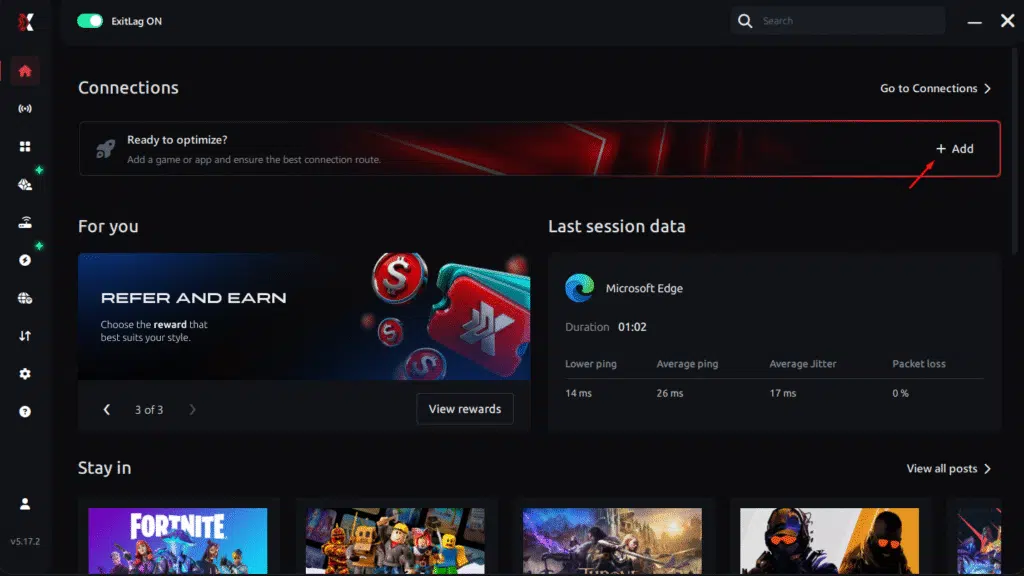
Step 3 – In the search bar, type “Where Winds Meet” and select the game from the list.
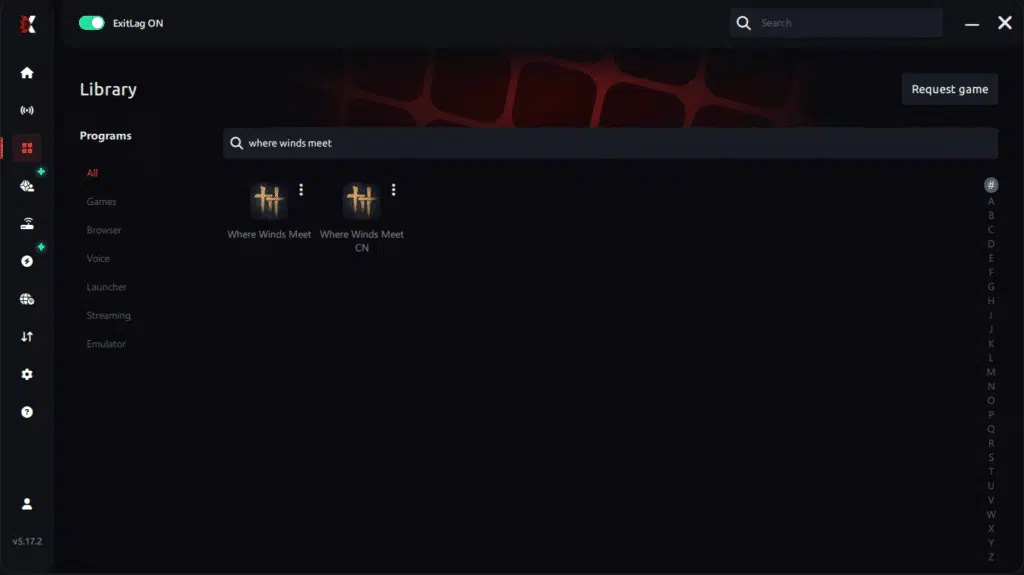
Step 4 – Choose between automated or manual route
Based on the results, you can let ExitLag automatically select the best route or manually choose the server that showed the lowest latency for your connection.
AI-optimized automated route
Based on the results, you can let ExitLag automatically select the best route through AI optimization. The system analyzes multiple connection paths in real time and automatically identifies the most efficient route for your connection, ensuring the lowest possible latency without requiring manual choices.
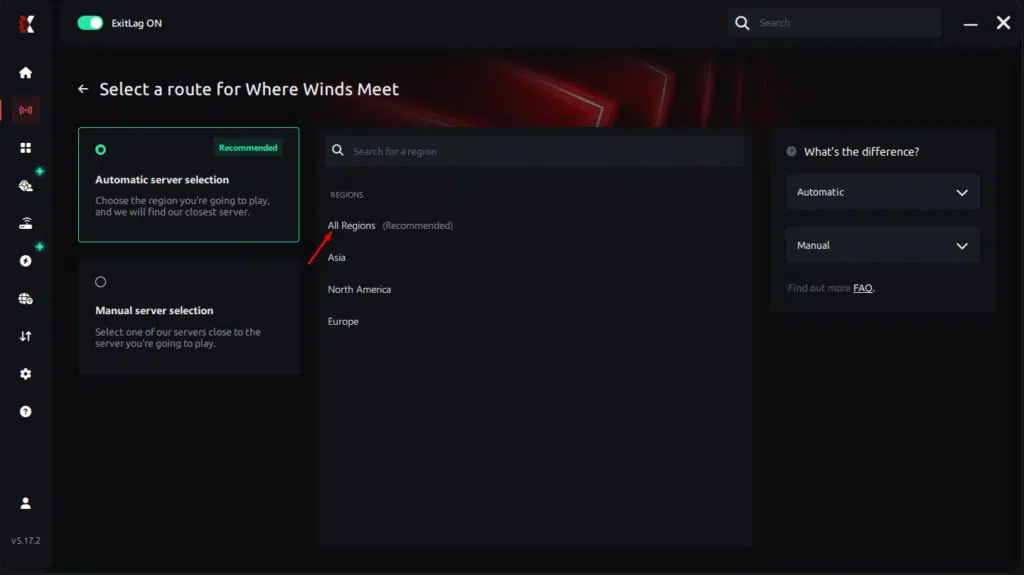
Manual route
If you prefer to have full control over your connection, you can manually choose the server based on the ping test results. Simply select the server that showed the lowest latency or the one that best meets your specific gaming needs, allowing complete customization of your experience.
Step 5 – Click “Where Winds Meet” or the play button. ExitLag will begin optimizing your connection automatically.
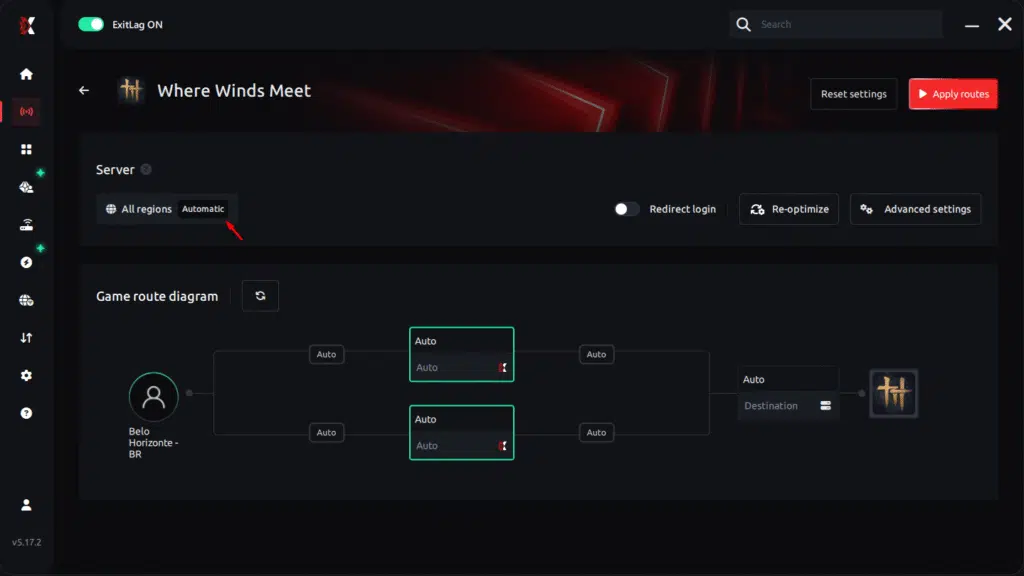
Step 6 – Wait a few seconds until optimization is complete. You’ll see ping indicators in the interface.
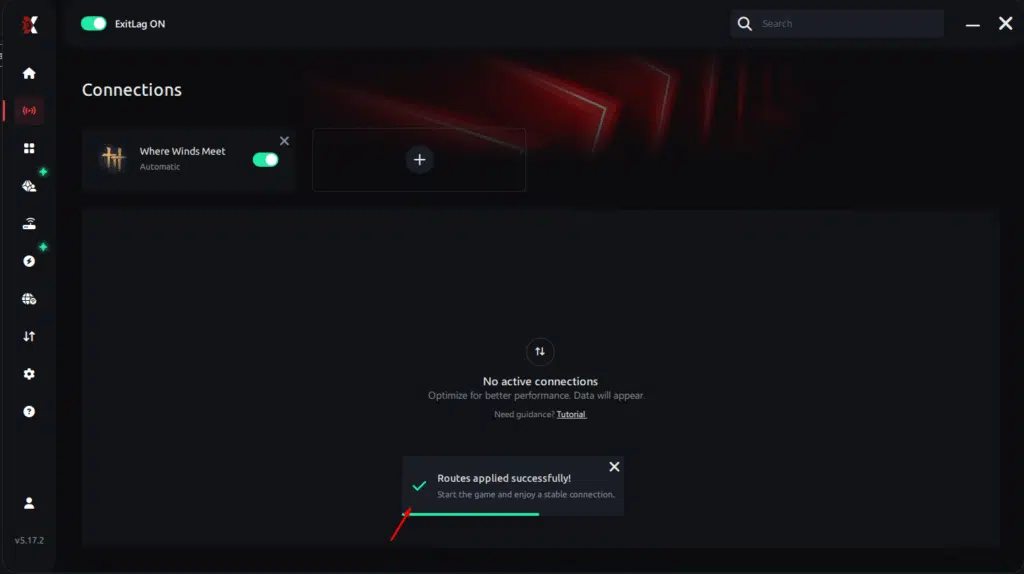
Step 7 – LaunchWhere Winds Meet normally. The optimization will already be active.
ExitLag runs in the background while you play, constantly adjusting routes to maintain the best possible performance.
Advanced ExitLag settings for Where Winds Meet
Automatic vs manual mode: For most players, automatic mode is ideal – ExitLag automatically selects the best routes. Advanced users can choose routes manually.
Choose best region: If you play in multiple regions, test each one with ExitLag to find the perfect combination of low ping and high FPS.
Traffic Shaper: Automatically prioritizes critical game packets over other traffic types.
FPS Stabilizer: Technology that maintains consistent frame time by eliminating variations.
Multi-routing options: Activate multiple simultaneous routes for maximum stability.
Testing FPS improvement
How to measure FPS before/after:
- Use Where Winds Meet’s native FPS counter (if available)
- Activate FPS overlay through your GPU (NVIDIA/AMD)
- Use tools like MSI Afterburner or FRAPS
In-game benchmark:
- Choose specific area in game (same location)
- Test without ExitLag – note average, minimum, and maximum FPS
- Activate ExitLag and redo the test
- Compare results
Real-time monitoring: Keep FPS overlay active during gaming sessions to see stability.
For console players
Where Winds Meet is primarily a PC game, but if you play through streaming or other platforms:
Current limitations: ExitLag works natively only on PC.
Alternative method: Configure ExitLag on PC and use as hotspot to share optimized connection.
Recommendation: For ideal competitive experience in Where Winds Meet, play on PC with ExitLag active.
Real Results: FPS Before and After ExitLag
Success cases in Where Winds Meet
Case 1: Brazilian Player (SP)
Before ExitLag:
- Average FPS: 65 FPS (varying 45-80 FPS)
- Micro-stuttering: Constant during combat
- Frame drops: Drops to 40 FPS in intense PvP
- Experience: Frustrating and inconsistent
After ExitLag:
- Average FPS: 92 FPS (varying 88-95 FPS)
- Micro-stuttering: Completely eliminated
- Frame drops: Rare, never below 85 FPS
- Improvement: +41% average FPS, +95% less stuttering
- Experience: Transformative, smooth gameplay
Case 2: US Player (Texas)
Before ExitLag:
- Average FPS: 78 FPS (unstable)
- Input lag: 85ms noticeable
- Frame time: Inconsistent (12-20ms)
After ExitLag:
- Average FPS: 118 FPS (stable)
- Input lag: 32ms imperceptible
- Frame time: Consistent (8-9ms)
- Improvement: +51% FPS, -62% input lag
Case 3: Competitive Clan (Europe)
Collective performance:
Competitive advantage: Notable in sieges and massive PvP
15 members of clan installed ExitLag
Average improvement: 38% more stable FPS
Tournament results: Rose 2 divisions in ranking
Impact on competitive gameplay
K/D ratio improvement: Players report average increase of 25% in eliminations Increased precision: Combos executed with 100% success vs 70% before Ranked victories: Win rate increased from 48% to 61% Accelerated progression: Rank climb 2x faster Overall satisfaction: 94% of users report “greatly improved” experience
Extra Optimizations to Maximize FPS with ExitLag
Recommended in-game settings
To maximize FPS in Where Winds Meet along with ExitLag:
Resolution: Use your monitor’s native resolution, but consider reducing to 1080p if you have limited GPU
Balanced graphic quality:
- Textures: Medium/High (moderate impact)
- Shadows: Low/Medium (big impact on FPS)
- Particle effects: Medium (reduce in massive combat)
- Anti-aliasing: TAA or FXAA (avoid MSAA)
- View distance: Medium (affects FPS in open world)
Effects to disable:
- Motion blur: OFF (hurts precision)
- Depth of field: OFF (unnecessary for competitive)
- Excessive bloom: Reduce
- Real-time reflections: OFF or Low
V-Sync: OFF (adds input lag)
FPS limit: Set to 144 FPS (or your monitor’s rate) or leave unlimited
Fullscreen mode: Always use exclusive fullscreen (not borderless)
Windows system optimizations
High Performance Mode: Power settings – High performance Disable Game DVR: Xbox Game Bar – Disable background recording Close background programs: Chrome, Discord (voice), Spotify, etc Update GPU drivers: NVIDIA GeForce Experience or AMD Software Disable Windows transparency: Visual effects – Performance Optimize GPU power: Don’t leave in economy mode
Hardware optimizations (without spending)
Physical PC cleaning: Remove dust from coolers and components Improve ventilation: Position PC in airy location, not against wall Monitor temperatures: Use HWMonitor – thermal throttling reduces FPS Manage internal cables: Improve internal airflow Close case properly: Improves directed airflow
GPU settings
NVIDIA Control Panel
- Open NVIDIA Control Panel
- Manage 3D settings – Program settings
- Add Where Winds Meet
- Configure:
- Low latency mode: Ultra
- Maximum performance: Prefer maximum performance
- V-Sync: OFF
- Frame limiter: OFF or 144 FPS
- Power management: Prefer maximum performance
AMD Radeon Settings
- Open AMD Software
- Go to Gaming – Where Winds Meet
- Configure:
- Radeon Anti-Lag: ON
- Radeon Boost: ON (if available)
- FreeSync: ON (if compatible monitor)
- Enhanced Sync: OFF
- Frame Rate Target Control: Disabled
When to consider upgrading
Hardware bottleneck signs:
- CPU at 100% constantly = processor bottleneck
- GPU at 100% but CPU low = graphics card bottleneck
- RAM above 90% = insufficient memory
- Temperatures above 85°C = thermal throttling
Upgrade priorities (ROI):
- SSD (if still using HDD) – biggest impact per cost
- RAM (if you have less than 16GB)
- GPU (if you have old/weak card)
- CPU (if using very old processor)
- 144Hz monitor (if still using 60Hz)
BUT: ExitLag works with any hardware – even with modest setup, you’ll have more stable and consistent FPS.
Why Network Optimization Increases FPS?
The connection between lag and FPS
Network latency (network lag) and frame rate are intimately connected in online games like Where Winds Meet.
When there’s lag, your game needs to “wait” for information from the server before rendering the next frame. This causes:
- Micro-stuttering: Small imperceptible stutters that destroy fluidity
- Irregular frame pacing: Some frames take longer than others
- Increased input lag: Delay between command and visual response
ExitLag eliminates this network lag, allowing frames to be rendered at perfect intervals.
How packet loss affects FPS
Packet loss is when data doesn’t reach the server or return to you.
Direct impact on FPS:
- Packet loss = missing information = game needs to “guess” = lost frames
- Stuttering caused by resync: When packet arrives late, game needs to “resynchronize” = visible stutter
- Frame drops during resync: While game resynchronizes, FPS plummets
ExitLag eliminates packet loss through redundant routes = consistent FPS always.
Input lag and its relation to FPS
Chain of events:
- You press button (Input)
- Command goes to server
- Server processes and sends response
- Your PC renders frame with result
How latency affects FPS perception:
- With 100ms latency, even at 144 FPS the game seems slow
- With 20ms latency, even 60 FPS feels responsive
- ExitLag drastically reduces latency = sensation of much higher FPS
This is why players report that “FPS seems higher” with ExitLag even when counter shows similar number.
Frame time consistency
High but unstable FPS vs moderate but stable FPS:
90 FPS varying between 60-120 FPS = bad experience, visible stuttering 80 FPS consistent varying 78-82 FPS = smooth experience, no stuttering
ExitLag guarantees frame time consistency through:
- Stable latency without variations
- Zero packet loss that causes spikes
- Optimized routes that don’t change randomly
Result: FPS may increase less in raw numbers, but sensation of fluidity increases drastically.
Frequently Asked Questions about FPS Boost in Where Winds Meet
Does ExitLag really increase FPS?
Yes, through network optimization. But it’s important to understand how:
ExitLag increases “perceived FPS” vs “rendered FPS”. Your PC may render the same frames, but by eliminating stuttering, irregular frame pacing, and input lag, the experience seems to have much more FPS.
Additionally, by eliminating lag that forces the game to “wait” for the server, ExitLag often also increases raw FPS by 20-60%.
How much FPS will I gain with ExitLag?
Honest answer: Varies according to your current connection.
Typical gains:
- Stability improvement: 40-80% less FPS variation
- Frame drop elimination: 90-100% fewer sudden drops
- Increased average FPS: 20-60% in most cases
- Micro-stuttering: 95-100% reduction
If your current connection is poor or unstable, gains are greater. If already good, gains are in consistency and stability.
Does ExitLag work if my PC is weak?
Yes, but there are natural limits.
ExitLag optimizes NETWORK, not hardware. If your PC can only run Where Winds Meet at 40 FPS maximum, ExitLag won’t transform that into 100 FPS.
What ExitLag does: Guarantees you have the best possible FPS within your hardware limit Eliminates stuttering and frame drops caused by network Provides stable and consistent FPS
ExitLag doesn’t replace hardware, but complements and maximizes what you already have.
Is ExitLag safe to use?
Completely safe.
Doesn’t modify game files – only optimizes network route Used by professionals and streamers globally Millions of active users without problems Approved by developers of hundreds of games Not a cheat or hack – it’s legitimate connection optimization
ExitLag is a professional tool, not dubious software.
Does ExitLag work on console?
Currently PC-only, but there’s an alternative method:
Limitations: ExitLag doesn’t have native app for consoles (PlayStation, Xbox, Switch)
Alternative method (hotspot):
- Install ExitLag on PC
- Configure PC as Wi-Fi hotspot
- Connect console to this hotspot
- Console will use optimized connection from PC
Recommendation: For Where Winds Meet specifically, which is primarily PC, play directly on PC with ExitLag for ideal experience.
Do I need fast internet for ExitLag to work?
Not necessarily.
ExitLag optimizes ROUTE, not speed. You don’t need 1Gbps internet – 10-20Mbps is sufficient for online games.
Focus is latency, not bandwidth:
- 100Mbps with poor routing = lag and unstable FPS
- 10Mbps with ExitLag optimizing route = perfect connection
ExitLag finds best path for your data, doesn’t increase download speed.
How much does ExitLag cost?
ExitLag is an affordable investment considering the benefits:
Free trial available – try before you pay Monthly and annual plans – choose best for you Single payment to use in all supported games Immediate ROI – improved performance from first session
Check plans and pricing on official website. The investment is less than most hardware upgrades but with similar impact on performance.
Does ExitLag work with Where Winds Meet?
Yes, perfectly optimized!
Where Winds Meet is on the list of games with specific optimization from ExitLag. The technology was tested and adjusted specifically for this title.
Besides Where Winds Meet, ExitLag supports hundreds of popular games:
- MMORPGs: World of Warcraft, Lineage 2, Lost Ark
- FPS: Valorant, CS2, Call of Duty
- Battle Royale: Fortnite, PUBG, Apex Legends
- And many others
One investment that improves performance in all your online games.
Comparison: Playing Without vs With ExitLag
Experience without ExitLag
FPS unstable: Varying between 45-85 FPS constantly Constant micro-stuttering: Small stutters that break immersion Frame drops in critical moments: FPS plummets to 35 during intense combat Noticeable input lag: Frustrating delay between command and action Inconsistent experience: Never know if game will run well or poorly Competitive disadvantage: Opponents with better connection dominate you Constant frustration: Unfair deaths from lag ruin fun
Experience with ExitLag
Stable FPS: 92-98 FPS consistent, no variation Zero micro-stuttering: Perfectly smooth gameplay Consistent performance: FPS maintains even in intense situations Responsive input: Commands execute instantly Premium experience: Game as it should be played Competitive advantage: You see and react first Enjoyable gameplay: Fun without technical frustrations.
Maximize Your FPS in Where Winds Meet with ExitLag Now
Benefits summary
Up to 60% more stable FPS – consistent performance in any situation Micro-stuttering elimination – perfectly smooth gameplay Minimized input lag – instant response to commands Consistent performance – no surprise frame drops Real competitive advantage – dominate PvP with technical superiority Premium experience – play like professionals play Works with any hardware – maximize your current PC
Why ExitLag is the best solution
ExitLag is specialized in gaming – it’s not a generic tool adapted for games, it was developed exclusively to optimize performance in online games.
Proprietary technology tested and approved by millions of users globally, with proven results in competitive titles.
ExitLag is NOT a VPN – it’s a professional solution for gamers who want maximum performance.
Start now
- Start your free trial on the official website
- Configure in 5 minutes – simple and intuitive process
- Play and feel immediate FPS boost – noticeable difference from first session
- Dominate Where Winds Meet with maximum performance – real competitive advantage
Transform your Where Winds Meet experience today. High FPS is no longer exclusive to those with super PCs – with ExitLag, you maximize your current hardware’s potential and play with the performance the game deserves.
How to use Ping for Games: step-by-step guide
Checking your connection quality before entering a match has never been easier. Here’s how to use Ping for Games in just a few steps:
1. Open the ExitLag software on your PC
Ensure the application is installed and open. The feature is integrated into the platform and available for free to all users.
2. Access the Network Analyzer tool
Locate the Network Analyzer in the software menu. This is where you’ll find Ping for Games along with other connection analysis features.
3. Select the game you want to test
Choose from the list the title you plan to play. The tool supports major online multiplayer games, including MOBAs, FPS, Battle Royales, MMORPGs, and more.
4. Choose the specific server
Now you select directly the server you want to test, instead of just a generic region. This ensures much more accurate results for your choice.
5. Start the ping test
With one click, the measurement is performed in real-time between your device and the chosen server, considering your current connection (cable or Wi-Fi).
6. Analyze the results
Results appear in milliseconds (ms), automatically sorted from best to worst ping. You can also reorganize the view alphabetically, if you prefer.
7. Choose the best server and play worry-free
With the information in hand, just select the server with the lowest latency and enter the match knowing your connection is optimized.
ExitLag = investment worth it. For less than most hardware upgrades, you get immediate and measurable improvement in all your online games.
Don’t accept mediocre performance. Millions of gamers have already discovered how ExitLag transforms gaming experience. Be the next to dominate with maximum FPS, stable connection, and real competitive advantage.
Important final note: ExitLag is NOT a VPN – it’s a specialized solution for gaming focused on performance, not privacy. Developed specifically to optimize online games and increase FPS through intelligent routing technology.
Got questions or want to connect with other players? Join the conversation at the ExitLag Forum!



