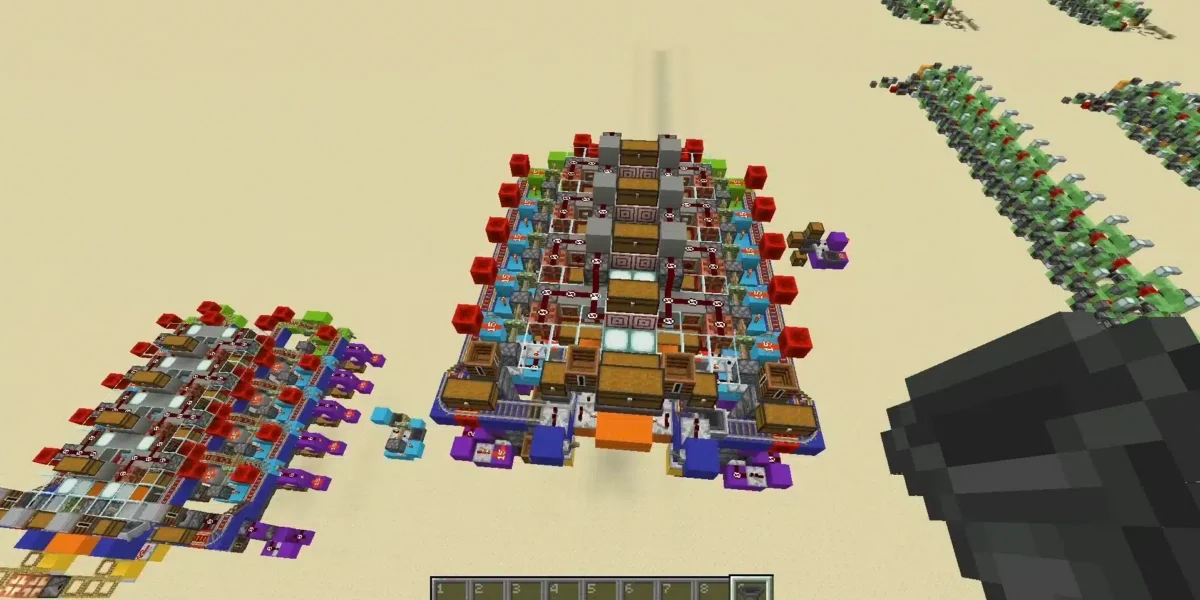
Installing Minecraft mods has become one of the best ways to transform your gameplay experience. From new worlds and creatures to visual upgrades and performance improvements, mods open the door to endless customization. If you’ve ever wondered how to install Minecraft mods, you’re in the right place. This guide breaks down everything you need to know-whether you’re playing Java Edition or Bedrock Edition-and ensures you can install your favorite enhancements quickly and safely.
In most cases, players want to mod their game to access new features, explore unique worlds, or improve Minecraft’s visuals. But before you dive in, it’s important to understand that each version of the game handles mods differently. Java Edition supports full modding through loaders like Forge and Fabric, while Bedrock Edition uses add-ons instead of traditional mods.
To help you get started, this article explains what you need, where to find mods, and who needs specific modding tools, covering everything from general mods to specific cases like installing the popular Gamma mod through CurseForge.
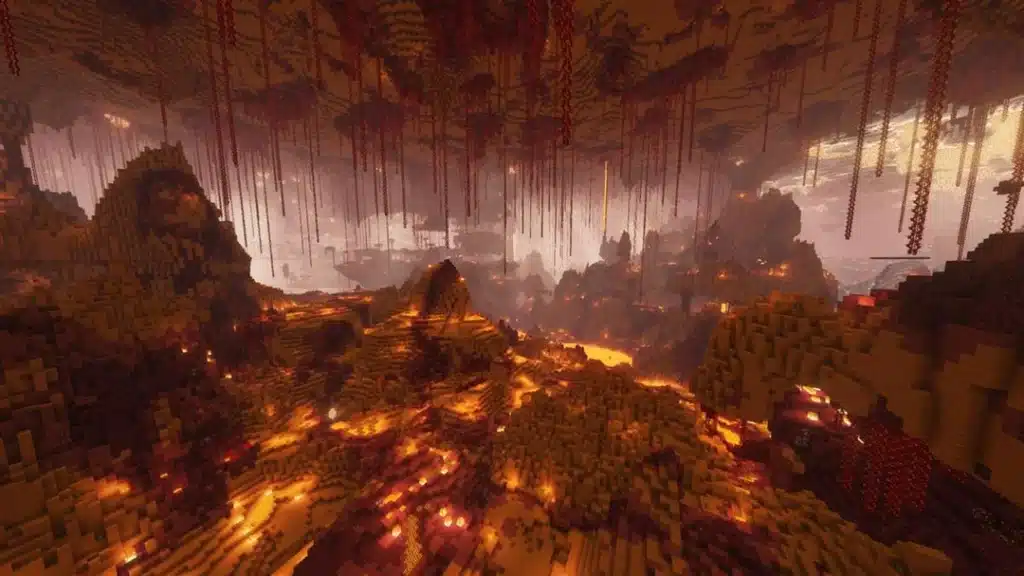
How to Install Minecraft Mods on Java Edition
What You Need Before Installing Minecraft Mods
To get started with how to install Minecraft mods, you’ll need a few essential tools. Java Edition requires a mod loader-most commonly Forge or Fabric. These programs allow Minecraft to read and run mod files correctly. They also ensure compatibility between mods and the version of Minecraft you’re running.
You should always verify that your mod version matches your Minecraft version. Mods developed for 1.20.4, for example, will not work on 1.19. This is one of the most common mistakes players make when learning how to install mods on Minecraft.
Before installing anything, backing up your game files is also recommended. While most mods are stable, conflicts between mods can occasionally cause crashes or corrupt worlds. Creating a backup ensures that your progress stays safe.
Step-by-Step: Installing Mods Using CurseForge
CurseForge is the most trusted and widely used platform for downloading Minecraft mods. It offers a clean interface, automatic setup, and built-in compatibility checks-making it the perfect choice for beginners looking to master minecraft how to install mods.
Follow these steps:
- Download and install the CurseForge app from the official website.
- Open the Minecraft section and search for your desired mods.
- Select the version of the mod that matches your Minecraft version.
- Install the mod-CurseForge automatically organizes it for you.
- Launch Minecraft using the Forge or Fabric profile created by CurseForge.
CurseForge ensures a safe and easy process, making it ideal for players who want a straightforward way to add mods to their game.
Installing the Gamma Mod on Vanilla Minecraft Using CurseForge
If you’re searching for how to install gamma mod to vanilla minecraft using curseforge, the process is nearly identical to installing any other mod. Simply open CurseForge, search for the Gamma or Brightness mod you want, and download the version compatible with your specific Minecraft build.
Once installed, launch the game through the mod loader profile. The Gamma mod adjusts Minecraft’s lighting values, offering maximum brightness without requiring external clients or cheats. It’s a popular tool for players who explore caves or want a higher-visibility experience.
Troubleshooting Minecraft Mod Issues
Even if you follow every instruction perfectly, issues may still arise. Here are common problems and how to fix them:
- Game crashes on startup: Ensure mod versions match your game version.
- Black screens or infinite loading: Remove the most recently installed mod and try again.
- Mods not appearing in-game: Verify that you’re launching Minecraft using the Forge or Fabric mod loader profile.
- Multiple conflicting mods: Add mods one at a time to identify which one causes problems.
By following these steps, you’ll significantly reduce errors and maintain a smooth modded experience.
How to Install Mods (Add-Ons) on Minecraft Bedrock Edition
Understanding the Difference Between Mods and Add-Ons
Bedrock Edition works differently from Java. Instead of traditional mods, it uses add-ons-these include behavior packs and resource packs that change elements of the game without requiring advanced code modifications.
When searching for minecraft bedrock edition how to install mods, keep in mind that these add-ons are more limited but still offer fun and creative enhancements. They work across Windows, mobile devices, and consoles.
Where to Find Safe Add-Ons for Minecraft Bedrock
To ensure your device stays safe, always download add-ons from trusted websites such as:
- MCPEDL
- CurseForge (Bedrock section)
- Official Minecraft Marketplace
These platforms ensure compatibility and reduce the risk of corrupted or harmful files.
Step-by-Step Installation on Windows 10/11
Installing add-ons on Bedrock Edition for PC is simple:
- Download an add-on in .mcpack, .mcaddon, or .zip format.
- Double-click .mcpack or .mcaddon files to auto-import into Minecraft.
- For .zip files, extract them manually and import the behavior and resource packs.
- Open Minecraft and activate the packs in Settings → Global Resources.
- When creating a world, enable packs under Resource Packs and Behavior Packs.
Installing Add-Ons on Mobile or Console
On Android and iOS devices, you can tap downloaded .mcpack files to import them directly into the game. Console limitations mean mods are generally not supported, except through Marketplace content.
ExitLag: Optimize Online Minecraft Performance
Whether you’re playing modded Java servers or Bedrock realms, connection stability matters. ExitLag helps reduce lag, latency, and routing issues using its real-time optimization and Multipath Connection technology.
With support for over 3,000 games, ExitLag ensures a smoother online experience-especially for multiplayer Minecraft worlds hosted on remote servers. Simply install the app, choose Minecraft, and apply the optimized routes to enhance your connection instantly.
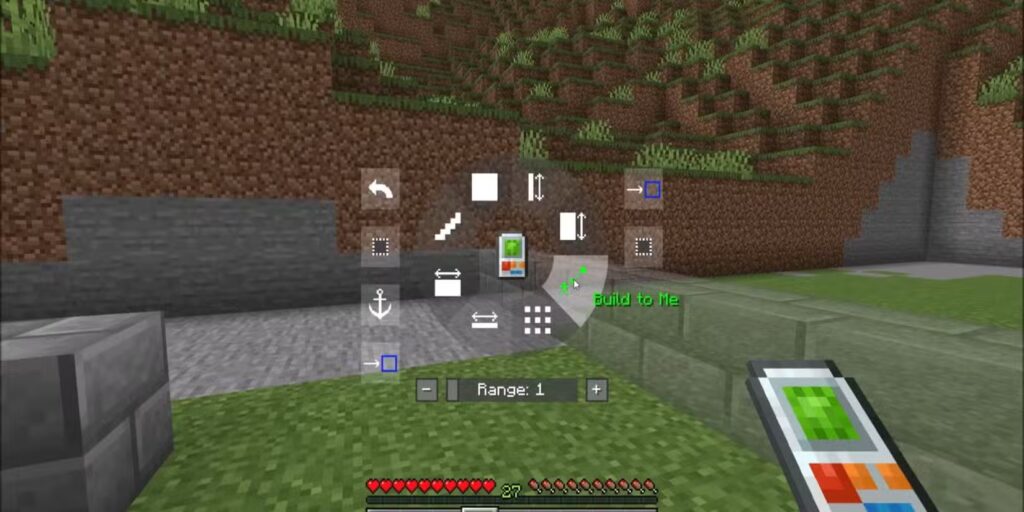
Advanced Mod Installation & Modpacks on Java Edition
Using Alternative Mod Loaders
Learning how to install mods in Minecraft becomes even more flexible when you explore loaders like Fabric and NeoForge. These alternatives are lighter and support different frameworks, making them popular choices for players who value performance. Fabric, for example, is widely used for optimization mods and lightweight gameplay tweaks.
To install these loaders, download the installer from the official website, select the correct Minecraft version, and click “Install Client.” This setup gives you a new launch profile that supports the mods you want to add.
After that, simply place any compatible mod files into your .minecraft/mods folder. On Windows, you can find this folder by entering %appdata% into the File Explorer address bar.
Installing Complete Modpacks
A great way to simplify minecraft how to install mods is to use modpacks. These curated collections bundle multiple mods together, ensuring they work smoothly. Instead of downloading individual mods, you can install an entire package that delivers a complete experience at once.
Modpacks are especially useful for large content expansions or themed gameplay experiences. Many players use modpacks for survival overhauls, RPG-style adventures, or technology-based automation.
To install a modpack:
- Open your preferred mod manager.
- Search for a modpack that suits your playstyle.
- Install the modpack and wait for the setup to finish.
- Launch the game using the profile associated with that pack.
Using modpacks ensures all players in a multiplayer world run identical configurations, preventing version conflicts.
Modding on Servers – Client and Server Mods
Installing Mods on a Server
If you want to play Minecraft with mods in multiplayer, you’ll need to install them on both the server and every player’s device. Many newcomers who search for how to install mods Minecraft overlook this requirement, causing errors when joining modded servers.
To install mods on a server:
- Upload the mod files to the server’s mods folder.
- Restart the server to load the new content.
- Ensure every player uses the same Minecraft version, loader, and mod versions.
Matching Versions With Your Friends
For a smooth experience, make sure everyone in your world matches the server’s mod list. Even a tiny version mismatch can cause disconnects or missing textures.
Before updating mods or the server version, always back up your files. This prevents progress loss if a mod becomes incompatible.
Common Issues, Security, and Best Practices
Frequent Errors and Fixes
Players who start exploring minecraft how to install mods often encounter issues such as crashes or failed loading screens. These are the most common problems:
- Version mismatch: Check if the mod matches your Minecraft build.
- Missing dependencies: Some mods require libraries-install any dependencies listed.
- Conflicting mods: Remove one mod at a time to find the cause.
- Slow loading or lag: Too many mods can strain performance.
Troubleshooting systematically can prevent hours of frustration.
Staying Safe: Trusted Sources Only
Not all mod websites are safe. Always download mods from reputable platforms. This reduces the risk of malicious software and ensures stable gameplay.
Trusted sources include:
- CurseForge
- Modrinth
- MCPEDL (for Bedrock add-ons)
Before installing, read user reviews and check update dates.
Installing Add-Ons on Bedrock Edition – Advanced Tips
Getting the Most Out of Add-Ons
Unlike Java Edition, Bedrock uses add-ons-collections of resource and behavior packs. These packs adjust sounds, textures, mobs, and features without altering the game’s core code.
To install add-ons on Bedrock:
- Download a .mcpack or .mcaddon file.
- Double-click to import automatically.
- For .zip files, extract and place packs in the correct folder.
- Activate the packs in Settings → Global Resources.
Add-ons offer a streamlined version of how to install mods on Minecraft, perfect for casual customizations.
Avoiding Bedrock Compatibility Issues
Bedrock add-ons can conflict if they modify similar behaviors. Activate new add-ons one at a time to avoid crashes and test their stability.
Remember: Java mods do not work on Bedrock due to different game engines and file structures.
Recommended Mods and Add-Ons
Popular Java Mods
If you’re exploring how to install mods in Minecraft, these categories are ideal for beginners:
- Performance mods: Improve FPS and loading speeds.
- World generation mods: Add new biomes and structures.
- Automation and tech mods: Create complex machinery.
- Magic and RPG mods: Introduce spells, levels, and lore.
When choosing mods, consider compatibility, update frequency, and community feedback.
Great Add-Ons for Bedrock
Bedrock players can enjoy:
- Texture packs for visual upgrades.
- Behavior packs for new mob interactions.
- UI enhancements to simplify navigation.
Look for well-rated add-ons with clear version compatibility information.
ExitLag: Boost Your Online Minecraft Experience
Whether you’re playing modded servers or Bedrock realms, connection stability determines your overall performance. ExitLag optimizes your internet route using advanced Multipath Connection technology, reducing lag and ensuring smooth gameplay.
With support for more than 3,000 games and real-time optimization, ExitLag keeps your connection stable-even when playing on distant Minecraft servers.
All game images used in this blog belong to Mojang Studios. They are used for informational/educational purposes only and do not imply endorsement or affiliation with the rights holders.
Got questions or want to connect with other players? Join the conversation at the ExitLag Forum!