When you’re trying to coordinate strategies, lead a TeamSpeak 3 raid, or communicate in competitive matches, nothing is more frustrating than dealing with constant jitter, fluctuating ping, and sudden instability that interrupts your voice transmission. Unlike simple high ping—which at least remains predictable—jitter creates unpredictable timing, making messages cut, delay, or overlap without warning.
This instability can completely break communication flow during PvP, raids, and team coordination. And because TeamSpeak 3 relies on real-time voice packets, jitter becomes even more noticeable than in regular games. If you play multiple online titles, you can also explore all supported games through ExitLag’s game list at ExitLag’s full supported games list.

What is jitter in TeamSpeak 3?
In TeamSpeak 3, jitter refers to the irregular variation in network latency—the time it takes for a packet of data to travel from your computer to the servers and back. While ping measures how long that round trip takes, jitter measures how inconsistent that time is from one packet to another.
A stable connection should have very minimal variation—ideally no more than 5–10ms. But when your ping jumps from 40ms to 120ms, then down to 70ms, then up to 200ms within seconds, that is high instability. This inconsistent response time is exactly what causes delayed or distorted voice lines in TeamSpeak 3.
When jitter is high, packets don’t arrive evenly, leading to choppy audio, interruptions, overlapping speech, and unpredictable timing. And because TeamSpeak 3 handles voice in real time, even small spikes feel noticeable.
How jitter affects your gameplay and communication in TeamSpeak 3
High jitter affects real-time communication much more severely than raw ping. In TeamSpeak 3, it causes several voice issues that can ruin coordination, especially during competitive sessions:
- Inconsistent packet delivery: One moment your voice is transmitted instantly, the next it takes a full second to be heard.
- Delayed voice activation: Push-to-talk and voice activation thresholds feel unresponsive because the network timing varies.
- Choppy audio: Voice lines cut in and out due to inconsistent delivery.
- Overlapping speech: Messages arrive late and collide with new voice packets.
- Robotic or distorted sound: Packets arriving out of order force the app to “guess” missing audio.
- Communication breakdown in PvP and competitive play: Precise callouts—such as enemy positions—become unusable.
- Dropped voice packets: Some messages never reach the server at all.
- Unreliable connection stability: You feel like the voice chat quality randomly switches between fine and terrible.
In a game where communication is everything, jitter makes strategic coordination impossible.
Main causes of jitter in TeamSpeak 3
1. Network congestion
When multiple devices or applications use your internet simultaneously, bandwidth becomes inconsistent. Video streams, cloud backups, and downloads create packet scheduling delays, resulting in jitter—especially during peak hours.
2. Unstable routing
Your ISP may route packets through different hops from moment to moment. If routes constantly shift or one path becomes overloaded, packet response time changes erratically, causing jitter inside TeamSpeak 3.
3. Wi-Fi instability
Wireless networks are highly susceptible to interference, signal loss, and environmental noise. Walls, distance, and competing signals create unpredictable variation, making Wi-Fi a major source of voice jitter.
4. ISP-related issues
Even if your home network is fine, your ISP may have overloaded nodes, misconfigured infrastructure, or backbone instability. These issues create jitter before the packets even leave the provider’s network.
5. Distance to servers
If you’re far away from the TeamSpeak 3 server or using international hosts, packets cross many routers (servers) on the path. Each hop increases variation and makes timing less predictable.
6. VoIP packet prioritization issues
TeamSpeak 3 uses real-time UDP voice packets. If your router or ISP de-prioritizes this traffic, jitter becomes unavoidable.
How to identify and measure jitter in TeamSpeak 3
Test through extended ping
You can open your terminal or command prompt and run a continuous ping test:
Windows:
ping <server-ip> -t
Linux/macOS:
ping <server-ip>
If numbers fluctuate heavily, that directly confirms jitter.
Signs of jitter inside TeamSpeak 3
Look for:
- Constantly varying ping
- Voice sounding inconsistent
- Clear moments of smooth communication followed by sudden instability
- Intermittent rubberbanding in voice delivery
- Push-to-talk delay or variable command activation
- Feeling of instability even when your displayed ping looks “low”
These symptoms show that the issue is not latency itself, but its irregularity.
Jitter severity table in TeamSpeak 3
| Jitter Level | Variation | Voice Quality | Impact |
| 0–5ms | Minimal | Perfect | Ideal stability |
| 5–15ms | Low | Very good | Small artifacts may appear |
| 15–30ms | Moderate | Noticeable issues | Occasional clipping or delay |
| 30–50ms | High | Choppy audio | Significant timing issues |
| 50ms+ | Severe | Unusable communication | Voice breaks, delays, overlaps |
Basic solutions to reduce jitter in TeamSpeak 3
Prioritize your connection
- Use an Ethernet cable: Eliminates Wi-Fi instability completely.
- Close background applications: Downloads, updates, and cloud syncs cause jitter.
- Limit devices on the network: More devices = worse stability.
- Disable automatic updates: Prevent surprise bandwidth consumption.
- Update network drivers: Old drivers cause unpredictable packet timing.
- Optimize TeamSpeak QoS settings: Set proper voice packet priority inside the client.
Configure QoS on your router
Quality of Service prioritizes TeamSpeak’s UDP packets over other internet traffic. Even when the network is congested, your voice packets get the highest priority, reducing jitter significantly.
Check with your ISP
If you suspect unstable routing, frequent jitter spikes, or regional instability, contact your provider to request a line test or modem replacement.
ExitLag: the ultimate solution to eliminate jitter in TeamSpeak 3
What is ExitLag?
ExitLag is a specialized software designed specifically for connection optimization in online games and real-time communication tools. Built by gamers, it acts as a smart stabilizer for your connection, eliminating jitter and keeping routing consistent at all times. Its multi-route technology ensures the most stable path between you and the server.
Learn more about the technology at ExitLag’s connection optimization technology.
How ExitLag eliminates jitter in TeamSpeak 3
ExitLag uses Multi-Internet technology to maintain stable packet delivery. Discover full details at how ExitLag works explained.
Here’s how it fixes jitter:
- Multiple routes simultaneously
Your voice packets are sent through several optimized routes at once. If one becomes unstable, the others keep timing consistent. - Intelligent packet selection
ExitLag automatically selects the fastest-arriving packets and discards slower ones, eliminating delay variation. - Real-time route optimization
Routes are constantly analyzed to ensure stable latency with minimal variation. - Reduced hops
Fewer routers = fewer instability points. - Smart buffer control
Maintains a constant stream of packets even when raw internet conditions fluctuate.
Advantages of ExitLag for TeamSpeak 3 players
- Complete ping stabilization
Eliminates erratic timing and makes your voice transmission consistent. - Total jitter removal
Multi-route redundancy ensures zero erratic fluctuations. - Better communication timing
Every callout arrives exactly when you speak it. - Competitive advantage
In PvP, raids, and team coordination, stable communication matters. - Works with any server
No matter which TeamSpeak host you use. - Easy interface
Just select the game and optimize—no technical knowledge required.
Is ExitLag worth it for TeamSpeak 3?
Absolutely—especially if you:
- Experience frequent jitter
- Use Wi-Fi
- Play on distant or international servers
- Participate in PvP, tournaments, or ranked games
- Play during peak hours
- Have ISP routing issues
- Need real-time, accurate communication
- Want stable timing for team-based gameplay
Check plans at ExitLag subscription plans pricing.
How to use ExitLag in TeamSpeak 3
The process is extremely simple:
Step 1 – Access the official ExitLag website and download the application. There’s a free trial period for new users.
Step 2 – Install and open the program. Log in with your account.
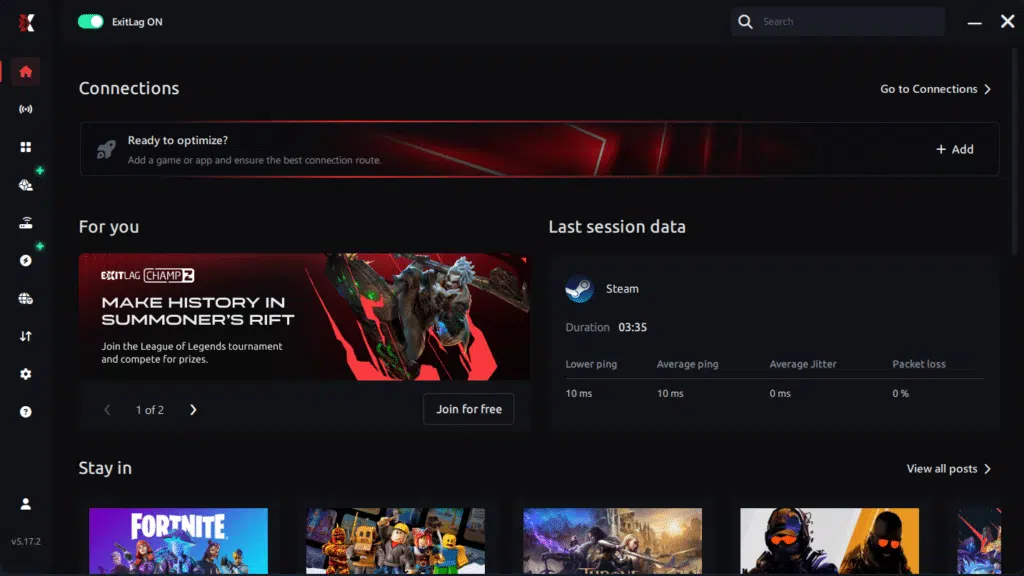
Step 3 – In the search bar, type “TeamSpeak 3” and select the game from the list.
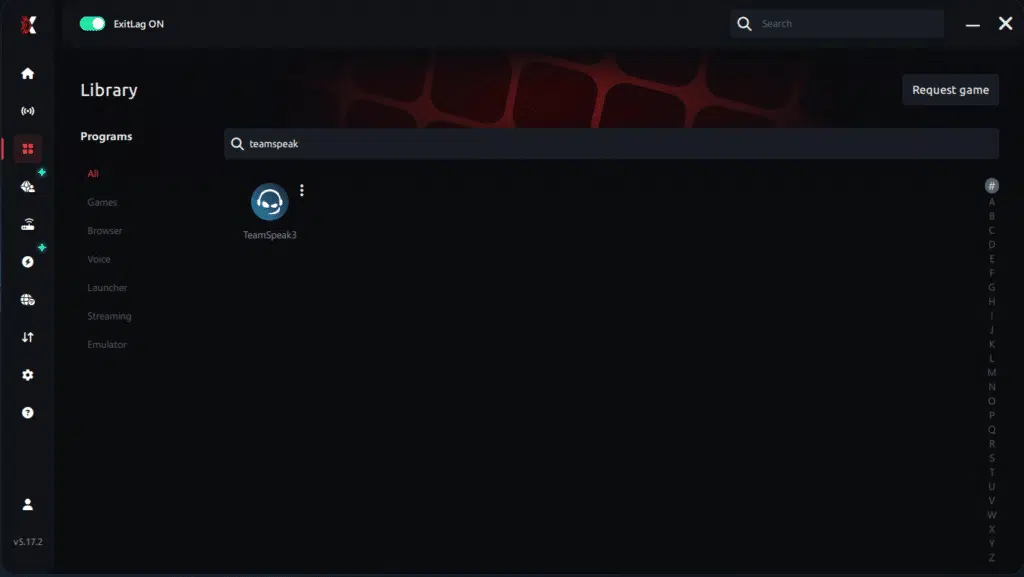
Step 4 – Choose between automated or manual route
Based on the results, you can let ExitLag automatically select the best route or manually choose the server that showed the lowest latency for your connection.
AI-optimized automated route
Based on the results, you can let ExitLag automatically select the best route through AI optimization. The system analyzes multiple connection paths in real time and automatically identifies the most efficient route for your connection, ensuring the lowest possible latency without requiring manual choices.
Manual route
If you prefer to have full control over your connection, you can manually choose the server based on the ping test results. Simply select the server that showed the lowest latency or the one that best meets your specific gaming needs, allowing complete customization of your experience.
Step 5 – Click “TeamSpeak 3” or the play button. ExitLag will begin optimizing your connection automatically.
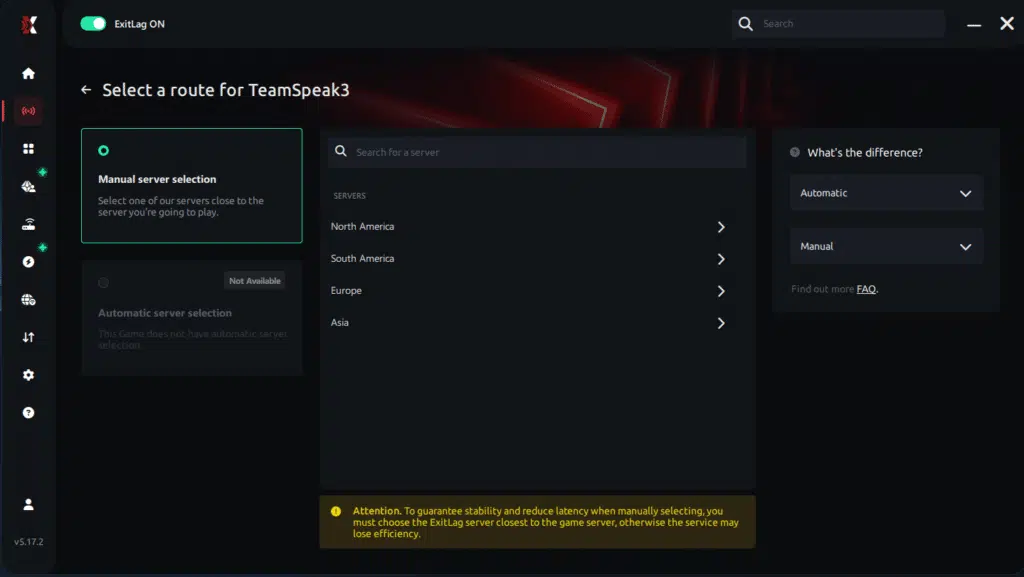
Step 6 – Wait a few seconds until optimization is complete. You’ll see ping indicators in the interface.

Step 7 – Launch TeamSpeak 3 normally. The optimization will already be active.
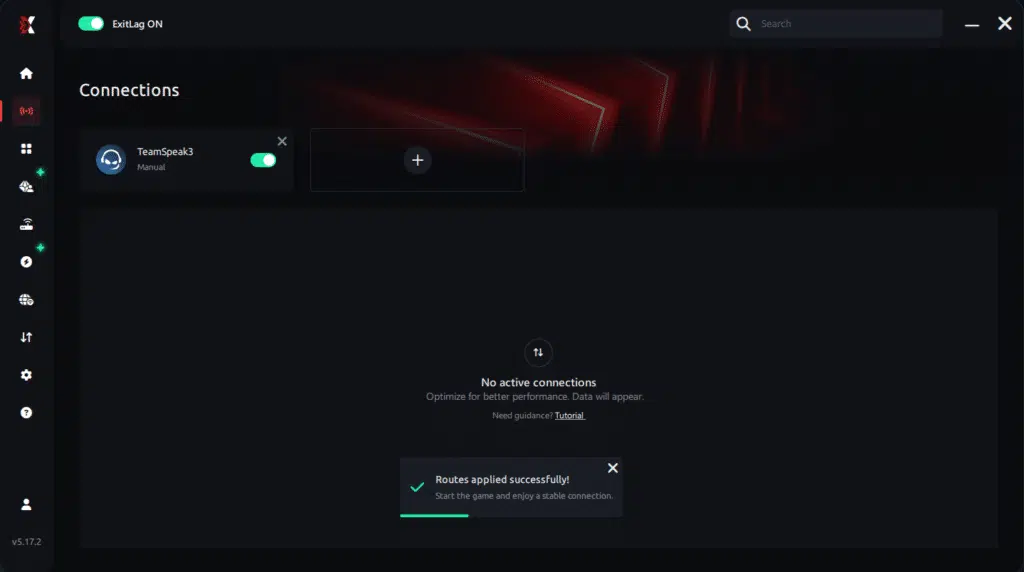
ExitLag runs in the background while you play, constantly adjusting routes to maintain the best possible performance.
FAQ: common questions about jitter in TeamSpeak 3
1. What’s the difference between jitter, lag, and packet loss?
Jitter = variation in timing.
Lag = delayed response due to high ping.
Packet loss = data packets never reach the server.
You can have low ping and still have terrible communication if jitter is high.
2. Why does my ping fluctuate in TeamSpeak 3?
Network congestion, unstable routing, Wi-Fi interference, ISP issues, or server distance all contribute to fluctuating ping.
3. Is jitter worse than high ping in TeamSpeak 3?
Often yes. High ping is at least predictable. Jitter is unstable, making timing impossible to anticipate.
4. How do I know if I have jitter?
If your communication feels inconsistent—sometimes instant, sometimes delayed—you likely have jitter. A continuous ping test confirms it.
5. Does Wi-Fi cause jitter?
Yes. Wi-Fi is extremely susceptible to interference, making jitter much more likely. Ethernet is always more stable.
6. Does ExitLag fix problems other than jitter?
Yes. ExitLag also reduces ping, prevents packet loss, stabilizes routing, and improves real-time performance across hundreds of supported games.
7. Do I need ExitLag open while using TeamSpeak 3?
Yes. The optimization must remain active throughout your session.
8. Does TeamSpeak 3 require a stable UDP connection?
Yes. Since it uses real-time UDP packets, any instability becomes noticeable immediately.

Conclusion
Jitter can make your TeamSpeak 3 communication unpredictable, frustrating, and unreliable—especially during competitive moments. But you don’t have to accept unstable voice quality as normal. With the right optimizations, especially using a specialized stabilization tool like ExitLag, you can eliminate ping variations, stabilize timing, and ensure crystal-clear communication.
Your gameplay, teamwork, PvP performance, and strategy execution all depend on real-time coordination. Don’t let instability sabotage your matches. With ExitLag, you can enjoy smooth, consistent communication exactly as TeamSpeak 3 was meant to deliver.
Explore more connectivity guides and performance tips at ExitLag blog connectivity guides.
Ready to eliminate jitter and stabilize your TeamSpeak 3 connection? Start your free trial now:
Start your ExitLag free trial
Got questions or want to connect with other players? Join the conversation at the ExitLag Forum!