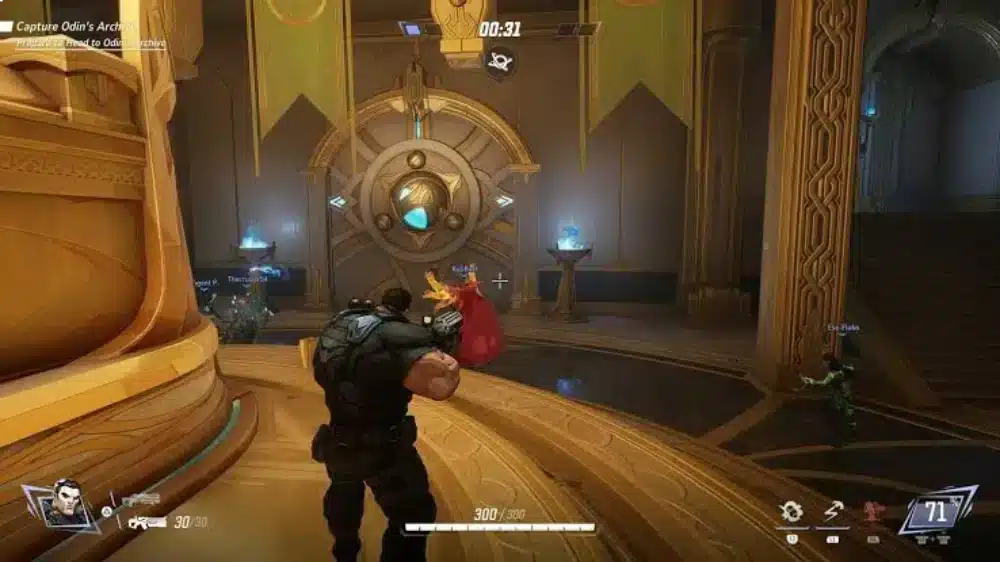
Even though Marvel Rivals is visually striking and action‑packed, many players are encountering performance issues—from stutters in large team fights to dips below 60 FPS on capable hardware. Optimization is a hot topic among the community, and with the game built in Unreal Engine 5 it presents specific hardware and software challenges.
Whether you’re on a mid‑range system or a high‑end rig, the game currently suffers from bottlenecks, resource usage inefficiencies, and frame‑pacing issues. In this guide you’ll find the settings, tweaks, and tools you need to run Marvel Rivals as smoothly as possible.
Why Marvel Rivals Needs Optimization
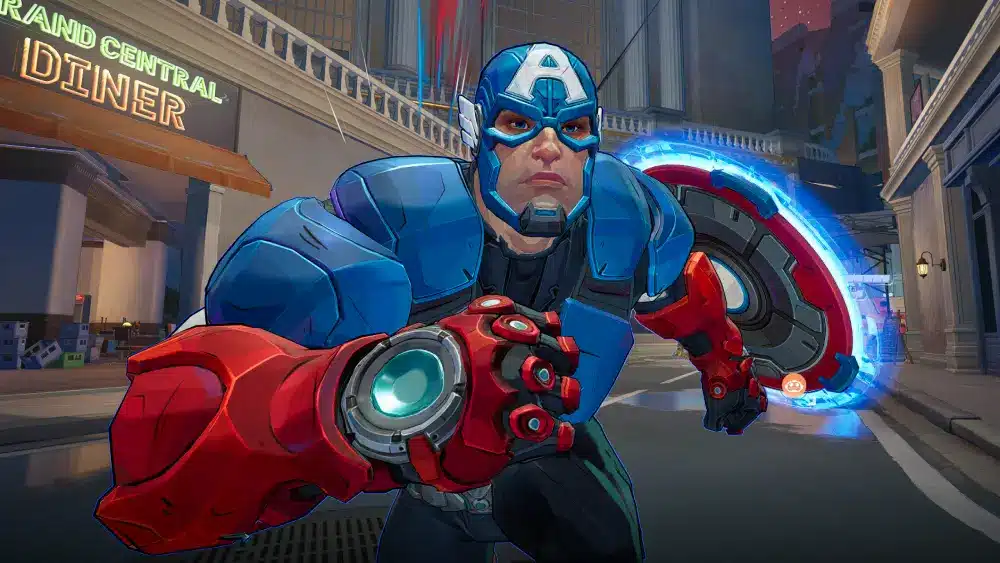
Many players wonder why Marvel Rivals seems poorly optimised despite modern hardware. The reasons include:
- Engine and resource management inconsistencies, particularly with Unreal Engine 5 overdraw and shaders.
- Heavy reliance on GPU (especially VRAM usage), with less efficient scaling in the CPU/multithreading domain.
- Default video settings often emphasise visual fidelity over performance, leading to unnecessary load.
- Large team fights and complex effects in 6v6 maps amplify frame‑time spikes and stutter.
These combine to cause FPS drops even on systems that otherwise meet “recommended” specs. The fix requires hands‑on adjustment rather than just default settings.
How to Optimize Marvel Rivals: Settings & Tweaks
General Graphics & Display Adjustments
| Setting | Recommended Value | Performance Impact |
| Resolution | Native or 1080p | Balances clarity and FPS |
| Fullscreen Mode | Enabled | Reduces input lag and improves frame stability |
| V‑Sync | Off | Minimises input delay; use with FPS cap |
| Frame Limit | 120 FPS (or unlimited if stable) | Helps reduce stutter and smoother pacing |
| Shadow Quality | Low or Medium | Large FPS boost when lowered |
| Anti‑Aliasing | TAA or FXAA | TAA is preferred for clarity |
| Texture Quality | Medium or High (depending on VRAM) | GPU/VRAM dependent |
| Effects Quality | Low | Reduces visual clutter and load |
| Post‑Processing | Off or Low | Disables heavy effects |
| Upscaling (FSR/DLSS) | On with Balanced/Performance preset | Big gain on supported GPUs |
These recommendations align with community and media reports showing which settings affect performance most.
Additional System Tweaks
- Run the game in Fullscreen rather than Windowed or Borderless.
- Disable Windows Game Mode and Xbox Game Bar while playing.
- Set Marvel Rivals to High Priority in Task Manager under Details tab.
- Update GPU drivers to the latest version (or rollback to a more stable one if newer drivers cause issues).
Why Your Performance Stills Drop: Common Bottlenecks
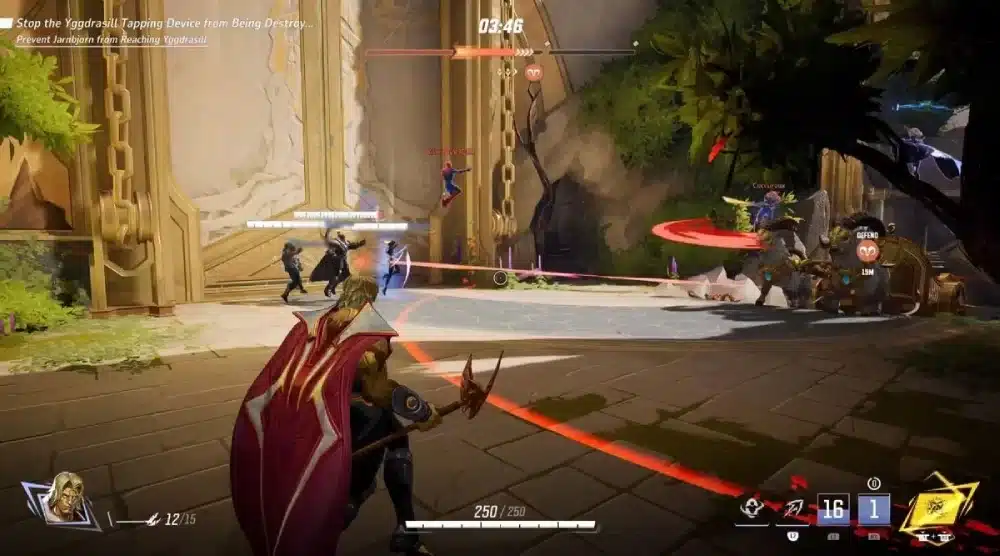
- Large 6v6 battles with multiple hero abilities create bursts of visual effects and shader loads.
- VRAM usage spikes, especially with high textures + effects + upscaling.
- Frame‑time inconsistencies (pacing) give the impression of stutter even if average FPS looks acceptable.
- Thermal throttling or background processes limiting GPU/CPU performance.
Addressing both in‑game and system‑level issues is key to smooth performance.
Step‑by‑Step Optimization Checklist
- Launch the game and go to Settings > Graphics.
- Lower Shadow Quality, Effects Quality, and Post‑Processing.
- Enable FSR (if using AMD or non‑DLSS GPU) or DLSS (on RTX cards).
- Disable V‑Sync, set Frame Limit to 120 or unlimited depending on your monitor.
- Set Fullscreen Mode; disable background overlays (Discord, Game Bar).
- Exit the game; open NVIDIA Control Panel or AMD Radeon Settings and force high performance for the game.
- Set Windows Power Plan to “High Performance”.
- Disable unnecessary startup apps; clear temp files and GPU shader cache.
- Relaunch the game, check performance using built‑in FPS overlay or tools like MSI Afterburner.
- Test in a team match or large map, monitor for frame drops or stutters; adjust settings further as needed.
Optimized Settings for Low‑End PCs
If you’re using older hardware or a budget system, these tailored settings help keep gameplay smooth:
- Resolution: 900p or 1080p (depending on GPU)
- Shadows: Off
- Textures: Medium
- Effects: Low
- Anti‑Aliasing: FXAA
- Upscaling (FSR/Quality mode) On
- V‑Sync: Off
- Disable motion blur, film grain, lens flare
These align with low‑end optimization guides in the community. techwiser.com
Modding, Tools & Utilities
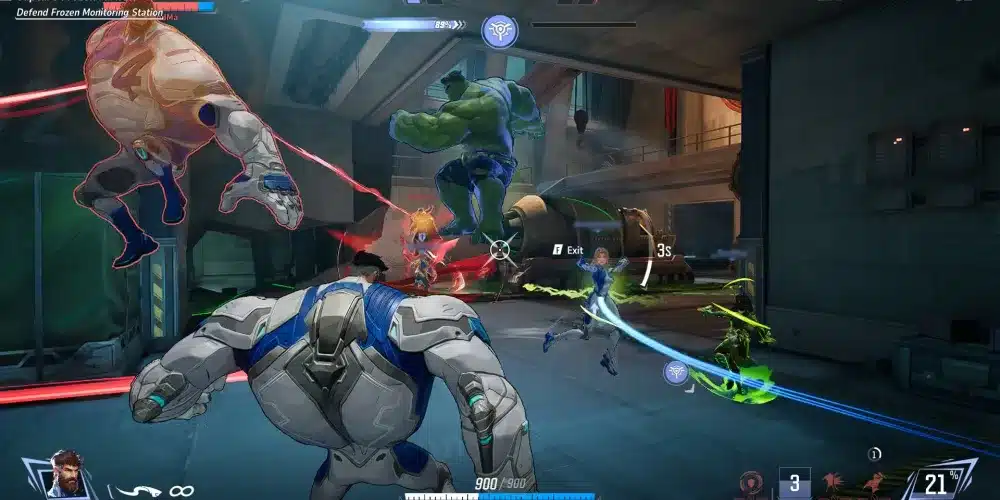
- Currently, official mod support is disabled for Marvel Rivals—modifying game files may violate terms and risk bans.
- Tools that help monitoring and system optimization:
- MSI Afterburner – GPU/CPU temp & usage monitoring
- Process Lasso – CPU affinity control
- ISLC (Intelligent Standby List Cleaner) – helps clear memory stutters
- Razer Cortex – one‑click game booster
- MSI Afterburner – GPU/CPU temp & usage monitoring
How ExitLag Helps Boost Marvel Rivals Performance
While the settings above focus on FPS and rendering performance, multiplayer matches often suffer due to network lag, packet loss, and matchmaking delays. ExitLag helps in those areas by:
- Optimising route‑to‑server in real time to reduce ping and jitter
- Preventing packet loss or disconnections during intense team phases
- Stabilising your network connection so your hardware optimisation isn’t undermined by lag
Quick Start:
- Create an ExitLag account
- Download and install the app
- Select Marvel Rivals from the game list
- Apply recommended routes and launch the game
Start your Exitlag 3 days Trial!
GPU‑Level Optimisation for Marvel Rivals
For NVIDIA Users
- Open NVIDIA Control Panel → Manage 3D Settings
- Add Marvel Rivals as a program and apply:
- Power Management Mode: Prefer Maximum Performance
- Threaded Optimization: On
- Low Latency Mode: Ultra
- Shader Cache: On
- Texture Filtering: High Performance
- Power Management Mode: Prefer Maximum Performance
For AMD Users
- Open AMD Radeon Software → Gaming Tab
- Adjust the following settings:
- Radeon Anti‑Lag: Enabled
- Texture Filtering Quality: Performance
- Surface Format Optimization: Enabled
- Chill: Off
- Frame Rate Target Control: 120 or Unlimited
- Radeon Anti‑Lag: Enabled
These adjustments leverage manufacturer‑level controls to reduce latency and improve frame stability.
Advanced Windows & System Tweaks
- Disable Hardware‑Accelerated GPU Scheduling (HAGS) if using older GPUs—it can introduce instability.
- Turn off Game Mode and background recording in Xbox Game Bar.
- Use ISLC (Intelligent Standby List Cleaner) to regularly clear RAM standby pools.
- In Power Options, set your processor minimum and maximum to 100% to prevent throttling.
These tweaks address underlying system behaviour that often bottlenecks performance even when in‑game settings are optimised.
CPU Undervolting & Thermal Stability
If your CPU frequently hits high temperatures (e.g., >85 °C) under load, consider undervolting:
- Use Intel XTU or AMD Ryzen Master to reduce core voltage gently.
- Monitor with HWInfo64 or Core Temp.
- Improve case airflow and use fresh thermal paste if needed.
Maintaining lower core temps helps the CPU sustain higher clocks and ensures consistent performance during heavy multiplayer matches.
Community Config Tweaks & Custom Files
Some moderators and community users (Reddit/GitHub) provide low‑spec .ini files and shader‑strip config packs for extra performance:
- These can disable or lighten post‑processing, bloom, volumetrics, etc.
- Useful for very low‑end systems or integrated GPUs.
- Always back up original config files before applying.
- Use trusted community sources (NexusMods, GitHub).
Proceed with caution—modifying config files may be unsupported by the developer.
How ExitLag Enhances Stability & Performance
While most optimisation deals with visuals and frame rate, ExitLag addresses the network dimension—critical in multiplayer titles like Marvel Rivals.
With ExitLag you get:
- Real‑time routing optimisation to reduce ping and jitter.
- Traffic shaping that prevents packet loss during heavy ability‑effect sequences.
- Automatic failover to keep you connected even if your primary path degrades.
- Improved frame stability by preventing network‑related hiccups that can manifest as micro‑stutter.
If you’re running a build where every millisecond counts—especially in competitive modes—this kind of network boost can matter.
FAQ: Advanced Optimisation for Marvel Rivals
Yes—when done carefully. Incremental voltage reductions with monitoring are standard practice in gaming PCs. Always test for stability after changes.
DLSS (on NVIDIA cards) provides better image clarity and performance. FSR is more broadly compatible. Choose based on your GPU and resolution.
Primarily it reduces ping and packet loss, but indirectly it can improve FPS/stability by removing network‑related delays and stutter.
Got questions or want to connect with other players? Join the conversation at the ExitLag Forum!