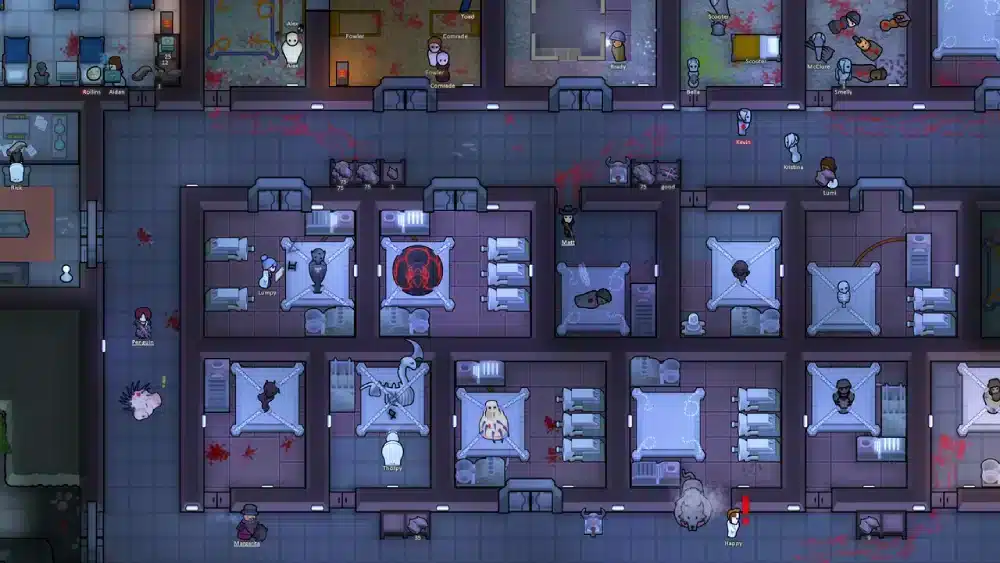
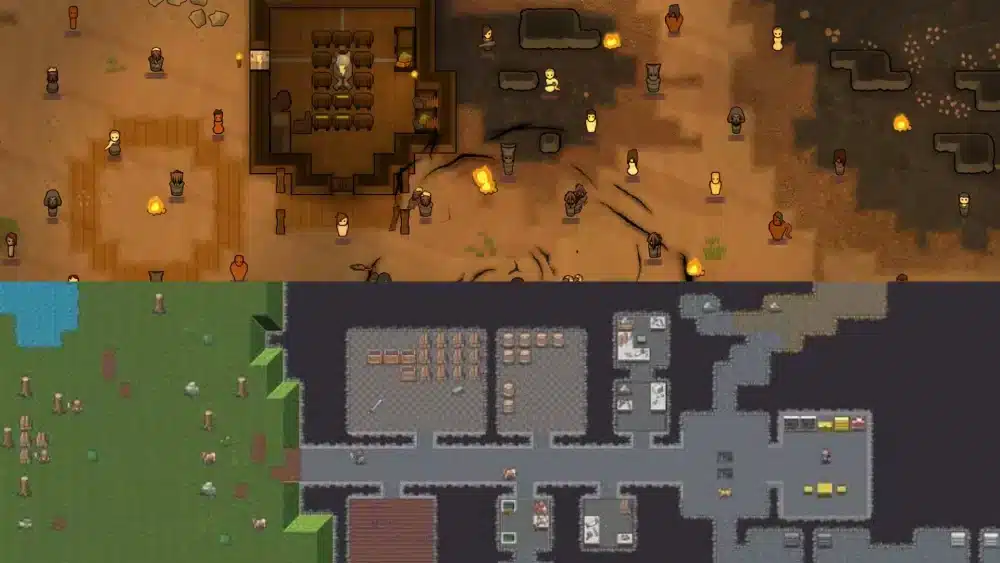
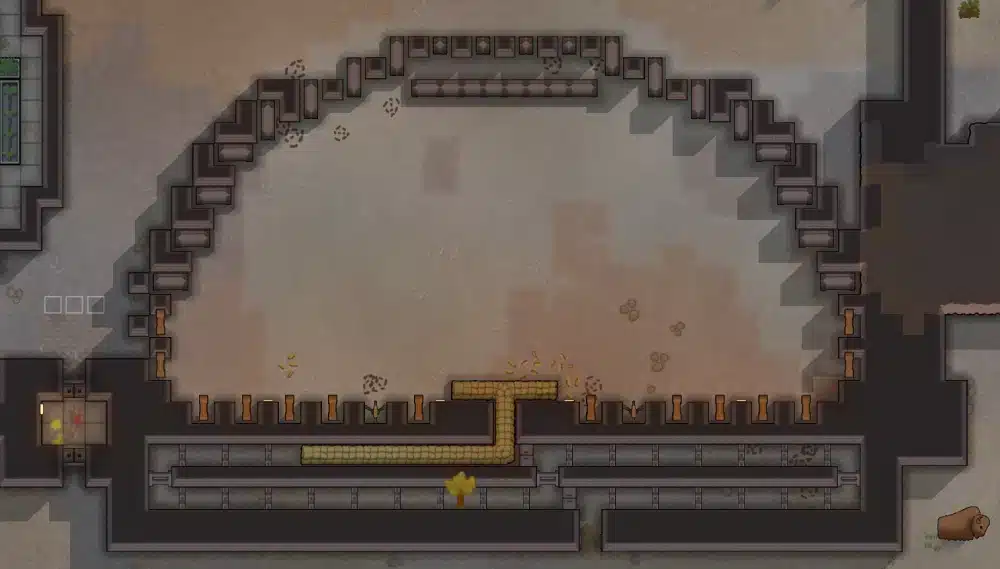
The rimworld workshop is one of the main reasons why RimWorld remains one of the most popular colony simulation games on Steam. Thanks to a massive modding community, players can transform almost every aspect of the game, from simple interface improvements to complete gameplay overhauls.
For many players, the rimworld workshop is the true endgame experience. Instead of playing the same scenarios repeatedly, mods introduce new factions, mechanics, technologies, and storytelling possibilities that keep every colony fresh and unpredictable. And before we continue, know that to know more about all the relevant content about gaming, you just have to check our blog.
What is the RimWorld Workshop and why do players use it?
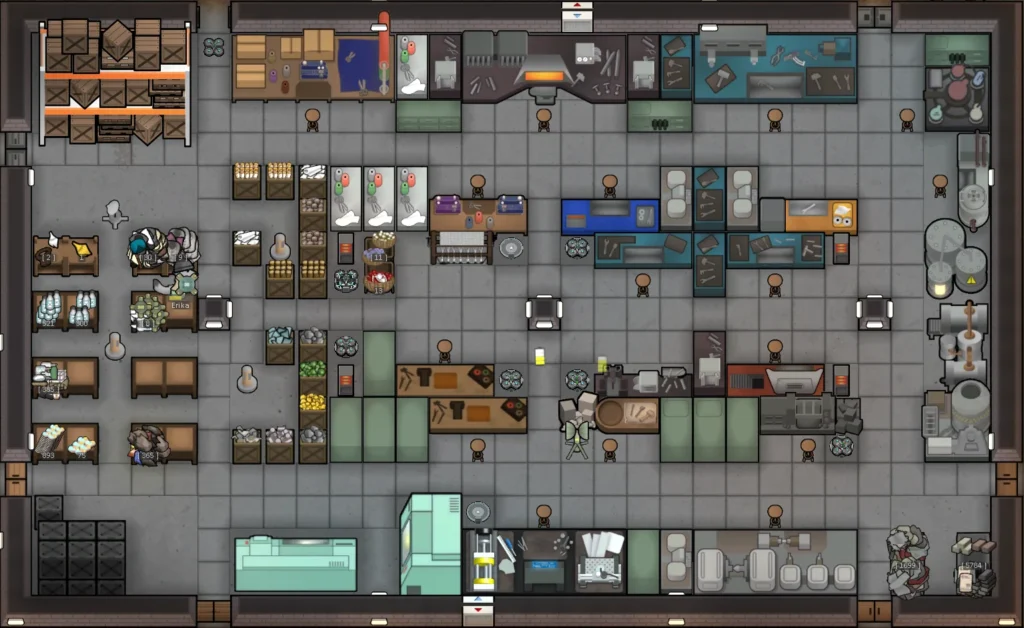
Whether you’re new to rim world or already managing dozens of successful colonies, understanding how the Workshop works can dramatically improve your gameplay. More importantly, it helps you build a personalized experience that matches exactly how you want to play.
RimWorld is a sci-fi colony simulation game developed by Ludeon Studios. Since its release, the game has embraced modding, allowing players to expand and customize nearly every system through the Steam Workshop.
The Workshop acts as a central hub where players can discover, download, and manage community-created content. Instead of manually installing files, users simply subscribe to a mod and activate it inside the game.
How the RimWorld Workshop works
The Steam Workshop simplifies mod installation by handling downloads and updates automatically. Once a player subscribes to a mod, Steam downloads the files in the background.
After launching the game, the mod appears inside the Mods menu, where it can be enabled or disabled with a few clicks.
This approach makes modding accessible even for players with no technical experience. As a result, thousands of creators actively contribute new content every year.
Why the community keeps RimWorld alive through mods
One of the biggest strengths of rimworld mods is variety. Some creators focus on realism, while others introduce fantasy creatures, advanced technologies, or entirely new planets.
In other words, no two modded playthroughs are exactly alike.
Many players spend hundreds or even thousands of hours experimenting with different mod combinations. Because of that, the Workshop has become a core part of the game’s identity.
Popular reasons players use mods include:
- Improving quality of life
- Expanding colony management systems
- Adding new factions and storytellers
- Creating unique roleplay scenarios
- Increasing replayability
Check also: RimWorld Steam: The Ultimate Guide for Survival and Mods
How to install RimWorld mods from Steam Workshop
Installing mods through the Workshop is straightforward. However, following the correct process helps avoid future compatibility problems.
Before adding dozens of mods, it is important to understand how subscriptions, dependencies, and load orders work.
Finding the best mods
The Workshop includes thousands of community projects. Fortunately, Steam provides search filters and categories that make finding content easier.
You can search by popularity, rating, update date, or specific tags.
Many players start by browsing collections created by experienced community members. These collections often include tested mod lists designed around specific themes.
Popular categories include:
- Colony management
- Combat improvements
- Building expansions
- Storytelling enhancements
- Performance optimization
How to activate and organize mods correctly
After subscribing to a mod, launch RimWorld and open the Mods menu.
The game will display all installed content and allow you to enable or disable individual entries.
A basic installation process looks like this:
- Open the RimWorld Workshop page.
- Subscribe to the desired mod.
- Launch the game.
- Open the Mods menu.
- Enable the mod.
- Restart the game.
Many larger mods depend on frameworks such as Harmony or HugsLib. Therefore, always read the description before activating new content.
Check also: Dwarf Fortress vs RimWorld: Which Colony Sim Is Better?
Best RimWorld mods to improve your colony
Choosing the right mods can completely transform your colony. While there are thousands of options available, some projects have become essential for the community.
These mods improve stability, usability, and overall gameplay without changing the core RimWorld experience too drastically.
Quality-of-life RimWorld mods
Quality-of-life improvements are often the best starting point for beginners.
Many of these projects streamline common tasks, reduce micromanagement, and provide clearer information about colonists and resources.
Some of the most recommended rimworld mod projects include:
- Harmony
- HugsLib
- Mod Manager
- RimHUD
- Common Sense
- Allow Tool
Together, these additions create a smoother experience without fundamentally altering gameplay balance.
Performance and interface improvements
As colonies become larger, performance can become a challenge. Fortunately, many Workshop creators focus on optimization.
Several interface mods also provide additional information that helps players make better decisions.
For example, improved colonist panels can display mood, health, equipment, and skills more efficiently than the default interface.
At the same time, optimization tools help reduce slowdowns during late-game colony development.
You may also like: RimWorld Killbox Guide: Best Defense Layouts for Survival
How the RimWorld Wiki helps with Workshop mods
While the Workshop is the primary source for mods, many players also rely on the rimworld wiki when troubleshooting issues or learning advanced mechanics.
The Wiki contains extensive information about game systems, item definitions, research trees, and mod dependencies.
Using the RimWorld Wiki to solve mod conflicts
Sometimes a mod stops working after a game update or conflicts with another project.
When this happens, community documentation can save hours of troubleshooting.
Many creators reference Wiki pages when explaining compatibility requirements or gameplay changes.
As a result, experienced players often use both the Workshop and the Wiki together.
Learning mod dependencies before installing
Certain mods require additional frameworks to function properly.
For example, some content packs rely on Harmony, while others require specialized libraries or compatibility patches.
Checking documentation before installation reduces crashes and prevents unnecessary load-order problems.
Even more importantly, it allows players to build stable mod lists that can support long-term colony saves.
ExitLag and RimWorld multiplayer mods
Although RimWorld is primarily a single-player experience, multiplayer modifications have become increasingly popular in recent years.
These projects allow players to build colonies together, manage resources cooperatively, and experience RimWorld in entirely new ways.
When using multiplayer mods, connection quality becomes much more important. Stable routes and lower network interruptions help reduce synchronization issues between players. As multiplayer content continues to expand, tools like ExitLag can help maintain a smoother and more reliable experience when managing colonies with friends across different regions.
ExitLag can drastically improve your gameplay for an accessible price. To know more, check our pricing page.
Advanced RimWorld Workshop tips for large mod collections
As your collection grows, managing the rimworld workshop becomes increasingly important. While installing a handful of mods is simple, maintaining a stable colony with dozens or even hundreds of modifications requires planning and organization.
Fortunately, several community tools make this process much easier. By following proven practices, you can enjoy a heavily modded experience without constant crashes, performance issues, or compatibility errors.
How to manage hundreds of mods
The first step is creating a structured mod list. Instead of randomly adding content, organize your mods into categories such as user interface, factions, gameplay mechanics, and visual enhancements.
This approach makes troubleshooting significantly easier when problems appear.
Many experienced players also create separate profiles for different playthrough styles. For example, one profile may focus on realism, while another centers around science fiction or medieval storytelling.
Best load order practices
Load order plays a major role in overall stability. Some mods modify the same systems, which can cause conflicts if loaded incorrectly.
To reduce issues, follow this structure:
- Core libraries and frameworks
- Gameplay systems
- New factions and races
- Buildings and furniture
- User interface improvements
- Visual and cosmetic mods
Similarly, regularly checking compatibility notes can prevent future headaches.
Check also: RimWorld Not Letting Me Move My Pawn: Causes, Fixes, and Advanced Troubleshooting
RimWorld mod categories worth trying in 2025
One of the reasons rimworld mods remain so popular is the incredible variety available through the Workshop.
Whether you want deeper storytelling, expanded combat, or additional construction options, there is almost always a mod designed for your preferred playstyle.
Gameplay overhaul mods
Gameplay overhauls dramatically change how colonies function.
Some introduce new combat systems, while others redesign progression, resource management, or faction interactions.
These projects are ideal for experienced players looking for fresh challenges after mastering the base game.
Faction and storytelling mods
Storytelling is one of RimWorld’s greatest strengths. Therefore, many creators focus on expanding the game’s narrative potential.
New factions, quests, events, and technologies can create entirely different experiences from one colony to another.
The following table highlights popular Workshop categories:
| Mod Category | Main Purpose | Difficulty |
| Quality of Life | Better usability and automation | Easy |
| Interface Mods | Improved information display | Easy |
| Faction Mods | New enemies and allies | Medium |
| Story Mods | Expanded events and quests | Medium |
| Total Conversion Mods | Complete gameplay overhaul | Advanced |
| Performance Mods | Better late-game stability | Easy |
Because of this variety, players can customize every aspect of their colonies while maintaining the core spirit of rim world.
You may also like: RimWorld Cheats: Master the Tools to Bend the Game
Can you create your own RimWorld mod?
Many players eventually move from downloading content to creating it.
Fortunately, RimWorld offers one of the most accessible modding environments available on Steam.
Basic XML mods
Simple modifications can be created using XML files.
These files allow creators to adjust:
- Item values
- Research costs
- Building statistics
- Crafting recipes
- Resource generation
In many cases, no programming experience is required.
Advanced C# modding
For deeper customization, developers use C# to create entirely new mechanics.
Advanced projects can introduce custom AI systems, unique combat features, new storytellers, and completely original gameplay loops.
As a result, some Workshop projects feel closer to full expansions than traditional mods.
Many creators begin with small XML changes before moving toward larger C# projects.
Common RimWorld Workshop problems and fixes
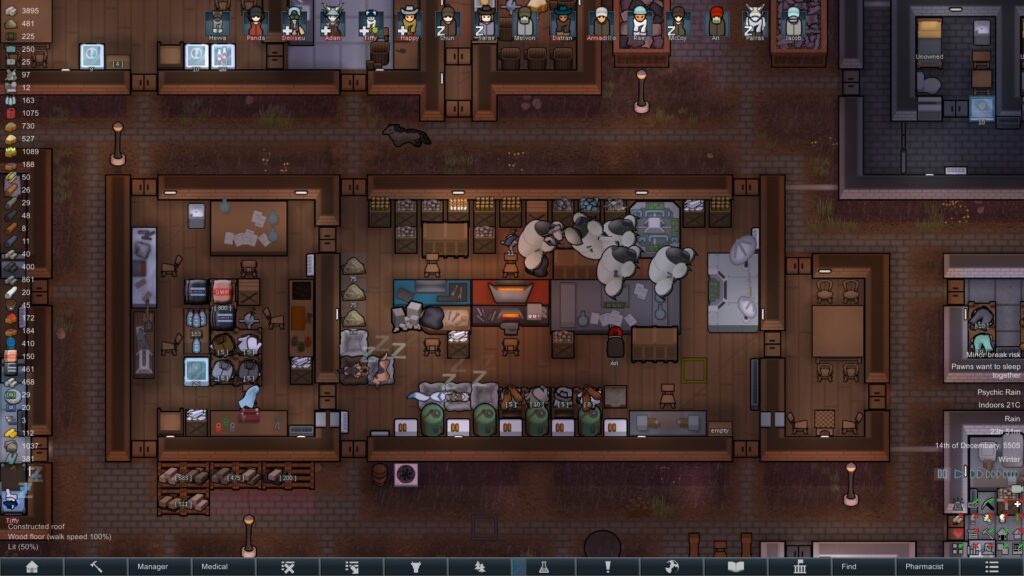
Even well-organized mod lists can occasionally encounter issues.
Understanding common problems allows players to fix them quickly and return to managing their colonies.
Mods not loading
If a mod fails to appear inside the game, start by verifying that the subscription completed correctly through Steam.
Next, restart both Steam and RimWorld.
Many issues occur because players forget to activate the mod inside the Mods menu after downloading it.
Crashes after updates
Major game updates occasionally break older modifications.
When this happens:
- Disable recently added mods
- Check dependency requirements
- Verify game version compatibility
- Read recent Workshop comments
- Test mods in smaller groups
In other words, patience and systematic testing usually solve most issues.
The rimworld wiki can also provide useful information about version changes, dependencies, and troubleshooting recommendations.
Read also: RimWorld DLC: Complete Breakdown, Rankings & Expansion Insights
Why ExitLag improves multiplayer RimWorld experiences
Although RimWorld is primarily designed as a single-player game, multiplayer mods continue to gain popularity.
As a result, network performance becomes more important than many players expect.
Multiplayer synchronization
Large colonies generate significant amounts of data during multiplayer sessions.
Every action must be synchronized between players to maintain consistency across the game world.
Stable routing helps reduce delays and minimizes desynchronization problems.
Reduced connection instability
Connection interruptions can create frustrating issues during cooperative sessions.
ExitLag helps optimize routing paths and improve connection stability for supported multiplayer environments.
This creates a smoother experience when managing colonies alongside friends from different regions.
Above all, maintaining stable connections allows players to focus on storytelling, colony management, and survival instead of technical problems. Use the free trial to explore all features!
Frequently asked questions
The RimWorld Workshop is Steam’s official mod distribution platform for RimWorld. It allows players to browse, install, update, and manage community-created content with just a few clicks. Through the Workshop, users can access thousands of modifications that enhance gameplay, improve quality of life, add factions, introduce new technologies, and expand storytelling possibilities.
Installing mods is straightforward. Open the RimWorld Workshop page on Steam, find a mod you want, and click Subscribe. Steam automatically downloads the files. After launching the game, open the Mods menu, enable the mod, and restart RimWorld. Most installations take only a few minutes, making modding accessible even for beginners.
Yes. The vast majority of Workshop content is completely free for anyone who owns RimWorld on Steam. Players can subscribe to as many compatible mods as they want, although larger mod lists may require additional organization and load-order management to maintain stability.
Yes. While RimWorld is primarily a single-player title, multiplayer modifications rely on stable network communication. ExitLag can help improve connection stability, reduce route-related issues, and provide a smoother experience during cooperative colony sessions with players from different regions. You should check more games compatible with ExitLag at our official games page.
Absolutely. RimWorld was designed with modding support in mind. Beginners can create simple XML-based modifications that adjust values, items, or buildings. More advanced creators can use C# to develop entirely new systems, mechanics, and gameplay experiences for the community.
The rimworld wiki is an excellent resource for both players and mod creators. It contains information about game mechanics, item definitions, research trees, technical documentation, and compatibility details that can help users better understand how mods interact with the game.
In conclusion
The Workshop remains one of the biggest reasons RimWorld continues to thrive years after release. From small quality-of-life improvements to massive gameplay overhauls, the community constantly creates new ways to experience the game. Whether you’re exploring your first mod or building a collection of hundreds, the rimworld workshop offers endless opportunities to customize every colony.
And if you’re playing multiplayer modded sessions, ExitLag can help deliver a smoother and more stable experience so you can focus on creating unforgettable stories across the Rim. Download ExitLag now!
Got questions or want to connect with other players? Join the conversation at the ExitLag Forum!